MOBILE APP
App Bridge
App Bridge is the WordPress plugin that connects your site to the FlyHR mobile app. Without App Bridge, the app cannot sign in to your site. The same plugin connects the other weDevs mobile apps, so it can serve FlyHR, WP ERP, and more.
You install App Bridge on the site where FlyHR runs. All HR data stays on your site. The app reads and saves it through App Bridge.
What App Bridge does
| Job | What it means |
|---|---|
| Sign-in | App Bridge checks the username and the password of the employee and gives the app a sign-in token. The token is valid for 7 days. |
| License check | App Bridge refuses requests from the app when the app license of your site is not active. The app then shows "Your FlyHR App license key is invalid". |
| App settings | App Bridge tells the app the name, the icon, the time zone, the date format, and the language of your site. It also tells the app which FlyHR Pro modules are on, so the app shows only those features. |
| Push notifications | App Bridge sends messages from your site to the phones of your employees through OneSignal. See Connect OneSignal. |
| Password reset | When an employee taps Forgot Password? in the app, App Bridge emails a 6-digit code. The code is valid for 10 minutes. |
What you need
- You must be a WordPress administrator.
- FlyHR and FlyHR Pro, installed and active.
- For push notifications, a free OneSignal account with an app for your FlyHR app.
- One of these:
- an active FlyHR Pro Agency license, for the standard app
- an app license key, for a custom-branded app
Where to get App Bridge
App Bridge is not on WordPress.org.
- Agency plan: our support team contacts you and provides App Bridge.
- Custom-branded app: App Bridge and your app license key are in your account on my.wedevs.com after you order.
For the steps, see Set Up the Free FlyHR App or Set Up a Custom-Branded App.
The App Bridge menu
After you activate App Bridge, your WordPress admin has an App Bridge menu. Click App Bridge → FlyHR App to open the settings of the FlyHR app.
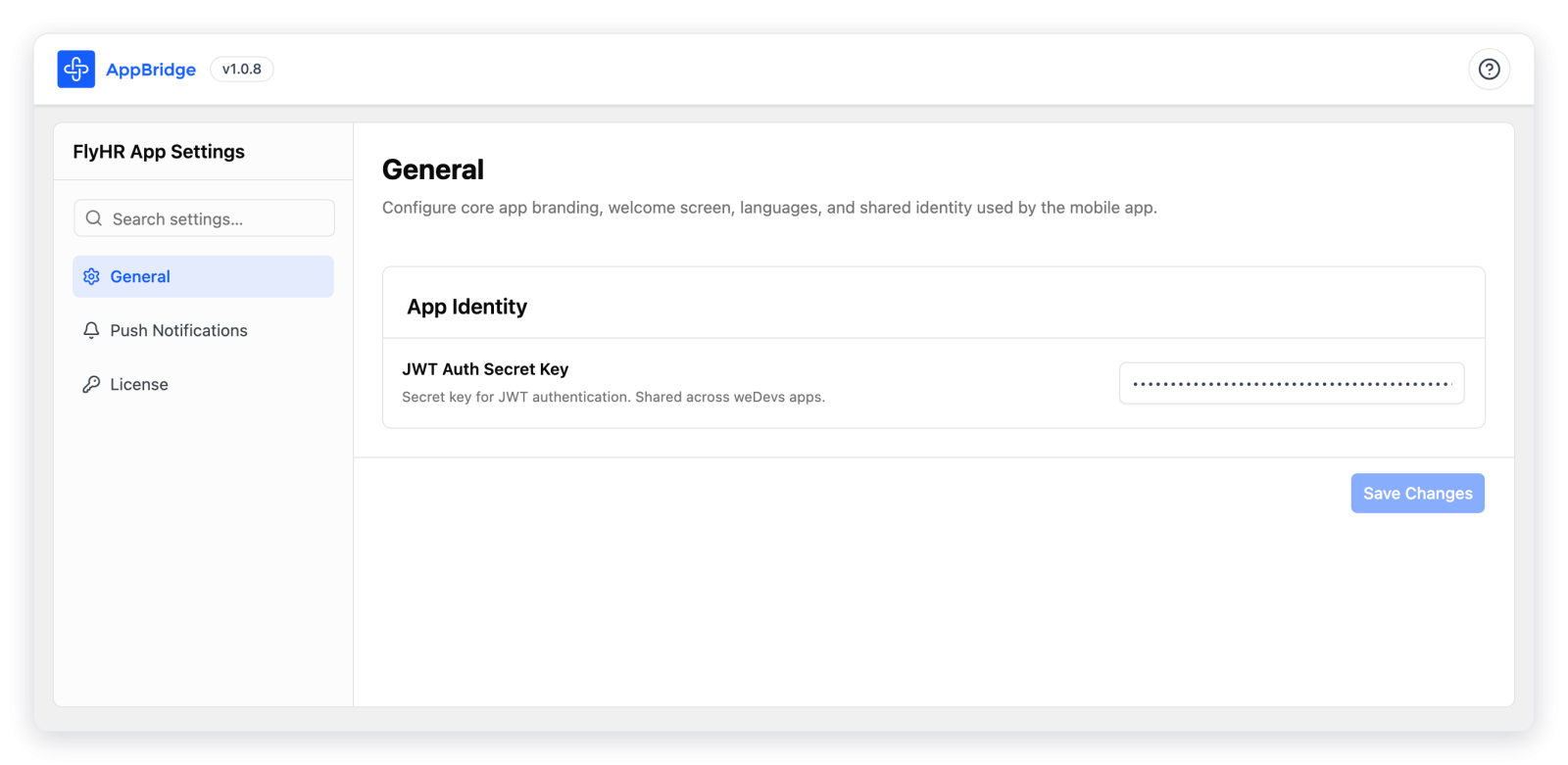
The page has three sections:
| Section | What you do there |
|---|---|
| General | See the JWT Auth Secret Key that signs the sign-in tokens. |
| Push Notifications | Connect OneSignal and send messages to the app. |
| License | Select the free app or a white-label app, and activate the license. |
General: the JWT Auth Secret Key
The JWT Auth Secret Key signs the sign-in tokens of the app. App Bridge makes a random key when you activate the plugin. You do not have to change it.
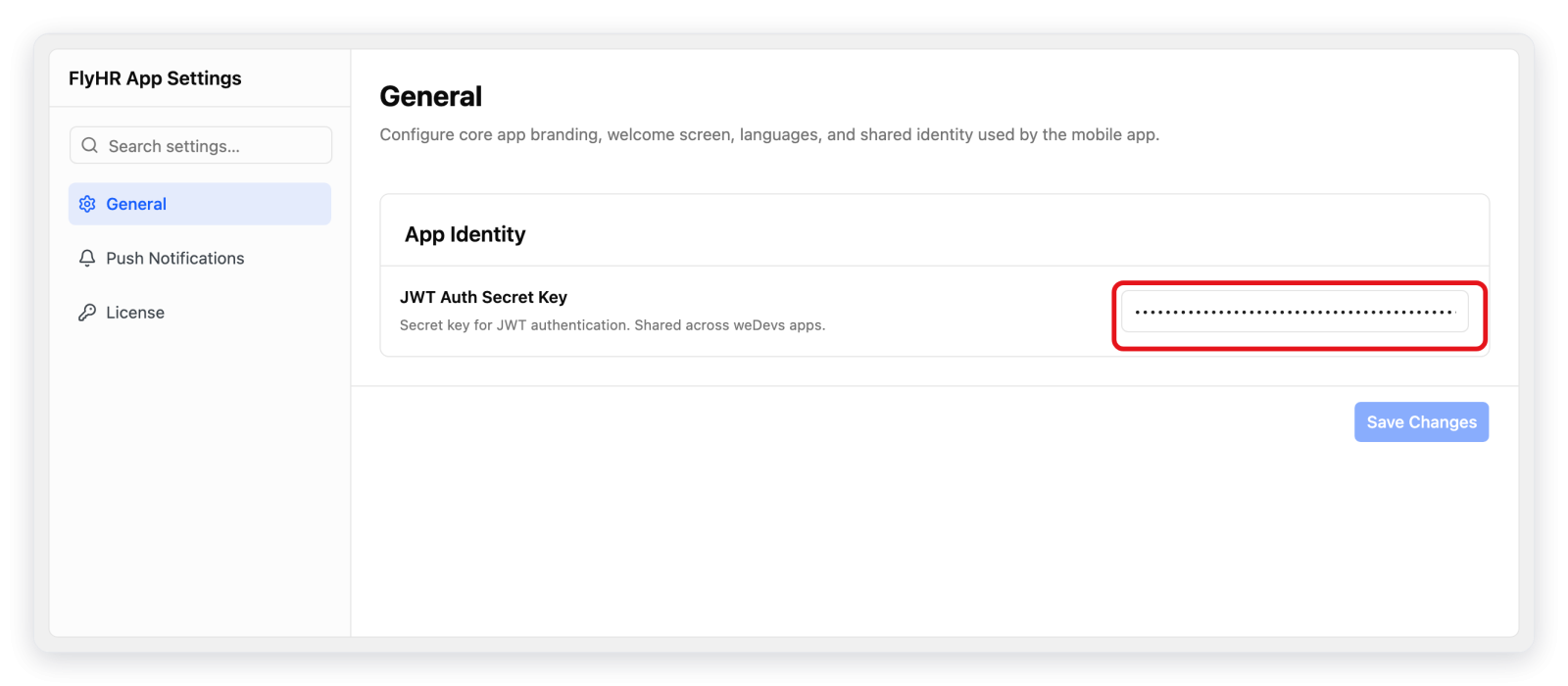
Caution: Do not share this key. If you change it, all employees are signed out of the app and must sign in again. Other weDevs apps on the same site use the same key.
Push Notifications: connect OneSignal
- Go to App Bridge → FlyHR App.
- Click Push Notifications.
- On the Configuration tab, keep OneSignal as the Provider.
- Type your OneSignal App ID.
- Type your OneSignal REST API Key.
- Click Save Changes.
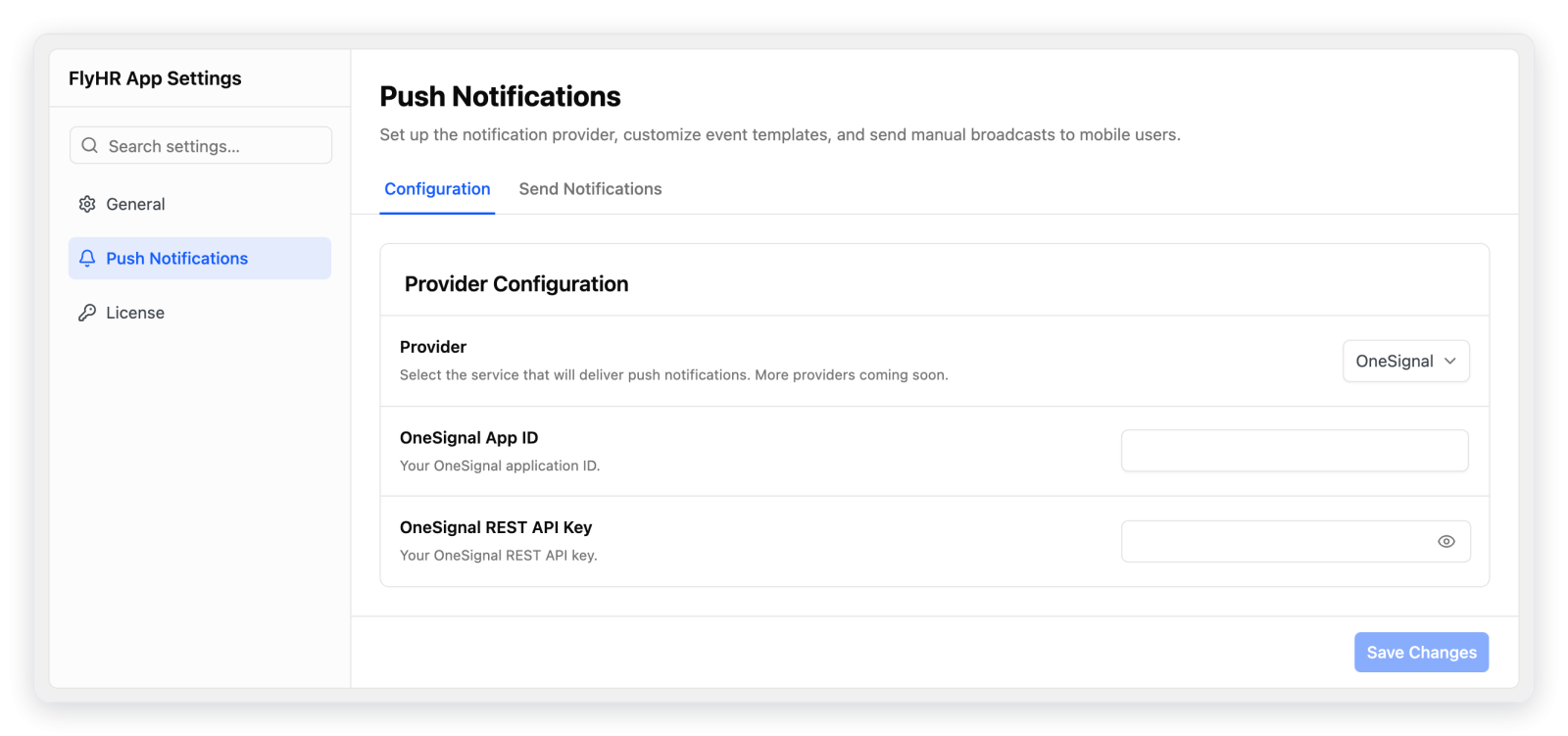
You find the App ID and the REST API Key in your OneSignal dashboard, in the settings of your app. When the App ID is saved, the app turns on push notifications.
Send a push notification
- Click Push Notifications, then click the Send Notifications tab.
- In Send To, select one option:
- Specific Users: select the people in Users.
- Specific Roles: select the roles, for example Employee.
- Type the Title and the Message Body.
- Click Send Notification.
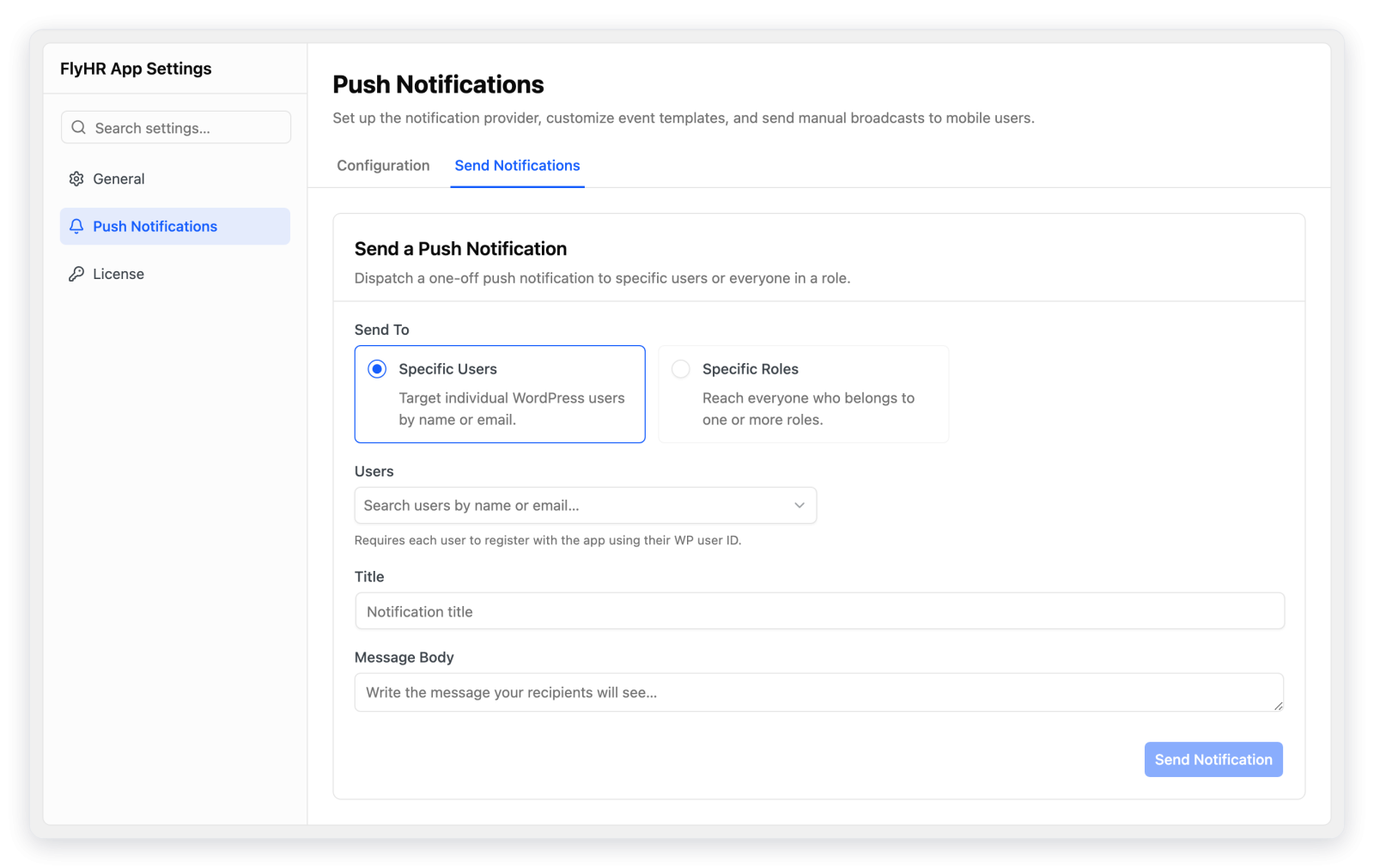
The message goes only to people who signed in to the app on their phone. A person who never opened the app does not get it.
The fields
| Field | Section | What it means |
|---|---|---|
| JWT Auth Secret Key | General | The secret that signs the sign-in tokens. Made by App Bridge. |
| Provider | Push Notifications → Configuration | The service that delivers the messages. Today only OneSignal. |
| OneSignal App ID | Push Notifications → Configuration | The ID of your app in OneSignal. |
| OneSignal REST API Key | Push Notifications → Configuration | The key that lets your site send through OneSignal. Click the eye icon to show it. |
| Send To | Push Notifications → Send Notifications | Specific Users or Specific Roles. |
| Users / Roles | Push Notifications → Send Notifications | Who gets the message. |
| Title, Message Body | Push Notifications → Send Notifications | The text of the message. |