MOBILE APP
Set Up the Free FlyHR App
The FlyHR Pro Agency plan (Annual/LTD) includes the standard FlyHR app for all your employees. Your FlyHR Pro plugin license key also activates the app. You do not need another key.
Before you start
- You must be a WordPress administrator.
- FlyHR and FlyHR Pro must be installed and active.
- Your FlyHR Pro license must be active on the Agency plan. See FlyHR Pro: Install, Plans, and License.
Step 1: Get App Bridge
When you buy the Agency plan, our support team contacts you and provides App Bridge.
Step 2: Install App Bridge
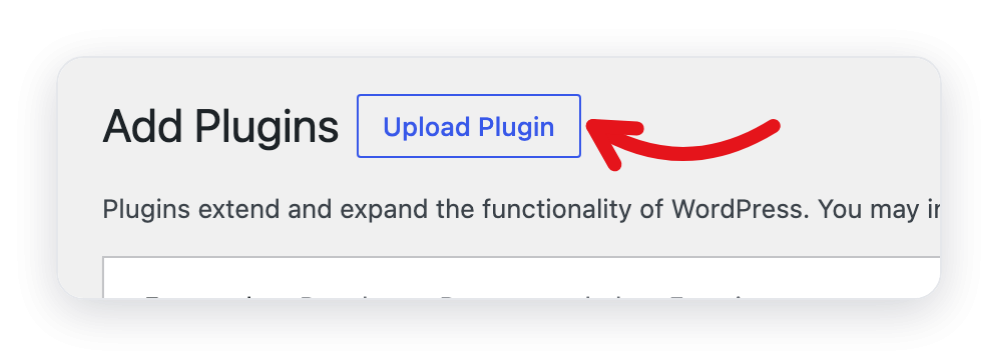
- In your WordPress admin, go to Plugins → Add Plugin.
- Click Upload Plugin at the top of the page.
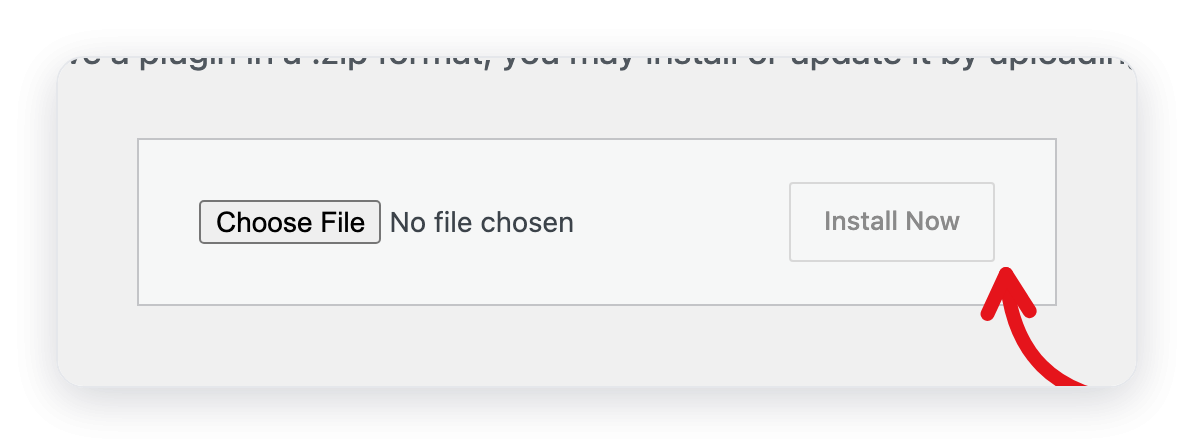
- Click Choose File and select the App Bridge zip file.
- Click Install Now.
- Click Activate Plugin.
Step 3: Select the free app
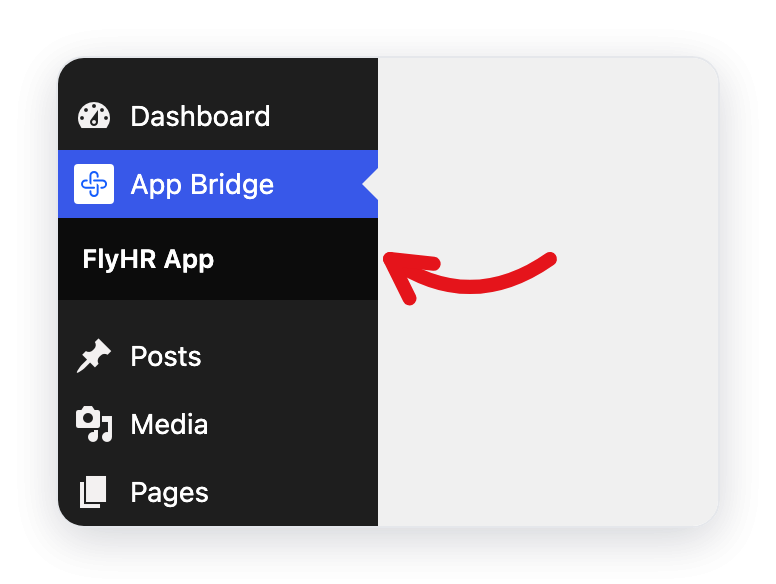
- In your WordPress admin, go to App Bridge → FlyHR App.
- Click License.
- In Which app do you use?, select Free app.
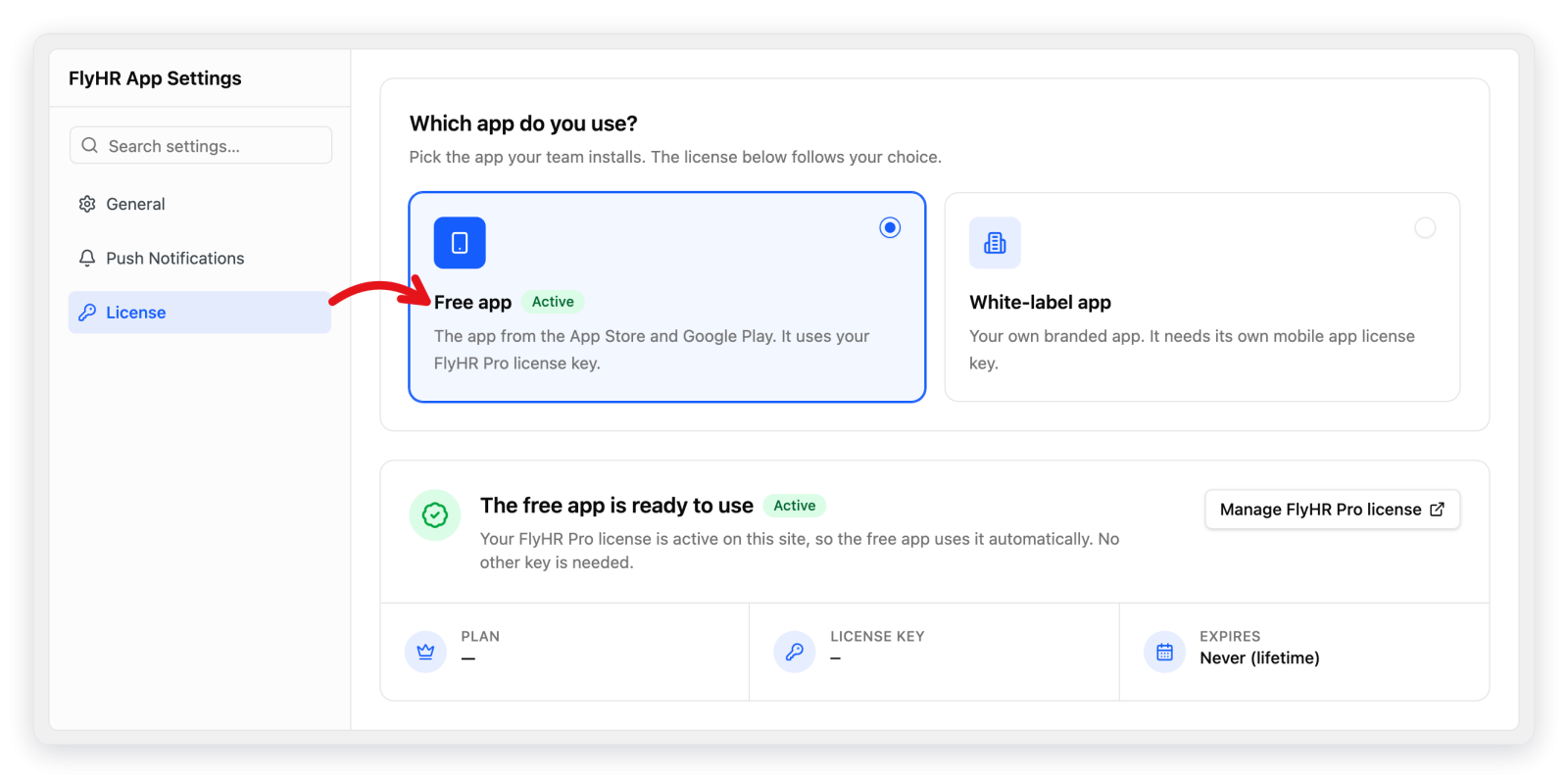
App Bridge shows The free app is ready to use with the label Active. The app now works for your site.
If your FlyHR Pro license is not active, or is on another plan, the free app is not active. App Bridge shows "The free app is included with the FlyHR Pro Agency plan." Click Manage FlyHR Pro license to go to the license page of FlyHR Pro.
Step 4: Install the app on the phones
Ask your employees to install FlyHR – for WPERP:
Each employee signs in with their WordPress username or email and password. See Sign In to the App.
Step 5: Turn on push notifications (optional)
To send messages to the phones of your employees, connect OneSignal. See App Bridge.
Result
Your employees use the FlyHR app with your site. The app shows only the features of the FlyHR Pro modules that are on. For example, check-in shows only when the Attendance module is on.