MOBILE APP
Sign In to the App
Employees sign in to the FlyHR app with the username or email and the password of their WordPress account. They do not need a separate app account.
Before you start
- Your site must have App Bridge with an active app license. See Set Up the Free FlyHR App or Set Up a Custom-Branded App.
- The person must have the Employee role. FlyHR gives this role to each employee that you add. See Add an Employee.
- Administrators and HR managers who want to use the app also need the Employee role. Add them as employees, or convert their user to an employee.
Step 1: Install the app
On the phone, install the app:
- Standard app: FlyHR – for WPERP from Google Play or the App Store.
- Custom-branded app: your own app, from your store listing.
Step 2: Sign in
- Open the app.
- Type the address of your WordPress site, if the app asks for it.
- Type the Email or Username and the Password of the WordPress account.
- Tap Login.
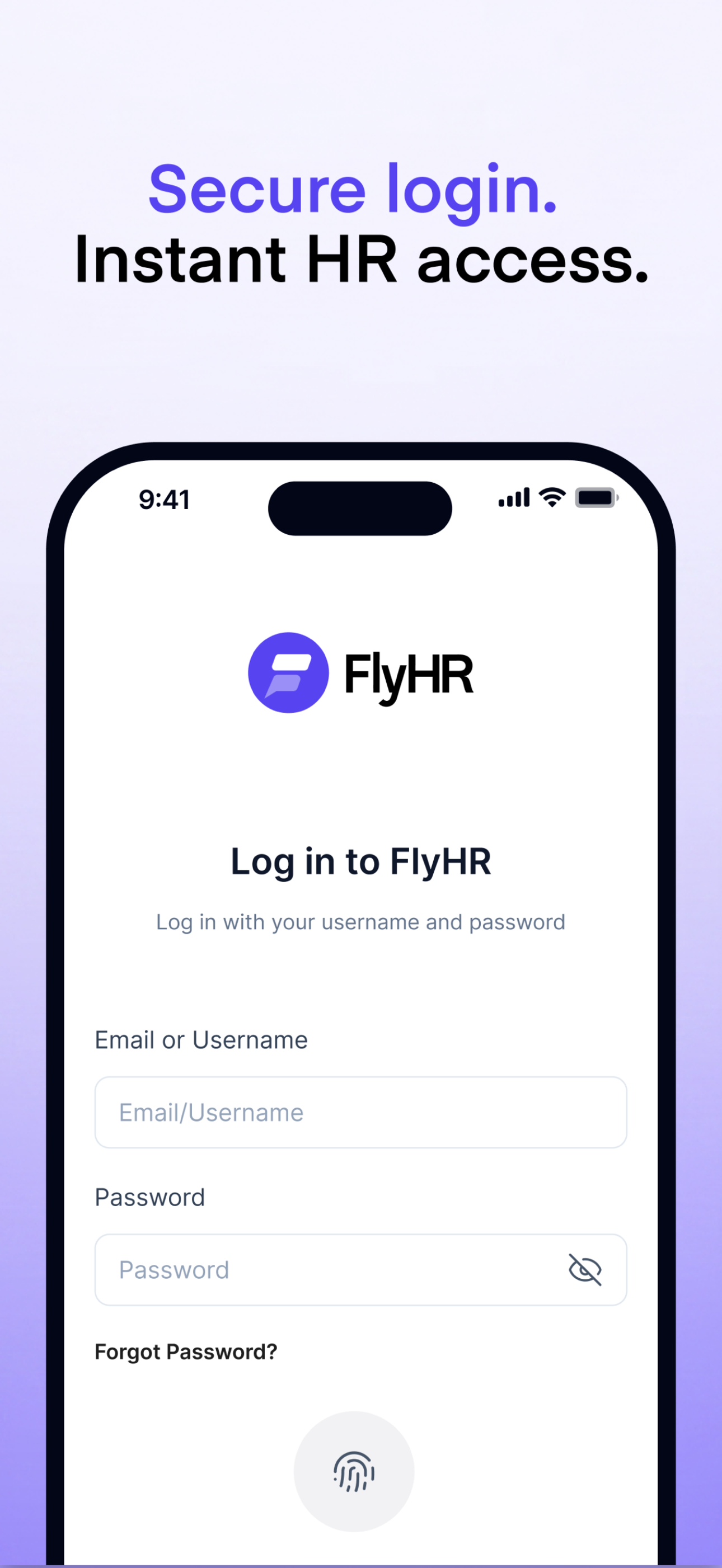
The app opens the home screen of the employee.
Reset a password
- On the sign-in screen, tap Forgot Password?.
- Type the email address of the account.
- Open the email from your site and copy the code.
- Type the code in the app.
- Type a new password.
The code comes from your WordPress site. If the email does not arrive, make sure that your site can send email.
Turn on Face ID or fingerprint sign-in
- In the app, open Settings.
- Tap Security.
- Turn on Biometric Login.
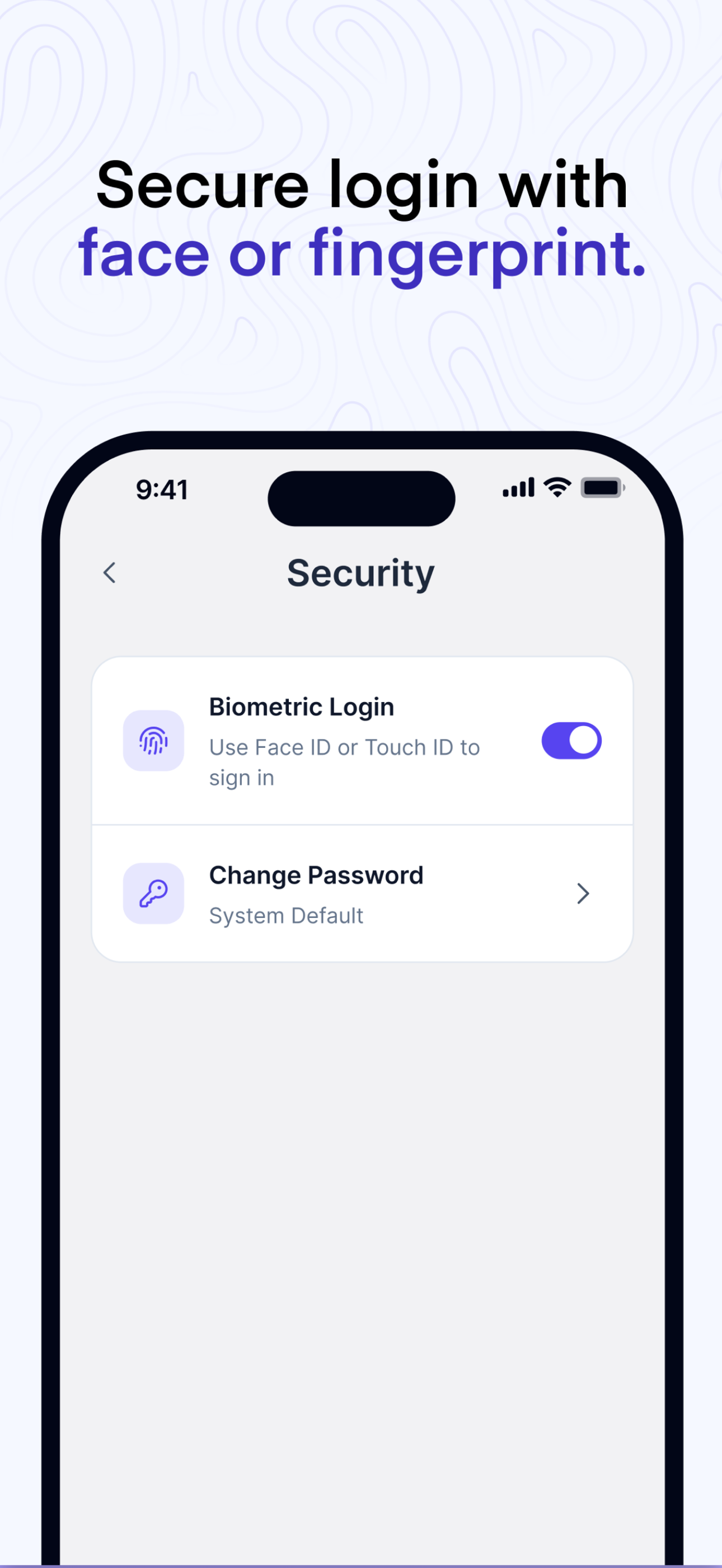
The next time, the employee signs in with Face ID, Touch ID, or a fingerprint. To change the password, tap Change Password on the same screen.
If an employee cannot sign in
| Problem | What to do |
|---|---|
| The app says "Your FlyHR App license key is invalid" | Check the license in App Bridge → License on your site. See Set Up the Free FlyHR App. |
| The username or the password is wrong | Reset the password in the app, or in Users in your WordPress admin. |
| The person signs in, but sees no data | Make sure that the person is an employee with the Employee role. |
| You must stop a former employee from signing in | Delete the WordPress user of that person, or change their password. See Change the Status of an Employee. |
Was this page helpful?