MOBILE APP
Set Up a Custom-Branded App
A custom-branded app is the FlyHR app with your own name and icon. We build it and publish it in your own Google Play and App Store accounts. Your employees do not see the FlyHR name.
You can order a custom-branded app with any paid FlyHR Pro plan. It is a separate order. In App Bridge, the custom-branded app is called the White-label app. It needs its own app license key.
Before you start
- You must be a WordPress administrator.
- FlyHR and FlyHR Pro must be installed and active.
- You need organization accounts for the stores where your app goes: an Apple Developer account, a Google Play developer account, or both. You also need a Firebase account.
- Prepare your app icon: a 1024 × 1024 px PNG file. You cannot change the icon after we build the app.
- Prepare a privacy policy page on your website. The stores need it.
Step 1: Order the app
- Go to flyhr.co/mobile-app/pricing.
- In Custom-branded app, select Android, iOS, or Both.
- Complete the order.
Step 2: Send the build request
After your order, a Build Request Form shows in your account on my.wedevs.com. Fill it in to tell us how to build your app.
- Log in to your account on my.wedevs.com and open the Build Request Form.
- In App Information, type the App Name, the App Short Description, and the App Full Description. Then upload the App Icon.
- In Additional Information, type your Email Address, Contact No., Your Website URL, and Privacy Policy URL.
- In Site Credentials, type a WP Admin Username and WP Admin Password for your site. Your login details are safe with us. We use them only to connect your site to the app and to test the app.
- In Invitation for Access, copy the email address that the form shows. Invite this email to your Apple Developer, Google Developer, and Firebase accounts. Then select the check box of each account that you invited.
- Click Submit.
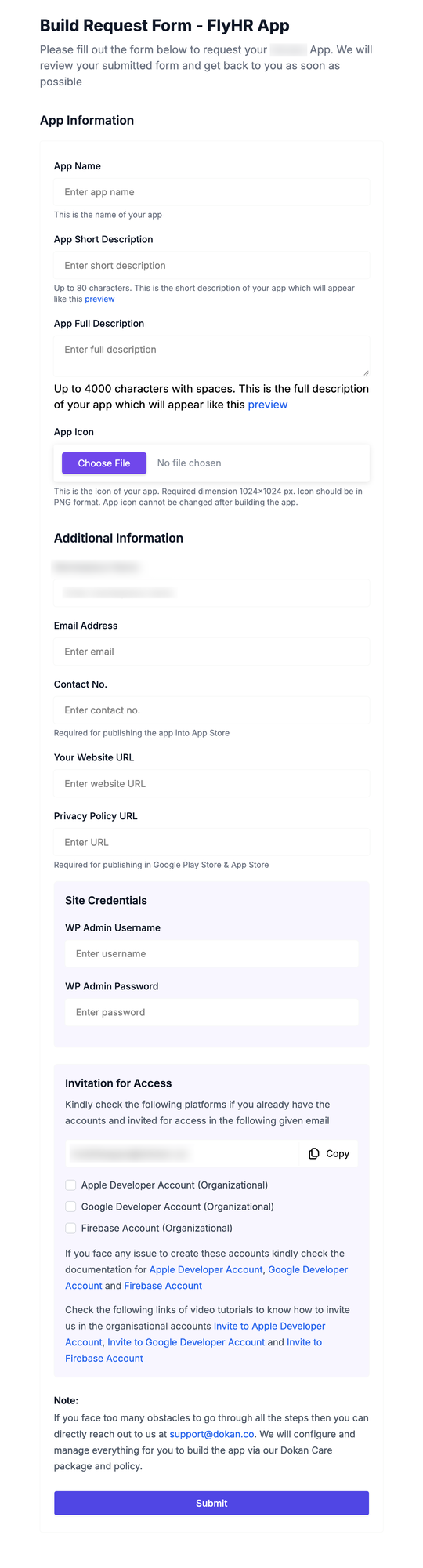
Then we build the app with your branding and publish it in your store accounts.
| Field | What it means |
|---|---|
| App Name | The name of your app in the stores and on the phone. |
| App Short Description | Up to 80 characters. The stores show it under the app name. |
| App Full Description | Up to 4,000 characters. The full text of your store listing. |
| App Icon | A 1024 × 1024 px PNG file. You cannot change it after we build the app. |
| Email Address | The email that we use to contact you about the build. |
| Contact No. | Your phone number. The App Store needs it to publish the app. |
| Your Website URL | The address of your WordPress site with FlyHR. |
| Privacy Policy URL | The address of your privacy policy. Google Play and the App Store need it. |
| WP Admin Username, WP Admin Password | An administrator login to your site. We keep it safe and use it only to connect and test your app. |
| Apple Developer Account, Google Developer Account, Firebase Account | Select each account that you invited us to. We publish the app and set up notifications with these accounts. |
Tip: For extra safety, make a separate administrator account for us. Delete it or change its password when your app is live.
Step 3: Get App Bridge and your app license key
- Log in to your account on my.wedevs.com.
- Download the App Bridge zip file from the Downloads menu.
- Copy the app license key of your custom-branded app from the License menu.
Caution: Use the app license key, not your FlyHR Pro license key. The FlyHR Pro key does not activate a custom-branded app.
Step 4: Install App Bridge
- In your WordPress admin, go to Plugins → Add Plugin.
- Click Upload Plugin, then click Choose File and select the App Bridge zip file.
- Click Install Now, then click Activate Plugin.
For the screens, see Set Up the Free FlyHR App.
Step 5: Activate the app license
- Go to App Bridge → FlyHR App.
- Click License.
- In Which app do you use?, select White-label app.
- In FlyHR App License Key, paste your app license key.
- Click Activate License.
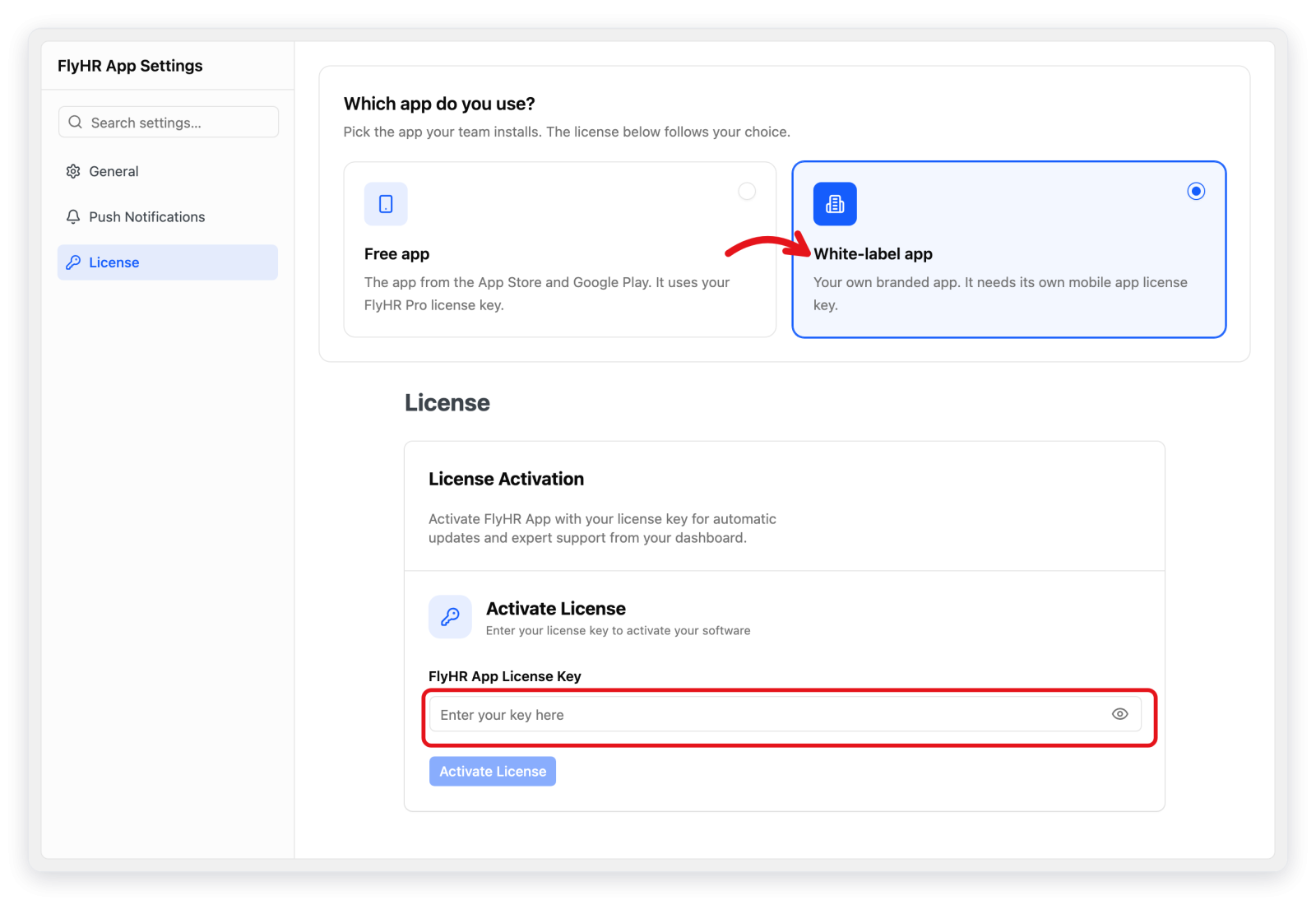
App Bridge shows the license as active.
Step 6: Install the app on the phones
When your app is live in the stores, your employees install it from your store listing. They sign in with their WordPress username or email and password. See Sign In to the App.
Result
Your employees use the app under your brand, with the data of your site. The app shows only the features of the FlyHR Pro modules that are on.
The App Bridge license fields
| Field | What it means |
|---|---|
| Free app | The standard FlyHR app from the stores. It uses your FlyHR Pro Agency license. |
| White-label app | Your custom-branded app. It needs its own app license key. |
| FlyHR App License Key | The app license key from my.wedevs.com. Click the eye icon to show or hide the key. |
| Activate License | Checks the key and activates the app license on this site. |