GETTING STARTED
EMPLOYEE REQUESTS
PAYROLL
REIMBURSEMENT
DOCUMENTS AND FIELDS
RECRUITMENT
AUTOMATION AND NOTIFICATIONS
ASSETS AND TRAINING
Training
This feature is part of FlyHR Pro on the Agency plan.
Plan the trainings of your company, choose who takes part, and record each completion. FlyHR keeps the trainer, the cost, the hours, and a rating for each employee.
Before you start
- You must be a WordPress administrator or an HR manager.
- The HR Training module must be on. See FlyHR Pro.
Step 1: Add a training
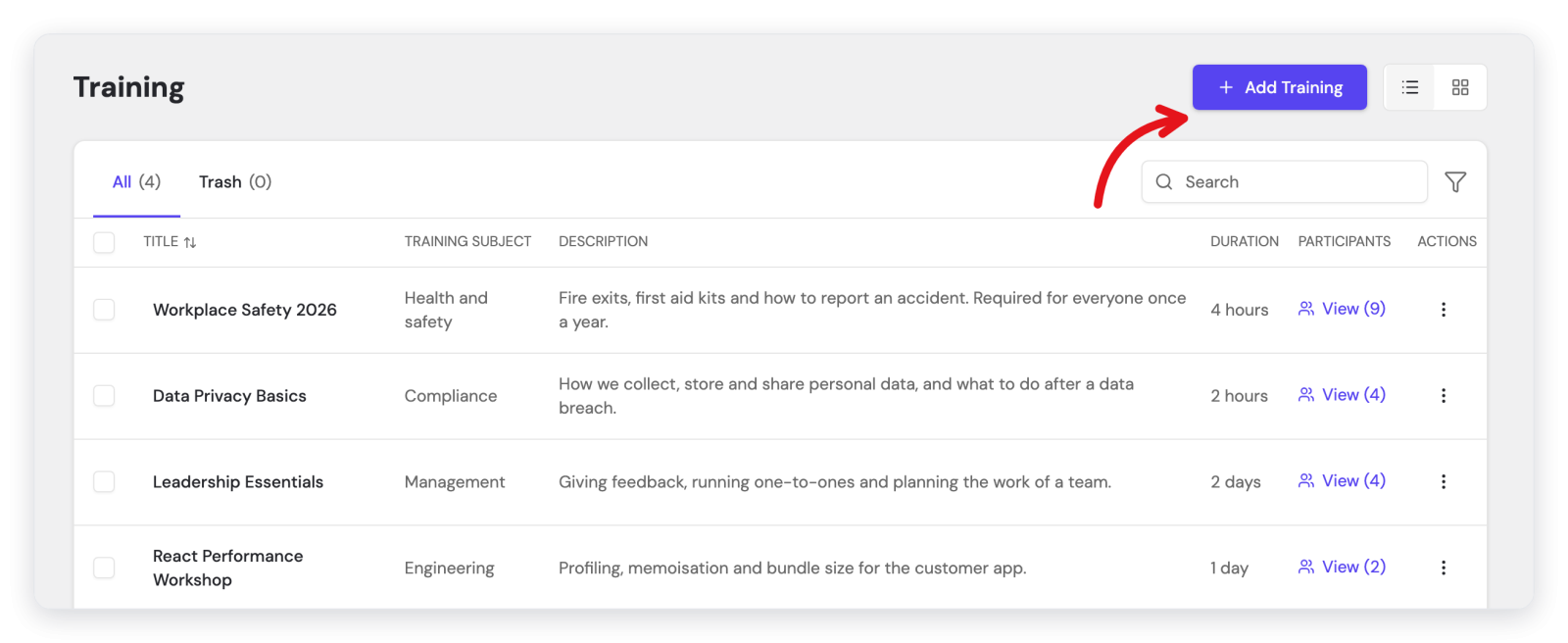
- In the top menu, open More, then click Training. You can also go to FlyHR → Training in the WordPress menu.
- Click Add Training.
- Type the Title, for example First Aid Basics.
- Optional: type the Training Subject (Skill) and the Duration, for example 4 hours.
- In Assign To, select who takes part:
- All Employees
- Selected Employee: then select the employees.
- By Department: then select the departments.
- By Designation: then select the designations.
- Optional: type a Description.
- To give this training also to employees that you add later, select Auto-assign to new employees.
- Click Create Training.
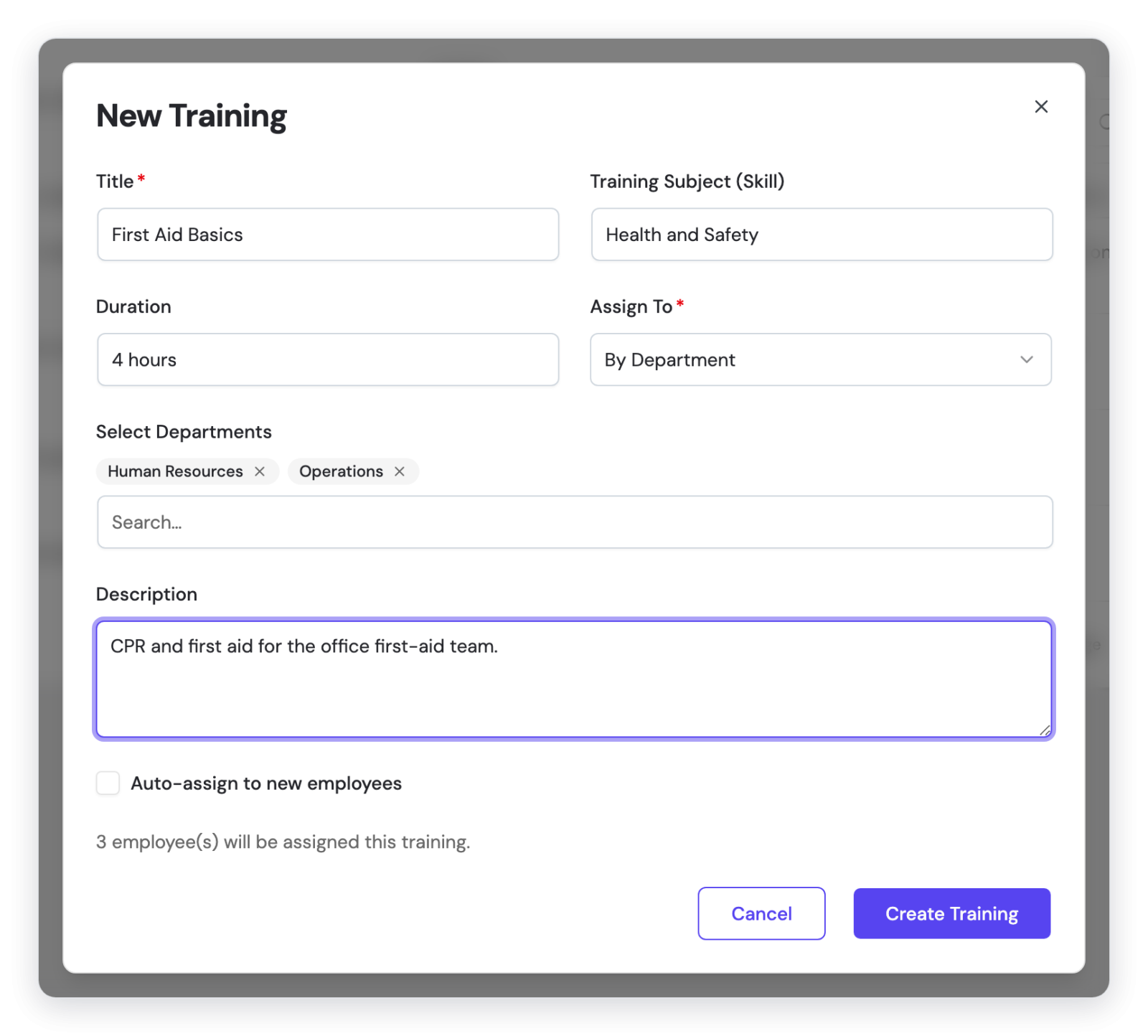
Below the options, FlyHR shows how many employees get the training. Each employee gets the New Training Assigned email.
Step 2: See the participants
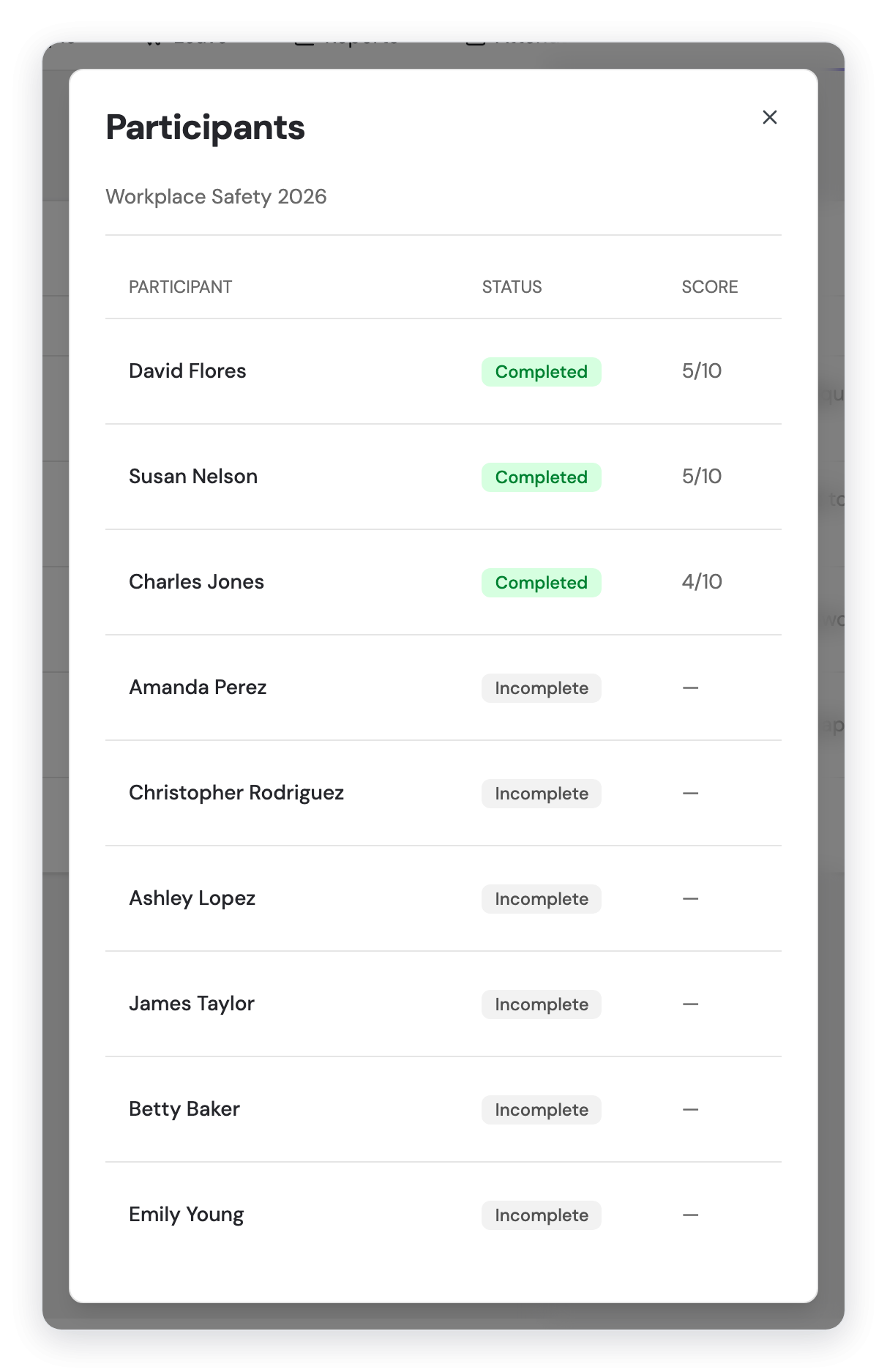
On the Training page, the Participants column shows the number of employees. Click View to see each participant, the status (Completed or Incomplete), and the score.
Step 3: Record a completed training
- Open the profile of the employee (People → All Employees, then click the name).
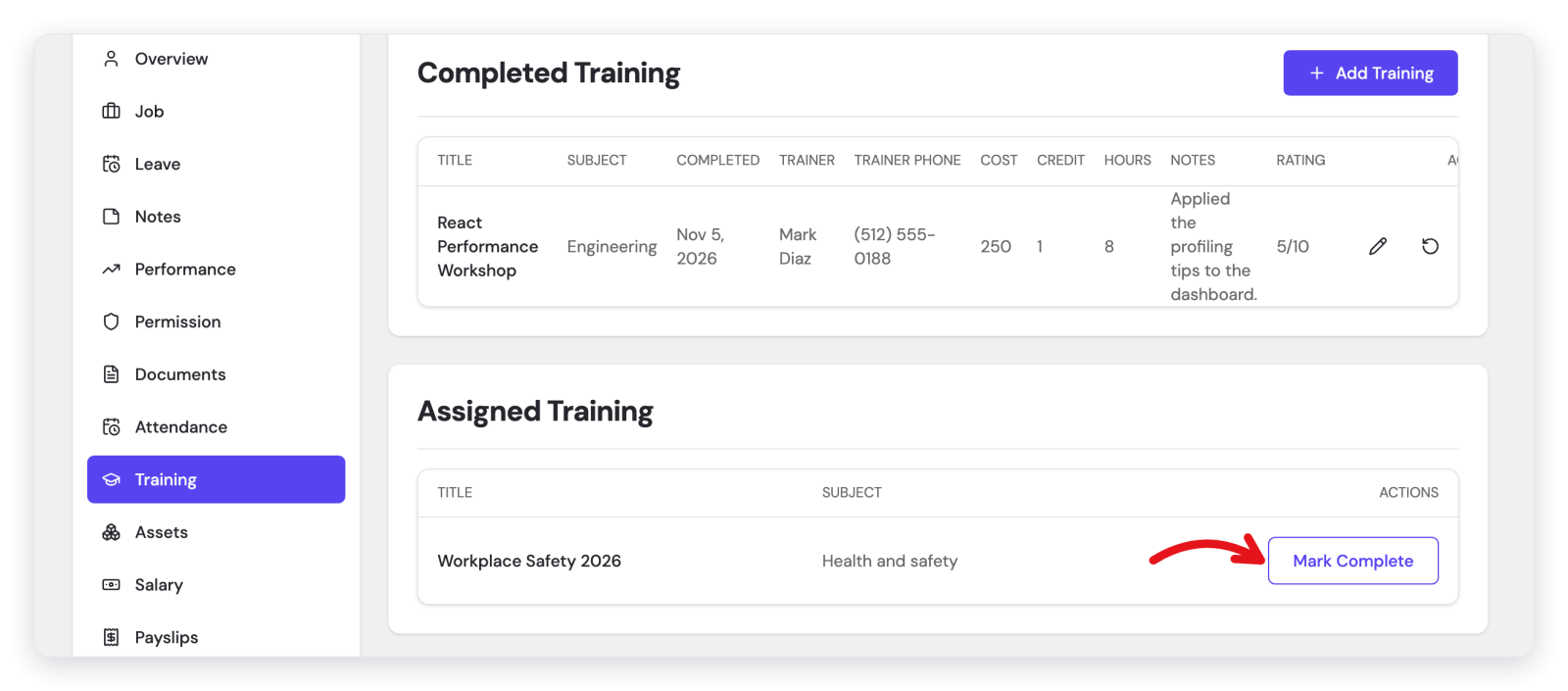
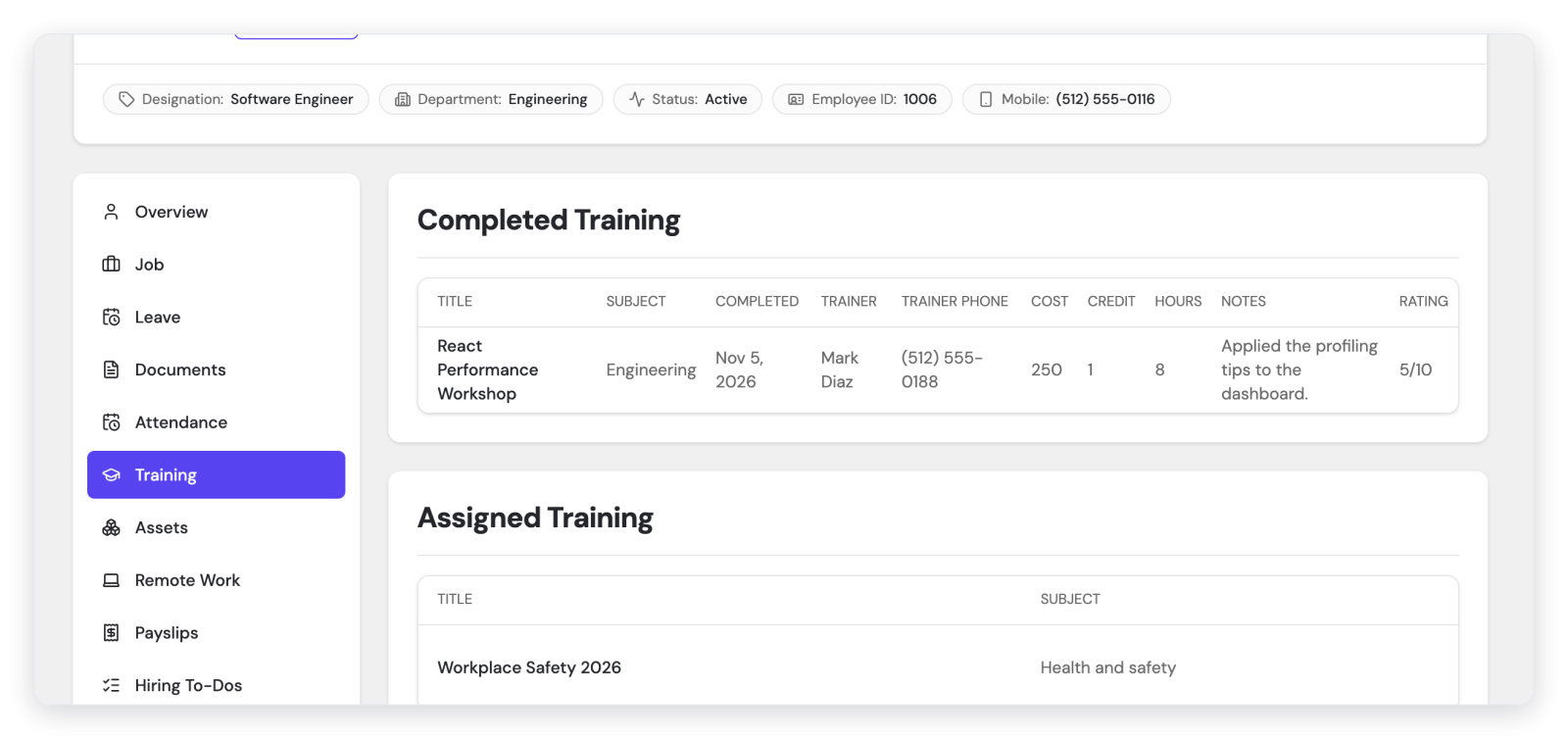
- Click the Training tab. Assigned Training lists the trainings that the employee did not complete yet.
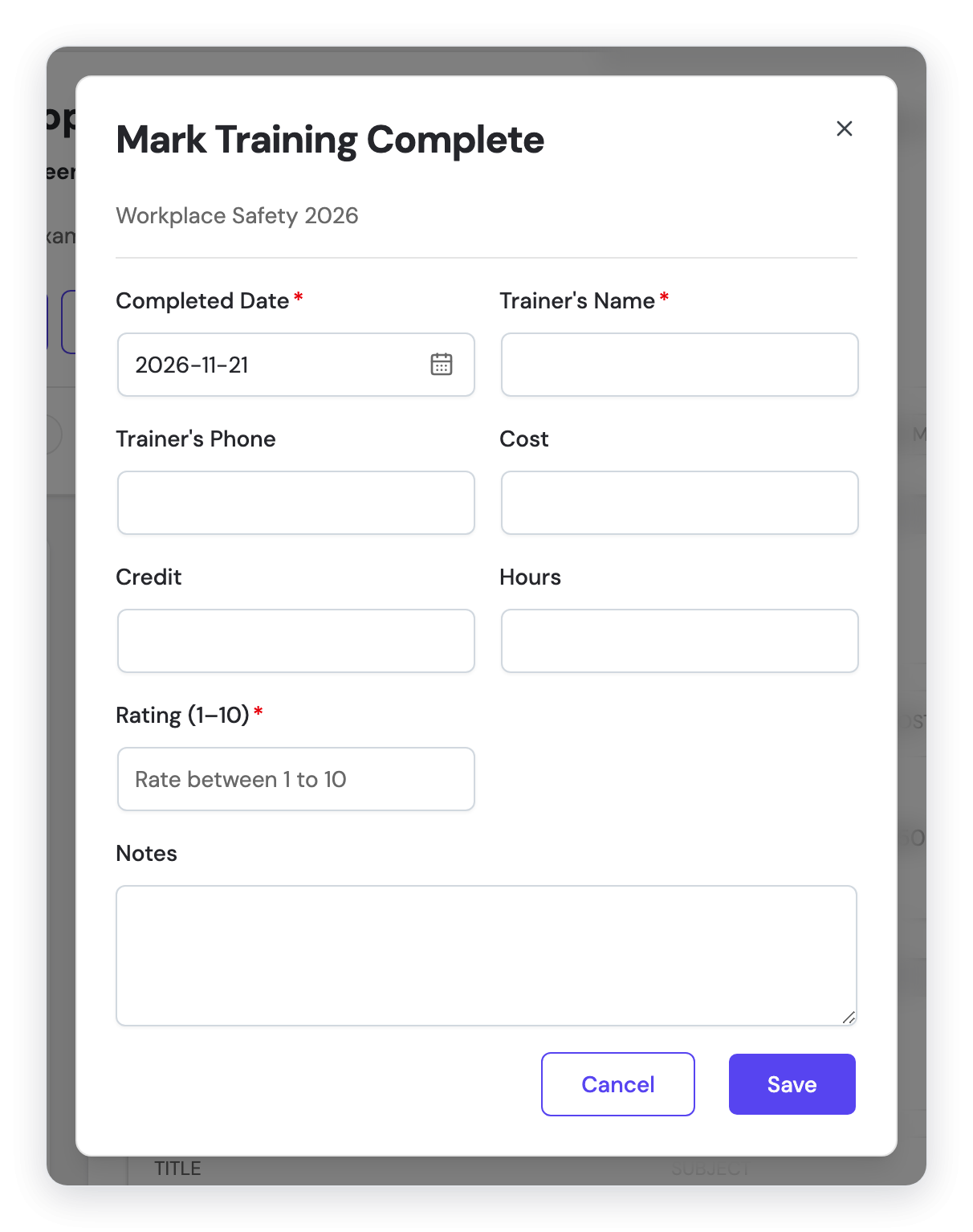
- Click Mark Complete in the row of the training.
- Select the Completed Date and type the Trainer's Name.
- Type the Rating (1–10).
- Optional: type the Trainer's Phone, the Cost, the Credit, the Hours, and Notes.
- Click Save.
The training moves to Completed Training. To record a training that is not on the list of the employee, click Add Training above Completed Training and select the training.
To undo a completion, click Move to incomplete in the row. To change it, click Edit.
What employees see
Employees open My Profile and click the Training tab. They see their completed and assigned trainings. They cannot change them.
Change or remove a training
On the Training page, click the ⋮ menu of a training:
- Edit: change the training or who takes part.
- Participants: see the participants.
- Delete: move the training to the Trash tab. On the Trash tab, you can Restore it or Delete Permanently.
The fields of a training
| Field | Necessary | What it means |
|---|---|---|
| Title | Yes | The name of the training. |
| Training Subject (Skill) | No | The skill that the training teaches. |
| Duration | No | The length, as text, for example 2 days. |
| Assign To | Yes | All Employees, Selected Employee, By Department, or By Designation. |
| Description | No | What the training covers. |
| Auto-assign to new employees | No | Give the training to each employee that you add later. |
Completion fields
| Field | Necessary | What it means |
|---|---|---|
| Completed Date | Yes | The day that the employee finished. |
| Trainer's Name | Yes | The person who gave the training. |
| Rating (1–10) | Yes | The result of the employee. It shows as the score of the participant. |
| Trainer's Phone, Cost, Credit, Hours, Notes | No | More details. Cost and credit must be positive numbers. |