GETTING STARTED
EMPLOYEE REQUESTS
PAYROLL
REIMBURSEMENT
DOCUMENTS AND FIELDS
RECRUITMENT
AUTOMATION AND NOTIFICATIONS
ATTENDANCE
Attendance Records
This feature is part of FlyHR Pro on the Starter, Business, and Agency plans.
The Attendance page shows the attendance of each day and of each employee. HR managers can record attendance for employees who do not check in themselves, correct a check-in time, or import attendance from a CSV file.
Before you start
- You must be a WordPress administrator or an HR manager.
- The employees must have a shift on the dates. See Shifts.
See the attendance by date
- Go to Attendance → Attendance.
- On the By date tab, select a Date range, for example Last Month.
- Click Filter.
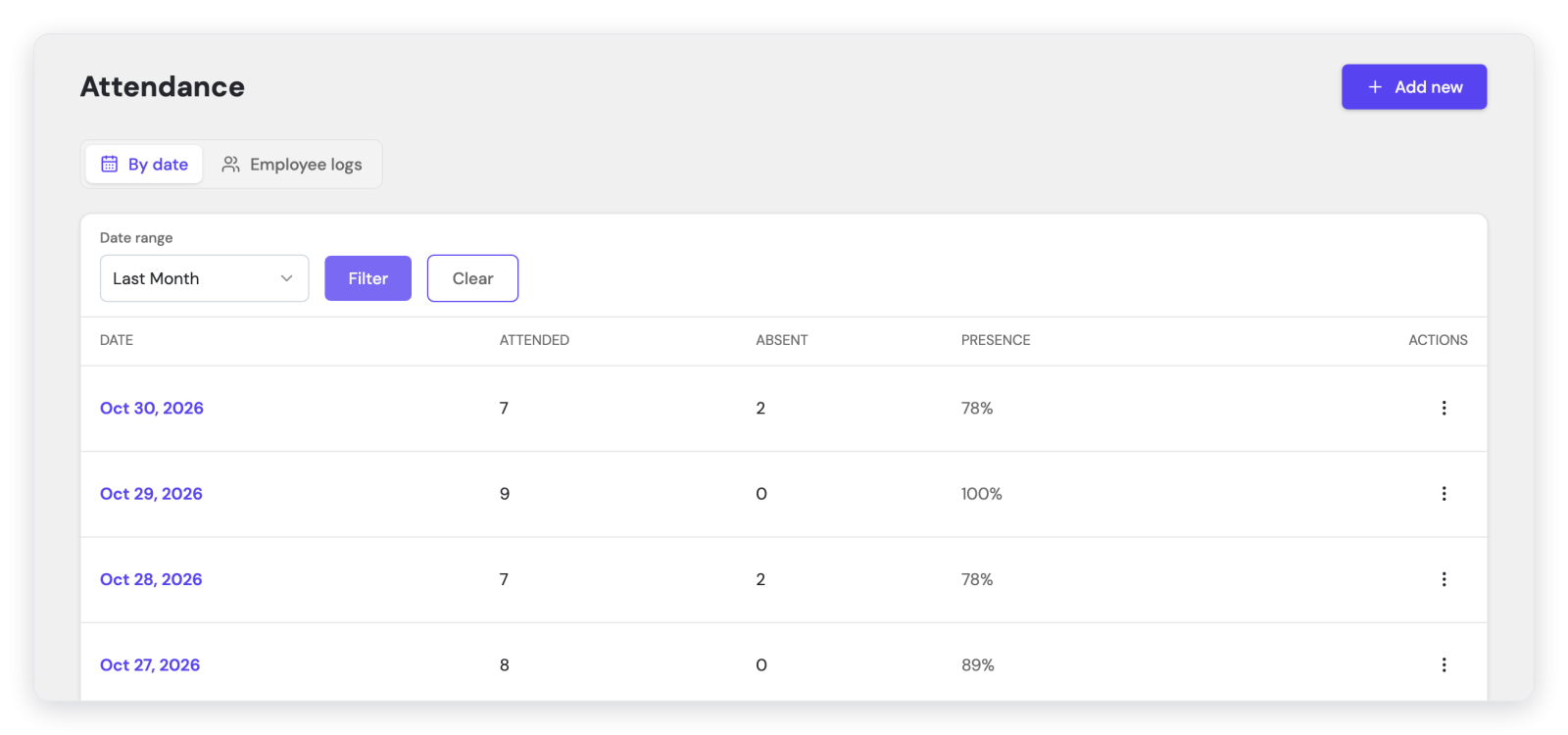
Each row is one day, with the number of employees who Attended, the number who were Absent, and the Presence in percent. Click a date to open that day.
See the attendance by employee
Click the Employee logs tab. Each row is one employee on one day, with the shift, the check-in, the check-out, and the status.
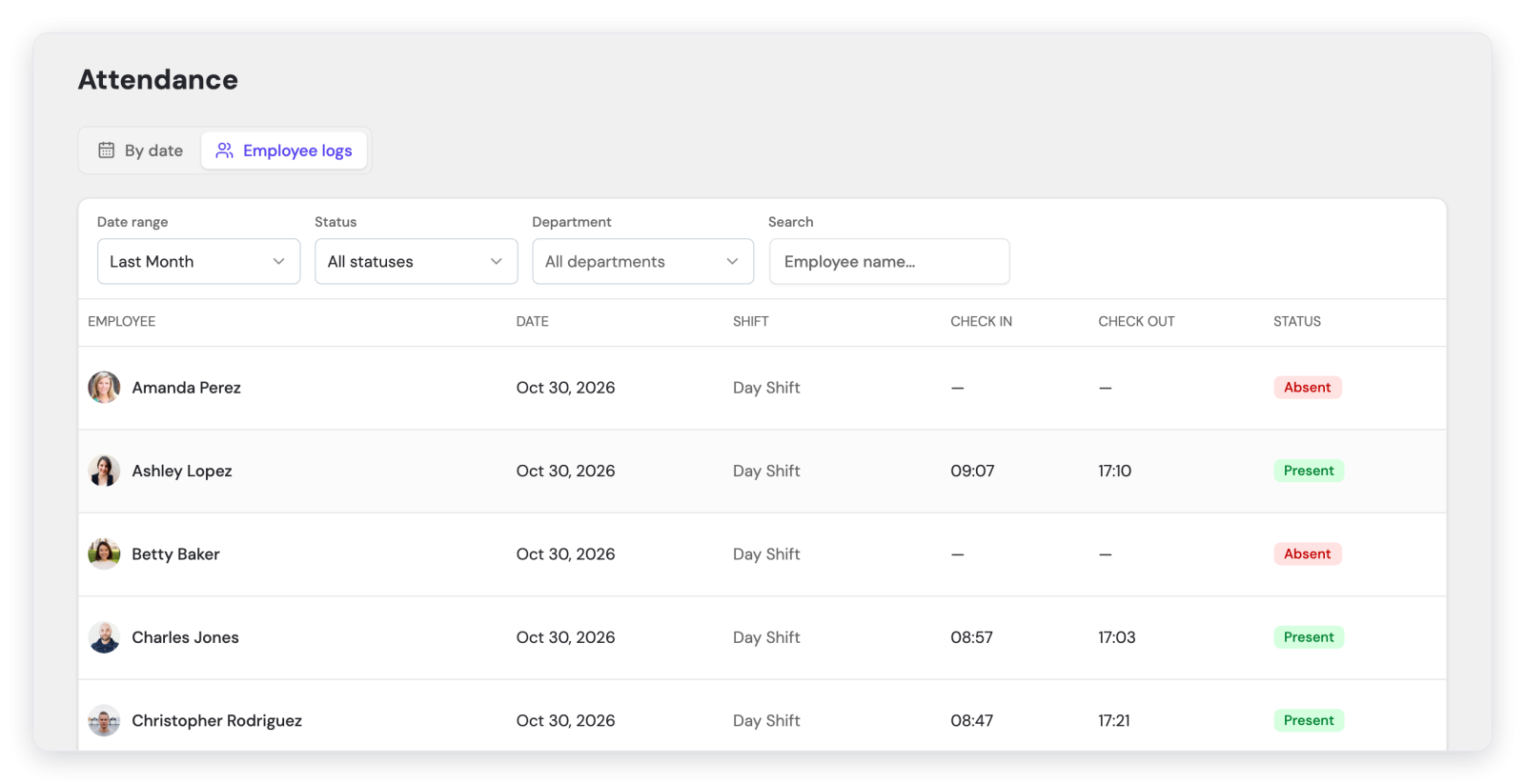
Filter the list by Date range, Status (for example Late or Absent), and Department, or search for an employee by name.
Record or edit the attendance of a day
- In the row of the day, click ⋮, then click Edit.

To record a day that is not in the list, click Add new at the top of the page.
- The Record Attendance page shows each employee with a shift on that day. Click Edit at the top right to change the values.
- For each employee, set the Status to Present or Absent, and type the Check in and Check out times. To change all employees at one time, click Set all present or Set all Absent.
- Click Done.
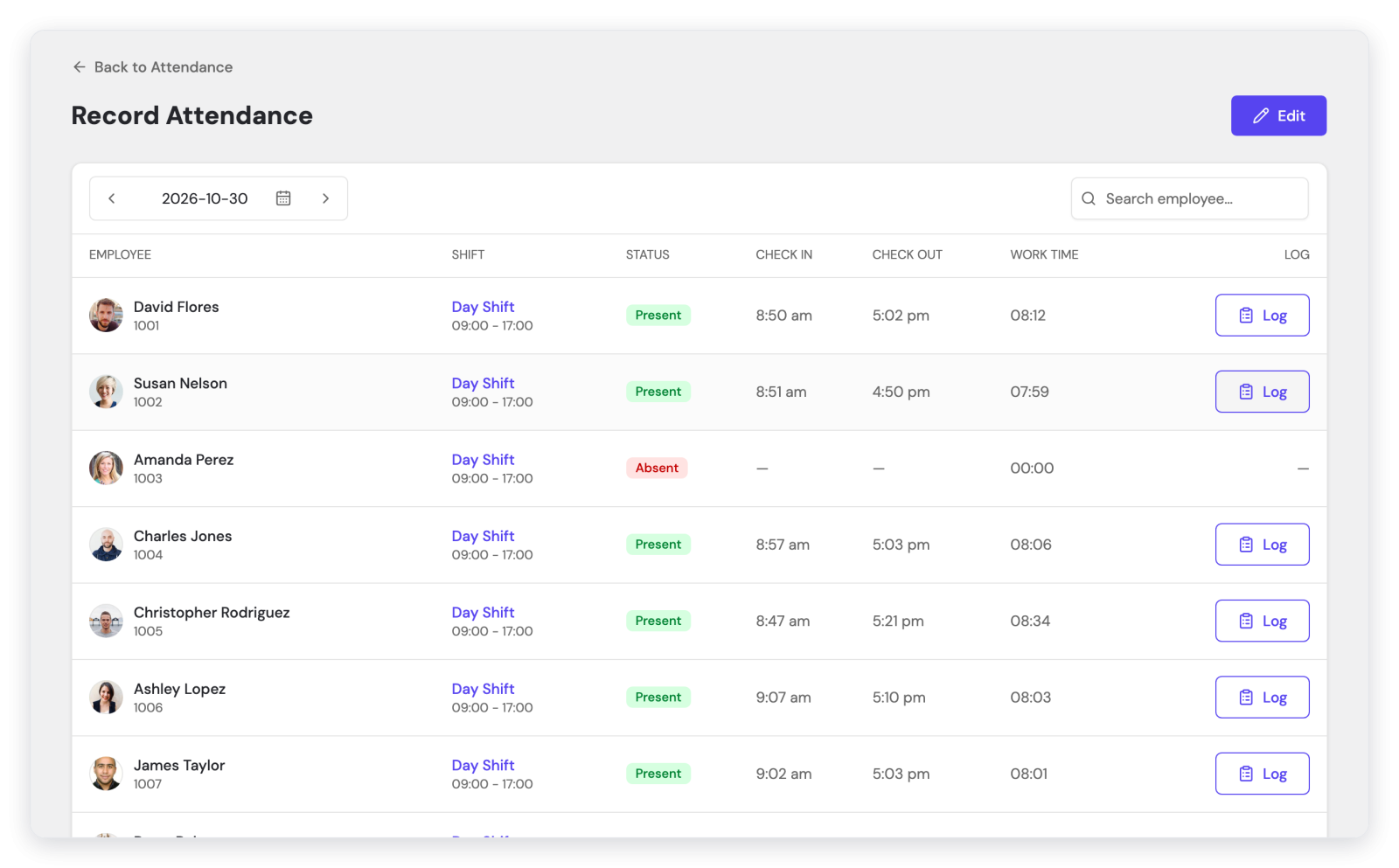
Use the arrows next to the date to go to the previous day or the next day. Employees on leave or on a holiday show the status Leave or Holiday.
The check-out must be later than the check-in. FlyHR shows "Check out must be later than check in." if it is not.
Correct the punches of an employee
An employee can check in and out more than one time on a day. To see or change each punch:
- On the Record Attendance page, click Log in the row of the employee.
- Change the Check in or Check out time of a punch.
- Click Save.
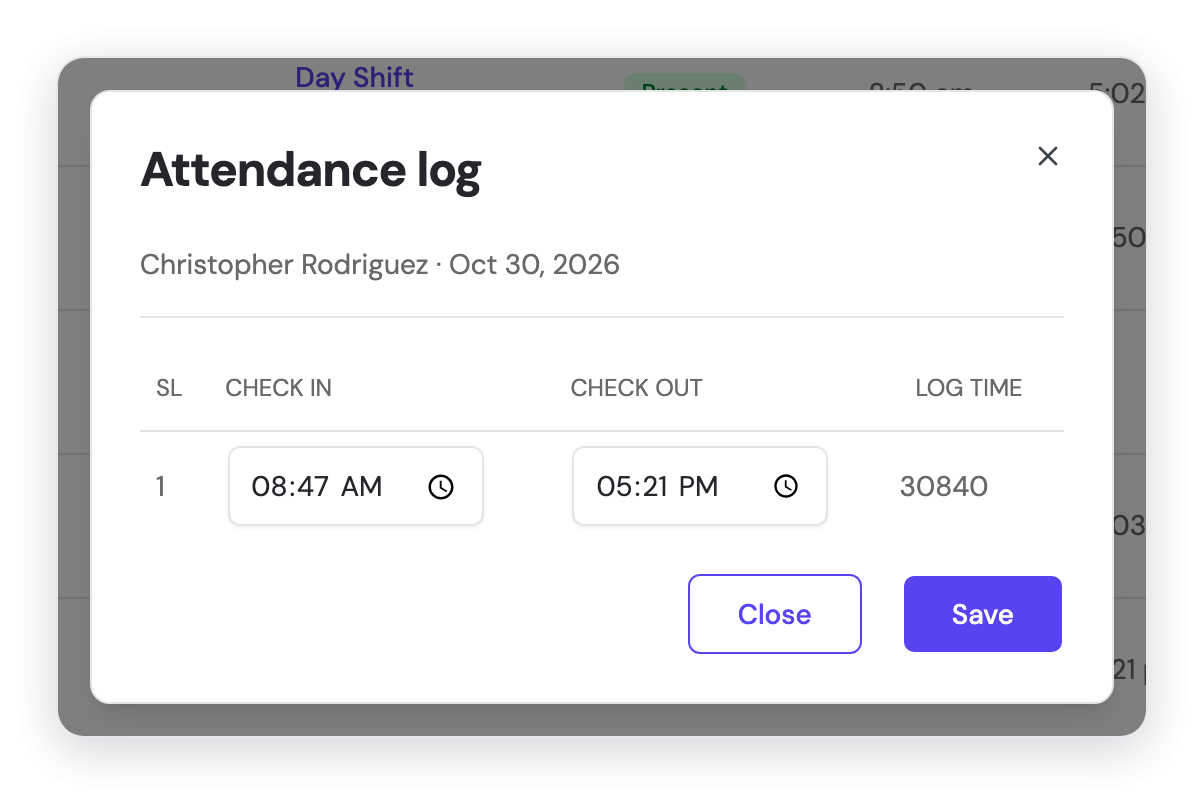
The Log time column shows the seconds between the check-in and the check-out of each punch.
Delete the attendance of a day
In the row of the day, click ⋮, then click Delete. Confirm in the window.
Caution: This removes all the attendance records of that day for all employees. You cannot undo it.
Import attendance from a CSV file
- Go to Attendance → Settings.
- In Import Attendance, click Download sample file to get a file with the correct columns.
- Fill in one row for each employee and each day.
- Select the Shift to import into.
- Click Choose File and select your CSV file.
- Click Import.
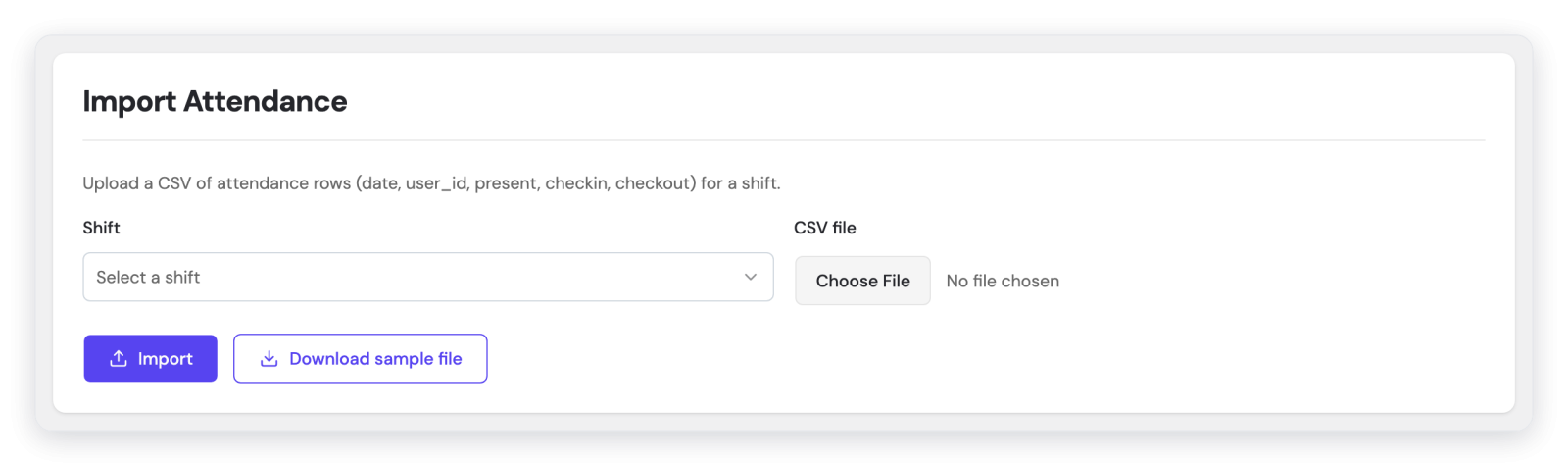
FlyHR checks every row before it saves any row. If one row has an error, FlyHR imports nothing. Correct the file and import it again.
The columns of the CSV file
| Column | What to put in it | Example |
|---|---|---|
| date | The day, as YYYY-MM-DD. | 2026-11-20 |
| user_id | The WordPress user ID of the employee. | 8 |
| present | yes or no. |
yes |
| checkin | The check-in time, as HH:MM:SS. Leave it empty for an absent day. | 09:05:00 |
| checkout | The check-out time, as HH:MM:SS. Leave it empty for an absent day. | 17:10:00 |