GETTING STARTED
EMPLOYEE REQUESTS
PAYROLL
REIMBURSEMENT
DOCUMENTS AND FIELDS
RECRUITMENT
AUTOMATION AND NOTIFICATIONS
RECRUITMENT
Recruitment AI
This feature is part of FlyHR Pro on the Agency plan.
FlyHR can use an AI provider to write job descriptions and to score the CV of each candidate against the job. You use your own account with the AI provider, and you pay the provider for what you use.
Before you start
- You must be a WordPress administrator to set up the AI.
- You need an API key from one of these providers: Google Gemini, Anthropic Claude, OpenAI GPT, or OpenRouter.
- The Recruitment module must be on.
Caution: When the AI is on, FlyHR sends the text of job descriptions and CVs to the AI provider that you select. Make sure that this agrees with your privacy policy.
Step 1: Set up the AI provider
- Go to FlyHR → Settings.
- In the list on the left, under Modules, click AI.
- Select the AI Provider.
- Paste the API key in the API key field. Click Get API key to open the page of the provider where you make a key.
- Click Test to make sure that the key works.
- Select the Model, or keep Default. Click the refresh icon to list the models that your key can use.
- Turn on Enable AI features.
- Optional: turn on Auto-process CVs on new applications to score each new application when it arrives.
- Click Save Changes.
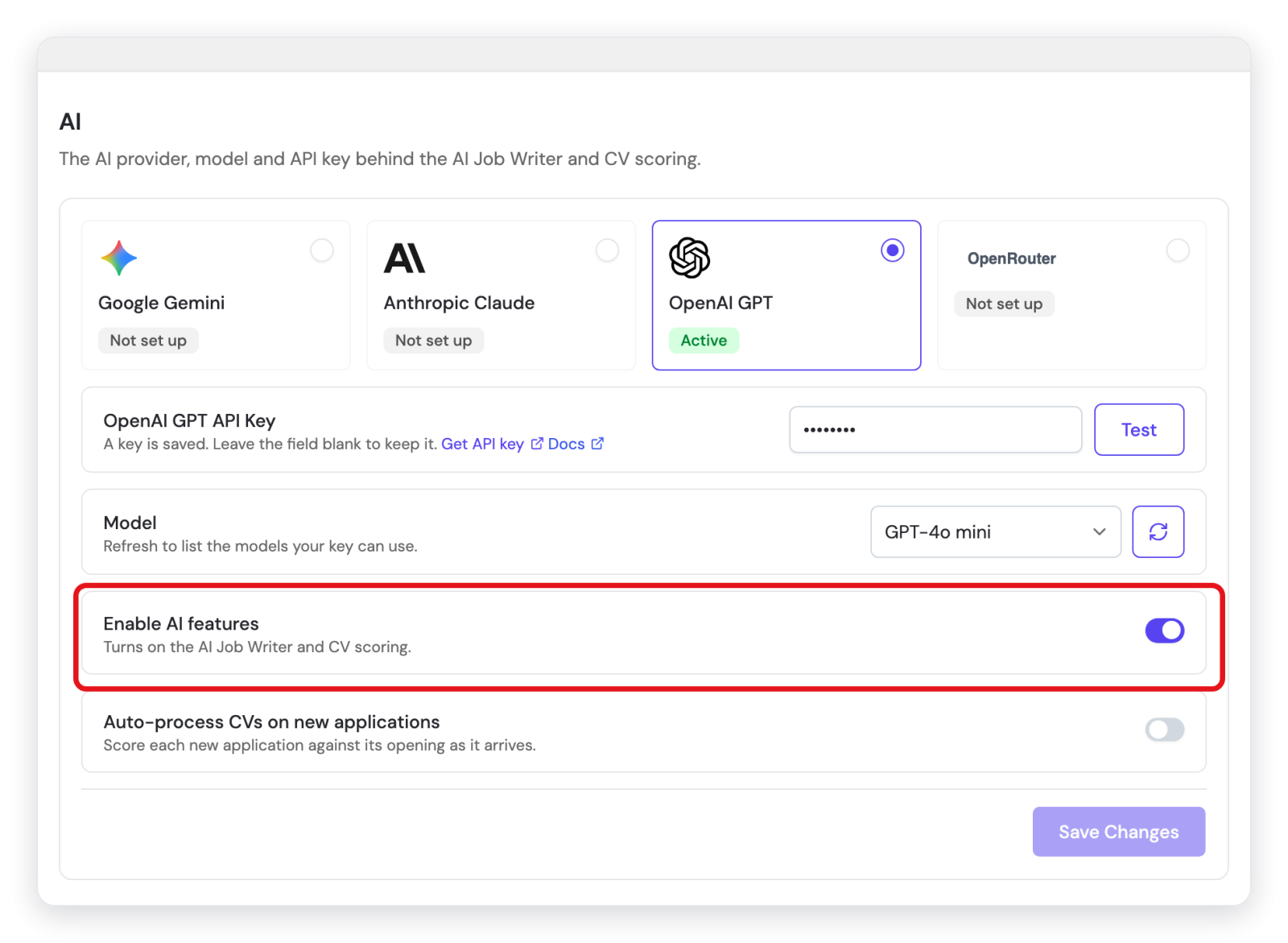
FlyHR stores the API key encrypted on your site. To keep a saved key, leave the field empty when you save again.
Enable AI features turns on the AI Job Writer and the CV scoring. Until you turn it on, the AI pages show "The AI module is not available".
Write a job description with AI
- Go to More → Recruitment → AI Job Writer.
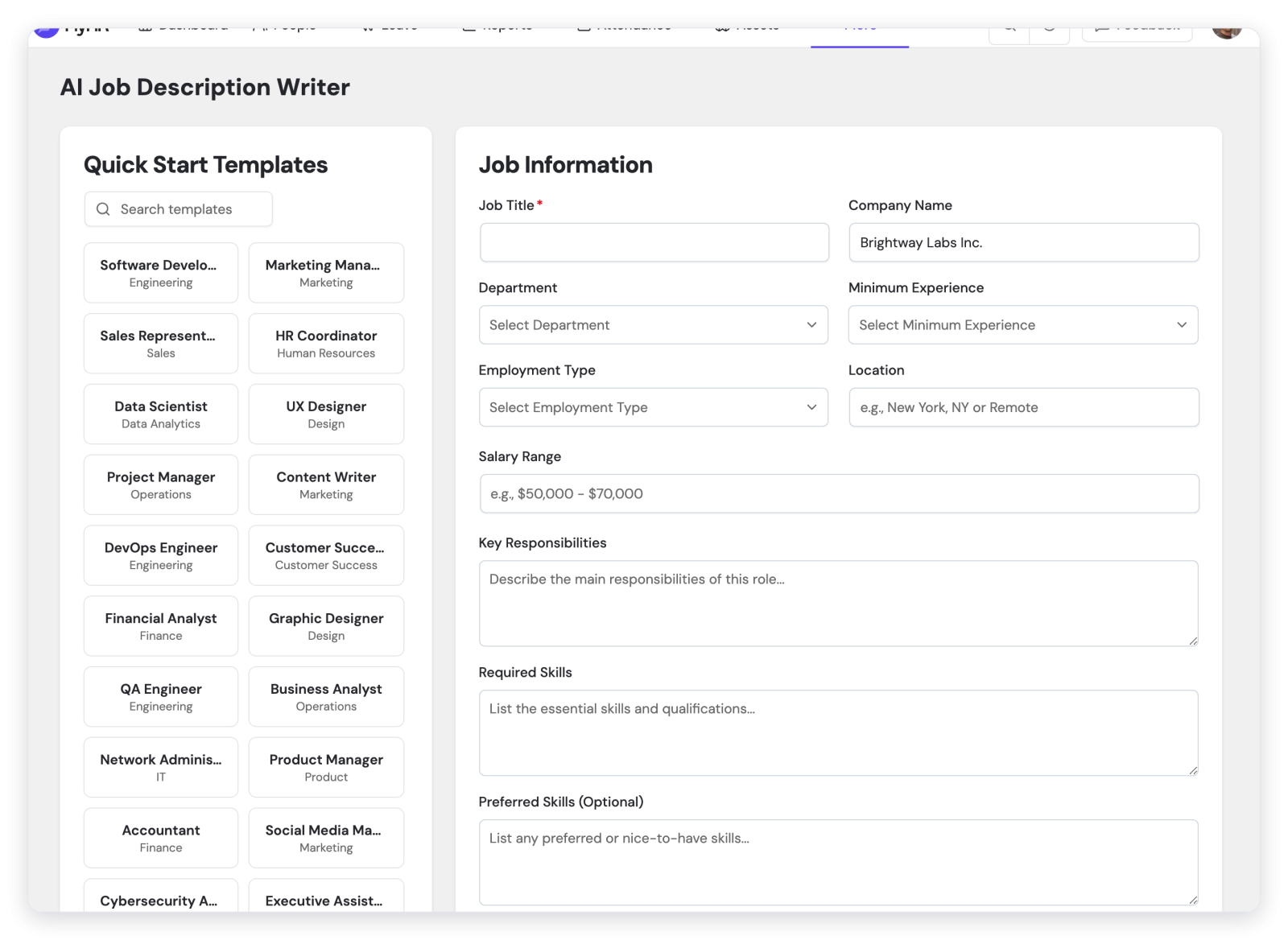
- Click a template in Quick Start Templates, for example QA Engineer. FlyHR fills in the form. Or type the details yourself.
- Type the Job Title. The other fields are optional, but each detail makes the text better: department, minimum experience, employment type, location, salary range, responsibilities, skills, education, company culture, and benefits.
- Click Generate Job Description.
FlyHR shows the Generated Job Description, with the job summary, responsibilities, required and preferred skills, qualifications, experience, education, benefits, company culture, and how to apply.
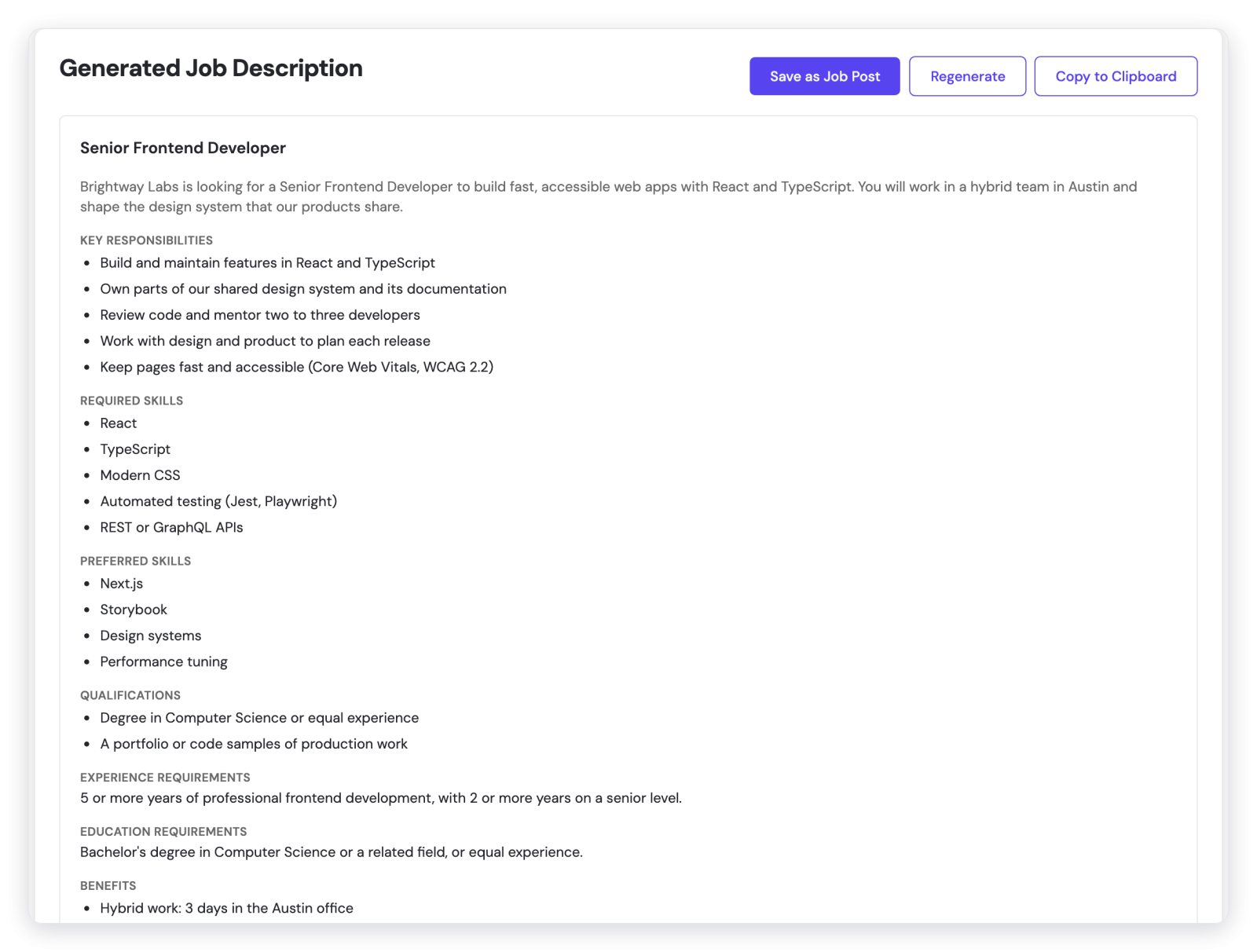
Then you can:
- Click Save as Job Post to make a draft job opening with this text.
- Click Copy to Clipboard to use the text in another place.
- Click Regenerate to get a new text.
In the job form, the Write with AI button gives the same help. See Job Openings.
Always read the text before you publish it. The AI can make mistakes.
Score the CVs of candidates
To score candidates for a job opening, give the AI the requirements of the job:
- Go to More → Recruitment.
- In the row of the job opening, click the ⋮ menu, then click AI Matching.
- Turn on AI processing.
- Click Generate with AI to read the requirements from the job description. Or fill them in yourself: the Job Category, the Experience Preference, the Education Expectation, the Core Skills, the Secondary Skills, the Tools, and the Certifications.
- In Score Weights, set how much each part counts: Skills Match, Experience, Education, Certification, and Soft Skills. The total must be 100%.
- Click Save Requirements.
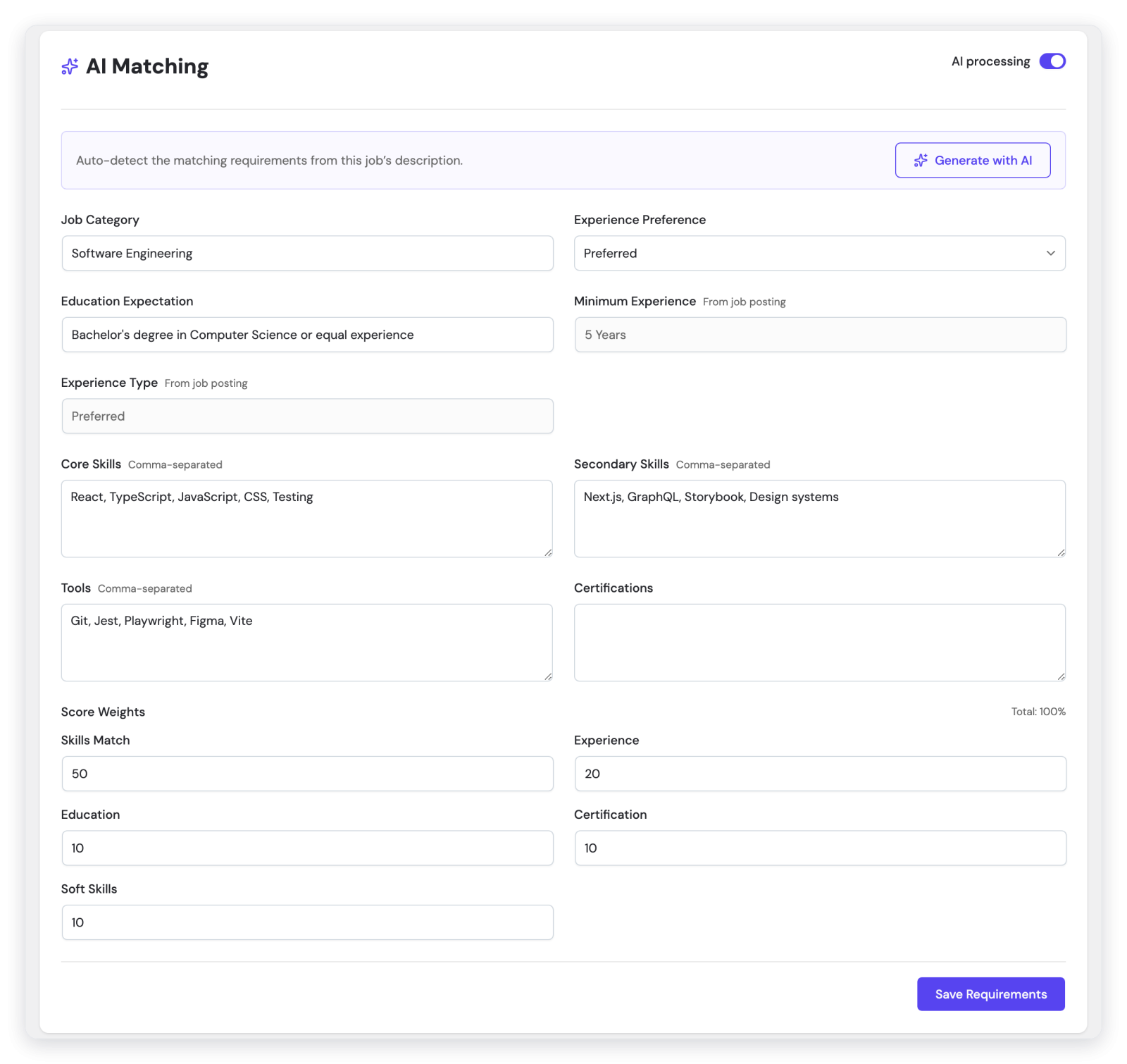
FlyHR then scores each CV. If Auto-process CVs on new applications is on, new applications are scored when they arrive. For candidates who applied before, open the candidate and click Reprocess on the AI Analysis tab.
The AI Analysis of a candidate
Open a candidate and click the AI Analysis tab.
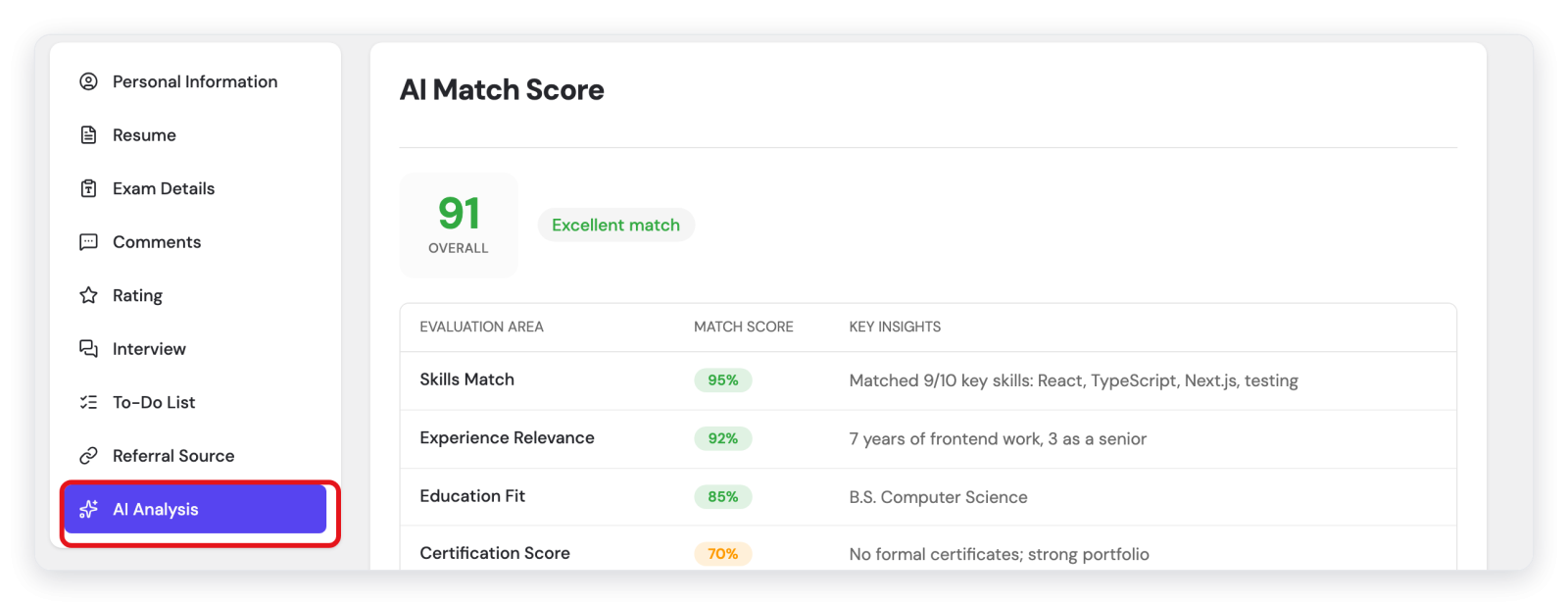
The tab shows:
- AI Match Score: the overall score from 0 to 100, a label such as Excellent match, and a table with the score and the reason for each evaluation area: Skills Match, Experience Relevance, Education Fit, Certification Score, and Soft Skills Score.
- Summary: the overall assessment, and a summary of the experience and the education.
- Strengths & Recommendations: the strengths, the areas for improvement, and the recommendations of the AI.
- Skills: the key skills that the CV shows, and the missing skills that the job asks for.
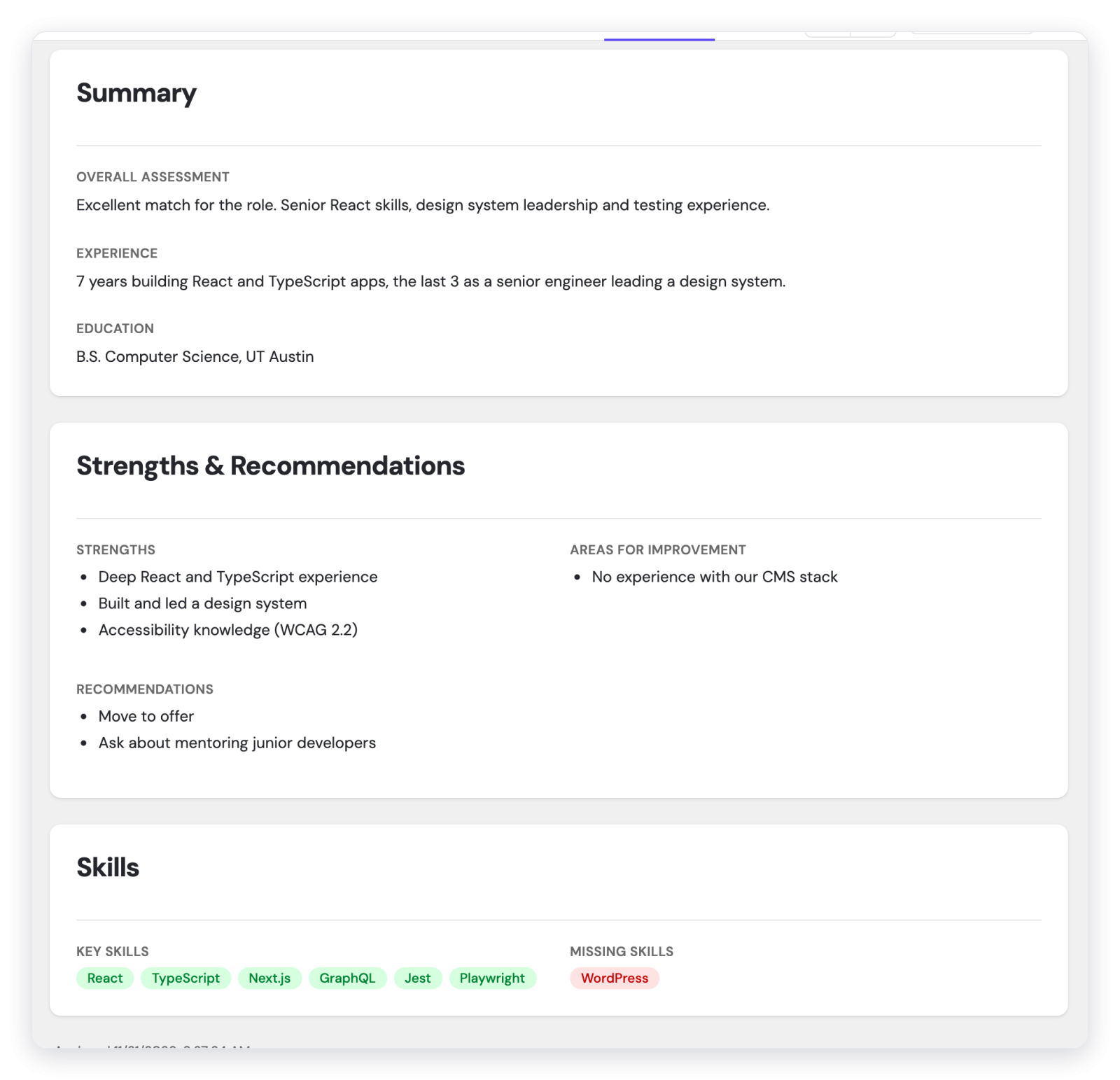
The overall score uses the Score Weights of the job opening. For example, with a Skills Match weight of 50%, half of the overall score comes from the skills match.
The AI Talent Pool
Go to More → Recruitment → AI Talent Pool to see all scored candidates in one list, with the job, the Overall Score, the Skills Match, the status of the analysis, and the date. The color of a score shows how good the match is: green for 80 or more, orange for 60 to 79, and red for less than 60.
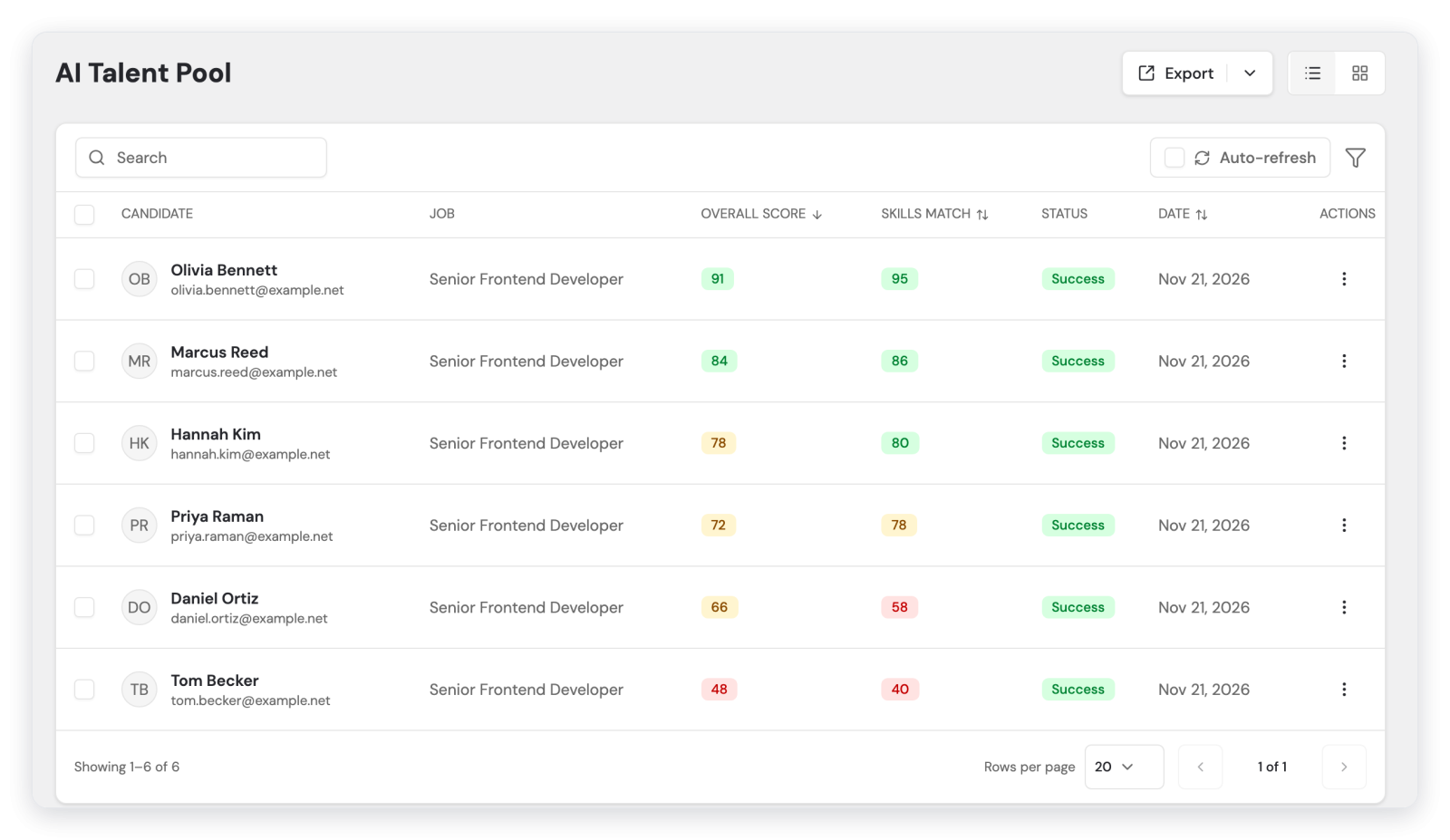
Filter the list by job, score, skills level, and experience. Click a column title to sort the list. Select candidates and click Reprocess Selected to score them again. Click Export to download the list as a CSV or a JSON file.
The AI score helps you decide. It does not replace your own review of each candidate.