GETTING STARTED
EMPLOYEE REQUESTS
PAYROLL
REIMBURSEMENT
DOCUMENTS AND FIELDS
RECRUITMENT
AUTOMATION AND NOTIFICATIONS
ATTENDANCE
Check In and Check Out
This feature is part of FlyHR Pro on the Starter, Business, and Agency plans.
Employees record their own attendance from the FlyHR dashboard. They click Check in when they start work and Check out when they stop. FlyHR compares the times with their shift.
Employees can also check in from the FlyHR mobile app. See The FlyHR Mobile App.
Before you start
- The administrator must select Enable self attendance service for employees in Attendance → Settings. See Set Up Attendance.
- The employee must have a shift today. See Shifts.
- If IP restriction is on, the employee must be on an allowed network, for example the office Wi-Fi.
Step 1: Check in
- Log in to your site and open FlyHR → Dashboard.
- On the My Attendance card, click Check in.
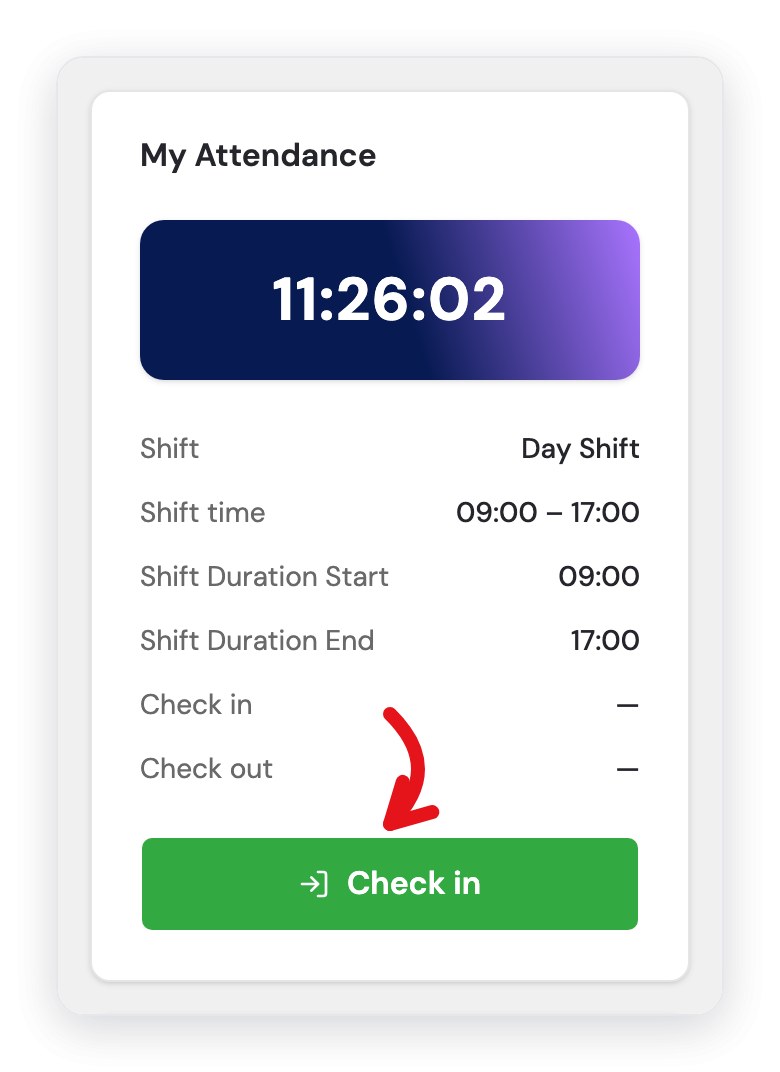
FlyHR shows "Checked in." The card shows the shift time and the time worked today.
Step 2: Check out
At the end of the day, click Check out on the same card.
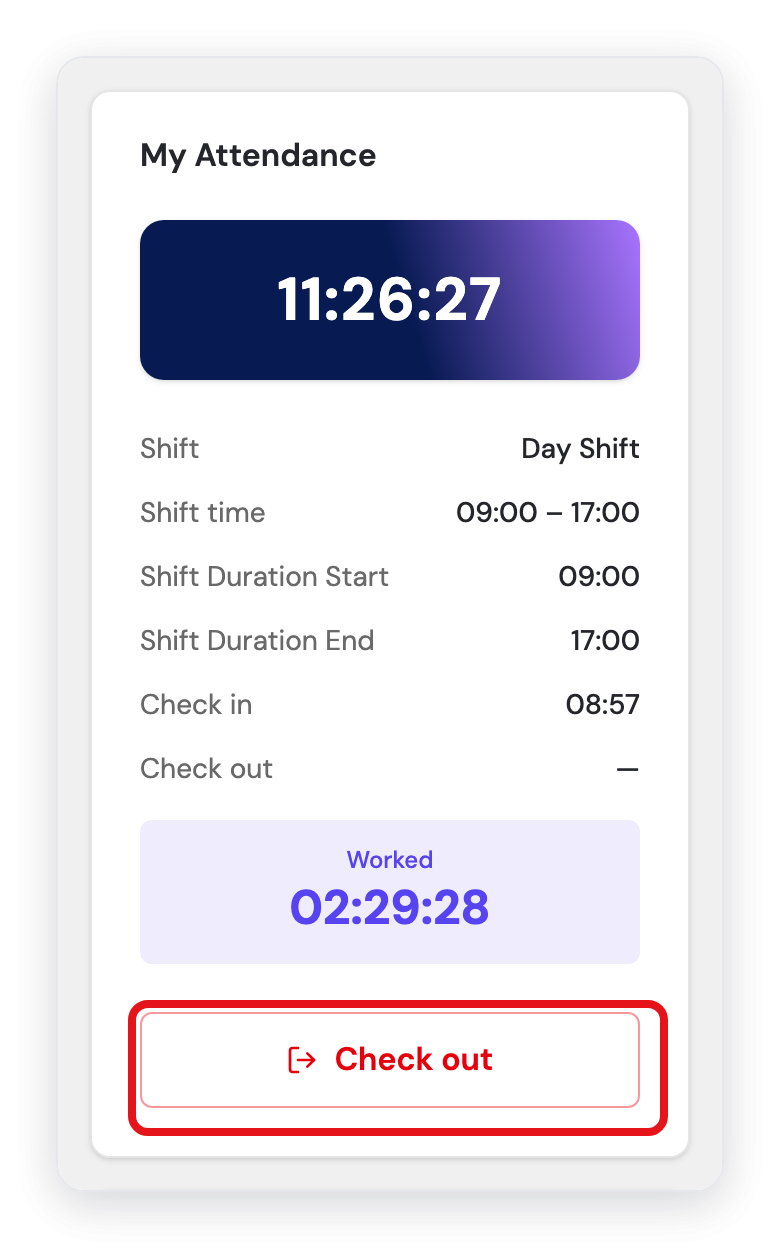
FlyHR shows "Checked out." If you leave and come back on the same day, click Check in again. FlyHR adds the time of each check-in and check-out.
FlyHR refuses a second click sooner than the Punch Threshold (60 seconds by default). A double click does not check you out and in again.
See your attendance status
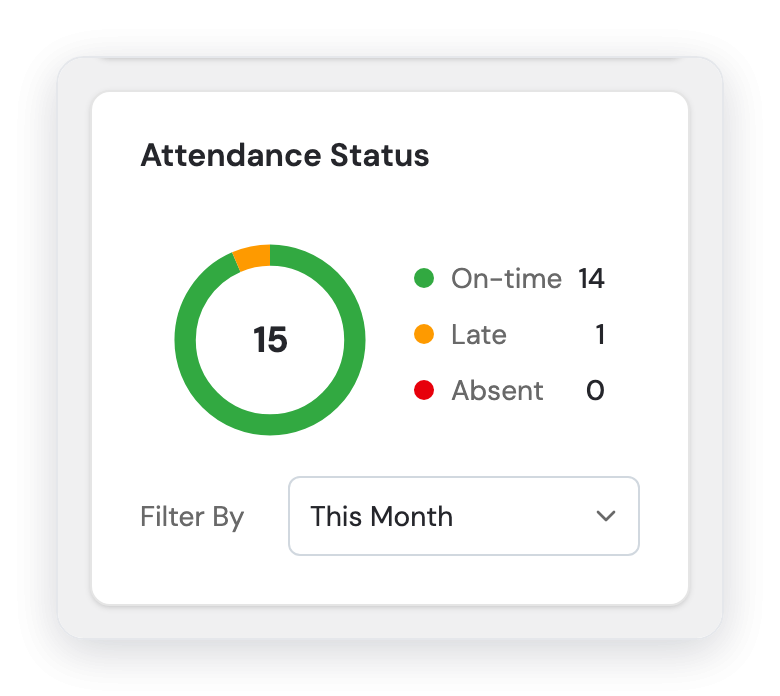
Below the buttons, the Attendance Status chart on the same card shows the number of days that you were On-time, Late, and Absent. Select the period in Filter By: Today, This Month, Last Month, This Year, or Last Year.
If you cannot check in
| Message | Reason | What to do |
|---|---|---|
| No shift is assigned to you for today. | You have no shift today, or today is a day off of your shift. | Ask your HR manager to assign you to a shift. |
| Self-attendance is disabled by your administrator. | Self attendance is off. | Ask your HR manager to record your attendance. |
| Your current IP address is not allowed to record attendance. | IP restriction is on, and your network is not allowed. | Connect to the office network, or ask your administrator to add your network. |
If you forget to check out, your HR manager can correct the time. See Attendance Records.
Reminder emails
If the administrator turns on Attendance reminder, FlyHR sends you an email when you did not check in by the shift start plus the grace time. FlyHR sends one reminder each day.
See your attendance history
To see all your days, the times, and a summary of a period, open My Profile and click Attendance. See Attendance on the employee profile.