GETTING STARTED
EMPLOYEE REQUESTS
PAYROLL
REIMBURSEMENT
DOCUMENTS AND FIELDS
RECRUITMENT
AUTOMATION AND NOTIFICATIONS
RECRUITMENT
Recruitment Setup and Reports
This feature is part of FlyHR Pro on the Agency plan.
Set up the hiring stages and the screening questions that your job openings use. Then use the recruitment reports to see how many people apply and where they are in the process.
Before you start
- You must be a WordPress administrator or an HR manager.
- The Recruitment module must be on. See FlyHR Pro.
Hiring stages
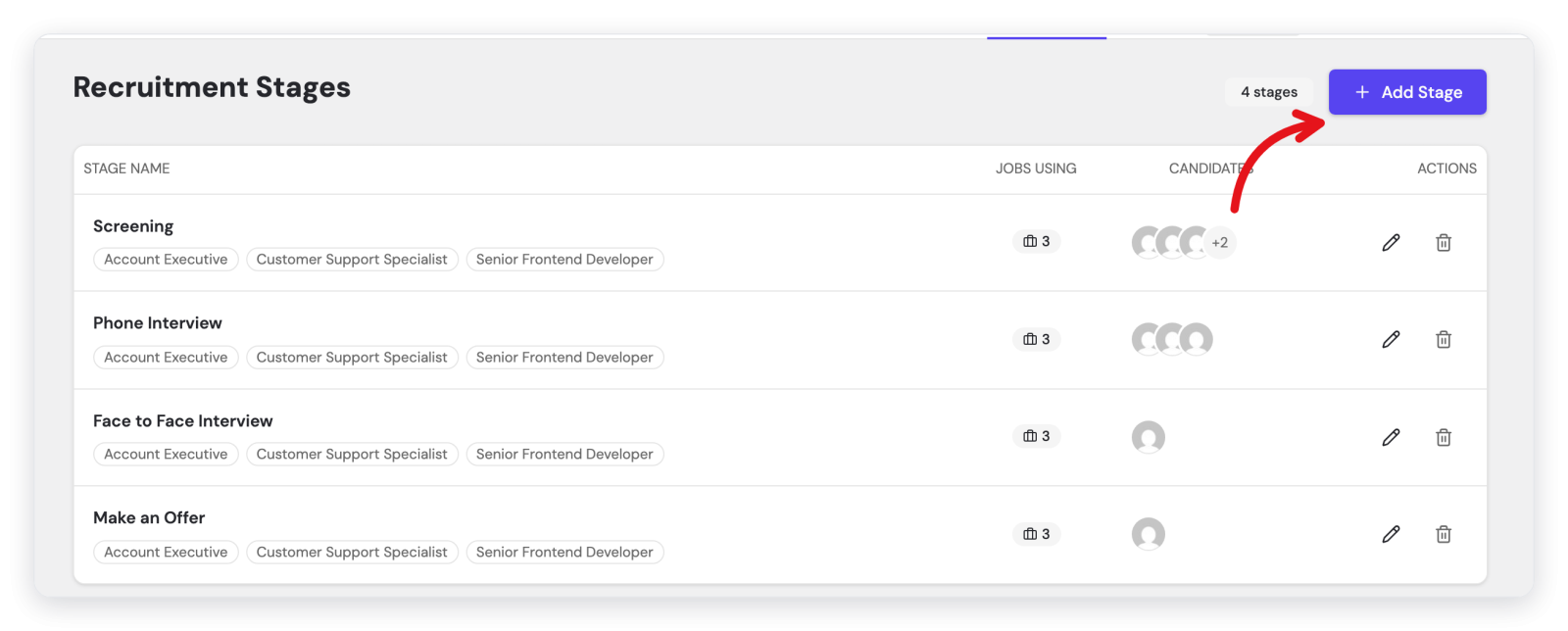
Stages are the steps that a candidate goes through, for example Screening and Phone Interview. FlyHR starts with four stages: Screening, Phone Interview, Face to Face Interview, and Make an Offer. Each job opening uses the stages that you turn on for it.
- Go to More → Recruitment → Hiring Stages.
- Click Add Stage.
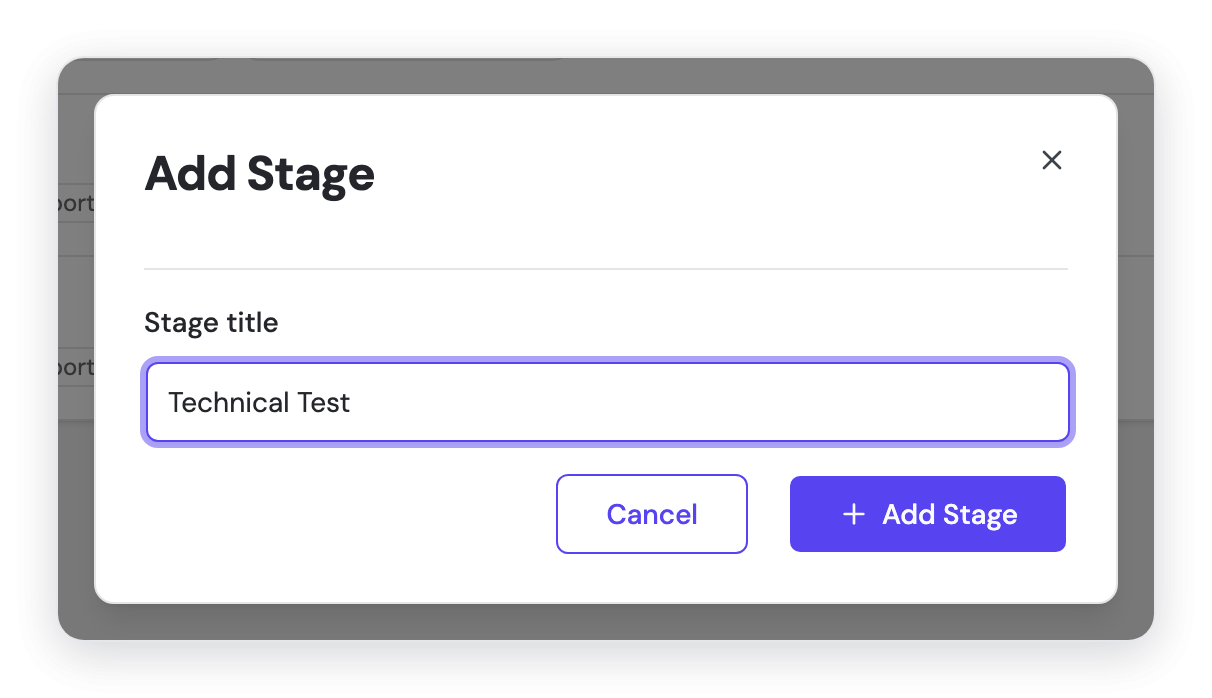
- Type the Stage title, for example Technical Test.
- Click Add Stage.
Add the stages in the order that you hire. The list shows the jobs that use each stage and the candidates in it.
- To rename a stage, click the pencil icon.
- To delete a stage, click the trash icon. You cannot delete a stage that has candidates or that a job uses. Move the candidates, or remove the stage from the jobs, first.
Question sets
A question set is a group of screening questions. Applicants answer them on the application form. You choose the question sets in the last step of the job form. See Job Openings.
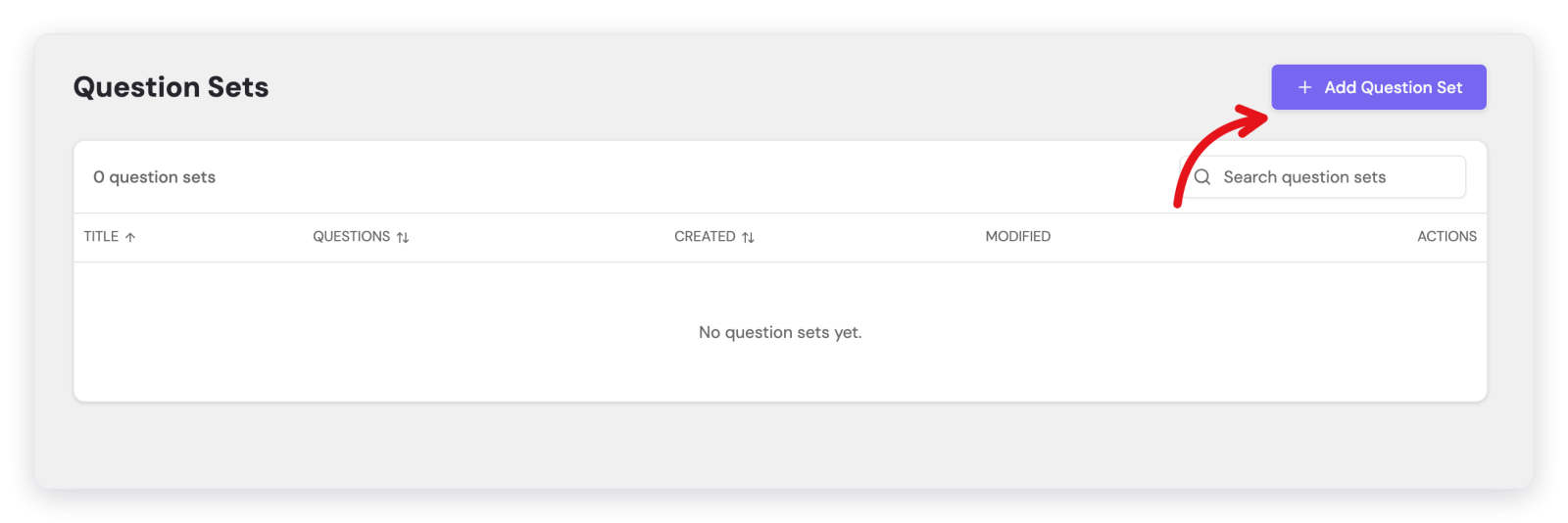
- Go to More → Recruitment → Question Sets.
- Click Add Question Set.
- Type the Title, for example Frontend Screening.
- Click Add Question.
- Type the question and select its Type.
- Optional: type the Help text and the Placeholder. Turn on Required if the applicant must answer.
- For Dropdown, Single choice, and Multiple choice, click Add Option for each answer.
- Repeat steps 4 to 7 for each question.
- Click Save Question Set.
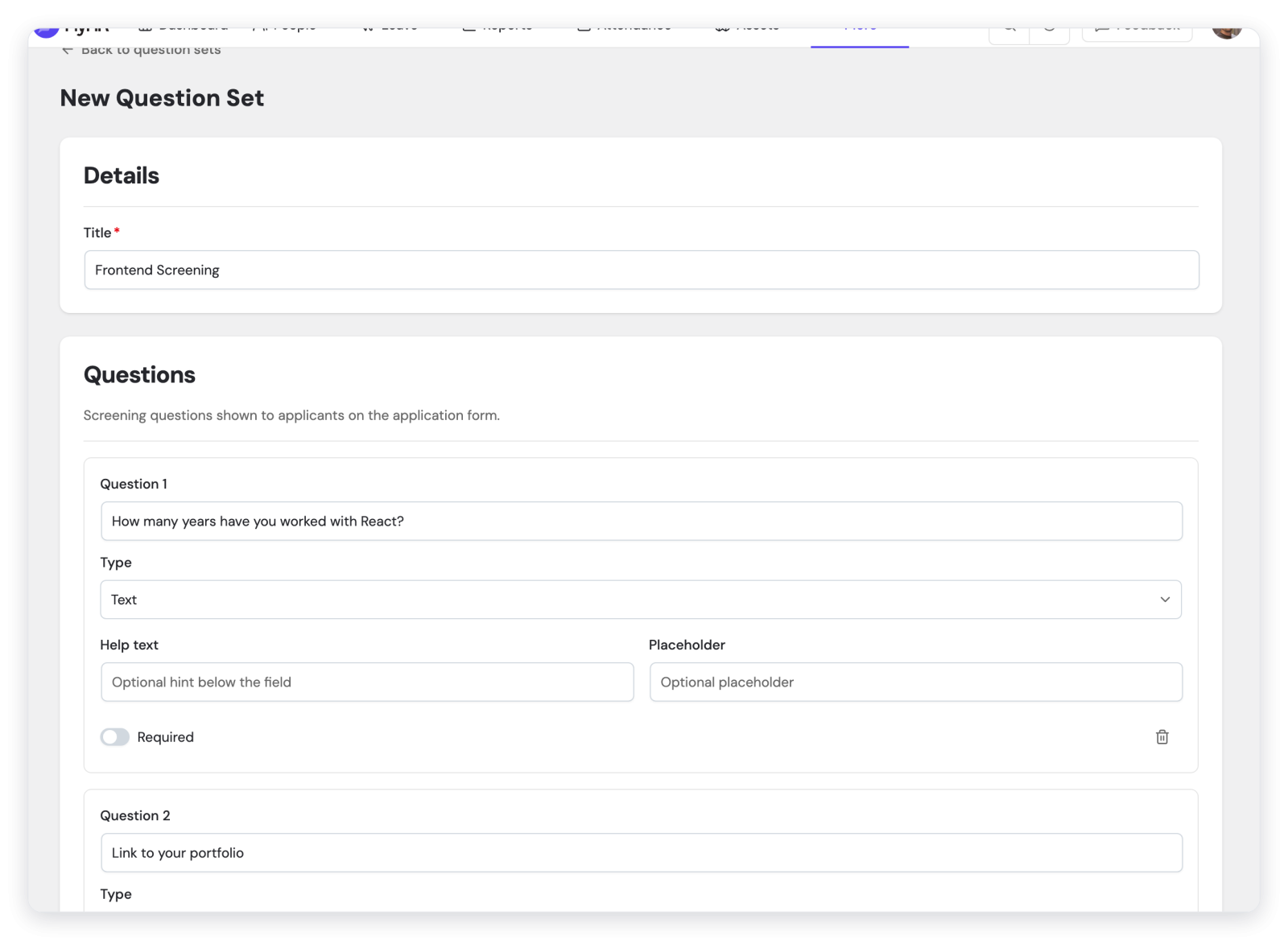
The answers of a candidate show on the Exam Details tab of the candidate. See Candidates.
Question types
| Type | The applicant |
|---|---|
| Text | Types a short answer. |
| Textarea | Types a long answer. |
| Dropdown | Selects one answer from a list. |
| Single choice | Selects one option. |
| Multiple choice | Selects one or more options. |
| Number, Email, URL, Date | Types a number, an email address, a web address, or a date. |
Recruitment reports
Go to More → Recruitment → Reports.
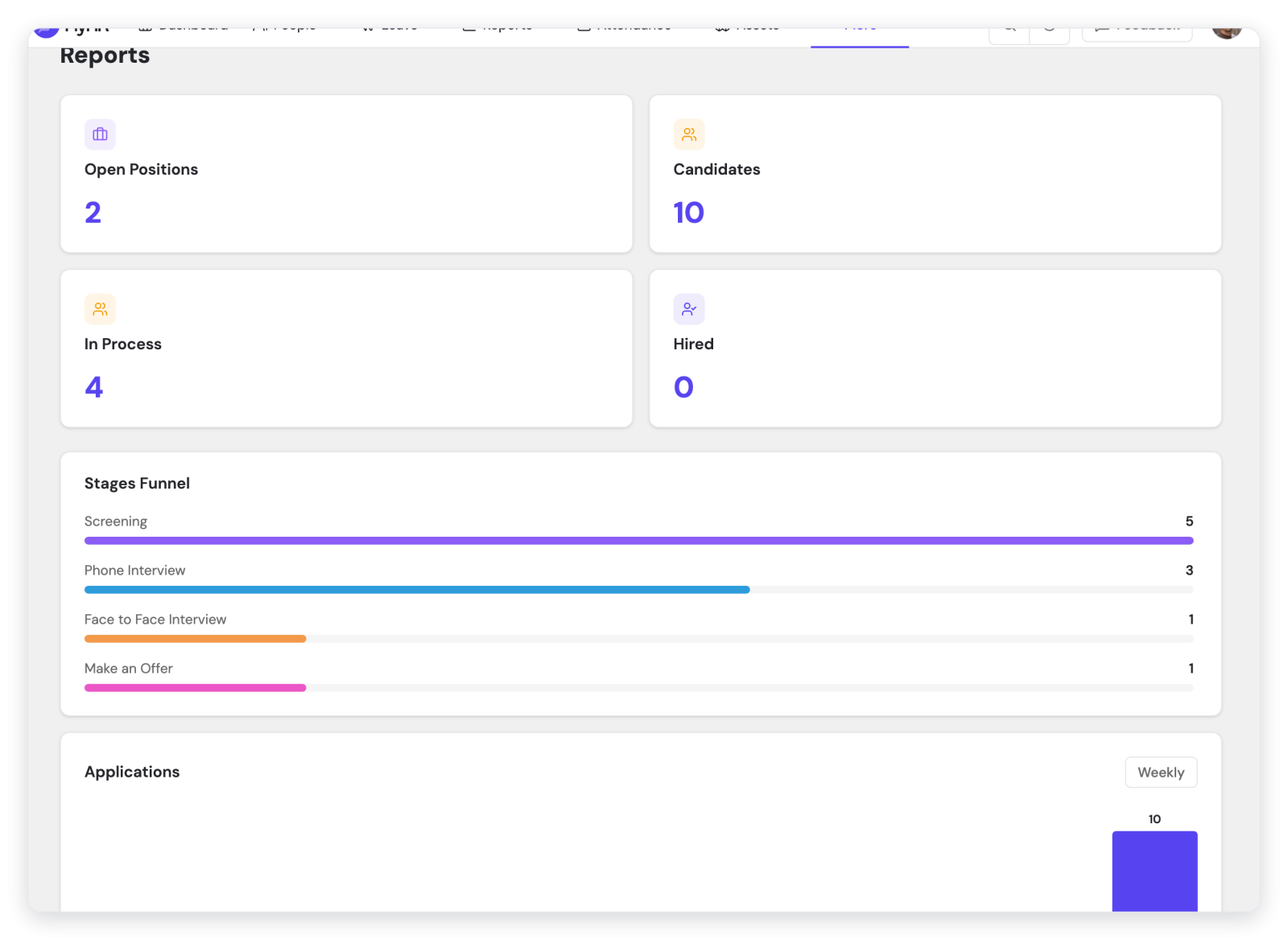
The top of the page shows the Open Positions, the Candidates, the candidates In Process, and the Hired candidates. Below:
- Stages Funnel: how many candidates are in each stage.
- Applications: the applications each week.
Opening Report and Candidate Report
- Click Opening Report or Candidate Report.
- Select an opening, or keep All openings.
- Click Generate.
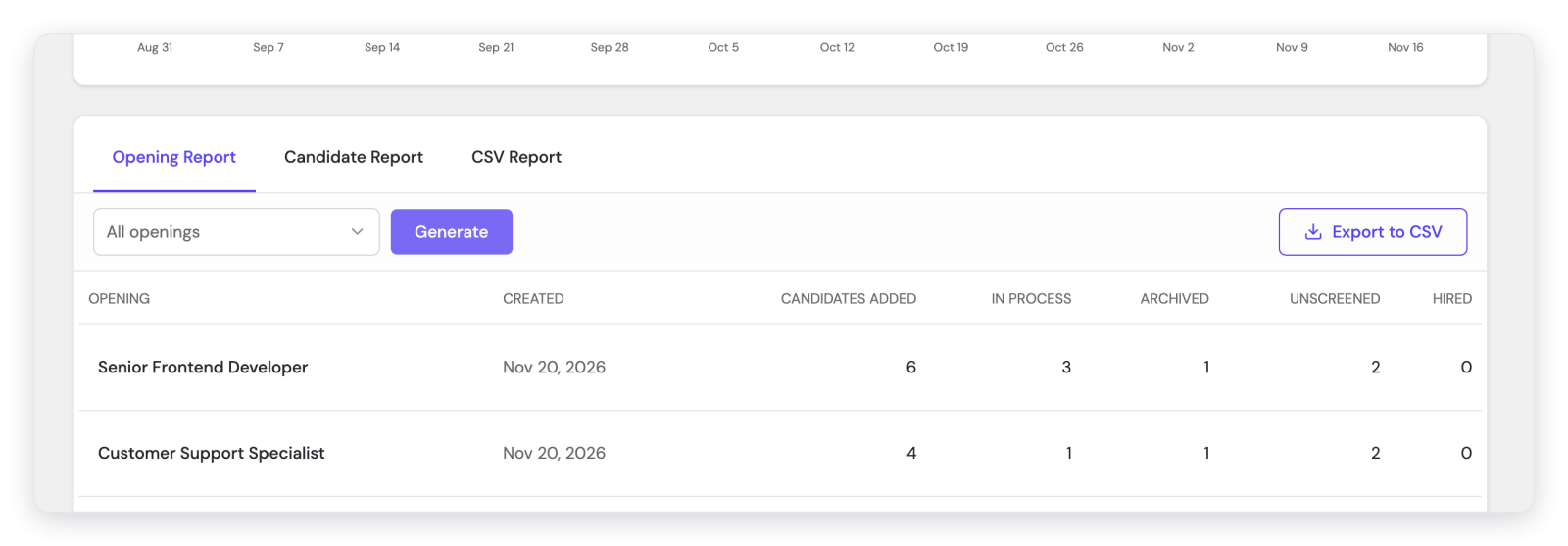
The Opening Report shows, for each opening, the candidates added, in process, archived, unscreened, and hired. The Candidate Report shows each candidate with the email, the phone, the apply date, and the current status. Click Export to CSV to download the report.
CSV Report
- Click CSV Report.
- Select the Report type and the Date range.
- Click Email CSV.
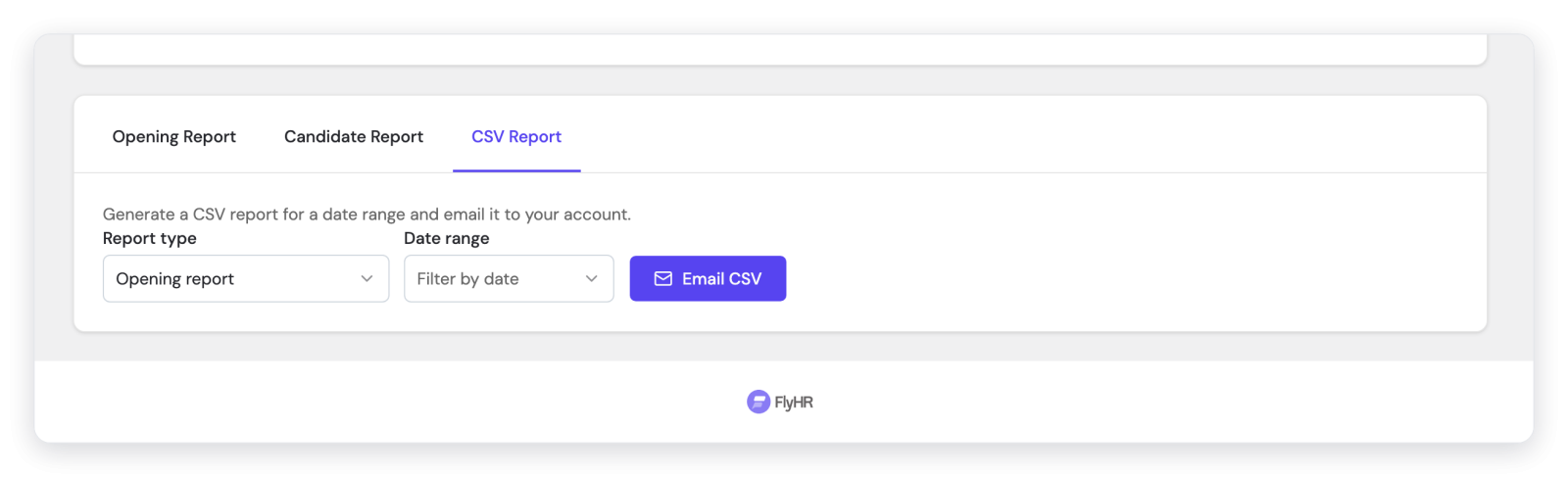
FlyHR sends the CSV file to the email address of your account.
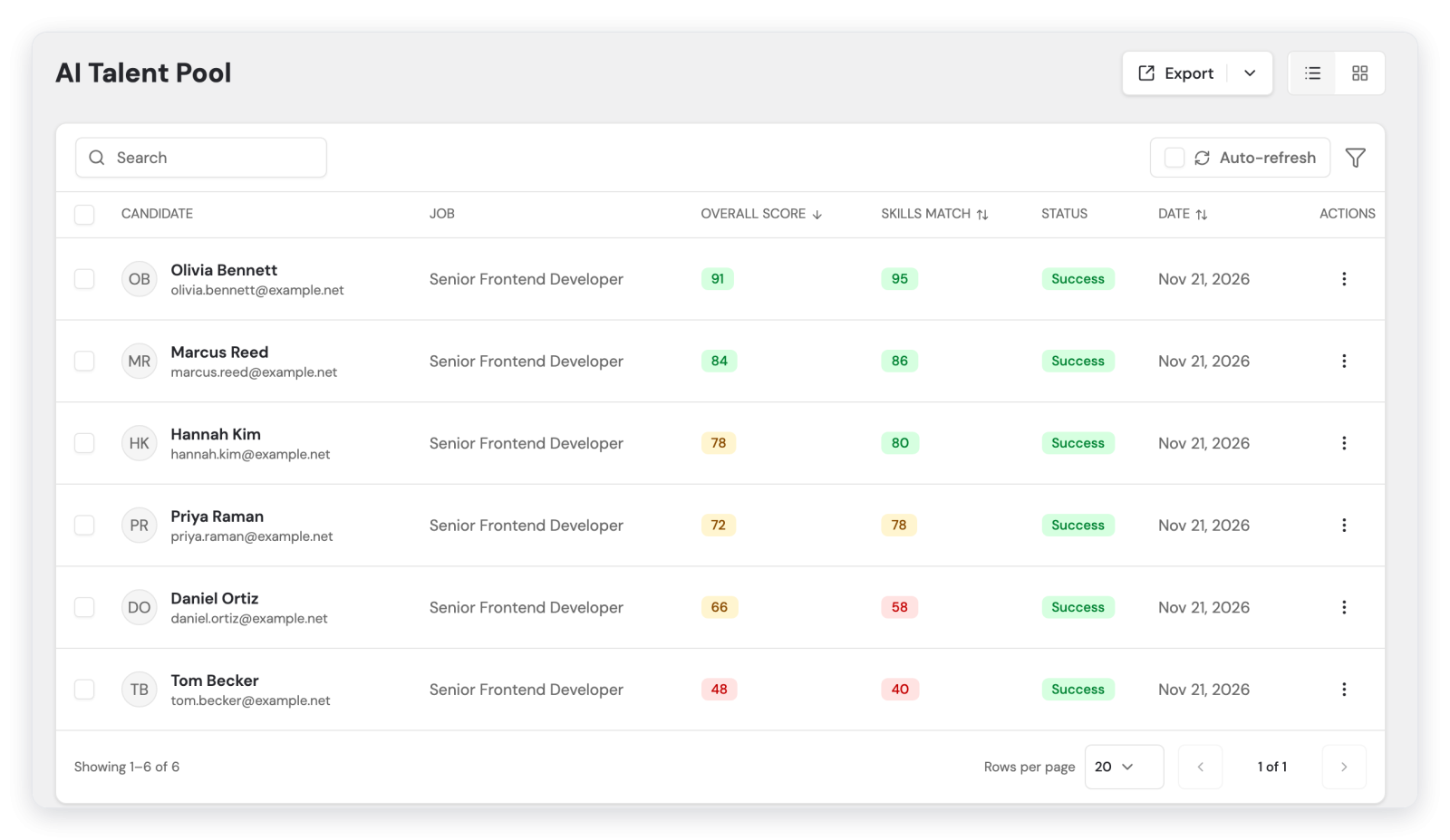
AI Talent Pool
More → Recruitment → AI Talent Pool lists the candidates that the AI scored against their job opening, with the overall score and the skills match. The list is empty until you turn on the AI features and FlyHR scores the first CVs. For the columns, the filters, and the export, see Recruitment AI.