GETTING STARTED
EMPLOYEE REQUESTS
PAYROLL
REIMBURSEMENT
DOCUMENTS AND FIELDS
RECRUITMENT
AUTOMATION AND NOTIFICATIONS
ATTENDANCE
Shifts
This feature is part of FlyHR Pro on the Starter, Business, and Agency plans.
A shift is a work schedule with a start time, an end time, and days off. FlyHR measures attendance against the shift of each employee. An employee without a shift has no attendance days and cannot check in.
Before you start
- You must be a WordPress administrator or an HR manager.
- Set the grace times first. See Set Up Attendance.
Step 1: Make a shift
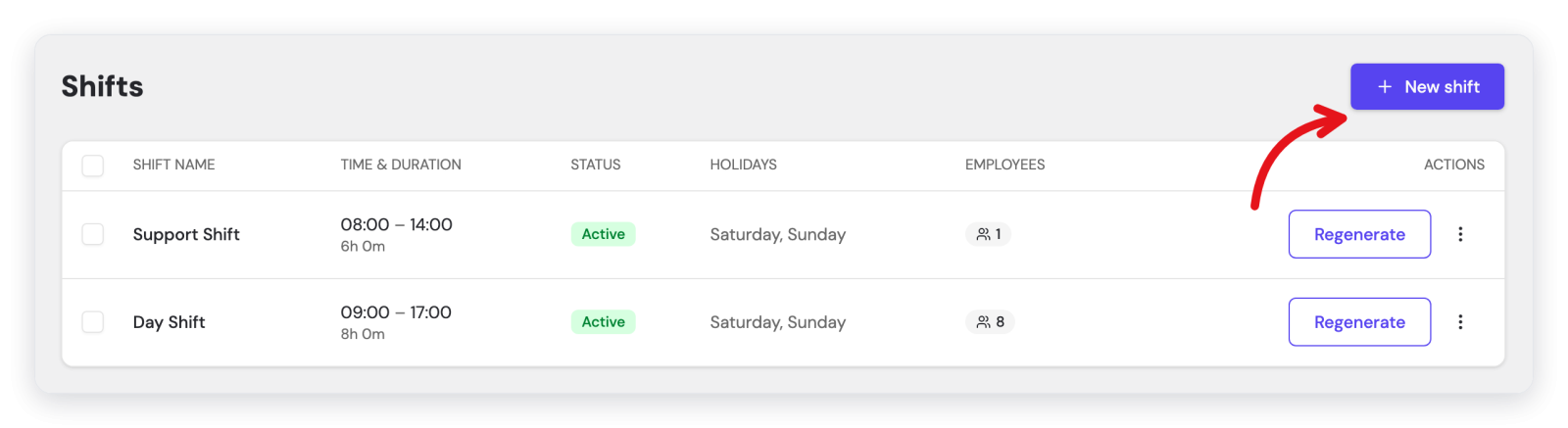
- Go to Attendance → Shifts.
- Click New shift.
- Type the Name of the shift, for example Day Shift.
- Set the Start time and the End time.
- In Holidays, select the days of the week that are off for this shift, for example Saturday and Sunday.
- Click Save.
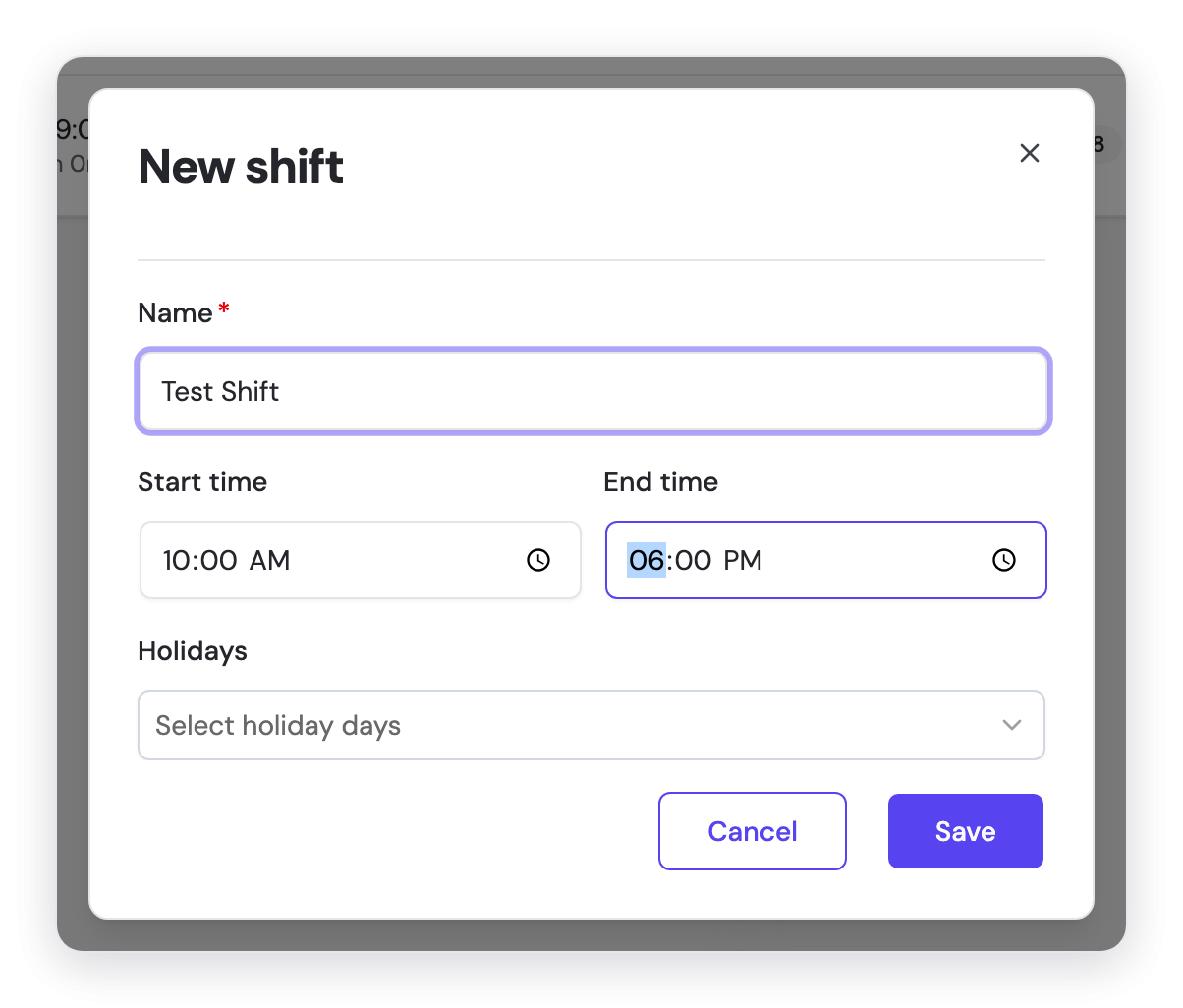
FlyHR shows the message "Shift created." The new shift is in the list with the status Active.
Step 2: Assign employees
- In the row of the shift, click Generate. For a shift that already has employees, the button is Regenerate.
- Set the Start Date and the End Date of the assignment.
- In Assign Shift, select who works this shift:
- All employees
- a Department
- a Designation
- an Employment Type
- Selected employees
- Select the department, designation, type, or employees.
- Click Generate.
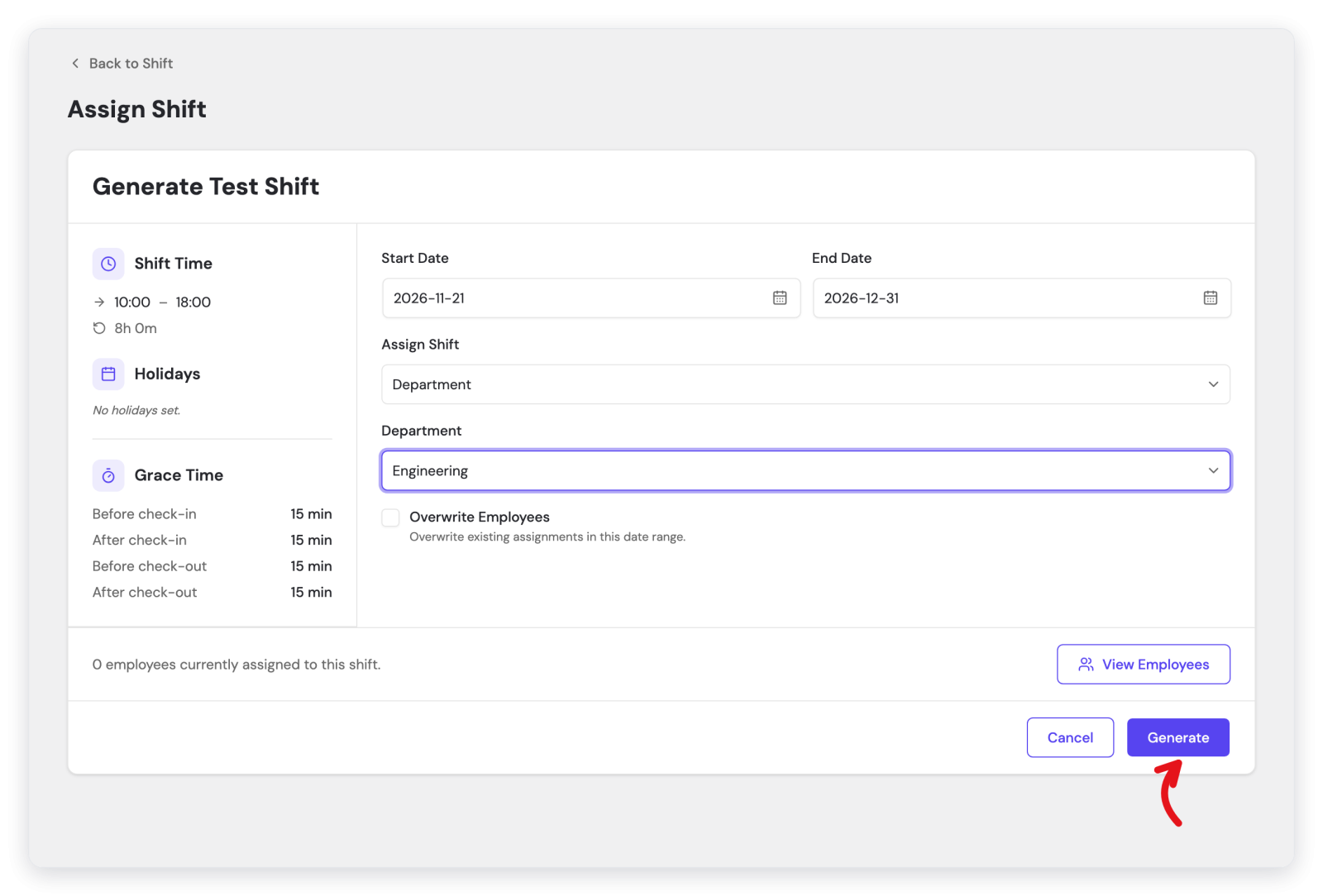
FlyHR makes one attendance day for each employee and each working day in the date range. The left side of the page shows the shift time, the days off, and the grace times.
Caution: FlyHR makes days before today only when you select Overwrite Employees. Without it, a date range that starts in the past skips the past days. Overwrite Employees also replaces the assignments that the employees have in this date range.
Step 3: See who works a shift
In the Employees column of the shift, click the number. The Shift Employees page shows each employee with the department, the designation, and the start and end date of the assignment.
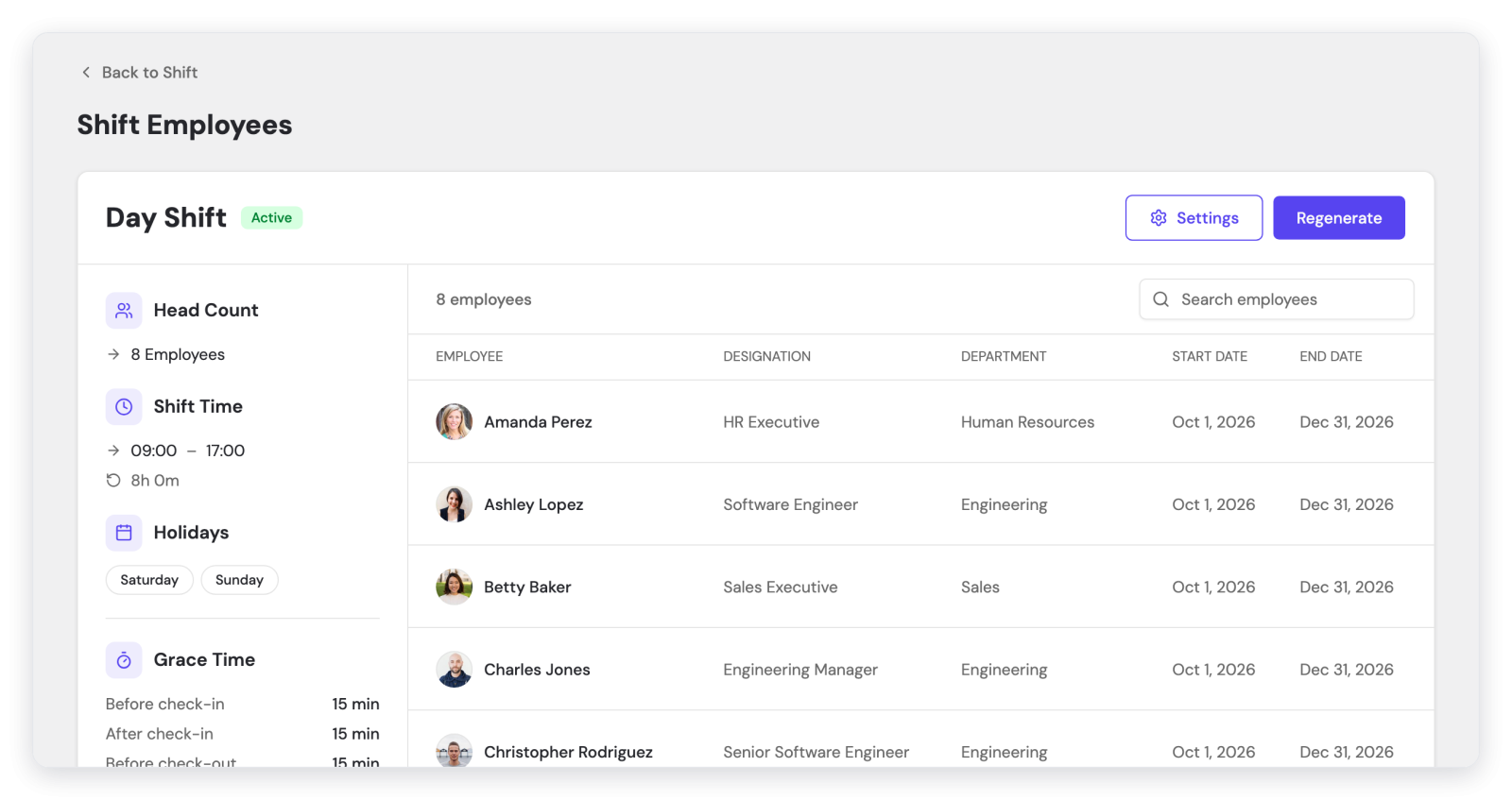
From this page, you can also click Regenerate to assign more employees, or Settings to change the attendance settings.
Edit or delete a shift
Click the ⋮ menu in the row of the shift.
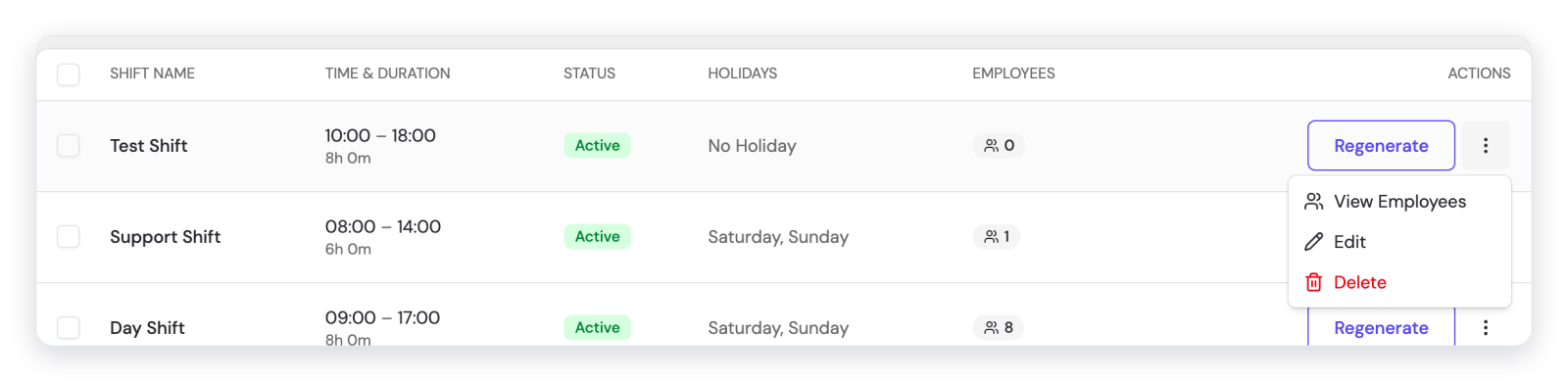
| Action | What it does |
|---|---|
| View Employees | Opens the list of employees on the shift. |
| Edit | Changes the name, the times, or the days off. |
| Delete | Removes the shift from the list. FlyHR keeps the attendance that was recorded on it. |
You can also select more than one shift with the check boxes, then click Delete.
Assign a shift from the employee form
With Attendance on, the employee form has a Shift field. When you add or edit an employee, select their shift there. See Add an Employee.
The fields of a shift
| Field | What it means |
|---|---|
| Name | The name of the shift. It is necessary. |
| Start time, End time | The work hours. FlyHR shows the duration in the list, for example 8h 0m. |
| Holidays | The days of the week that are off. FlyHR makes no attendance days on them. |