GETTING STARTED
EMPLOYEE REQUESTS
PAYROLL
REIMBURSEMENT
DOCUMENTS AND FIELDS
RECRUITMENT
AUTOMATION AND NOTIFICATIONS
ATTENDANCE
Attendance Reports
This feature is part of FlyHR Pro on the Starter, Business, and Agency plans.
Attendance reports show who was present, late, absent, or on leave for a period. There are three reports: one employee, all employees, and each date. You can export each report as a CSV file.
Before you start
- You must be a WordPress administrator or an HR manager.
- Go to Attendance → Reports.
The report of one employee
- Click the Employee tab.
- Select the Employee.
- Select the Date range, for example Last Month.
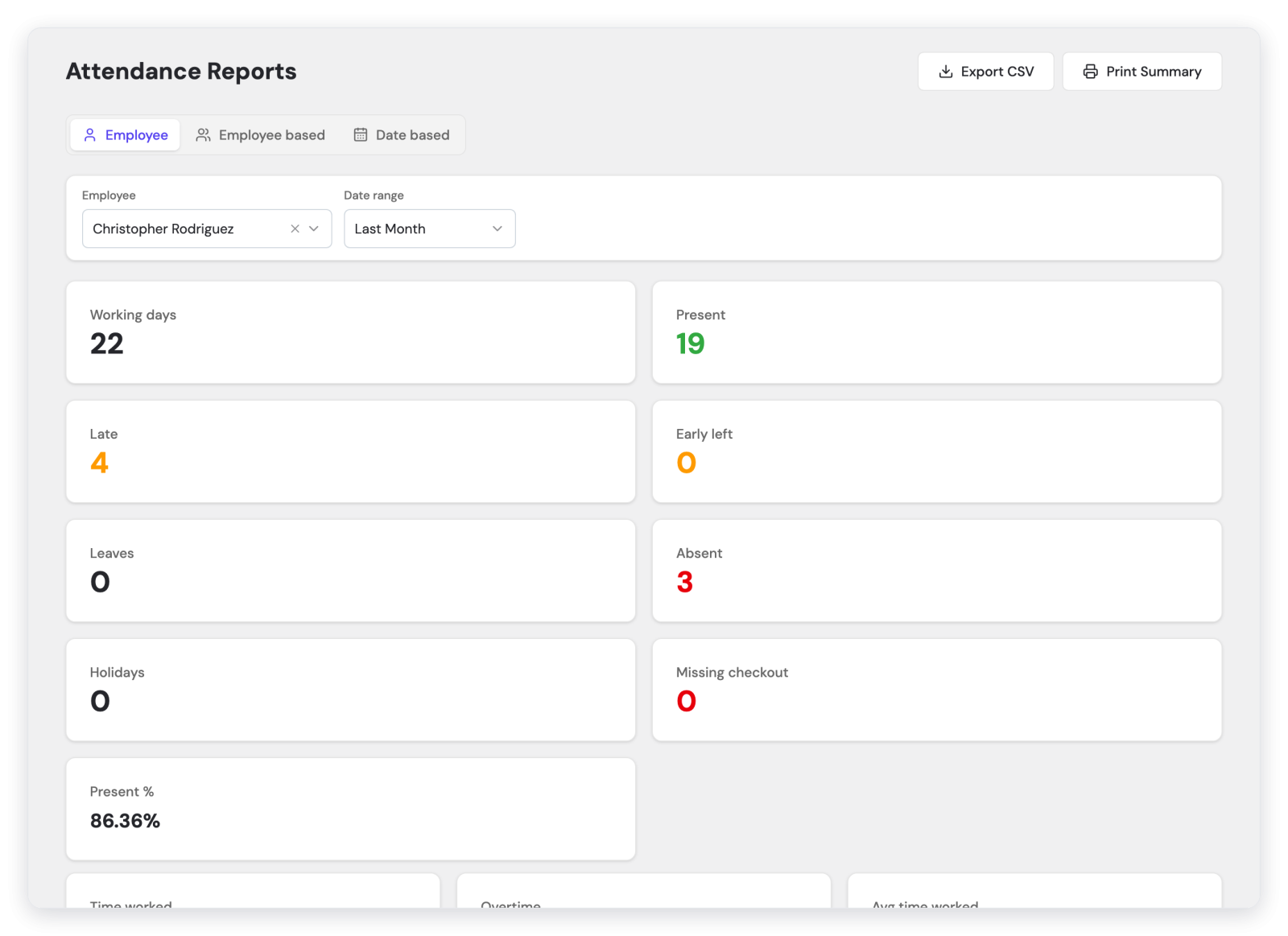
The report shows these numbers for the period:
| Number | What it means |
|---|---|
| Working days | The days with a shift. |
| Present | The days that the employee checked in. |
| Late | The days with a check-in after the shift start plus the grace time. |
| Early left | The days with a check-out before the shift end minus the grace time. |
| Leaves | The days of approved leave. |
| Absent | The working days with no check-in and no leave. |
| Holidays | The company holidays in the period. |
| Missing checkout | The days with a check-in but no check-out. |
| Present % | The present days as a percent of the working days. |
Below the numbers, the report shows the average check-in and check-out, the time worked, the overtime, a chart of the daily work time, and a table of each day. Click View log in a row to see each punch of that day.
To print the numbers, click Print Summary. To download the table, click Export CSV.
Attendance on the employee profile
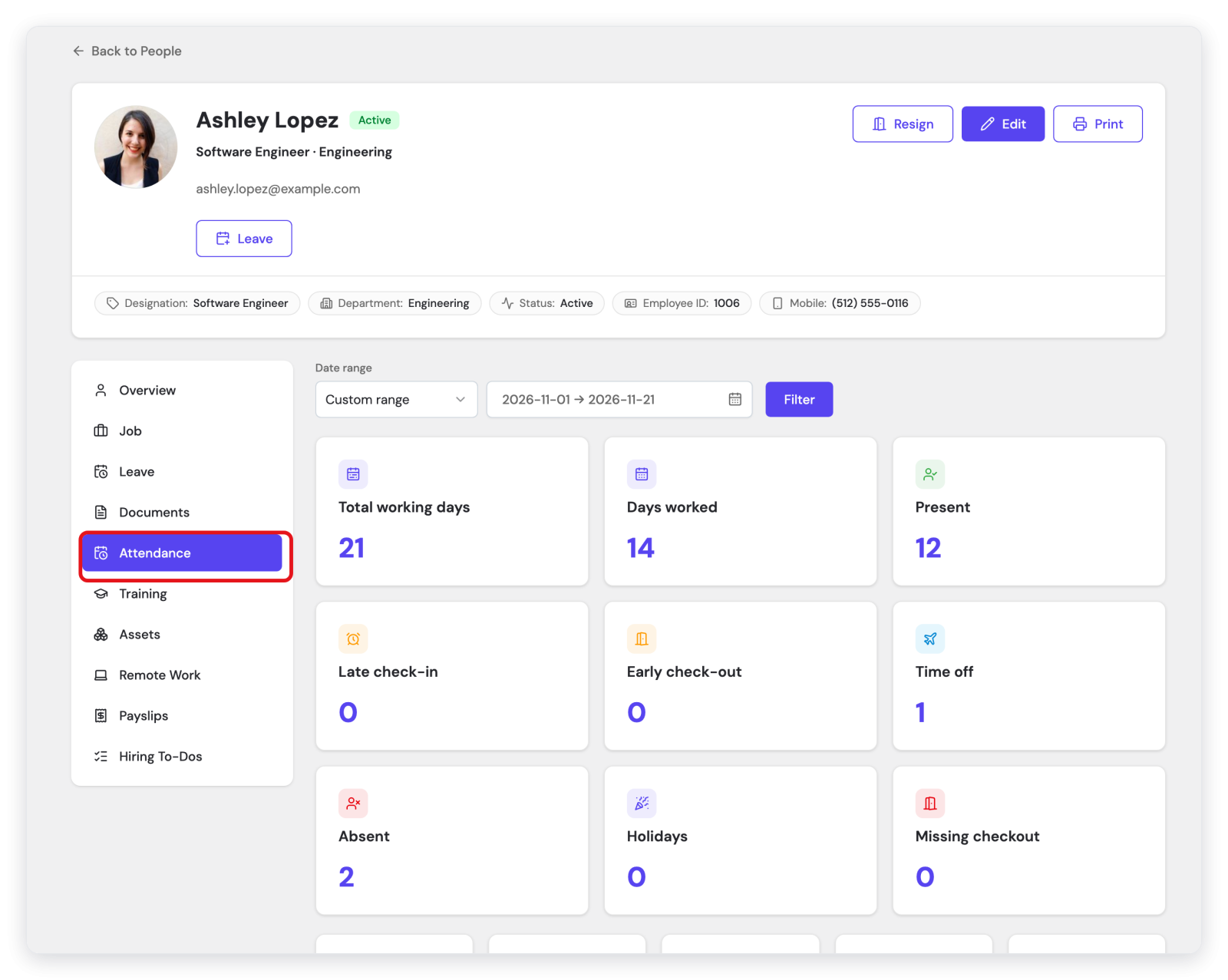
Each employee profile has an Attendance tab with the same report for that one person. HR managers see it on every profile. Each employee sees their own.
- Go to People → All Employees and click the name of the employee.
- Click Attendance.
- In Date range, select a period, or select Custom range and pick the dates. Then click Filter.
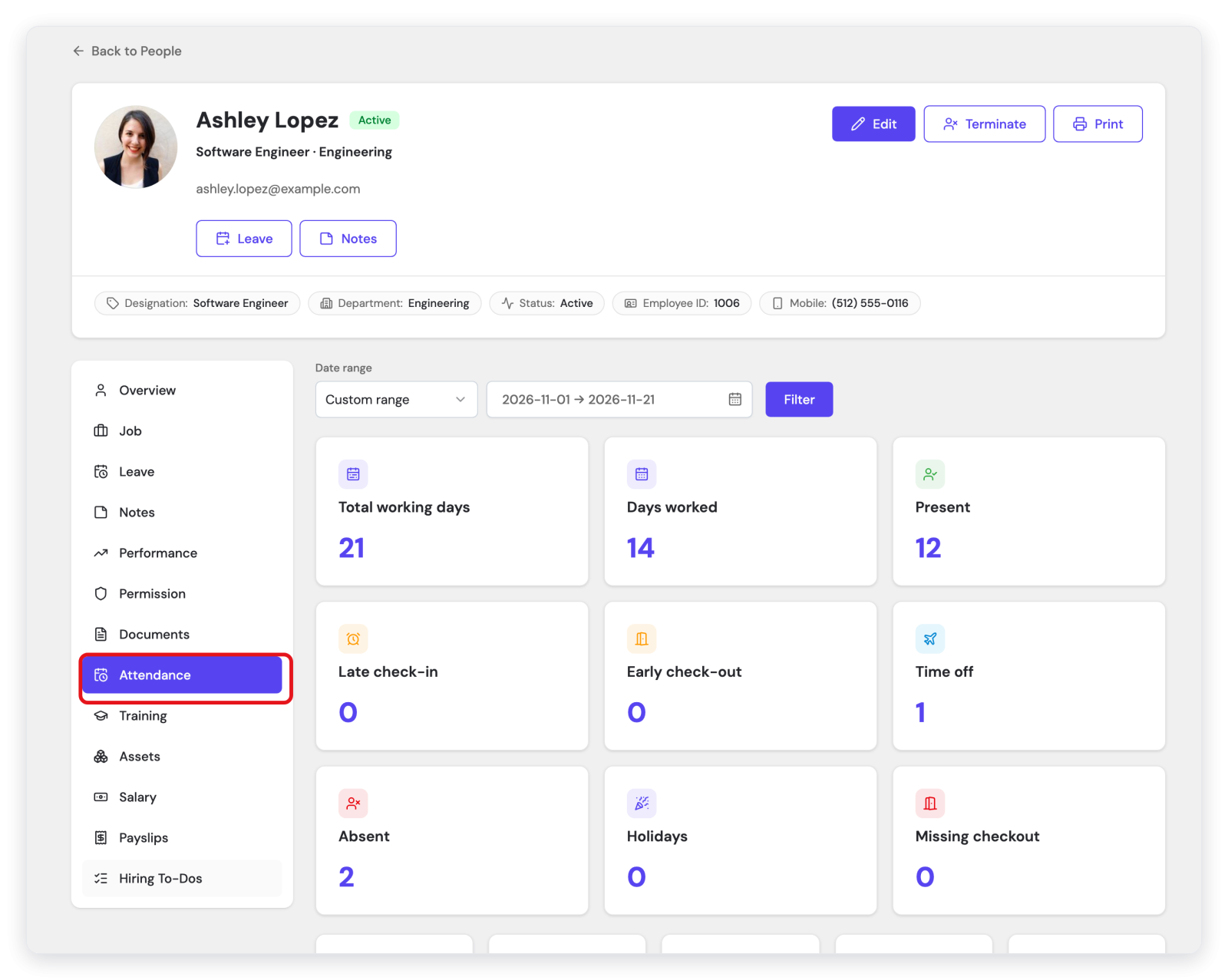
The tab shows the numbers of the period, for example Total working days, Days worked, Present, Late check-in, Absent, and Missing checkout. Below them, a table shows each day with the shift, the check-in, the check-out, the status, and the time worked.
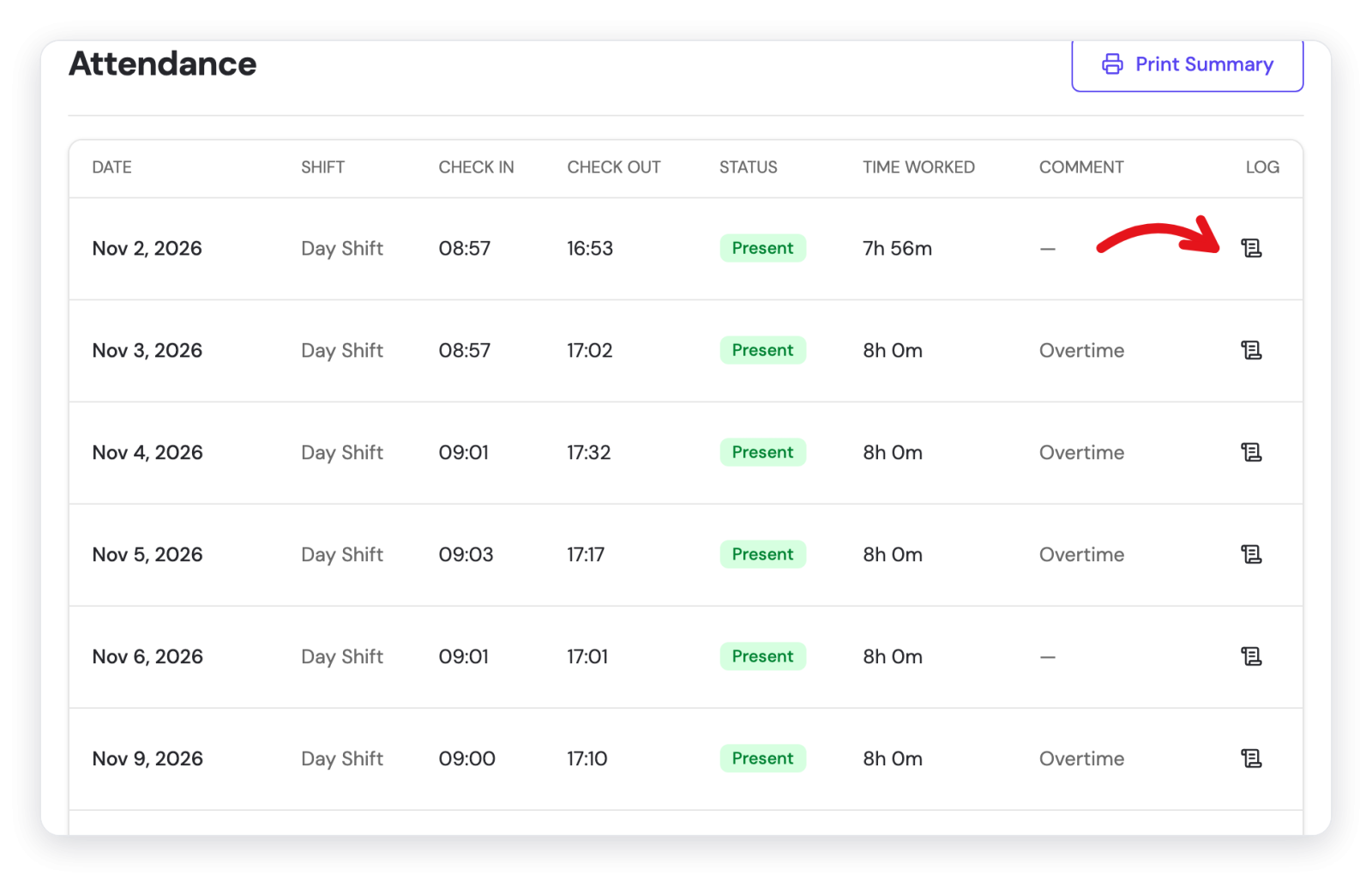
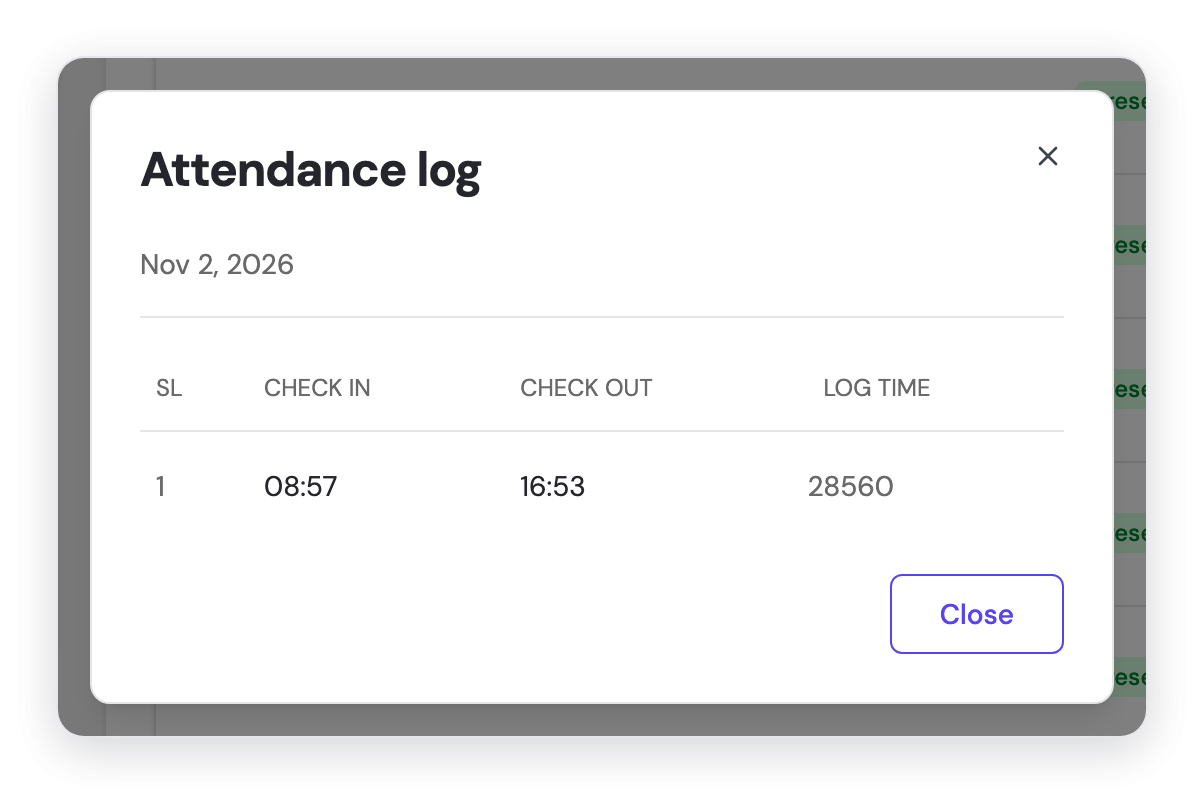
To see each check-in and check-out of a day, click the log icon at the end of the row. The Attendance log window opens.
To print the numbers, click Print Summary.
Employees see their own attendance
Employees open their own attendance from their profile:
- Click the photo at the top right, then click My Profile.
- Click Attendance.
The report of all employees
Click the Employee based tab. Select the Location, the Department, and the Period.
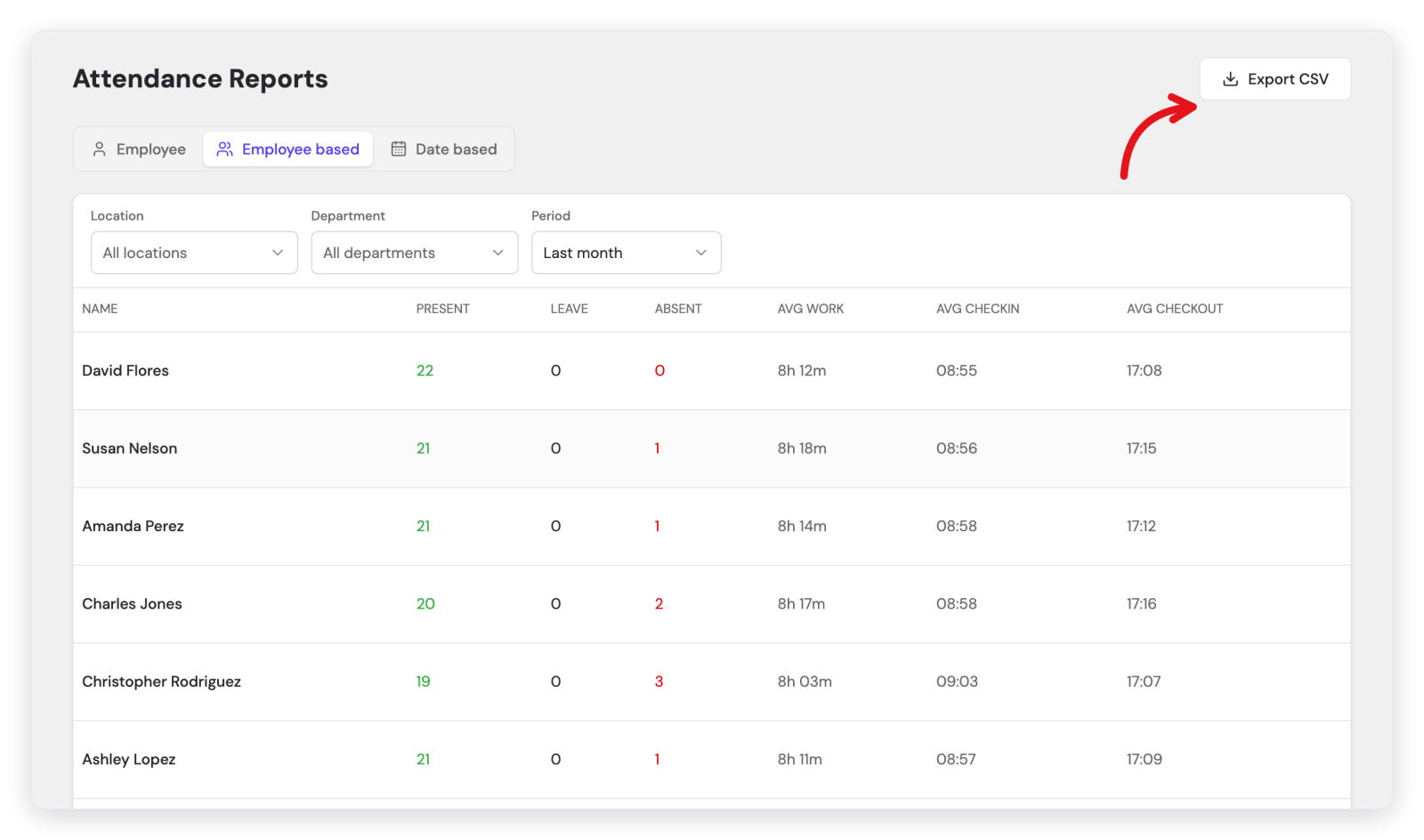
Each row is one employee, with the days Present, on Leave, and Absent, and the average work time, check-in, and check-out. Click Export CSV to download the report.
The report of each date
Click the Date based tab. Select the Location, the Department, and the Period.
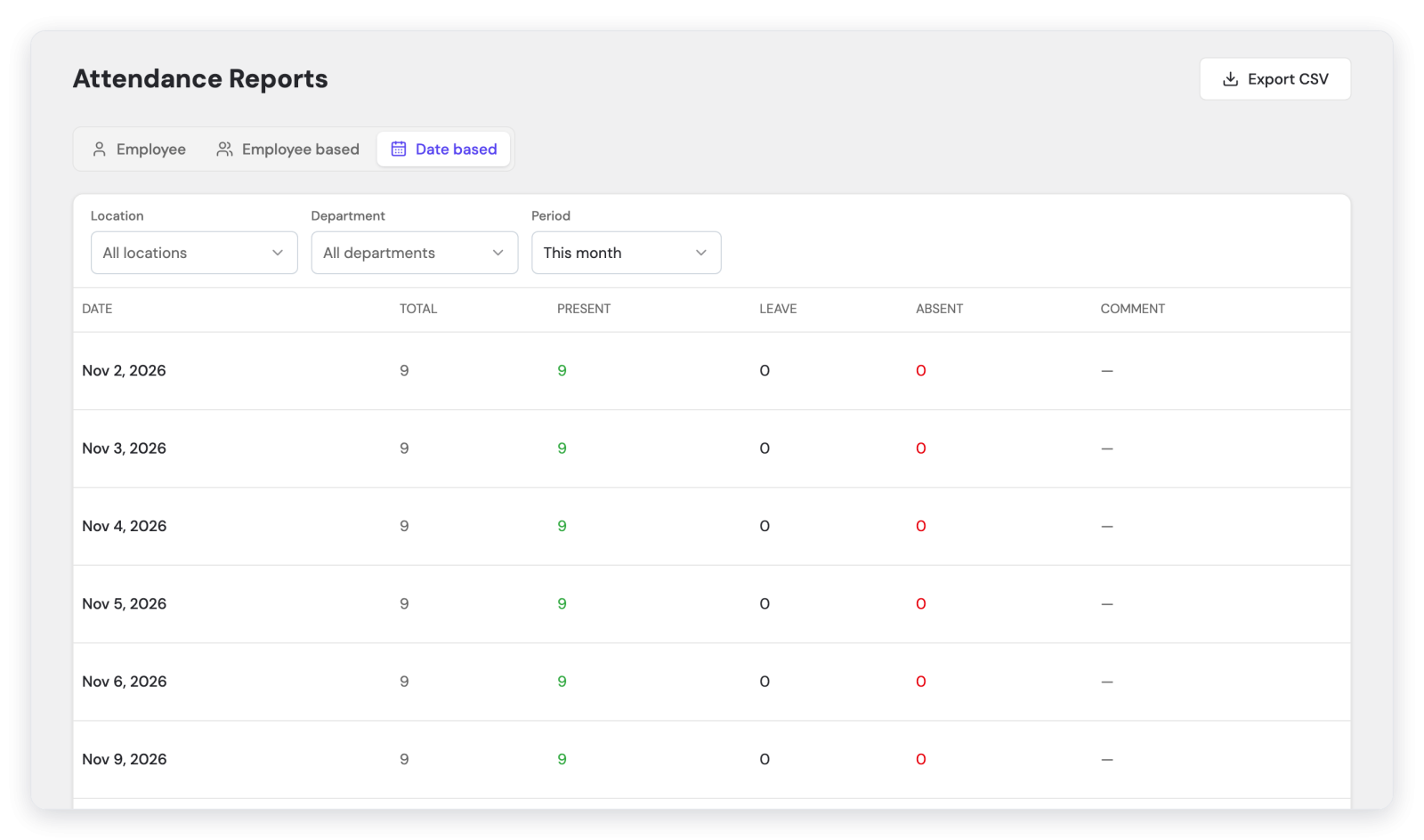
Each row is one day, with the Total number of employees on a shift and the number who were Present, on Leave, or Absent.
Periods
The Period list has Today, This week, This month, Last month, This year, Last year, and Custom range. Select Custom range to pick the first and the last day.