GETTING STARTED
EMPLOYEE REQUESTS
PAYROLL
REIMBURSEMENT
DOCUMENTS AND FIELDS
RECRUITMENT
AUTOMATION AND NOTIFICATIONS
RECRUITMENT
Candidates
This feature is part of FlyHR Pro on the Agency plan.
Each person who applies to a job opening becomes a candidate. Move candidates through the hiring stages, rate them, plan interviews and to-dos with your team, and hire the person that you choose. FlyHR then makes them an employee.
Before you start
- You must be a WordPress administrator or an HR manager.
- The Recruitment module must be on, and you must have at least one job opening. See Job Openings.
Step 1: Open the candidates
Go to More → Recruitment → Candidates.
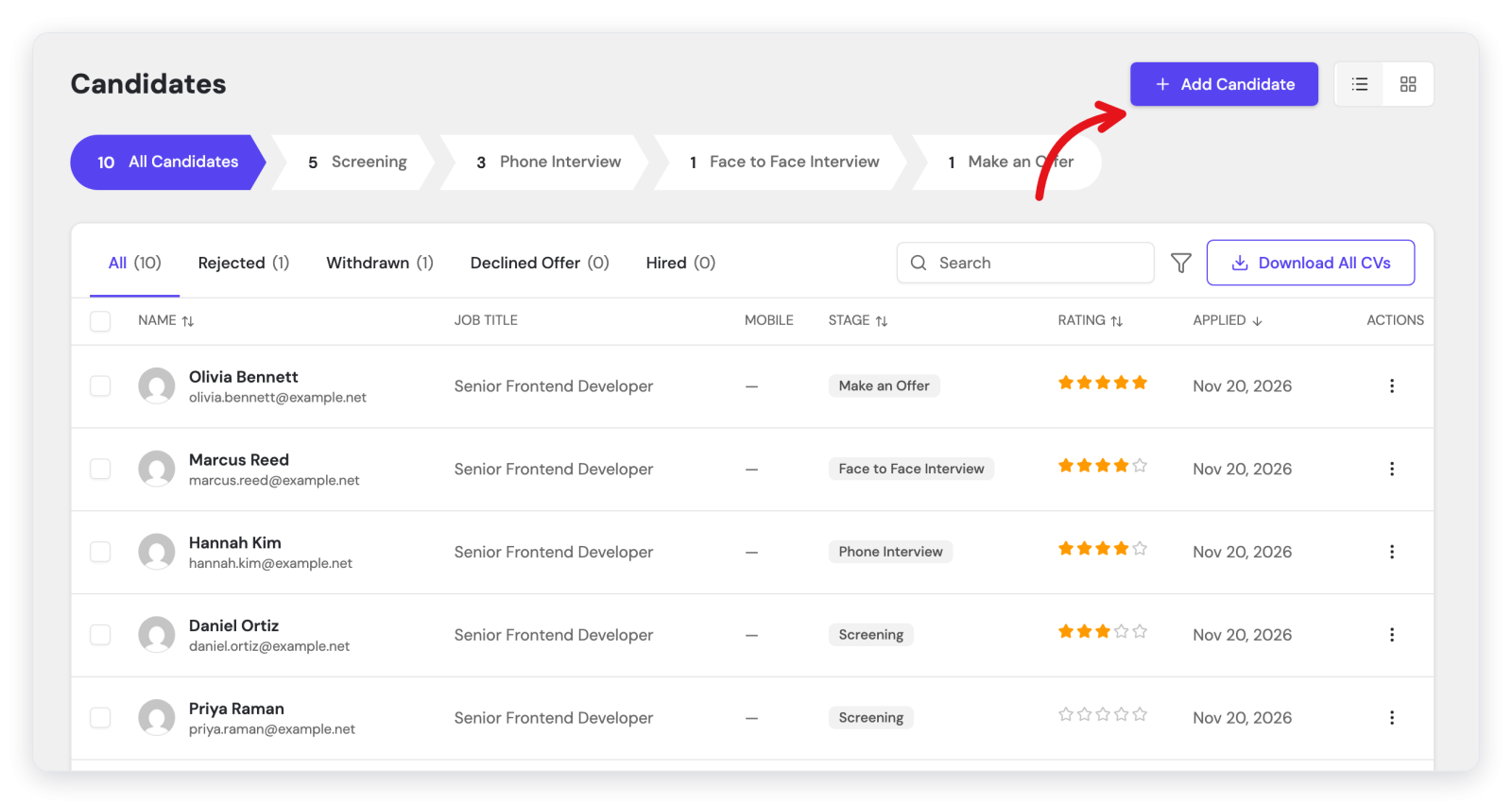
- The row at the top shows how many candidates are in each stage. Click a stage to show only those candidates.
- The tabs show the candidates by status: All, Rejected, Withdrawn, Declined Offer, and Hired.
- Use the search box and the filter icon to find candidates by job and stage.
- Click Download All CVs to get the CVs of the candidates in one file.
Candidates who apply on your website show here. To add a candidate yourself, see Add a candidate.
Step 2: Open a candidate
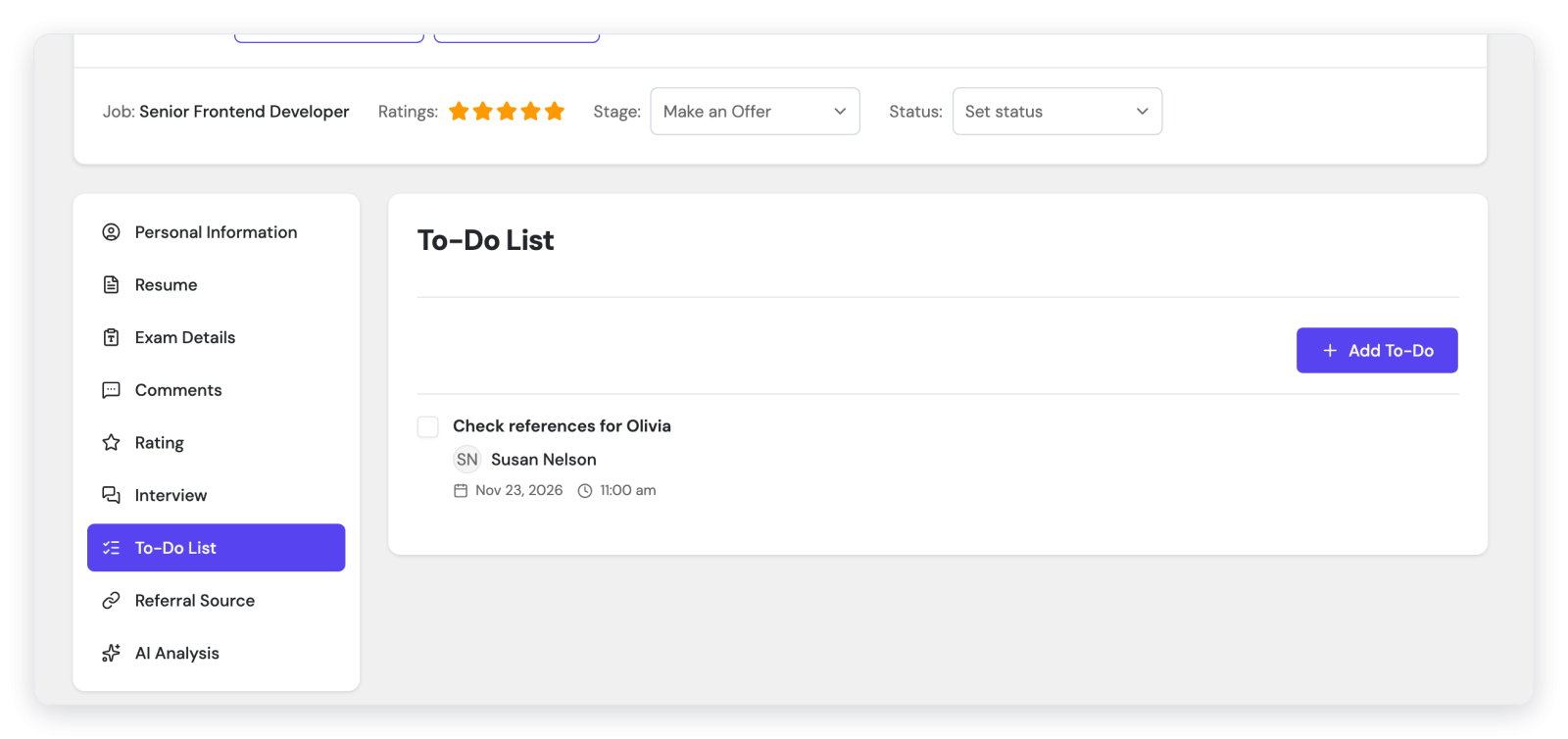
Click the name of the candidate. The top of the page shows the job, the ratings, the Stage, and the Status.
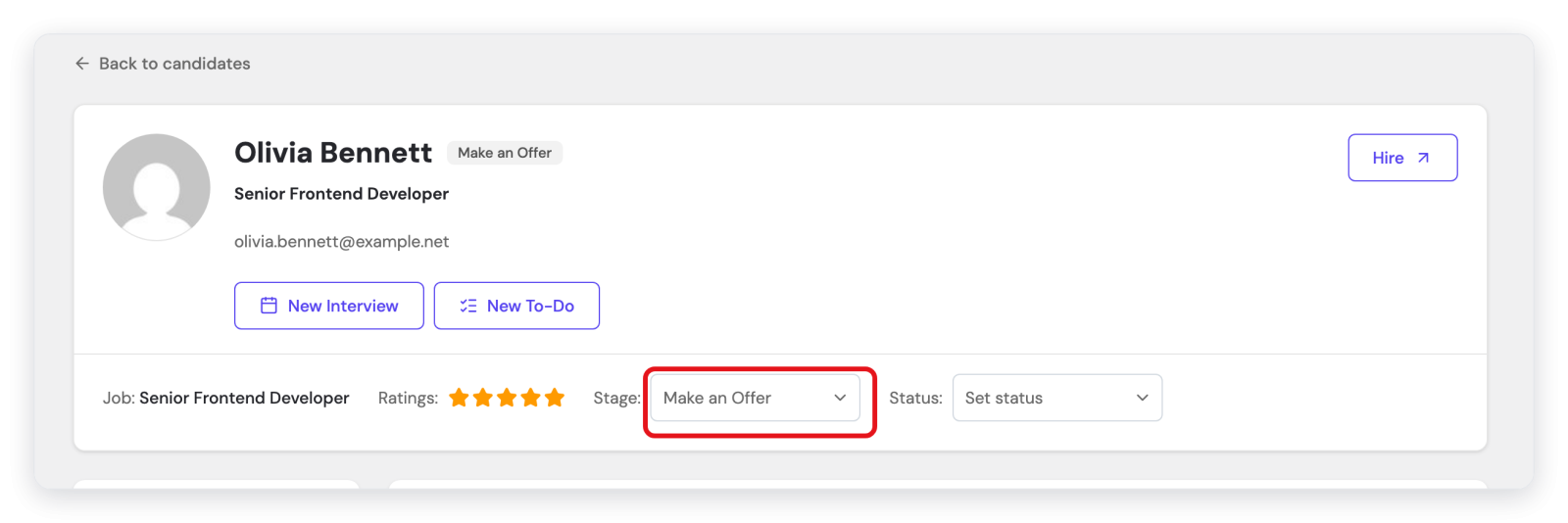
The tabs on the left show:
| Tab | What it shows |
|---|---|
| Personal Information | The details from the application form. |
| Resume | The CV, with a preview and a Download button. |
| Exam Details | The answers to the screening questions of the job. |
| Comments | The notes of your team. |
| Rating | Your rating and the average rating. |
| Interview | The interviews of the candidate. |
| To-Do List | The tasks for this candidate. |
| Referral Source | Where the candidate came from, for example a website or a campaign link. |
| AI Analysis | The AI score of the CV. See Recruitment AI. |
Step 3: Move the candidate to the next stage
Select the new stage in Stage.
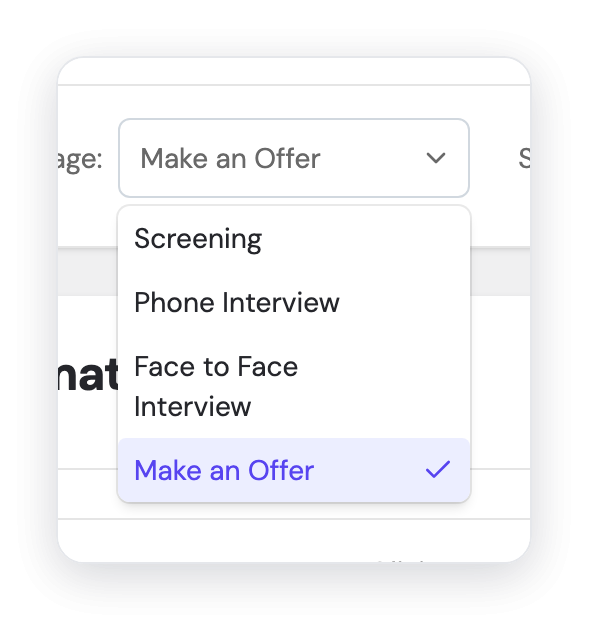
The stages are the stages that you turned on for the job. FlyHR sends the candidate the email of the new stage, for example Phone Interview Stage Notification. To change these emails, see Emails.
To stop the application, select a value in Status:
- Rejected: you do not continue with the candidate.
- Withdrawn: the candidate left the process.
- Declined Offer: the candidate said no to your offer.
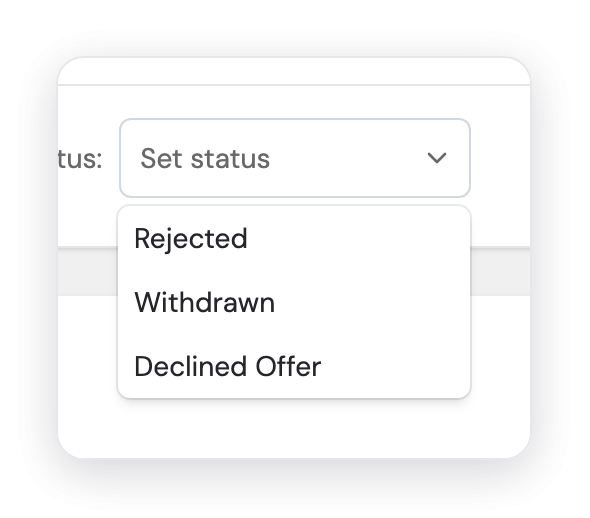
The Application Rejected email is off by default. Turn it on in the email settings if you want to tell candidates.
Step 4: Rate the candidate and add comments
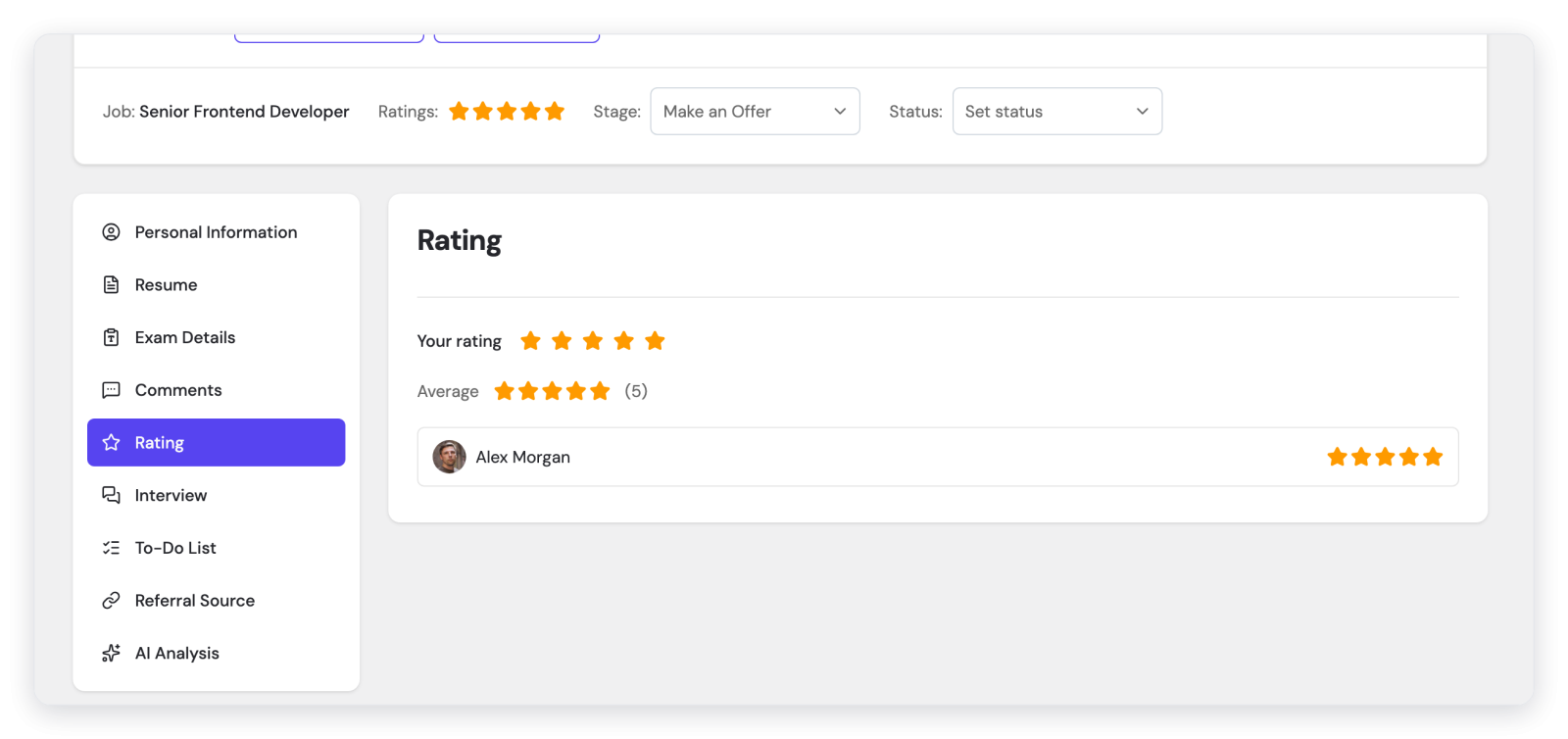
- Click the Rating tab.
- Click the stars in Your rating. Each member of your team gives their own rating. FlyHR shows the Average.
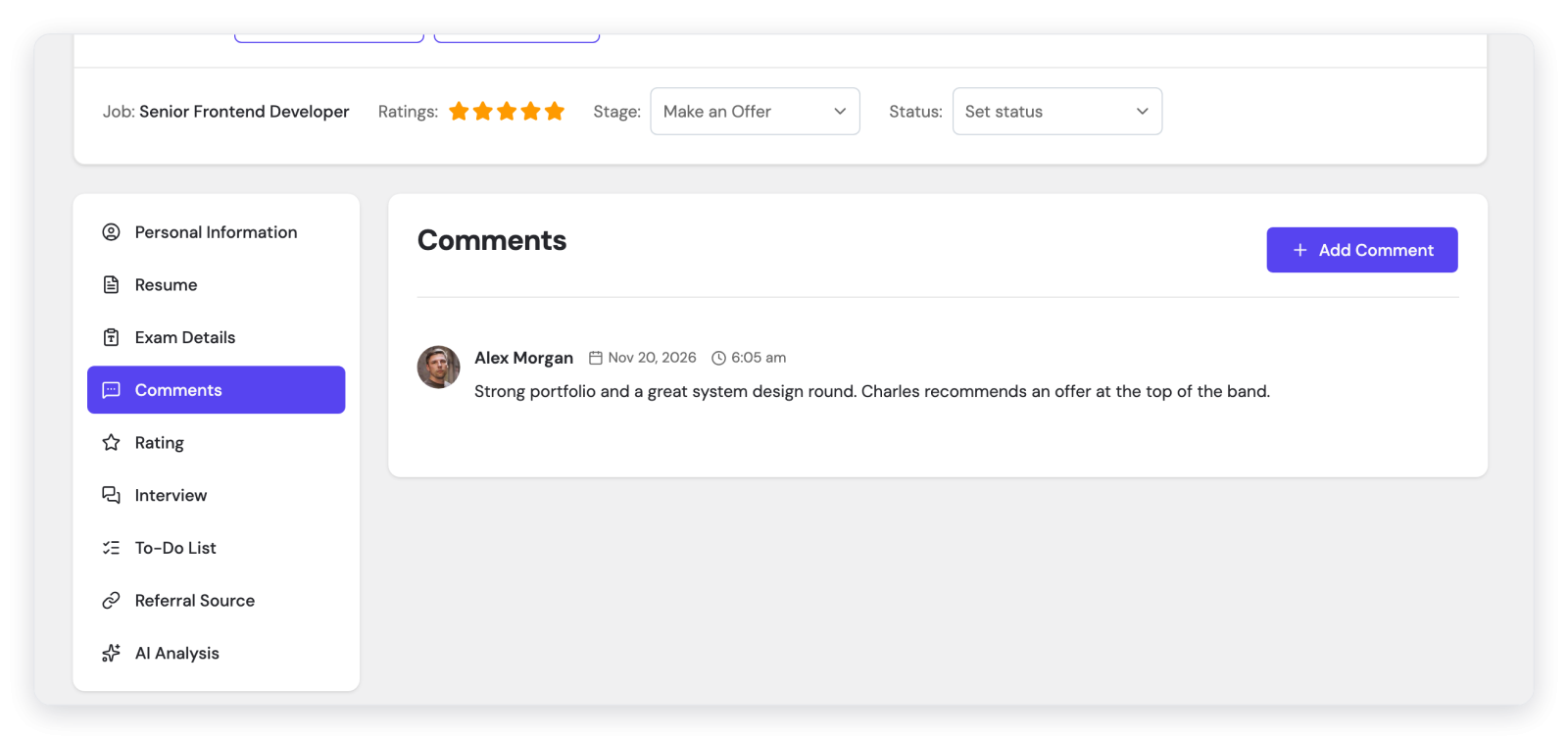
To add a note, click the Comments tab, then click Add Comment. Type the comment and click Comment.
Step 5: Plan an interview
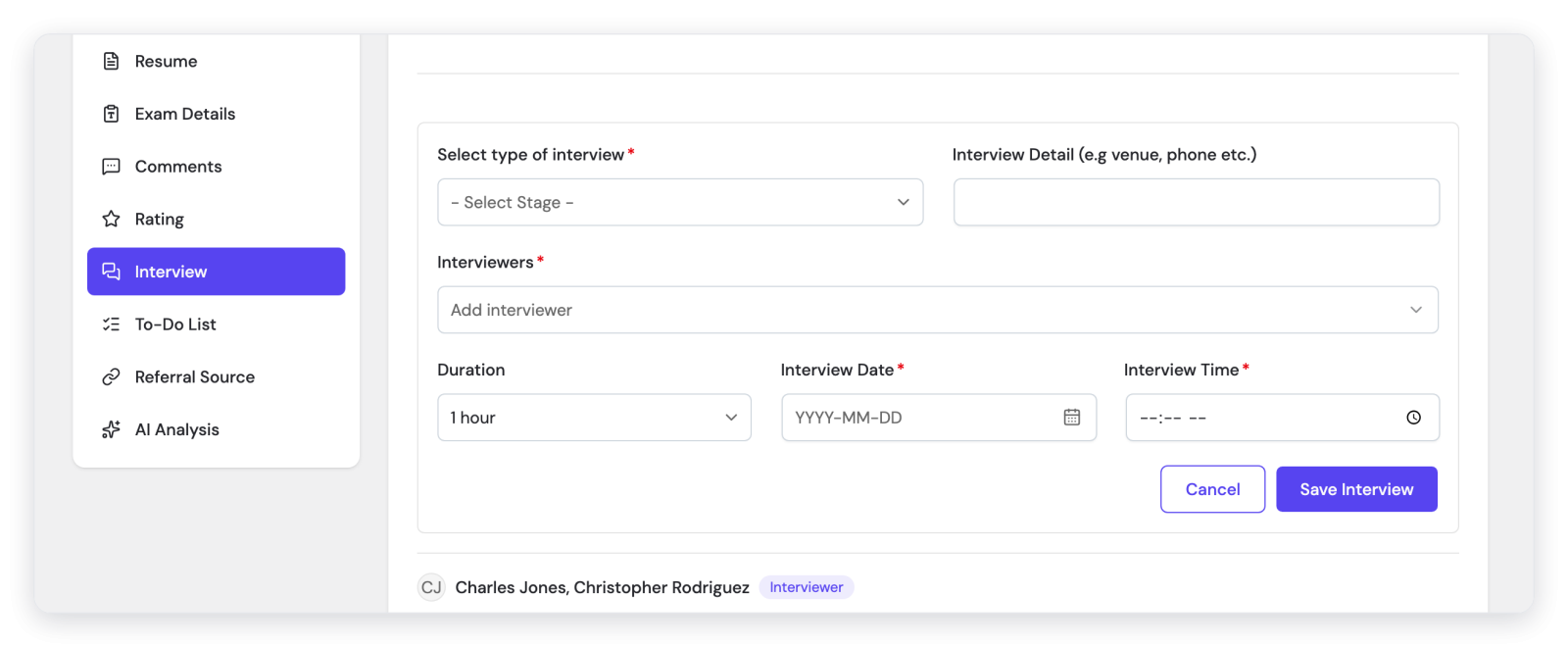
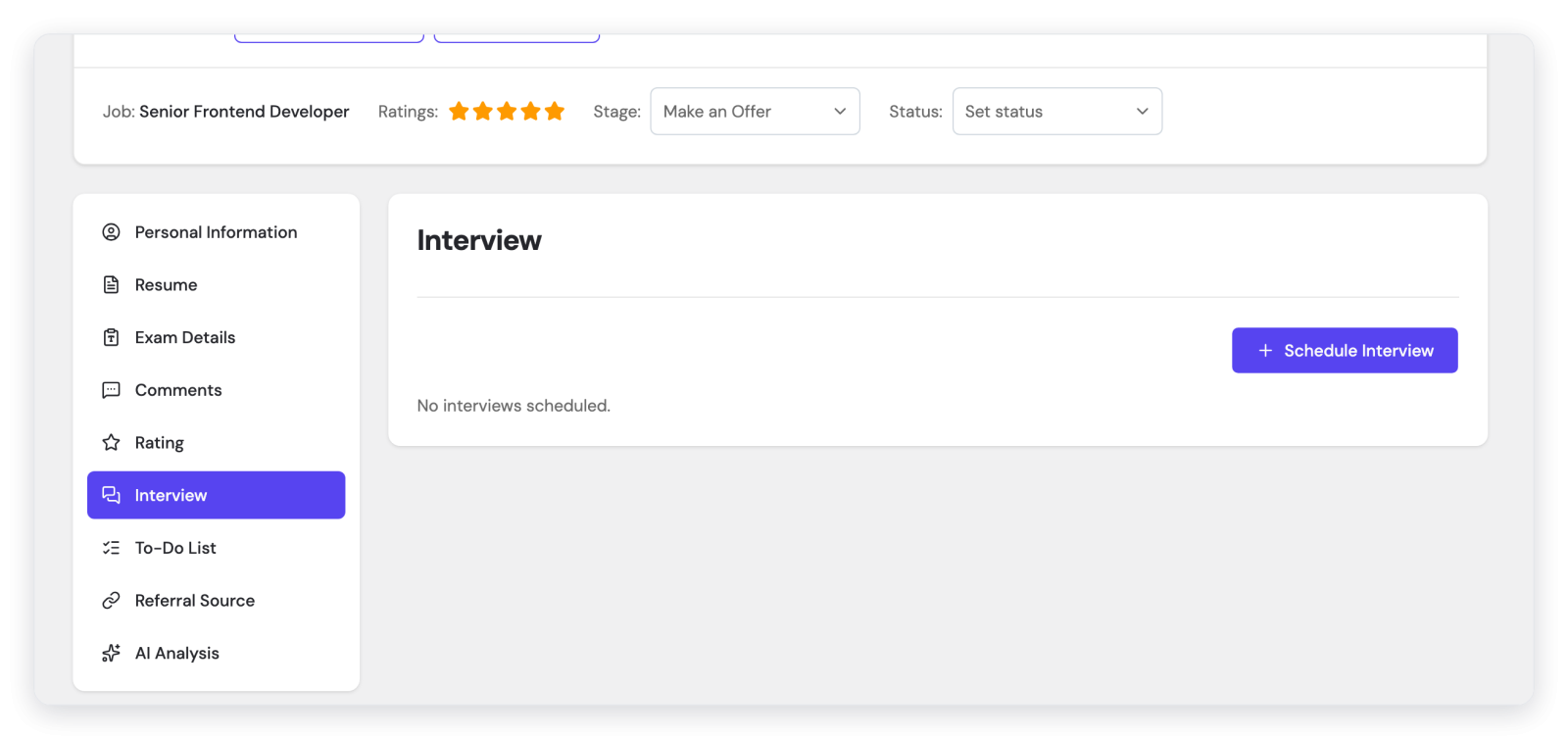
- On the candidate page, click New Interview. You can also click Schedule Interview on the Interview tab.
- Select the type of the interview, for example Phone Interview.
- Type the Interview Detail, for example the room or the phone number.
- In Interviewers, add the people who take the interview.
- Select the Duration, the Interview Date, and the Interview Time.
- Click Save Interview.
FlyHR sends the Interview Scheduled email to each interviewer. The interview shows on the Interview tab and on the calendar.
Step 6: Add a to-do
- Click New To-Do, or click Add To-Do on the To-Do List tab.
- Type the Title, for example "Check references for Olivia".
- In Assign user, select one or more employees.
- Select the Dead Line (Date) and the Dead Line (Time). The deadline cannot be in the past.
- Click Save To-Do.
FlyHR sends the Hiring To-Do Assigned email. Employees see their hiring to-dos on the Hiring To-Dos tab of their profile.
See all interviews and to-dos
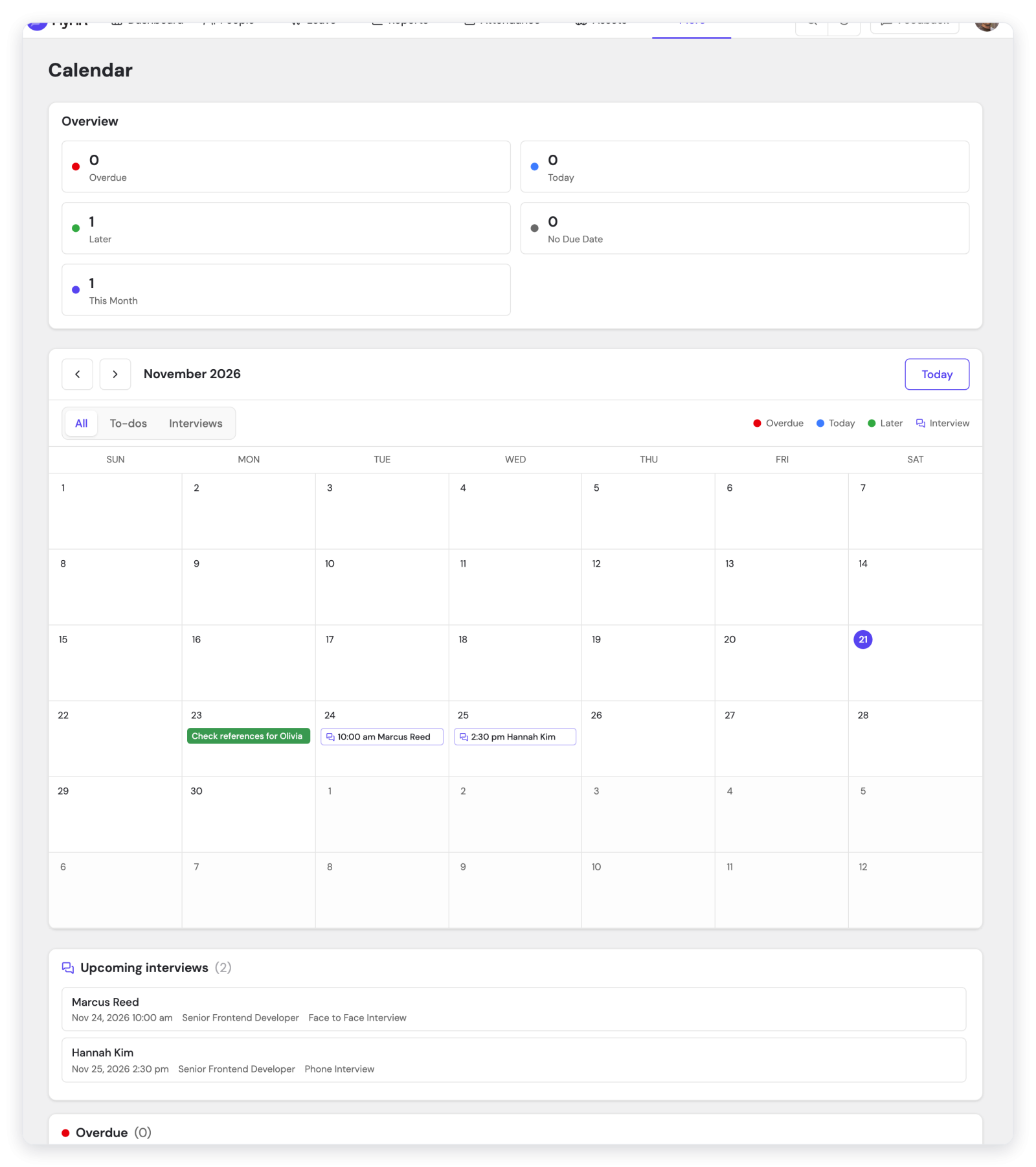
Go to More → Recruitment → Calendar. The page shows the interviews and the to-dos of all candidates. The Overview counts the to-dos that are overdue, due today, due later, and without a due date. Use All, To-dos, and Interviews to filter the calendar.
Step 7: Hire the candidate
- On the candidate page, click Hire.
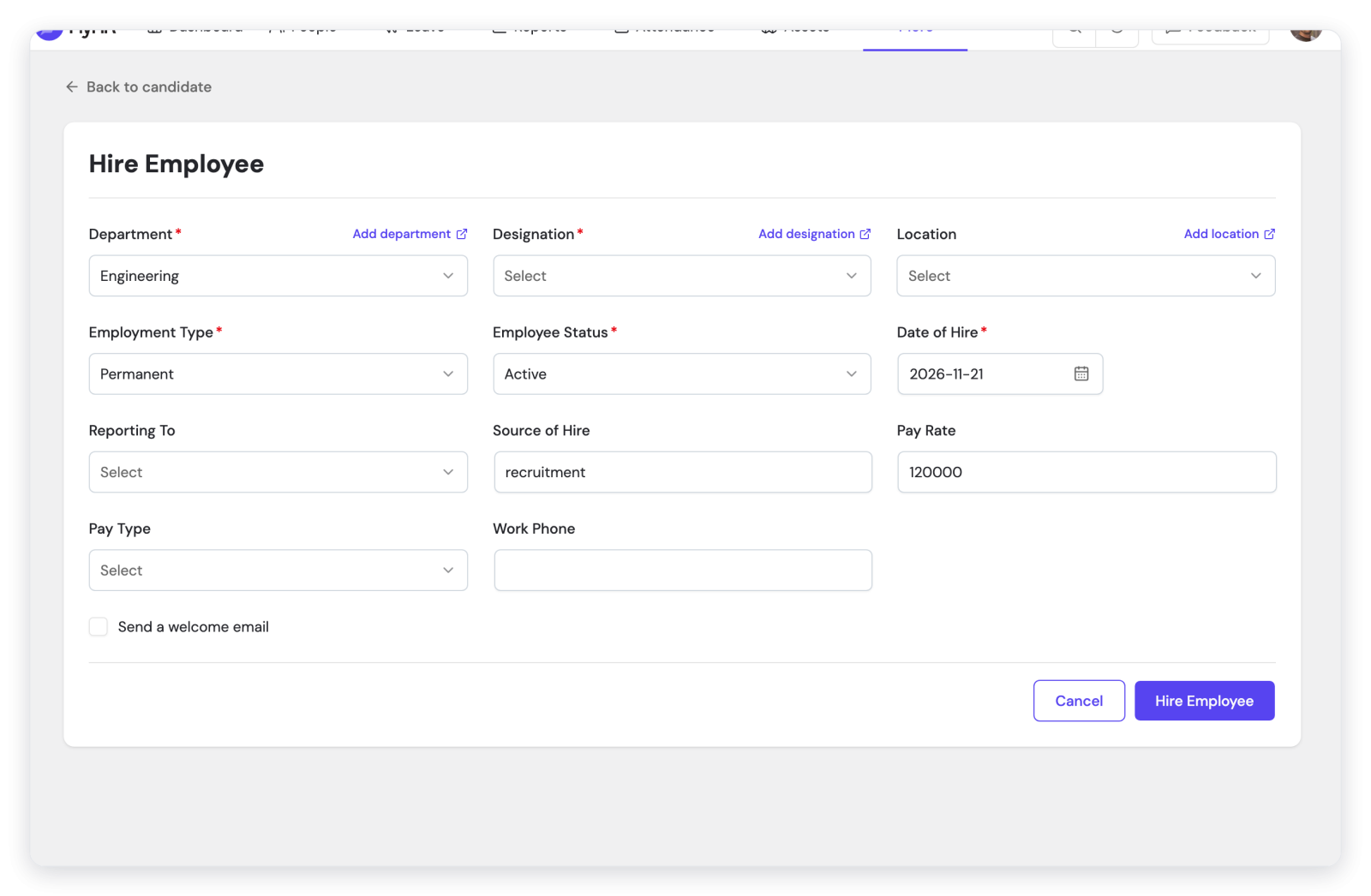
- Check the Department, and select the Designation and the Location.
- Check the Employment Type, the Employee Status, and the Date of Hire.
- Optional: select Reporting To, the Pay Type, and the Work Phone. FlyHR fills in the Pay Rate from the job and sets Source of Hire to recruitment.
- To send the login details, select Send a welcome email.
- Click Hire Employee.
FlyHR makes the candidate an employee and moves the candidate to the Hired tab. See Add an Employee for the employee fields.
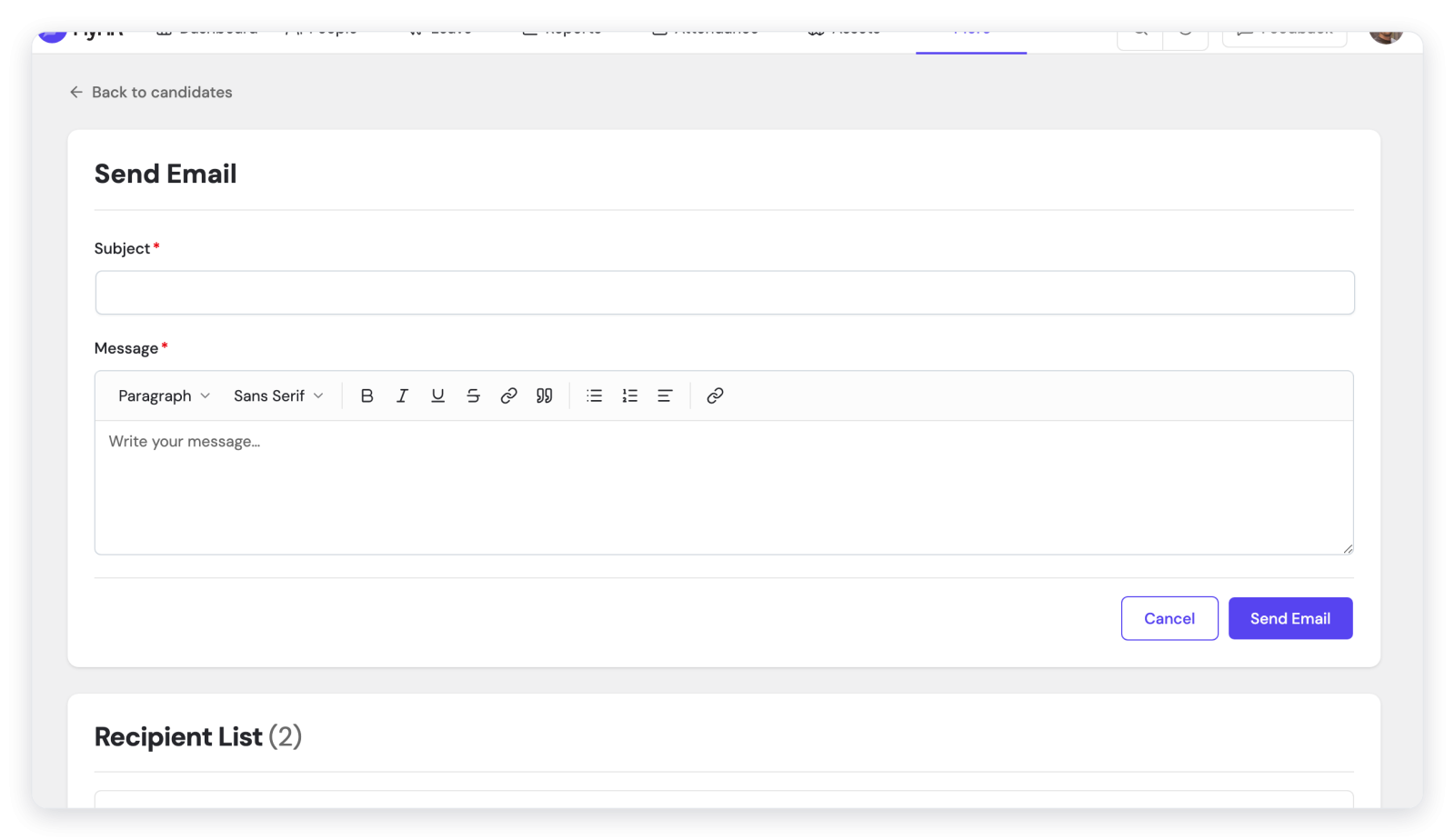
Email candidates
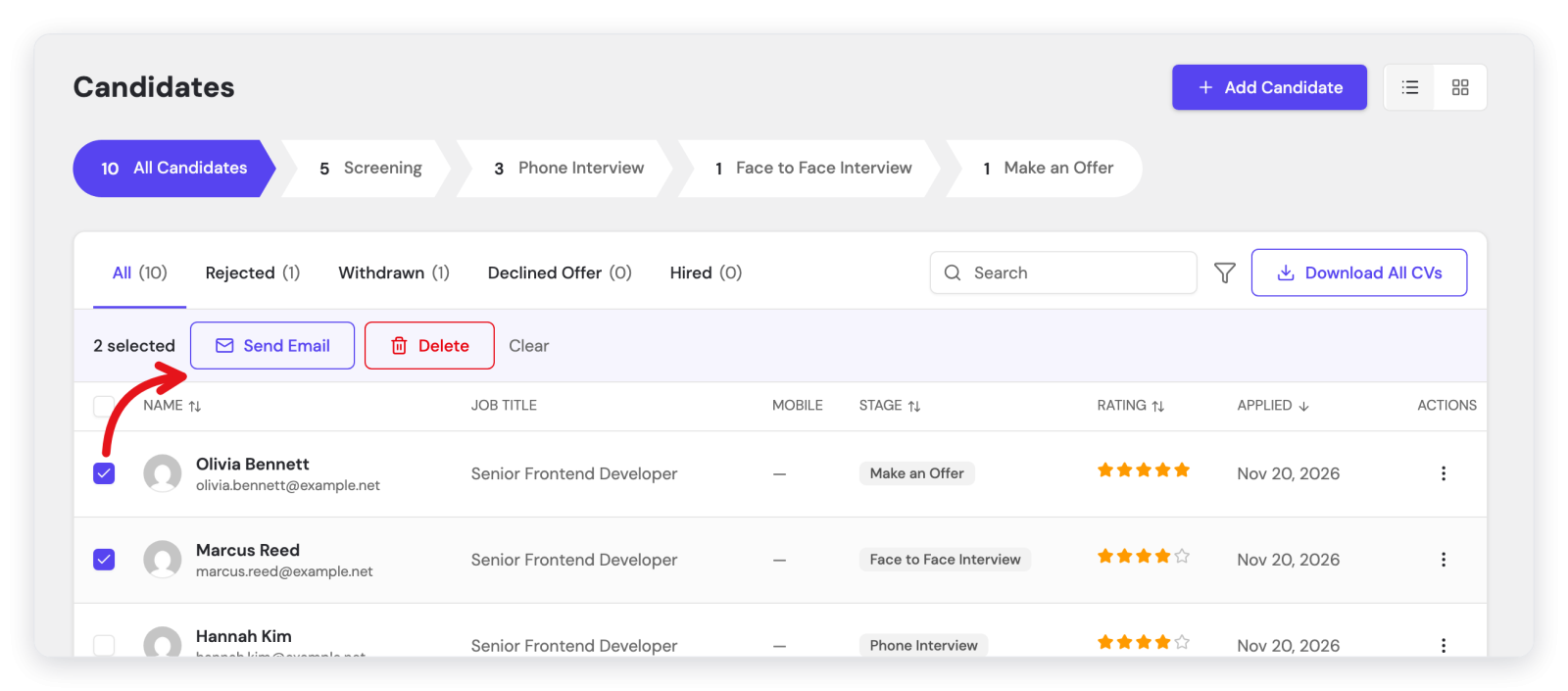
- On the Candidates page, select the candidates.
- Click Send Email.
- Type the Subject and the Message. The Recipient List shows the candidates. To leave one out, click Remove.
- Click Send Email.
Add a candidate
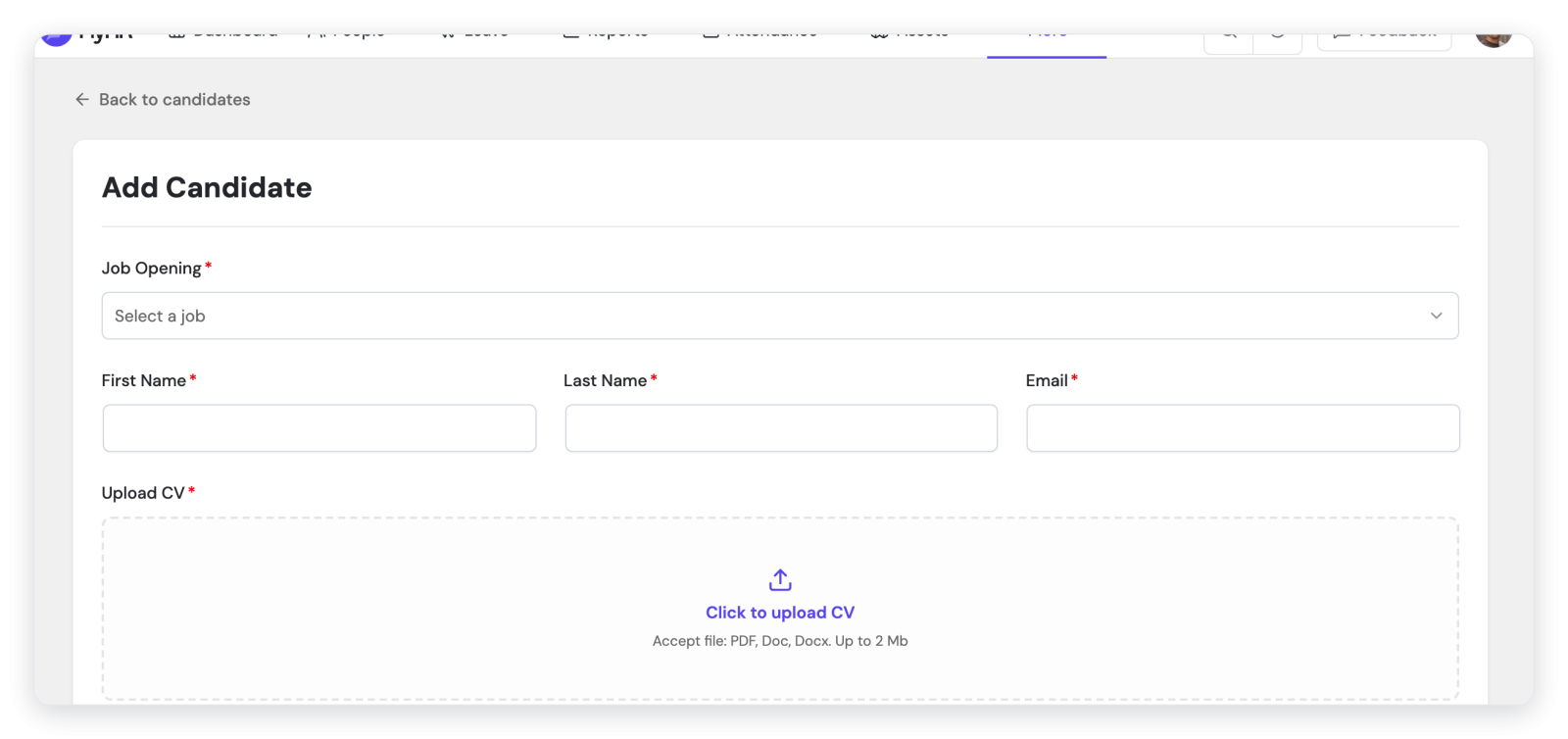
You can add a candidate who applied by email or on paper.
- On the Candidates page, click Add Candidate.
- Select the Job Opening.
- Type the First Name, the Last Name, and the Email.
- Click Click to upload CV and select the CV. FlyHR accepts PDF, DOC, and DOCX files up to 2 MB.
- Click Add Candidate.
Delete a candidate
In the row of the candidate, click the ⋮ menu, then click Delete.
Caution: Delete removes the application for good. You cannot undo it.
The candidate emails
| Sent to | When | |
|---|---|---|
| New Job Application | The hiring team | Somebody applies. |
| Application Received | The candidate | FlyHR receives the application. |
| New Applicants Digest | Each hiring lead | Once a day, when there are new applicants. |
| Screening, Phone Interview, Face to Face Interview, Make an Offer Stage Notification | The candidate | The candidate moves to that stage. |
| Application Stage Update | The candidate | The candidate moves to another stage. |
| Application Rejected | The candidate | The status changes to Rejected. Off by default. |
| Application Withdrawn | The candidate | The status changes to Withdrawn. |
| Offer Declined | The candidate | The status changes to Declined Offer. |
| Interview Scheduled | Each interviewer | You add them to an interview. |
| Hiring To-Do Assigned | The employee | You assign a to-do to them. |