GETTING STARTED
EMPLOYEE REQUESTS
PAYROLL
REIMBURSEMENT
DOCUMENTS AND FIELDS
RECRUITMENT
AUTOMATION AND NOTIFICATIONS
PAYROLL
Run Payroll
This feature is part of FlyHR Pro on the Business and Agency plans.
A pay run pays the employees of one pay calendar for one period. You start the pay run, check the amounts, and approve it. When you approve a pay run, the amounts become final and FlyHR makes a payslip for each employee.
Before you start
- You must be a WordPress administrator or an HR manager.
- You must have a pay calendar with employees. See Pay Calendars and Employee Pay Details.
- Each employee on the calendar must have a pay rate.
Step 1: Start a pay run
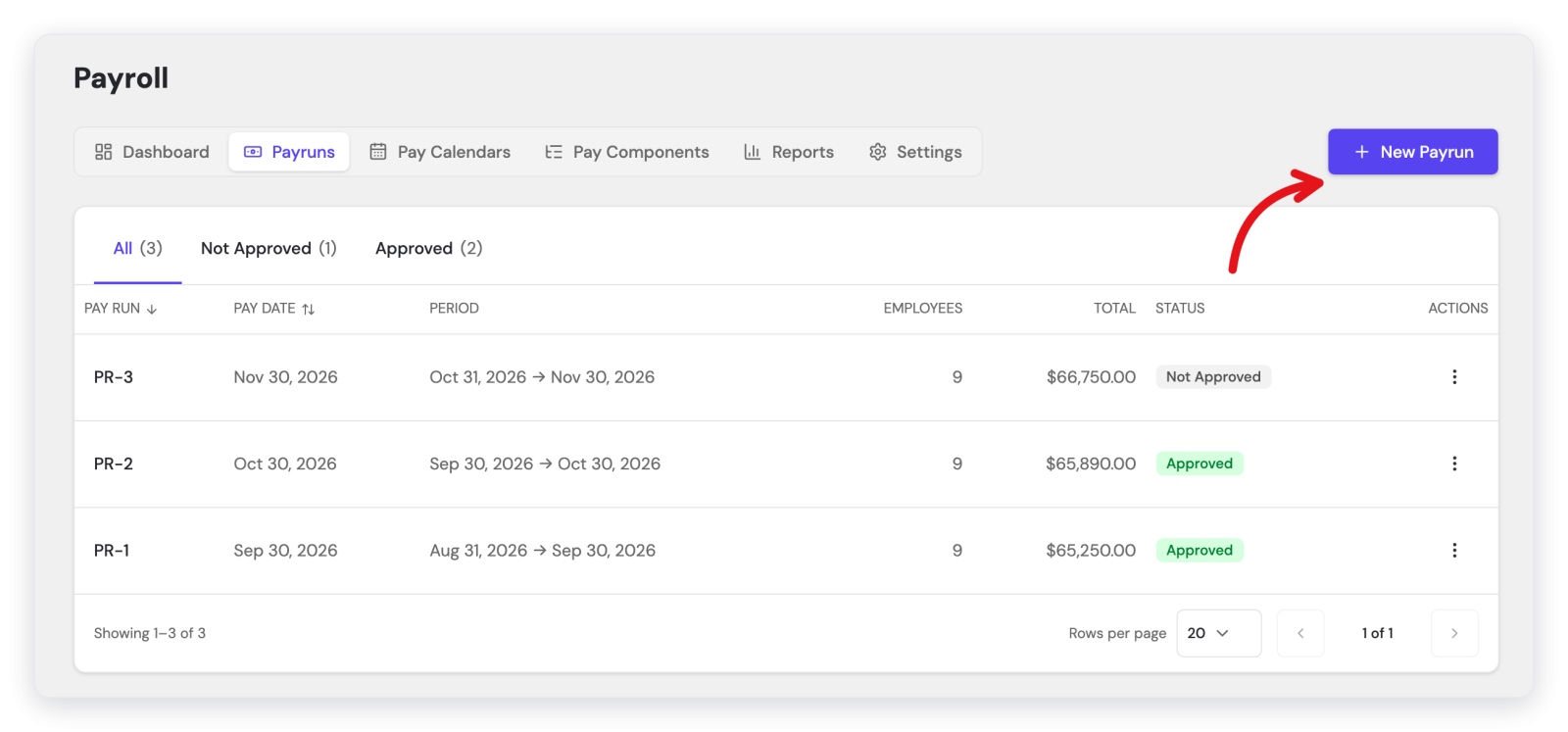
- Go to More → Payroll.
- Click the Payruns tab.
- Click New Payrun.
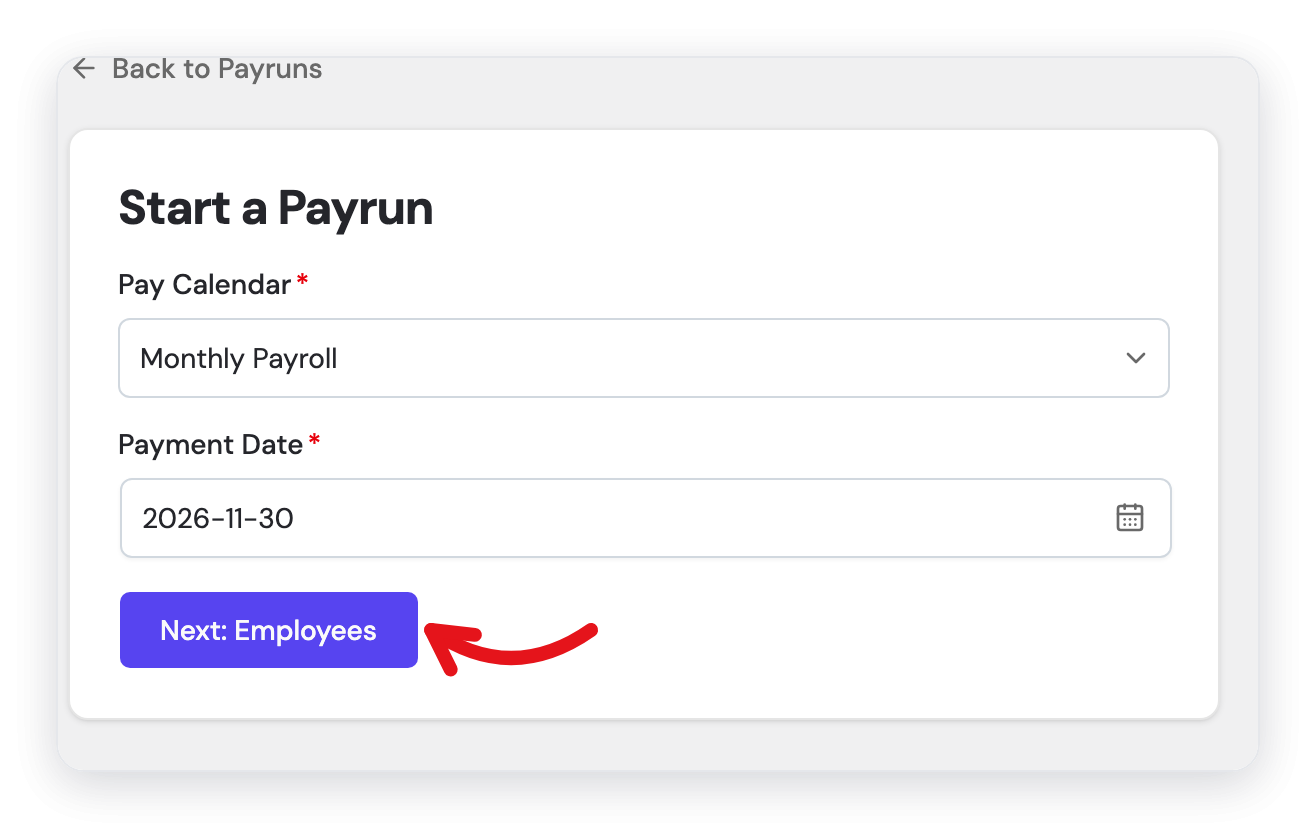
- Select the Pay Calendar.
- Select the Payment Date.
- Click Next: Employees.
You can also start a pay run from the row menu of a pay calendar (Start Payrun).
If a pay run already exists for this calendar and this payment date, FlyHR opens that pay run. It does not make a second one.
Step 2: Check the employees
FlyHR shows each employee of the calendar with the pay rate, the basic pay, and the totals of their fixed allowances and deductions. For an hourly calendar, it also shows the time worked.
- If the basic pay of an employee is different for this period, type the new amount in Basic Pay.
- To use only some pay items in this pay run, turn on Specify pay items. Then click each pay item that you want to use.
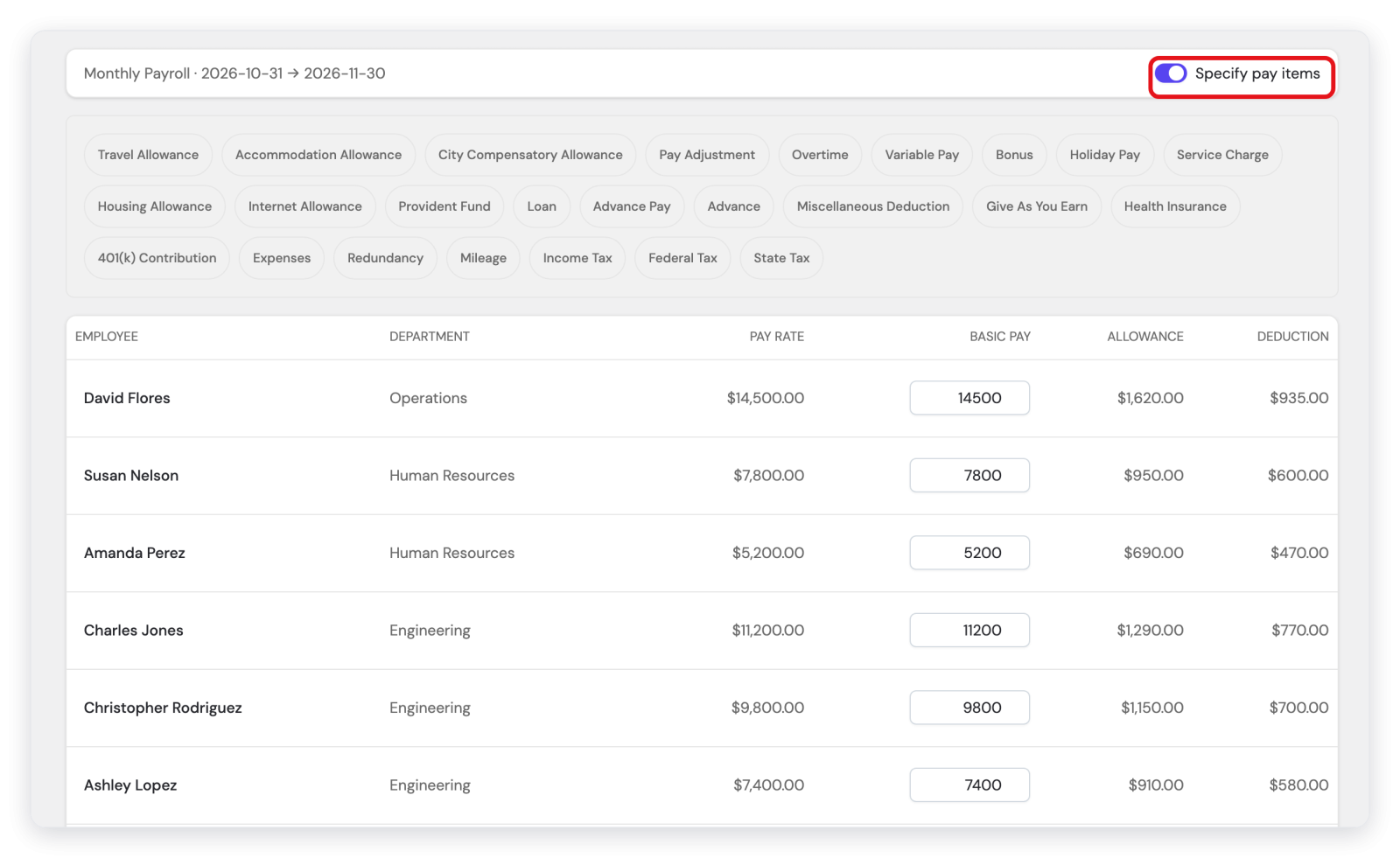
Caution: When Specify pay items is on, the pay run uses only the pay items that you select. The other fixed allowances and deductions of the employees are not in this pay run.
- Click Create Payrun.
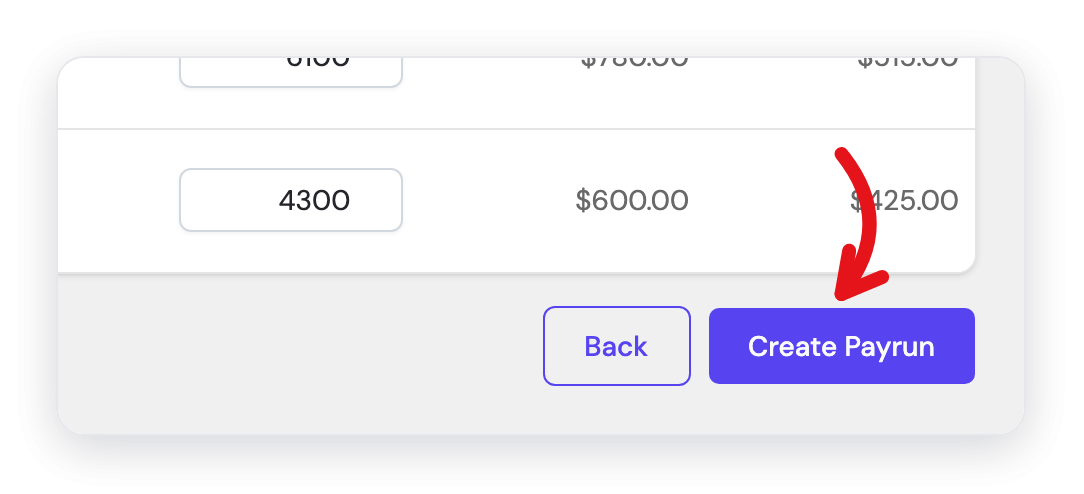
FlyHR shows "Pay run generated." and opens the pay run.
Step 3: Check the pay run
The status of a new pay run is Not Approved. The table shows each employee with the basic pay, the allowances, the deductions, the tax, and the net pay. The last row shows the totals.
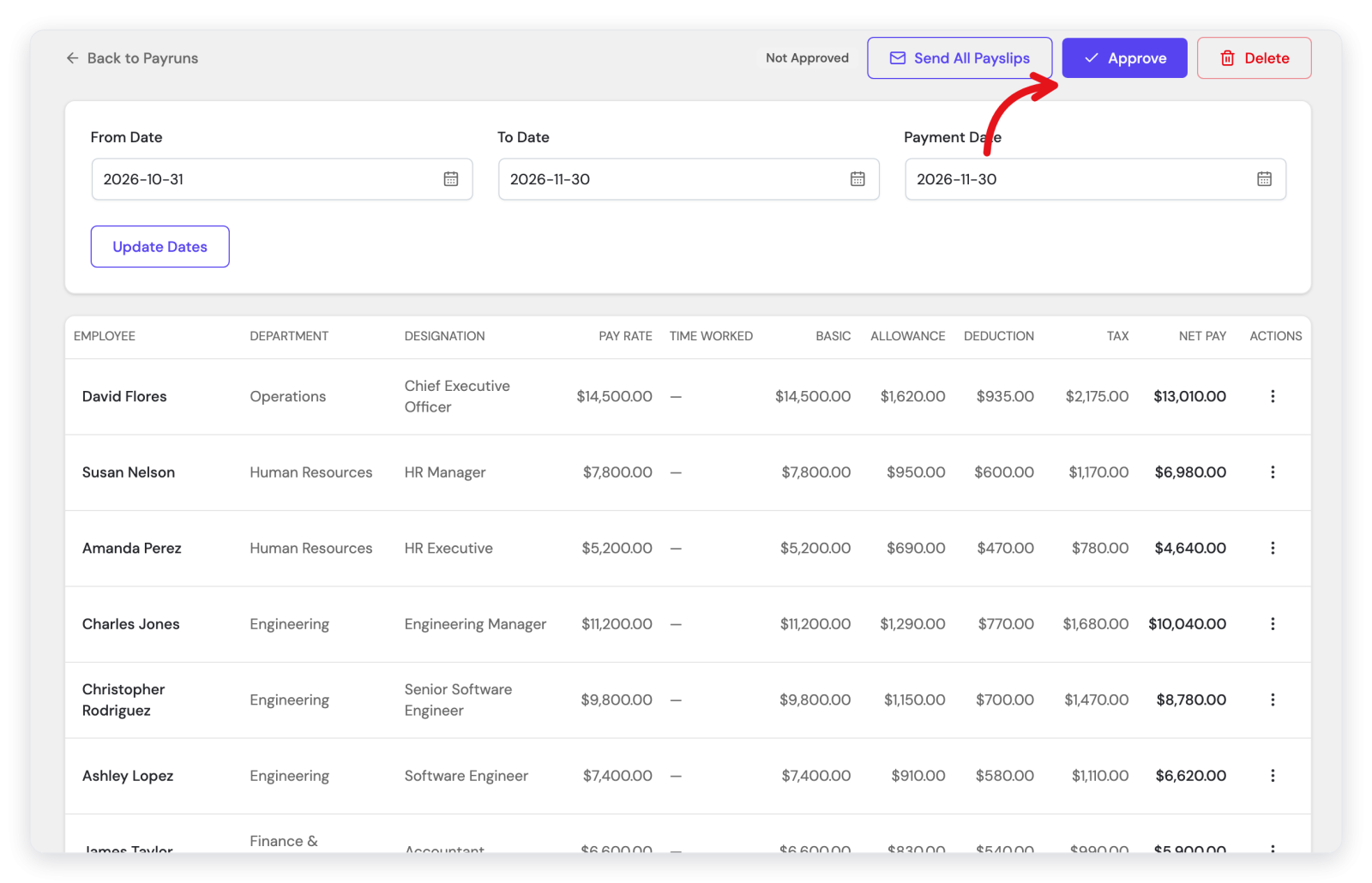
On this page you can:
- Change the From Date, the To Date, or the Payment Date. Then click Update Dates.
- Click the three dots of an employee for more actions.
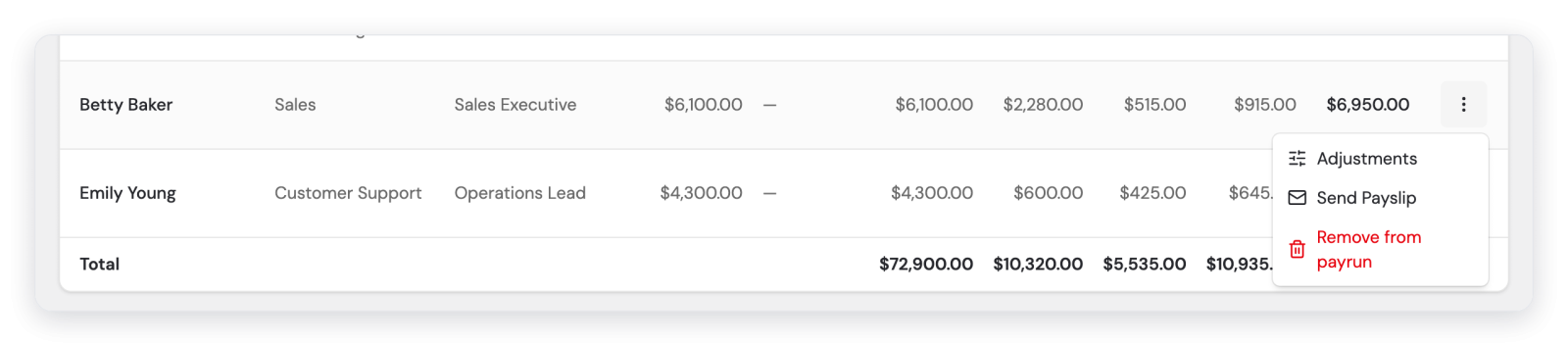
| Row action | What it does |
|---|---|
| Adjustments | Adds a one-time allowance or deduction to this employee, for this pay run only. |
| Send Payslip | Emails the payslip of this employee. |
| Remove from payrun | Takes the employee out of this pay run. |
Step 4: Add a one-time amount
Use an adjustment for a bonus, overtime, or another amount that is not in each pay run.
- In the row of the employee, click the three dots, then click Adjustments.
- Select the Pay Item.
- Type the Amount and a Note.
- Click Add Adjustment.
- Click Close.
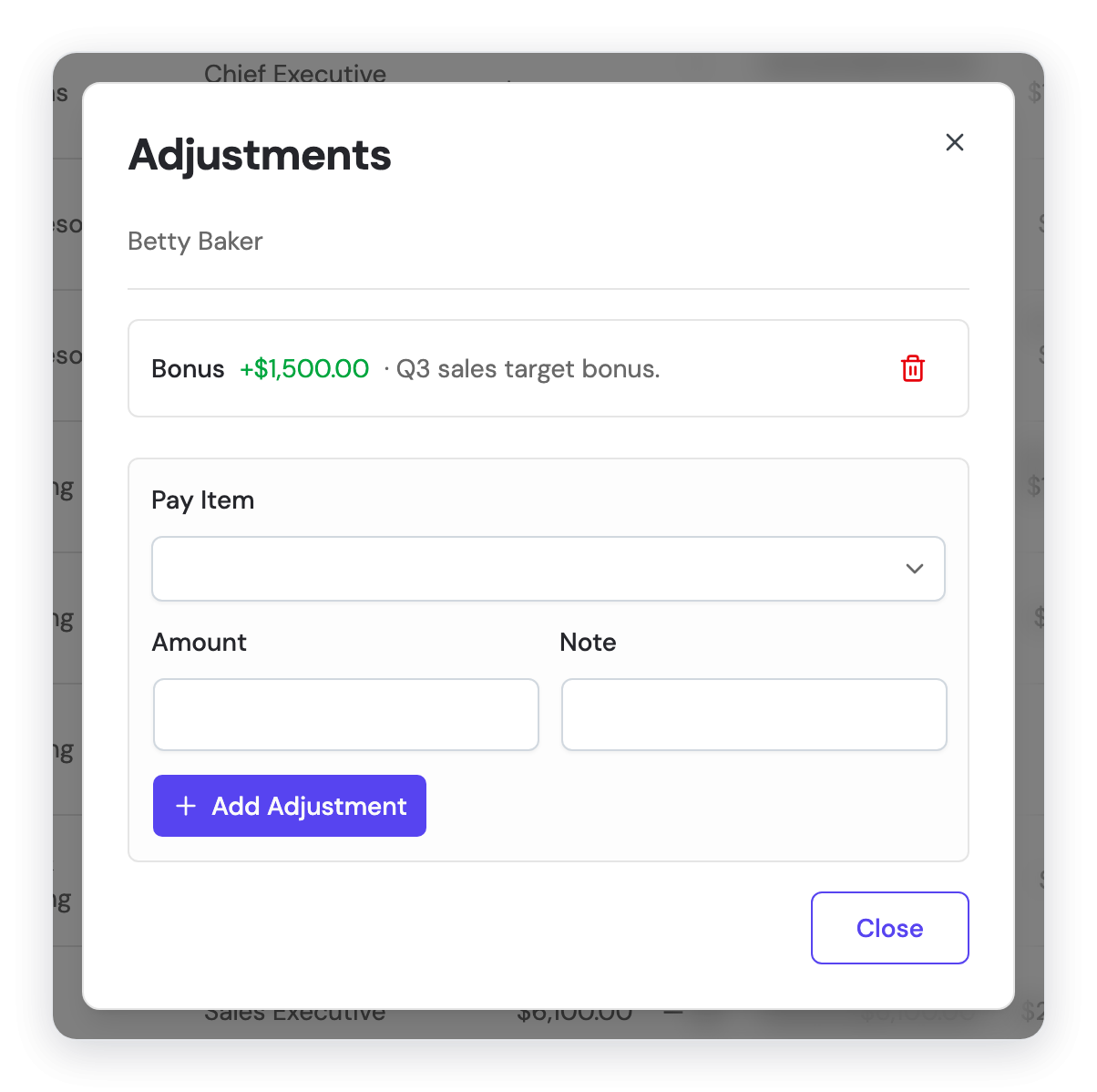
The note shows next to the amount. To remove an adjustment, click the trash icon next to it.
Step 5: Approve the pay run
- Click Approve at the top of the pay run.
- In the Approve payrun? window, click Approve.
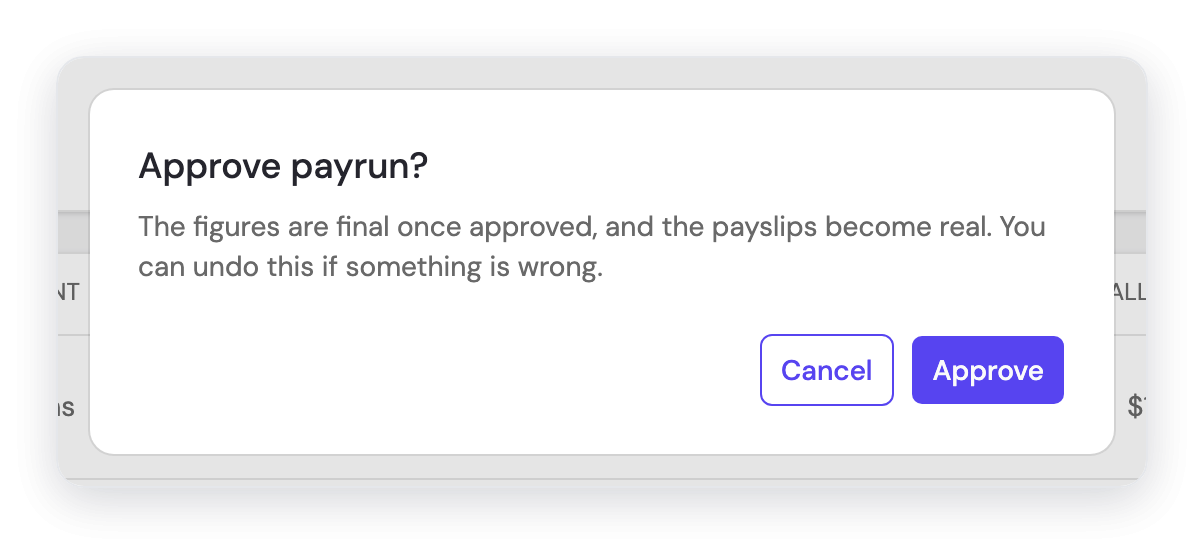
FlyHR shows "Payrun approved." The status changes to Approved, and the payslips become final. If Email payslips on approval is on in the payroll settings, FlyHR emails each employee their payslip.
Send the payslips
On an approved pay run:
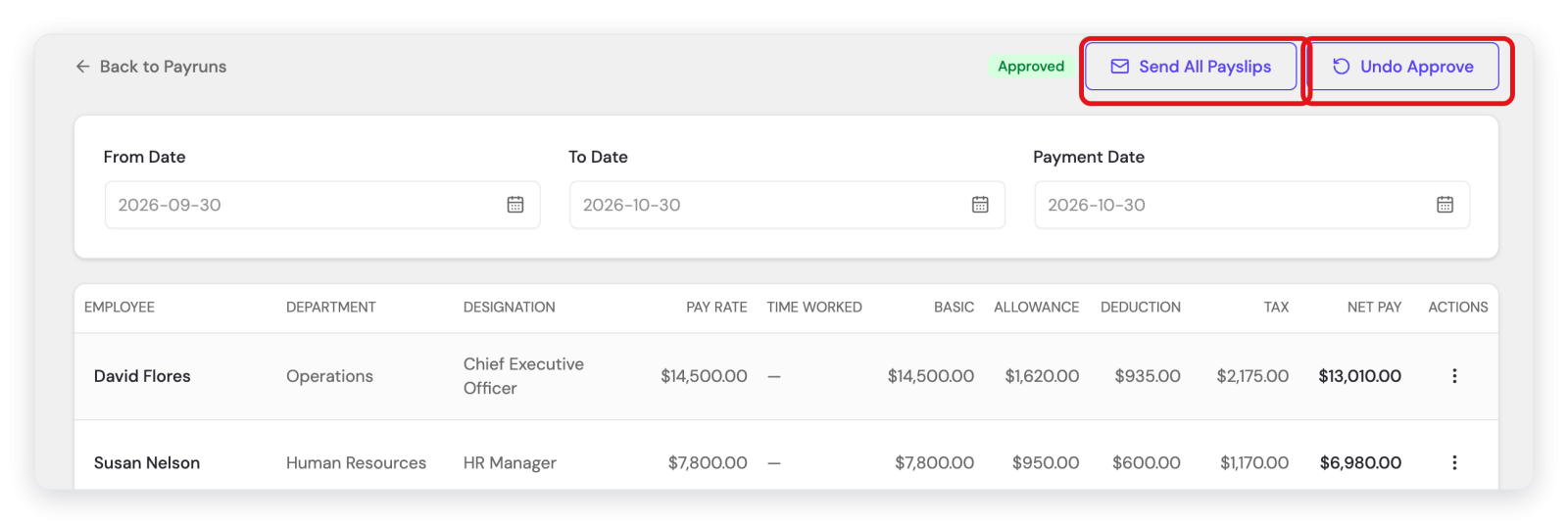
- Click Send All Payslips to email a payslip to each employee in the pay run.
- To send one payslip, click the three dots of the employee, then click Send Payslip.
Undo an approval
If an amount is wrong after you approve:
- Open the pay run.
- Click Undo Approve.
- In the Undo approval? window, click Undo.
The pay run opens for changes again, and its payslips are not final. Correct the amounts, then approve the pay run again.
Copy a pay run
A copy has the same employees and amounts, with a new payment date. Use it when the next period is the same as the last one.
- On the Payruns tab, click the three dots of the pay run.
- Click Copy.
- Select the Payment date of the copy.
- Click Copy.
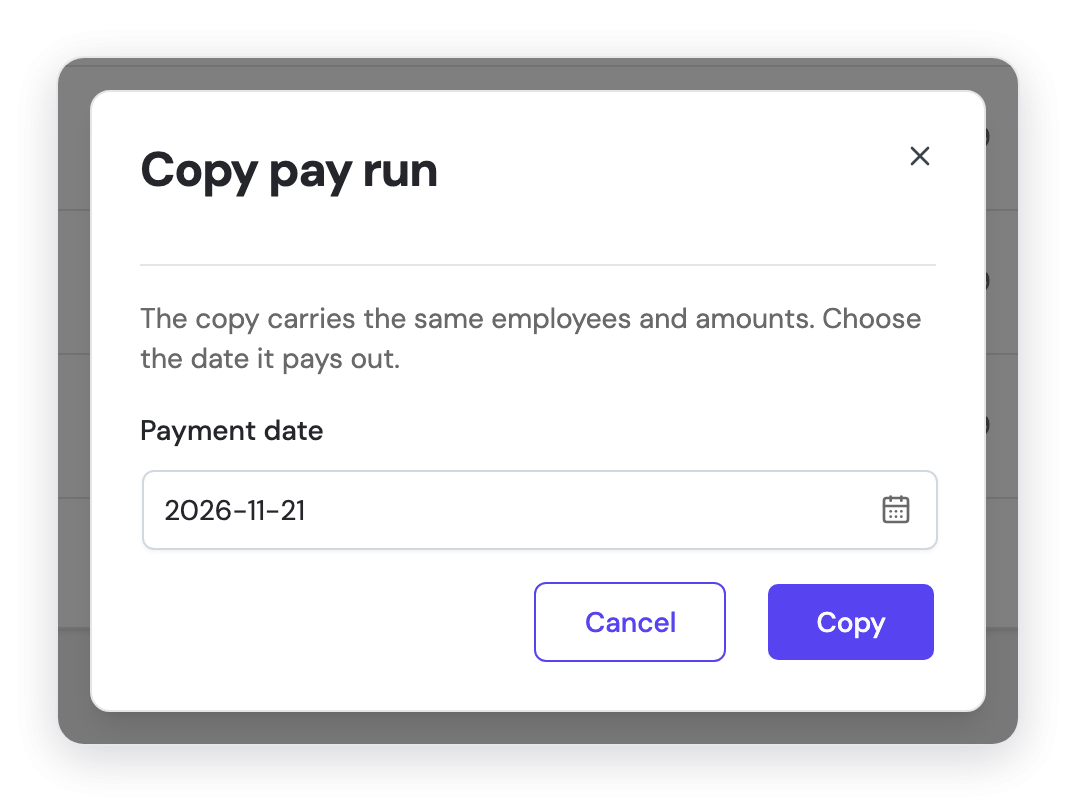
The copy is Not Approved. Check it and approve it.
Delete a pay run
Delete a pay run that is not approved: on the Payruns tab, click the three dots of the pay run, then click Delete. You can also click Delete at the top of the pay run. To delete an approved pay run, undo the approval first.
Caution: Delete removes the pay run and all its amounts for good.
The columns of a pay run
| Column | What it shows |
|---|---|
| Pay Rate | The pay rate of the employee, from their job information. |
| Time Worked | The hours worked in the period. Hourly calendars only. |
| Basic | The basic pay for the period. |
| Allowance | The total of the fixed allowances and the allowance adjustments. |
| Deduction | The total of the fixed deductions and the deduction adjustments. |
| Tax | The total of the tax pay items. |
| Net Pay | Basic + Allowance − Deduction − Tax. |