GETTING STARTED
EMPLOYEE REQUESTS
PAYROLL
REIMBURSEMENT
DOCUMENTS AND FIELDS
RECRUITMENT
AUTOMATION AND NOTIFICATIONS
ADVANCED LEAVE
Carry Forward Leave
This feature is part of FlyHR Pro on the Starter, Business, and Agency plans. The payout of unused days (encashment) is part of the Business and Agency plans only.
At the end of a leave year, employees often have unused leave days. FlyHR can carry these days into the next leave year, pay them out, or let them go. Each leave policy sets the limits. On the Forward Leaves page, you check the result for each employee and apply it.
Before you start
- You must be a WordPress administrator or an HR manager.
- Carry Forward & Encashment must be on in Settings → Leave. See Advanced Leave.
- The policies must have Carryover Days (and Encashment Days, if you pay out days).
- Both leave years must exist: the year that closed and the new year. See Leave Years.
- Do this after the leave year closes, in the first days of the new leave year.
Step 1: Open Forward Leaves
- In the top menu, open Leave.
- Click Forward Leaves.
The Pending tab lists each employee with unused days in the previous leave year, one row for each policy.
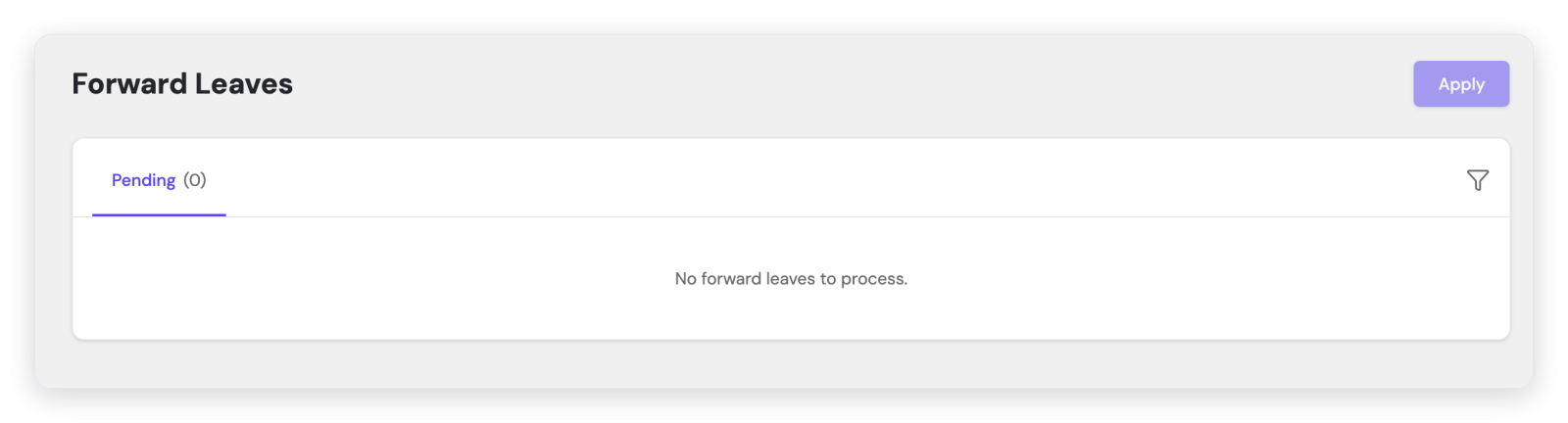
To see another year, click the filter icon and select the Year.
Step 2: Check the split
For each row, FlyHR proposes how many days to carry forward and how many to pay out. It uses the limits of the policy and the Priority of the policy.
| Column | What it shows |
|---|---|
| Employee, Policy | The employee and the leave policy. |
| Available | The unused days in the year that closed. |
| Max Encash | The Encashment Days limit of the policy. |
| Max Carry | The Carryover Days limit of the policy. |
| Encash | The days that FlyHR pays out. |
| Forward | The days that go into the new leave year. |
| Amount | The payout for the encashed days. |
| Total | The total payout. |
FlyHR calculates the payout from the pay rate of the employee: one day costs the pay rate divided by 30. Days that are not carried and not paid out are lost.
Step 3: Apply
- Click Apply for and the name of the leave year, for example Apply for 2026.
- In the Apply forward leaves? window, click Apply.
FlyHR shows "Forward leaves applied." The carried days are added to the leave balance of each employee in the new leave year. The rows move to the Applied tab.
Caution: You can apply carry forward only one time for each leave year. If you apply again, FlyHR shows "Carry-forward has already been applied for this financial year."
When carried days expire
If the policy has Expired by (days), carried days that the employee does not use in that time expire. For example, with 90, an employee must use the carried days in the first 90 days of the new leave year. After that, FlyHR removes the carried days that the employee did not use. With 0, carried days never expire.
Pay out the encashed days
FlyHR does not pay the employee. To pay the encashed days, go to the Applied tab and click Export Encash Requests. Use the file in your payroll. See Leave Encashment.