GETTING STARTED
EMPLOYEE REQUESTS
PAYROLL
REIMBURSEMENT
DOCUMENTS AND FIELDS
RECRUITMENT
AUTOMATION AND NOTIFICATIONS
RECRUITMENT
The Careers Page and Job Applications
This feature is part of FlyHR Pro on the Agency plan.
Your careers page shows your open jobs on your website. Visitors search and filter the jobs, open a job, and apply with their CV. Each application becomes a candidate in Recruitment, in the first stage of the job.
Before you start
- The Recruitment module must be on.
- Publish at least one job opening. See Job Openings.
- Make a page with the
[flyhr-job-list]shortcode, for example a page named Careers. See Shortcodes and the Job List Page.
What visitors see on the careers page
Search
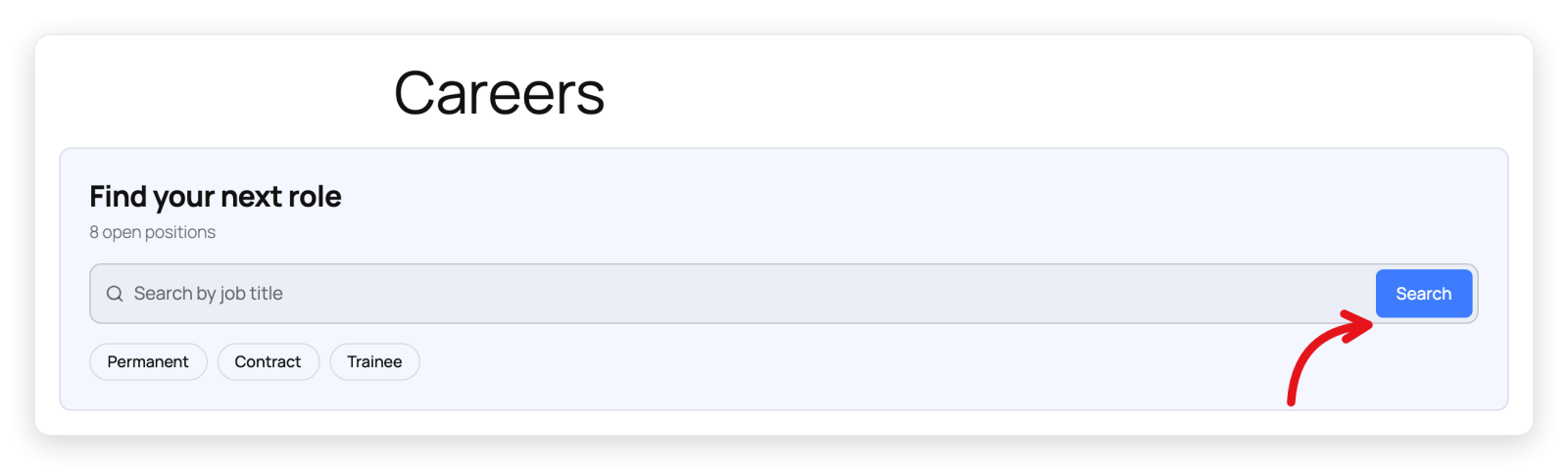
The top of the page shows Find your next role and the number of open positions. Visitors type a job title in Search by job title and click Search. Below the search box, the buttons for each employment type, for example Permanent or Contract, show only the jobs of that type.
The job list
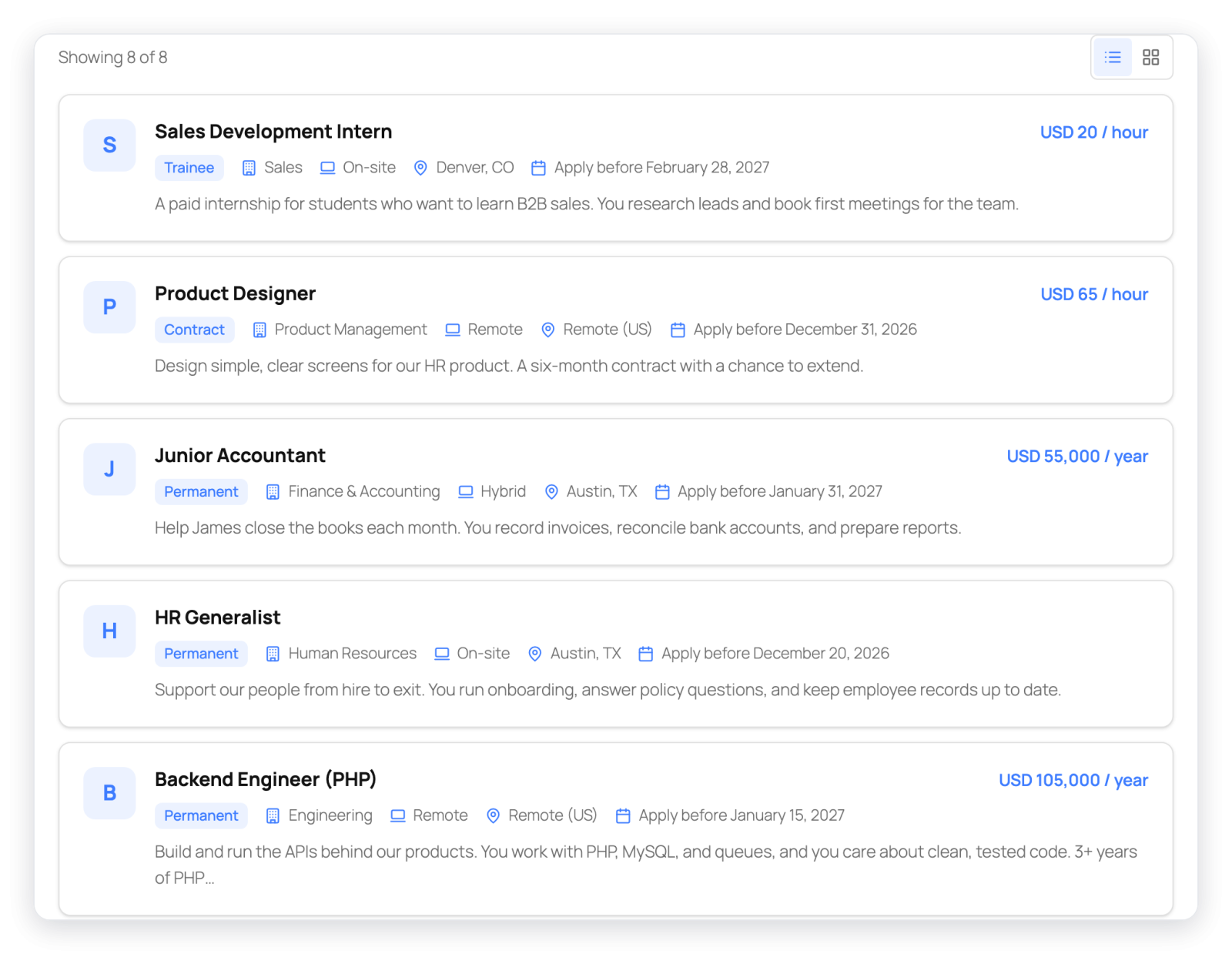
Each job shows its title, employment type, department, work mode, location, and the last date to apply. It also shows the first lines of the description. The salary shows only when Salary Visibility of the job is set to show it.
Filters
The Filters panel narrows the list. The list changes as soon as the visitor selects a filter. Clear all removes all filters.
| Filter | What it does |
|---|---|
| Department | Shows the jobs of one department. |
| Location | Shows the jobs of one location. |
| Employment type | Shows the jobs of one type, for example Permanent, Contract, or Trainee. |
| Experience | Shows the jobs that ask for this minimum experience. |
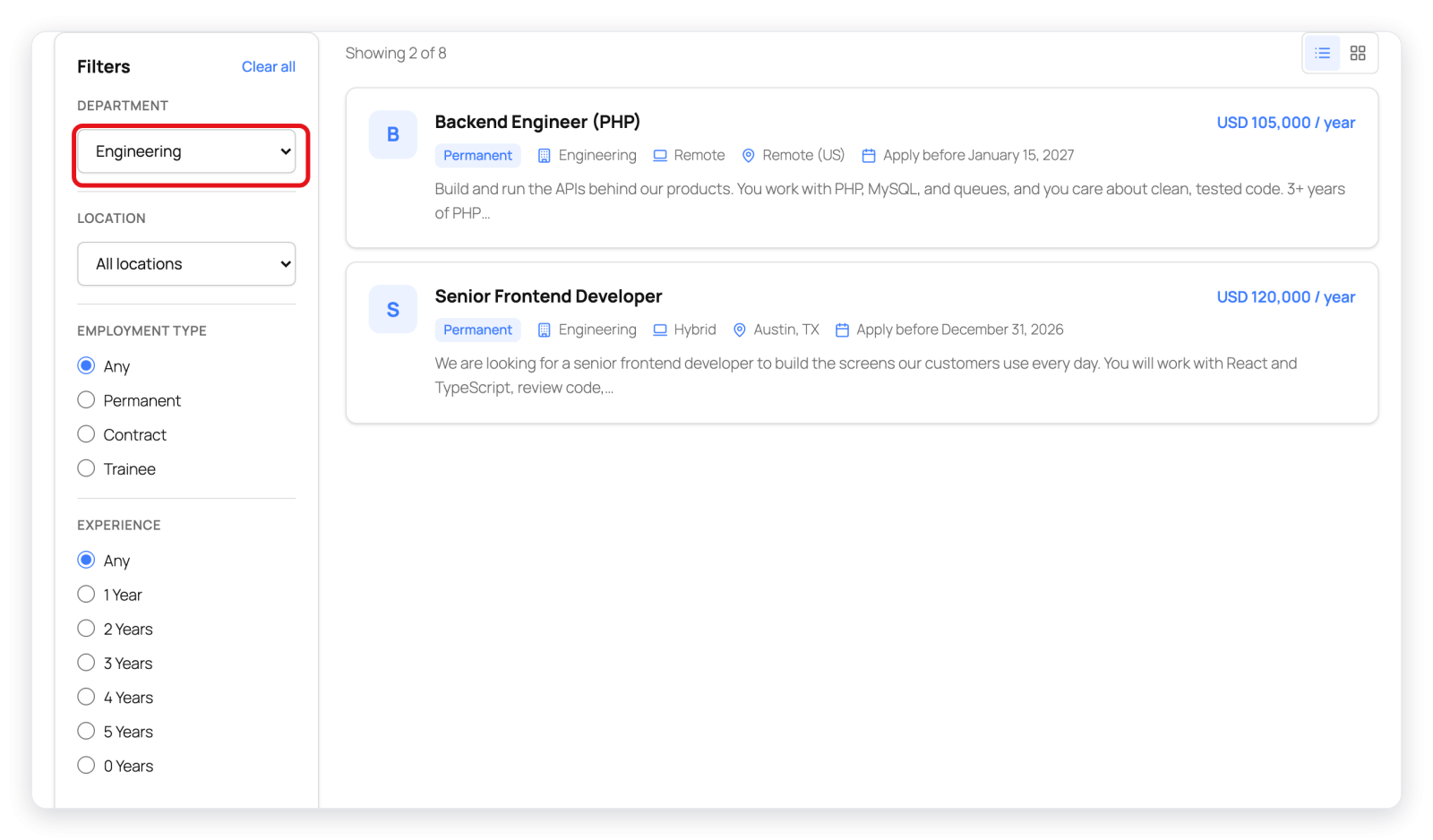
The text above the list shows how many jobs match, for example Showing 2 of 8. If no job matches, the page says "No roles match your search."
List and grid view
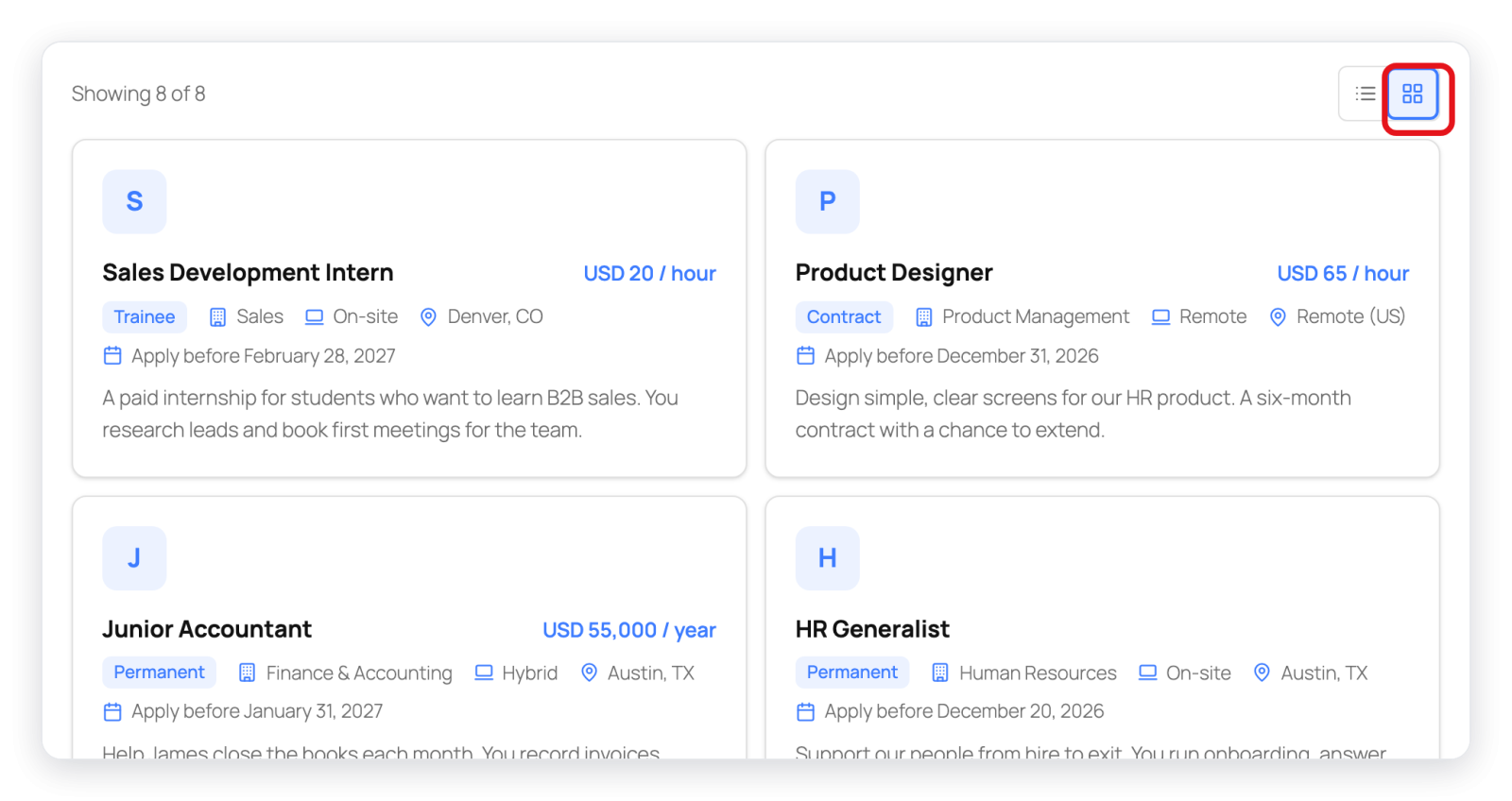
Visitors click the list or the grid button above the jobs to change the view.
The job page
Visitors click a job to open its page. The page shows the full description and a Job overview with the employment type, department, location, work mode, number of vacancies, experience, salary (when it shows), and the date the job was posted. The Apply before date shows next to Apply now.
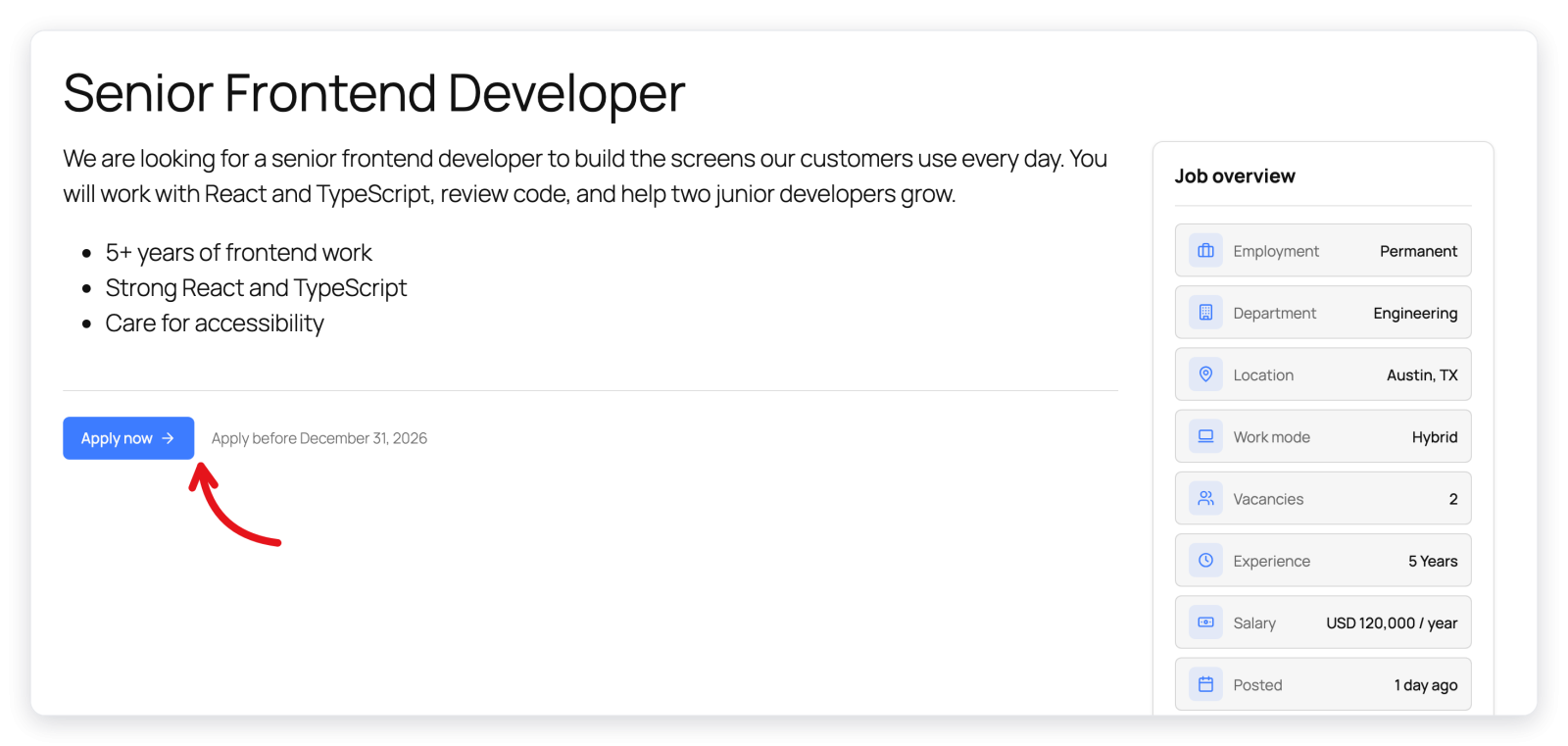
When the last date to apply has passed, the page says "This position is no longer accepting applications." and does not show the form.
FlyHR also adds job posting data to each job page, so that search engines can show your jobs in their job results.
How a candidate applies
- On the job page, click Apply now.
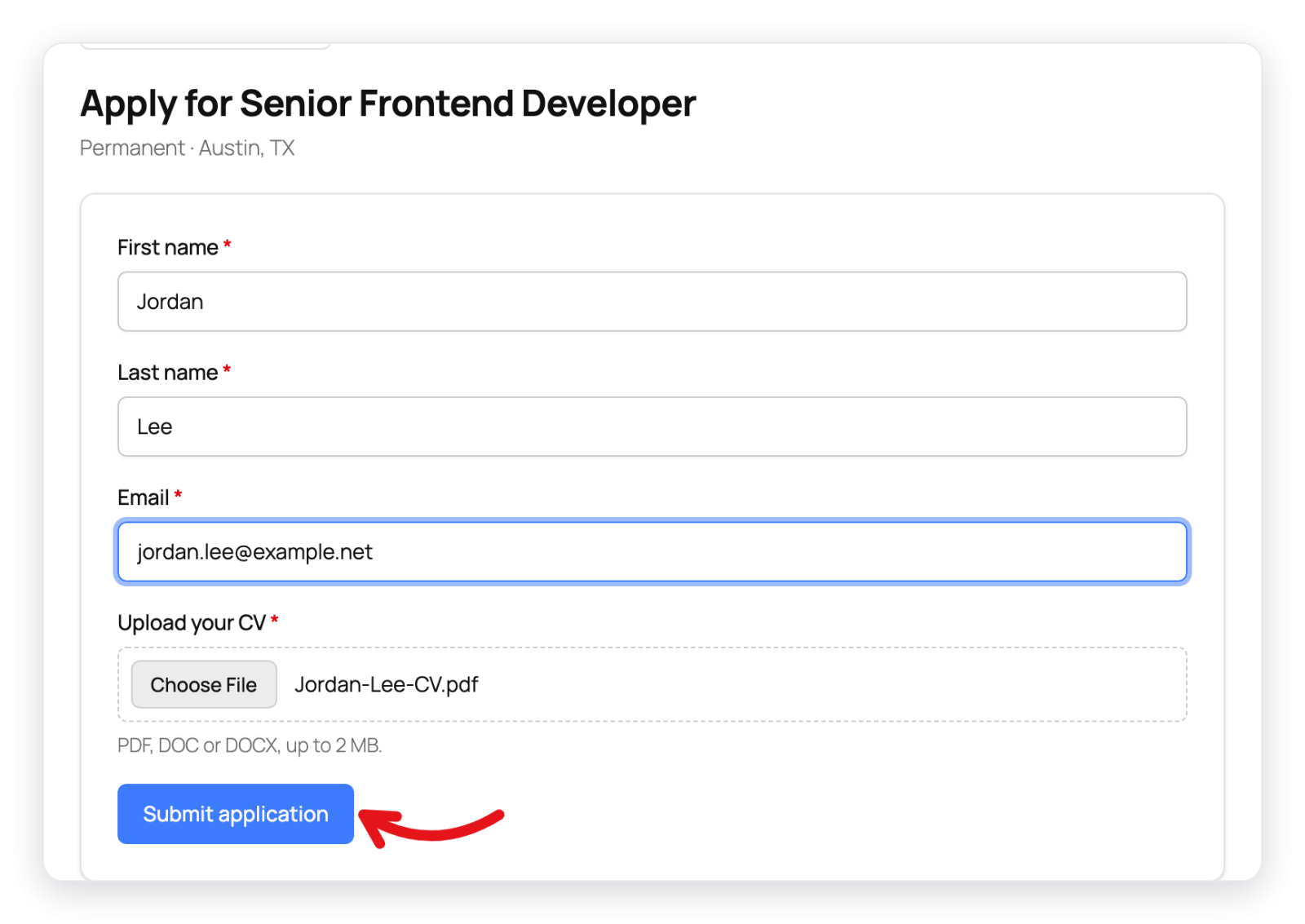
- Type the First name, the Last name, and the Email.
- In Upload your CV, click Choose File and select the CV. The CV must be a PDF, DOC, or DOCX file of 2 MB or smaller.
- If the job has questions, answer them in A few questions.
- Click Submit application.
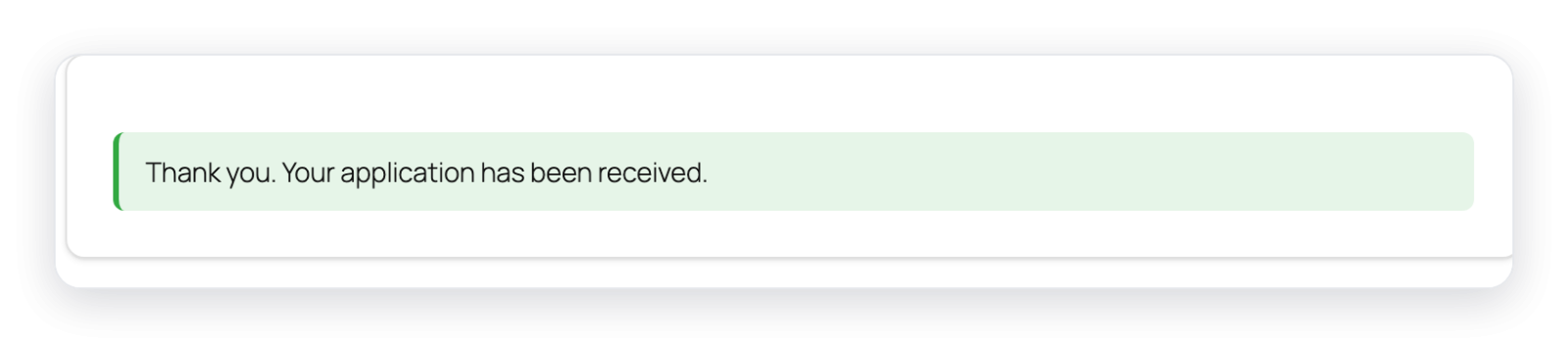
The page shows "Thank you. Your application has been received."
If a necessary field is empty or the file is wrong, the form shows the problem, for example "Your CV must be 2 MB or smaller." The candidate corrects it and sends the form again.
What happens after an application
- FlyHR adds the person as a candidate for the job, in the first stage, for example Screening.
- The candidate gets the Application Received email.
- The hiring team gets the New Job Application email.
- Each hiring lead gets the New Applicants Digest email one time each day, with the people who applied to their open jobs. FlyHR does not send it on a day with no new applicants.
- If Auto-process is on in the AI settings, FlyHR analyses the CV. See Recruitment AI.
Go to More → Recruitment → Candidates to see the new candidate.
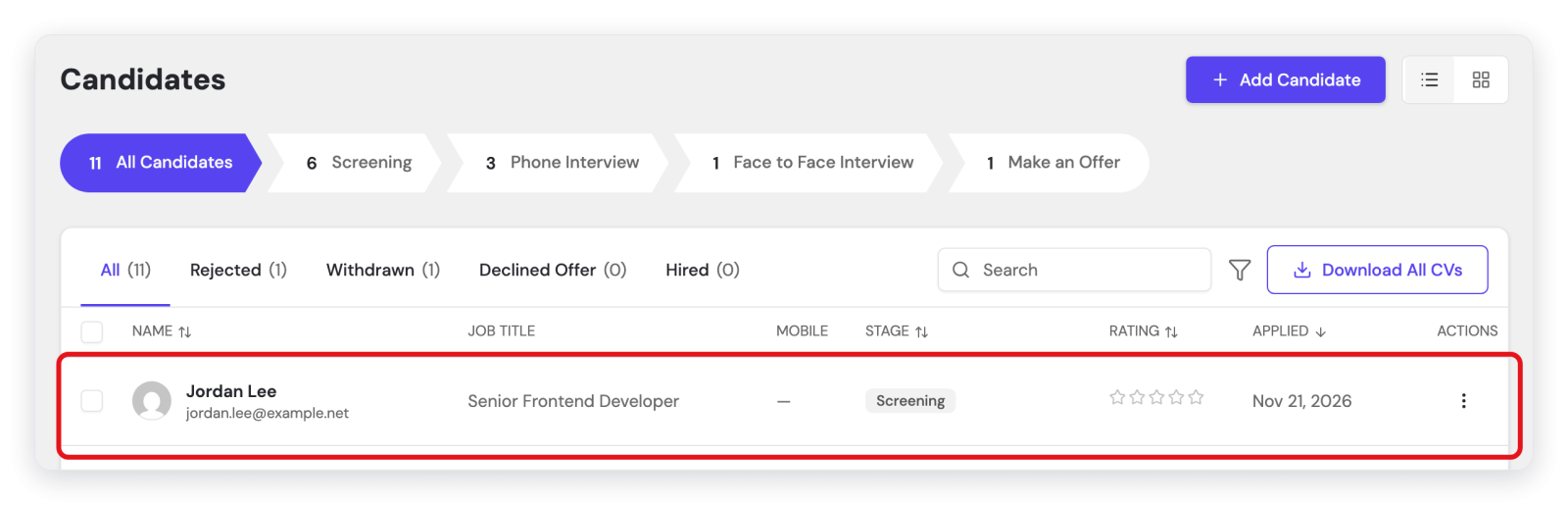
To review, move, rate, or interview the candidate, see Candidates.
Protection against spam
The form has a hidden field that people do not see. When an automated program fills it in, FlyHR refuses the application. FlyHR also limits the number of applications from one place in a short time. When the limit is reached, the form says "Too many applications have been sent from here. Please try again later."