GETTING STARTED
EMPLOYEE REQUESTS
PAYROLL
REIMBURSEMENT
DOCUMENTS AND FIELDS
RECRUITMENT
AUTOMATION AND NOTIFICATIONS
EMPLOYEE REQUESTS
Remote Work Requests
This feature is part of FlyHR Pro on the Starter, Business, and Agency plans.
Employees ask to work away from the office for a range of dates. An HR manager approves or rejects each request. All requests and their answers stay on the profile of the employee.
Before you start
- The Employee Requests module must be on. See Install FlyHR Pro.
- To answer requests, you must be a WordPress administrator or an HR manager.
Request remote work (employees)
- Click your photo at the top right, then click My profile.
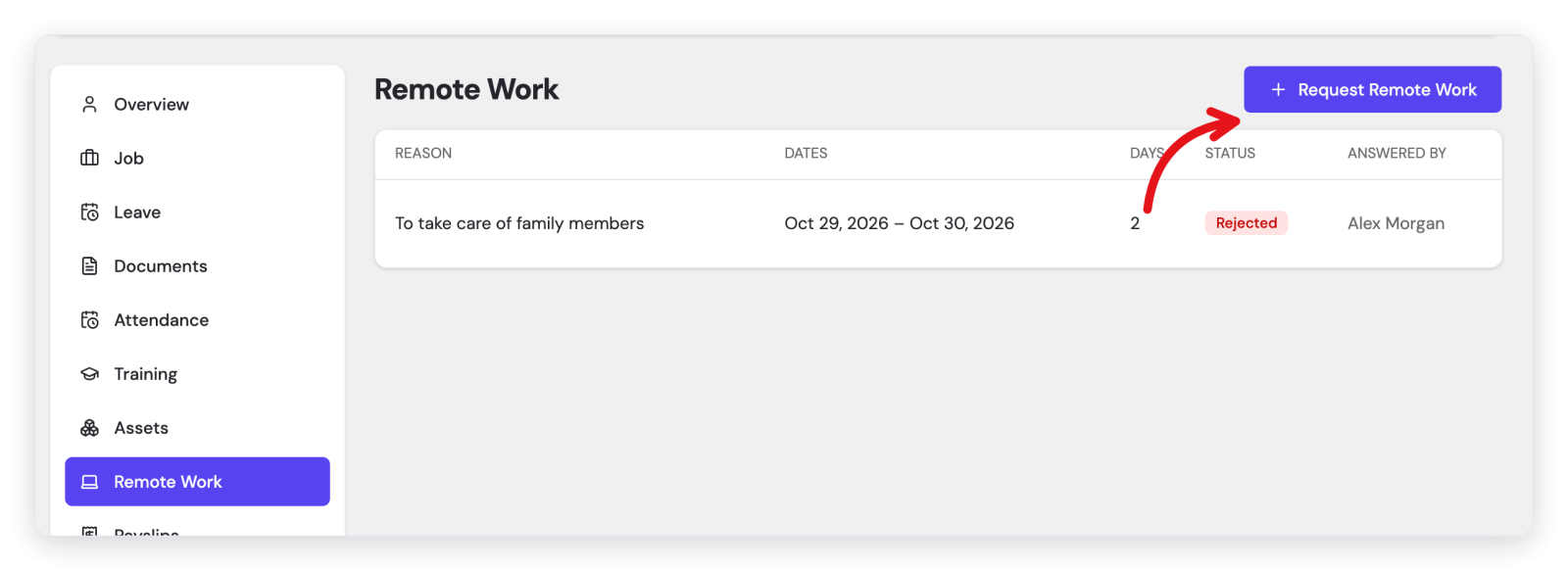
- Click the Remote Work tab.
- Click Request Remote Work.
- Select the Reason.
- If the reason is Others, type the reason in Tell us more.
- Select the From and To dates.
- Click Submit Request.
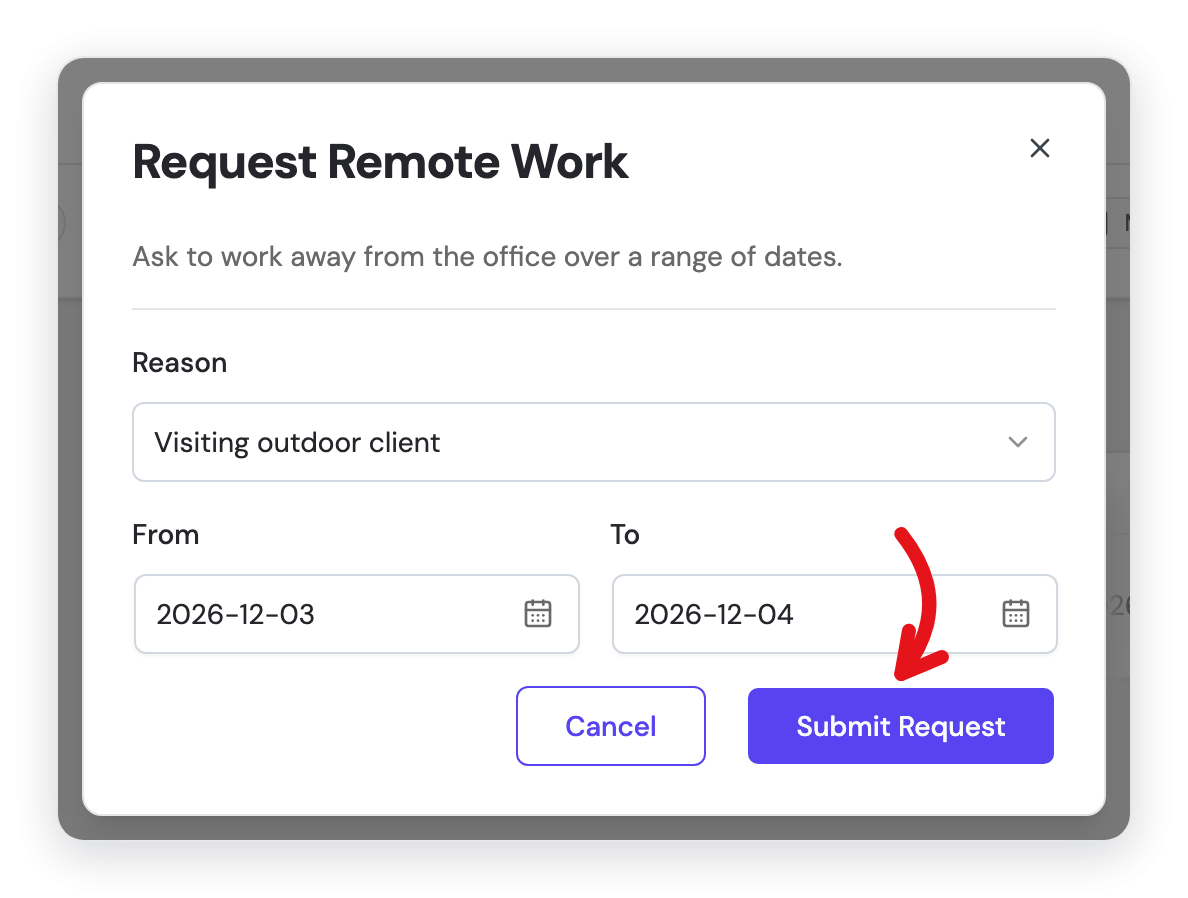
FlyHR shows "Request submitted." The request shows on the Remote Work tab with the status Pending.
| Reason | |
|---|---|
| Personal health reason | |
| To keep social distancing | |
| Visiting outdoor client | |
| To take care of family members | |
| Others | You must type the reason. |
Answer a request (HR managers)
- In the top menu, open People.
- Click Requests.
- Click the Remote Work tab. The number on the tab is the count of pending requests.
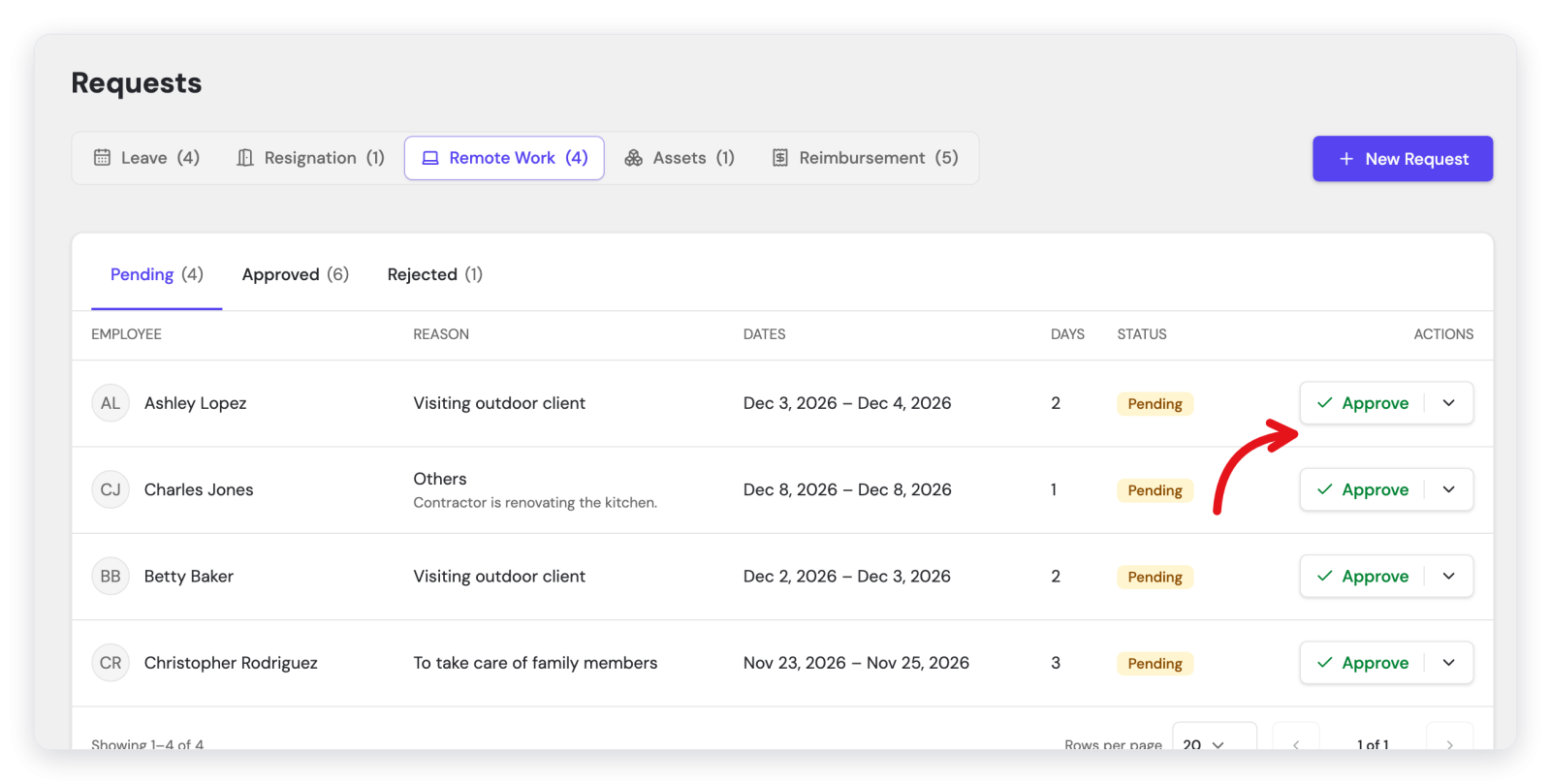
- To approve, click Approve in the row of the request.
- To reject or to delete, click the arrow next to Approve, then click Reject or Delete.

FlyHR shows "Request approved." or "Request rejected." The request moves to the Approved or Rejected tab. The profile of the employee shows the status and the name of the person who answered.
Caution: Delete removes the request for good. You cannot undo it.
Add a request for an employee
HR managers can add a request for an employee, for example after a phone call.
- On the Requests page, click New Request.
- Select the employee.
- Fill in the reason and the dates.
- Click Submit Request.
Was this page helpful?