PEOPLE
LEAVE
REPORTS
GETTING STARTED
Roles and Permissions
FlyHR adds two WordPress roles: HR Manager and Employee. The role of a person decides what they can see and do in FlyHR. A department lead also gets more access to the people of their department.
The roles
| Who | What they can do |
|---|---|
| Administrator | Everything. FlyHR gives the HR Manager role to each administrator when you activate the plugin. Only administrators see the Audit Log. |
| HR Manager | Everything in HR: add, edit, terminate, and delete employees; departments, designations, and locations; leave types, policies, entitlements, and requests; announcements; reports; and Settings. |
| Department lead | An employee who is the head of a department. They approve or reject the leave requests of their department, and add performance reviews for the people of their department. See Department leads. |
| Employee | See the employee list and the org chart, see and edit their own profile, request leave, and read their announcements. |
A person can have more than one role. For example, an HR manager who is also an employee has the Employee and HR Manager roles.
Give HR Manager access to an employee
- Go to People → All Employees.
- Click the name of the employee.
- In the list on the left of the profile, click Permission.
- Turn on HR Manager.
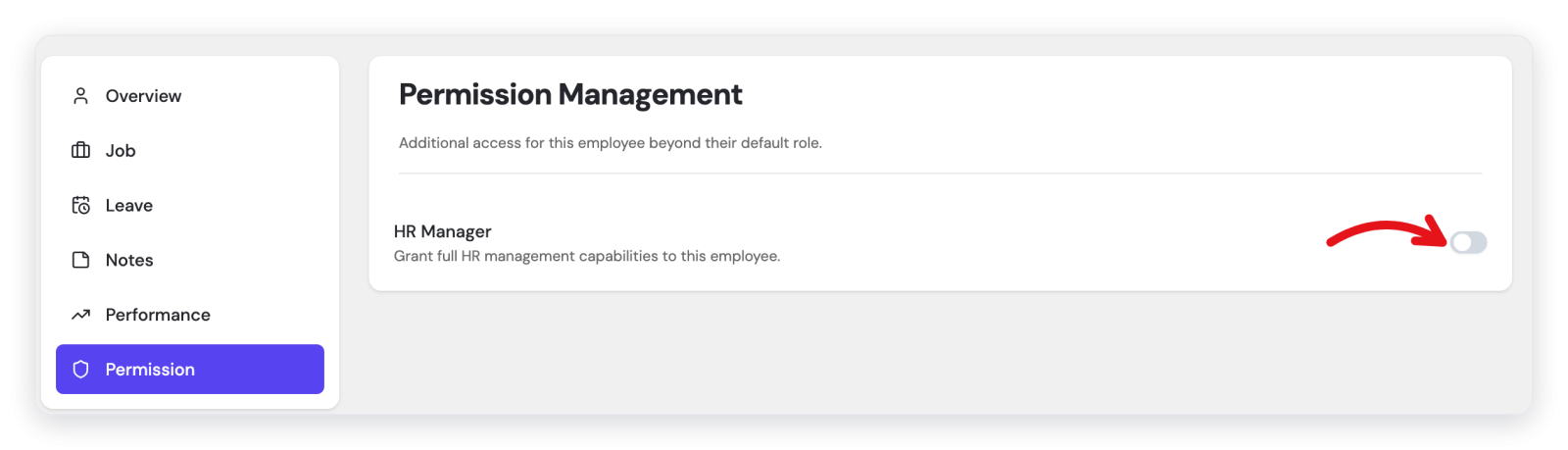
FlyHR shows "HR Manager access granted." The change saves at once. To take the access away, turn the switch off.
The Permission tab shows only to HR managers and administrators. You cannot change your own permissions.
Department leads
A department lead is the employee who heads a department. FlyHR does not use a separate role for leads. The access comes from the Department Head field of the department.
Make an employee a department lead
- Go to People → Departments.
- In the row of the department, click the ⋮ menu, then click Edit.
- In Department Head, select the employee.
- Click Update Department.
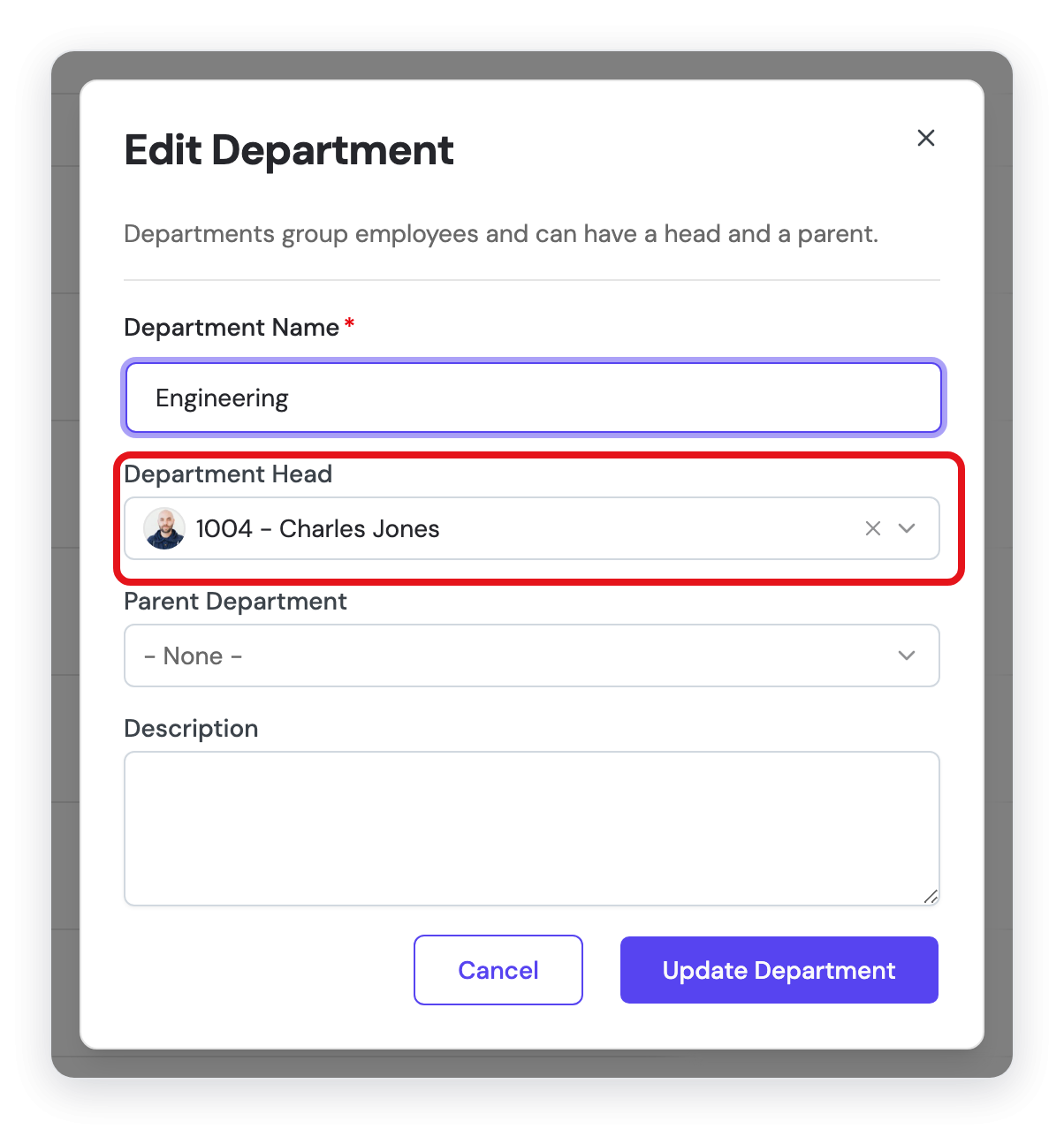
The employee gets the lead access at once. To take it away, clear Department Head or select another employee. A person can lead more than one department.
The lead must be an employee with the status Active. When the lead leaves the company, the access stops.
What a department lead can do
A lead works only with the employees of their own departments. They cannot act on their own records.
| A lead can | Where |
|---|---|
| See the leave requests of the team, with the number of pending requests | People → Requests |
| Approve or reject the leave requests of the team | People → Requests |
| Read, add, and delete the performance reviews, comments, and goals of each team member | The Performance tab of the profile of the team member |
| Be the top of the team in the org chart | People → Org Chart |
A lead cannot approve their own leave or review their own performance. An HR manager does that.
See and approve the leave requests of the team
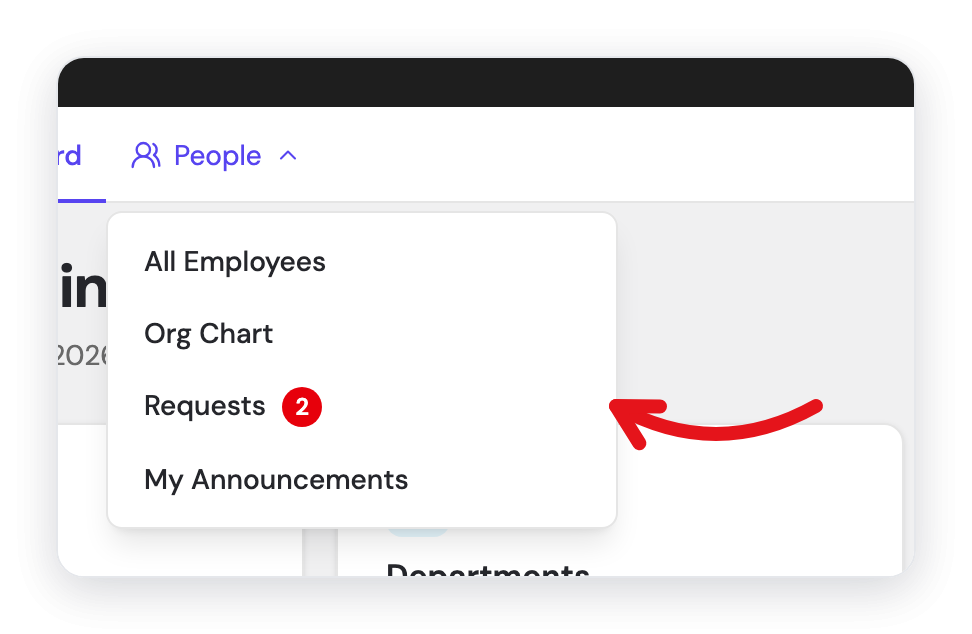
- In the top menu, open People. The red number next to Requests is the number of pending requests of the team.
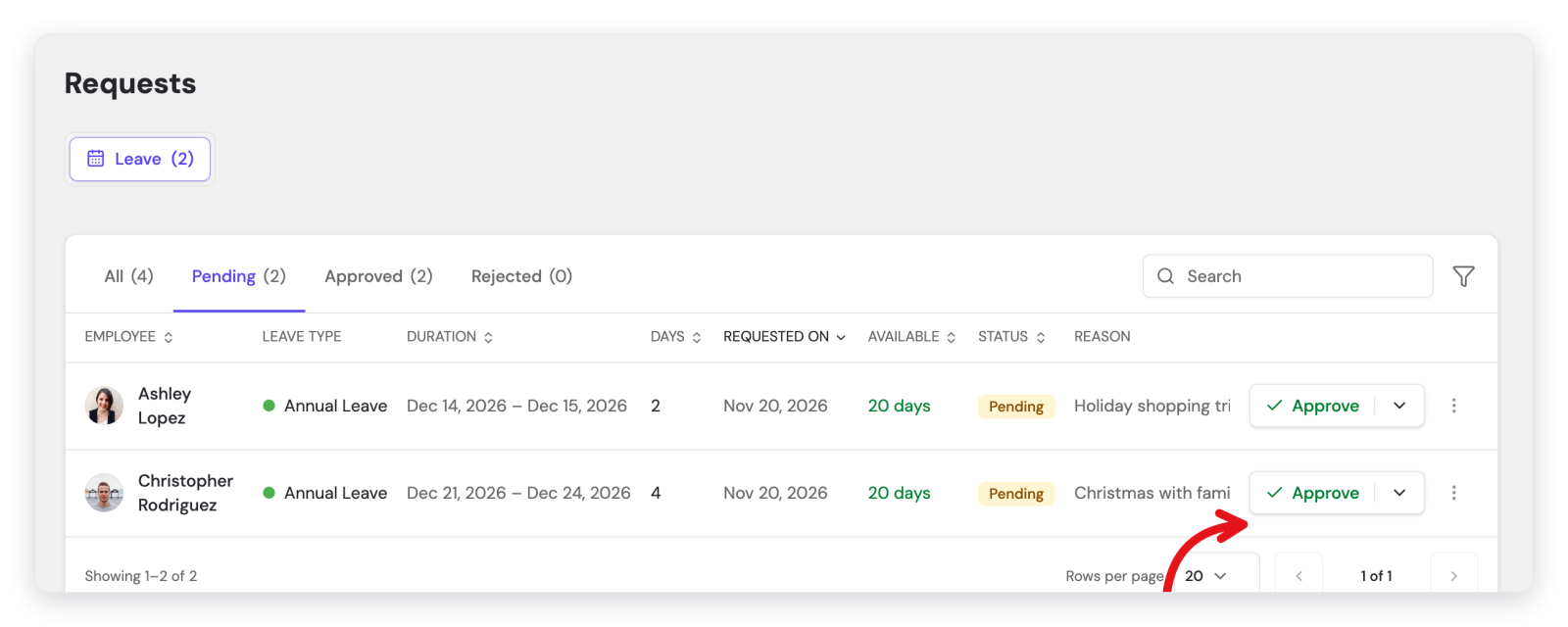
- Click Requests.
The Requests page shows only the requests of the team. Click Approve, or click the arrow next to it and click Reject. See Manage Leave Requests.
Review the performance of a team member
- Go to People → All Employees and click the name of a team member.
- Click Performance.
- Click Add Review, Add Comment, or Add Goal.
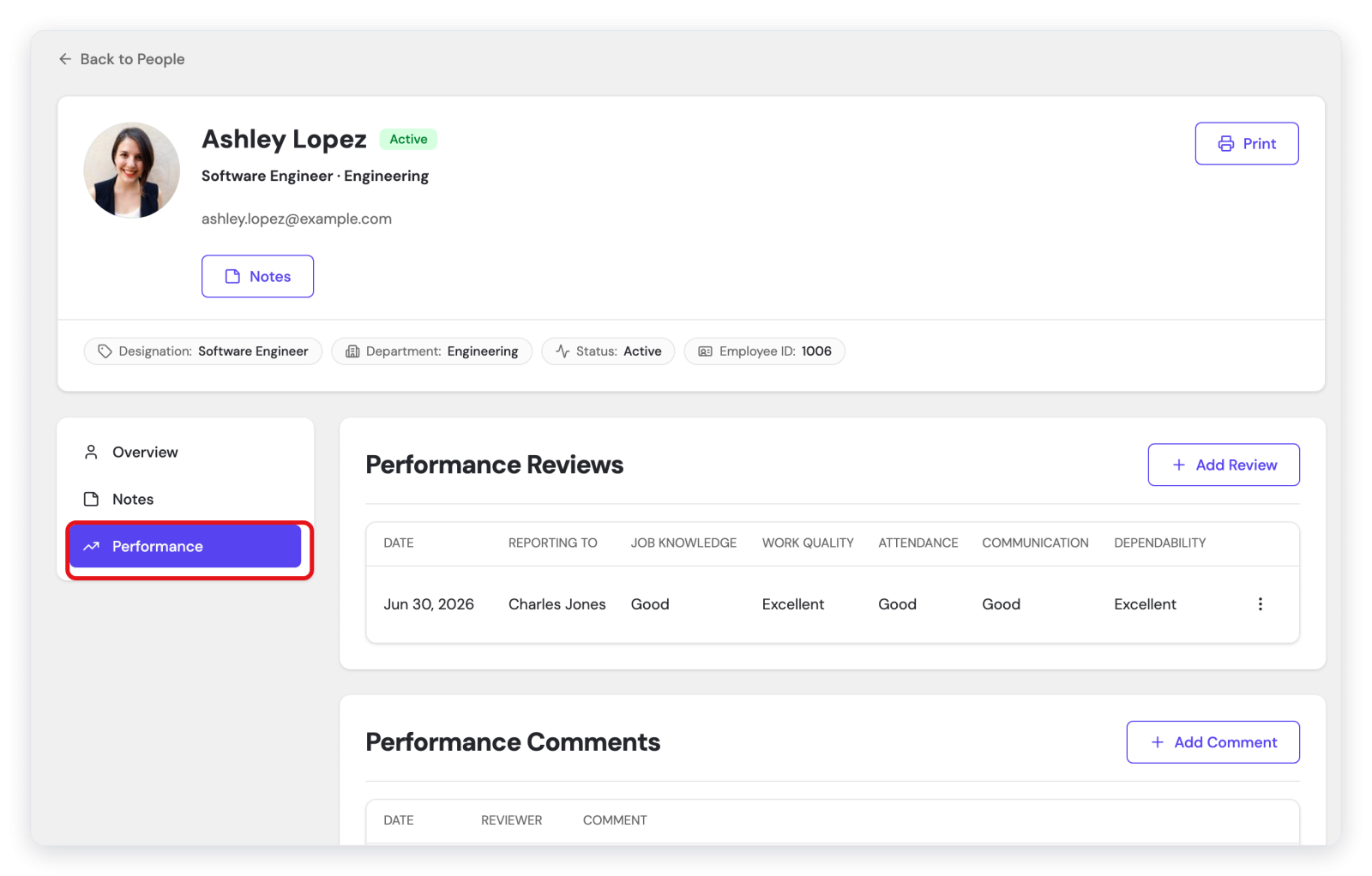
See Performance Reviews and Goals.
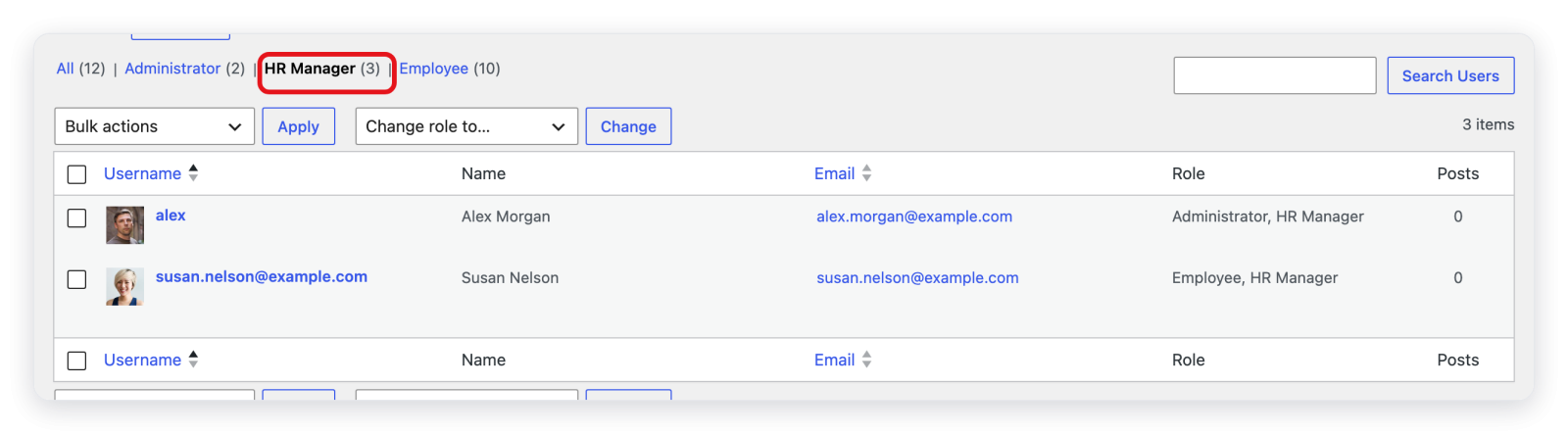
See who has a role
In your WordPress admin, go to Users. At the top of the list, click HR Manager or Employee.
Send people to FlyHR after login
Turn on Role Based Login Redirection in FlyHR → Settings → General. HR managers and employees then go to FlyHR after they log in. See Company and General Settings.