PEOPLE
LEAVE
REPORTS
LEAVE
Leave Policies
A leave policy gives a number of days of one leave type for one leave year (financial year). For example, Annual Leave, 20 days, for 2026.
A policy can apply to all employees, or to a group only. For example, you can make a Casual Leave policy for part-time employees only.
Before you start
- You must be a WordPress administrator or an HR manager.
- Add the leave type and the leave year first. You can also add them from the policy form. See Leave Types and Leave Years.
Step 1: Open Leave Policies
- In the top menu, open Leave.
- Click Leave Policies.
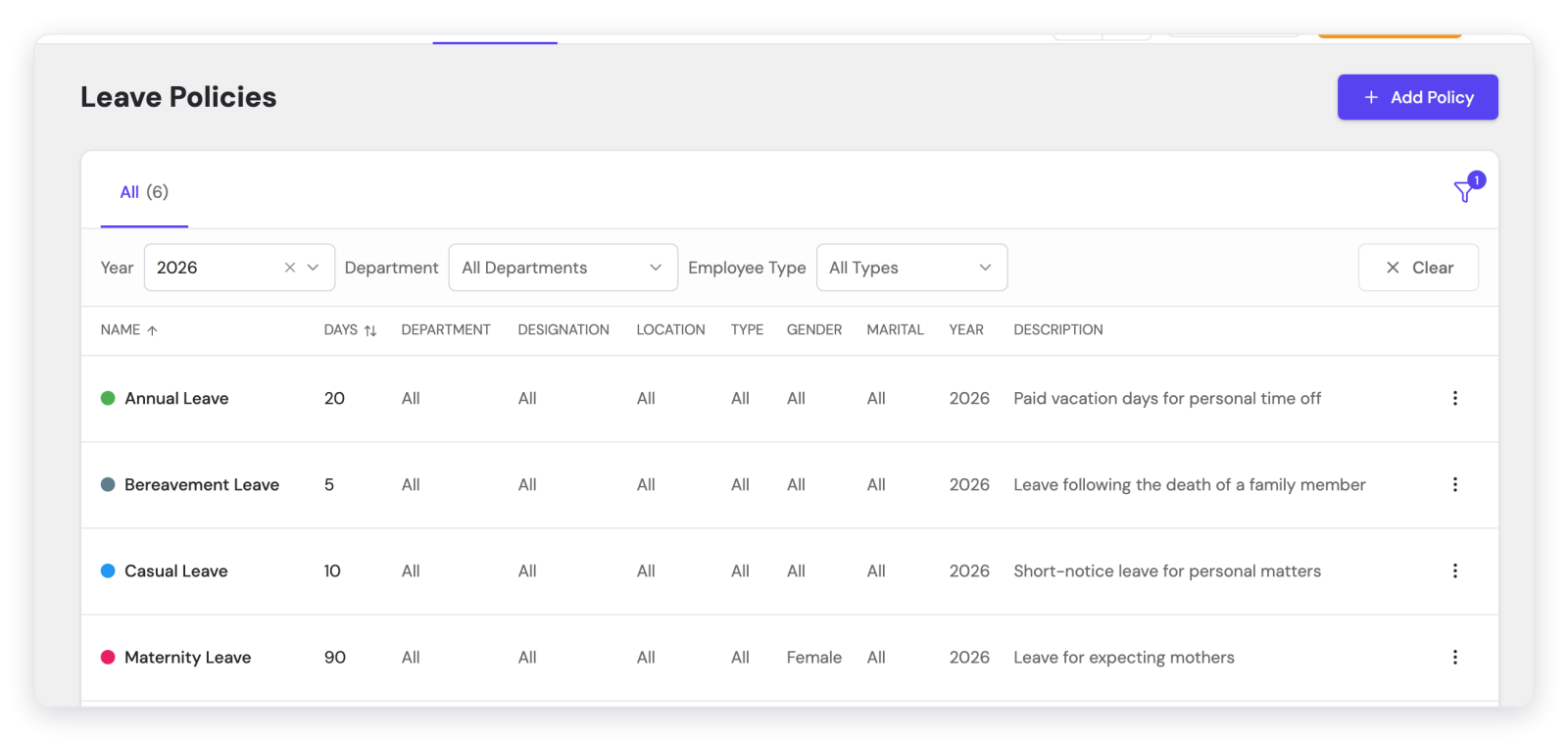
The list shows the days of each policy and the groups that it applies to. All means that the policy does not limit that field. Use Year, Department, and Employee Type at the top to filter the list.
Step 2: Add a policy
- Click Add Policy at the top right.

- Select the Leave Type and the Financial Year.
- Type the number of Days.
- Optional: select a Color. FlyHR uses it on the leave calendar.
- To limit the policy to a group, select an Employee Type, Department, Designation, Gender, Marital Status, or Location. Keep All for everyone.
- Optional: type a number in Applicable After (days).
- Optional: type a Description.
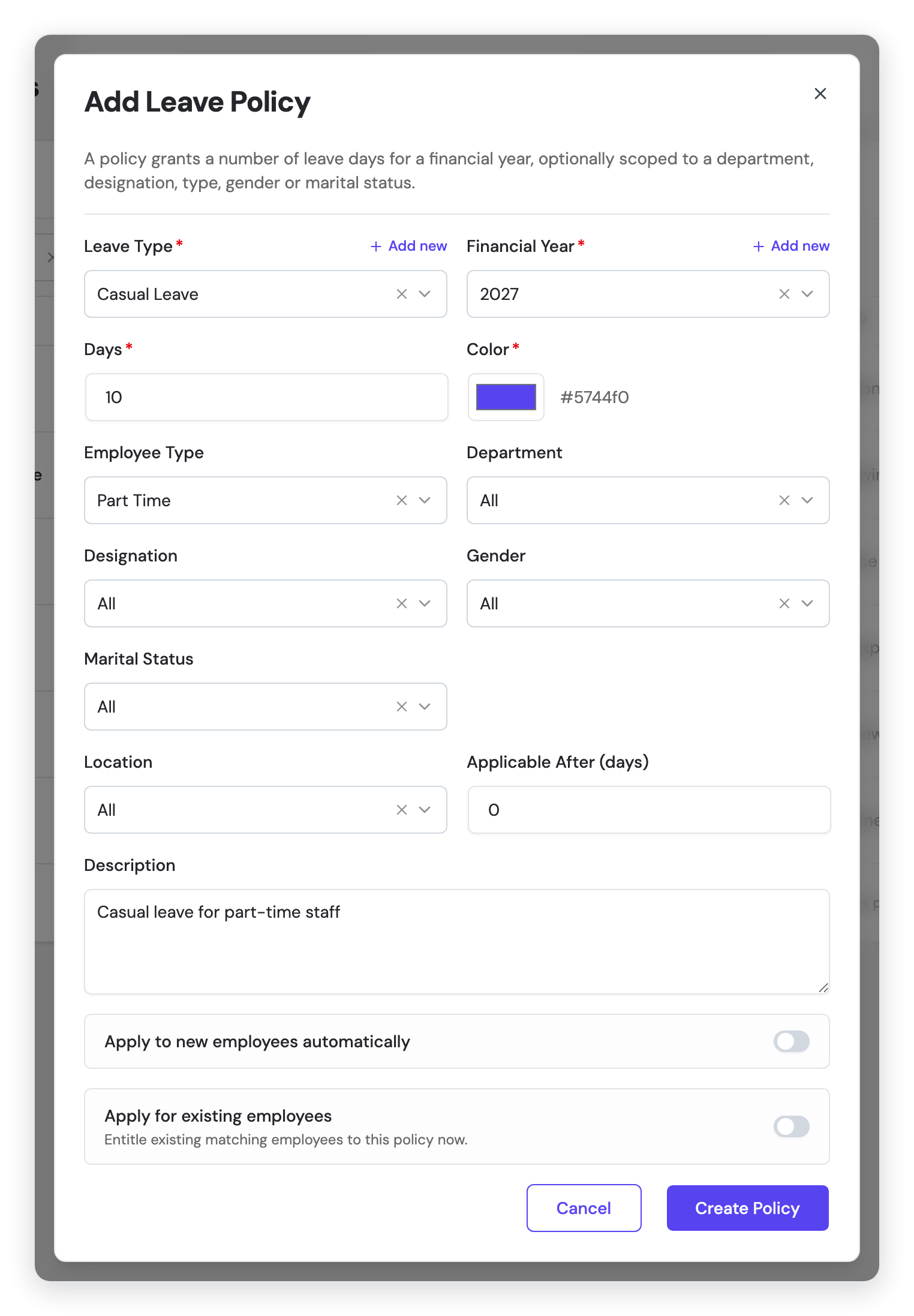
- Select the options at the bottom of the form. See Give the policy to employees.
- Click Create Policy.
FlyHR shows "Policy created."
Caution: You cannot change the leave type, the financial year, the days, or the group fields after you create the policy. To change them, make a new policy.
Give the policy to employees
A policy gives no days until FlyHR makes a leave entitlement for each employee. Use the two options at the bottom of the form:
| Option | What it does |
|---|---|
| Apply to new employees automatically | Each new employee who matches the policy gets its days when you add them. FlyHR uses the policies of the current leave year. |
| Apply for existing employees | When you create the policy, FlyHR gives its days to each active employee who matches the policy. This option shows only when you add a policy. |
If you do not select these options, give the policy by hand. See Leave Entitlements.
Edit, duplicate, or delete a policy
- Click the ⋮ menu at the end of the row.
- Click Edit, Duplicate, or Delete.
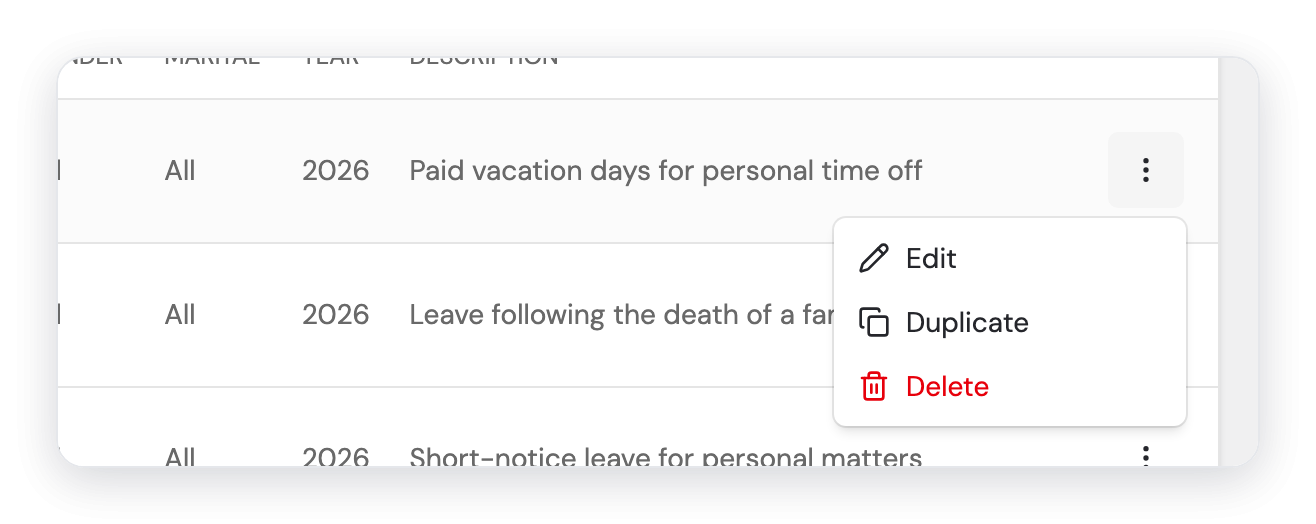
- Edit lets you change the color, the description, and the options.
- Duplicate opens a new policy form with the values of this policy. Use it to make the same policy for the next leave year.
- Delete removes the policy.
Caution: When you delete a policy, FlyHR also deletes its entitlements and its leave requests. You cannot undo this.
The fields
| Field | Necessary | What it means |
|---|---|---|
| Leave Type | Yes | The kind of leave, for example Annual Leave. |
| Financial Year | Yes | The leave year that the days are for. |
| Days | Yes | The number of days that each matching employee gets. |
| Color | Yes | The color of this leave on the leave calendar. |
| Employee Type | No | Full Time, Part Time, On Contract, Temporary, or Trainee. |
| Department | No | Only employees of this department. |
| Designation | No | Only employees with this job title. |
| Gender | No | Only employees with this gender. FlyHR skips employees with no gender on their profile. |
| Marital Status | No | Only employees with this marital status. |
| Location | No | Only employees of this office. |
| Applicable After (days) | No | The number of days after the date of hire before the employee can get the policy. For example, type 90 for a 90-day trial period. |
| Description | No | A short note. It shows in the list. |
FlyHR Pro adds more policy options, for example half-day leave, carry forward, and leave encashment.