PEOPLE
LEAVE
REPORTS
SETTINGS
Set Your Work Days
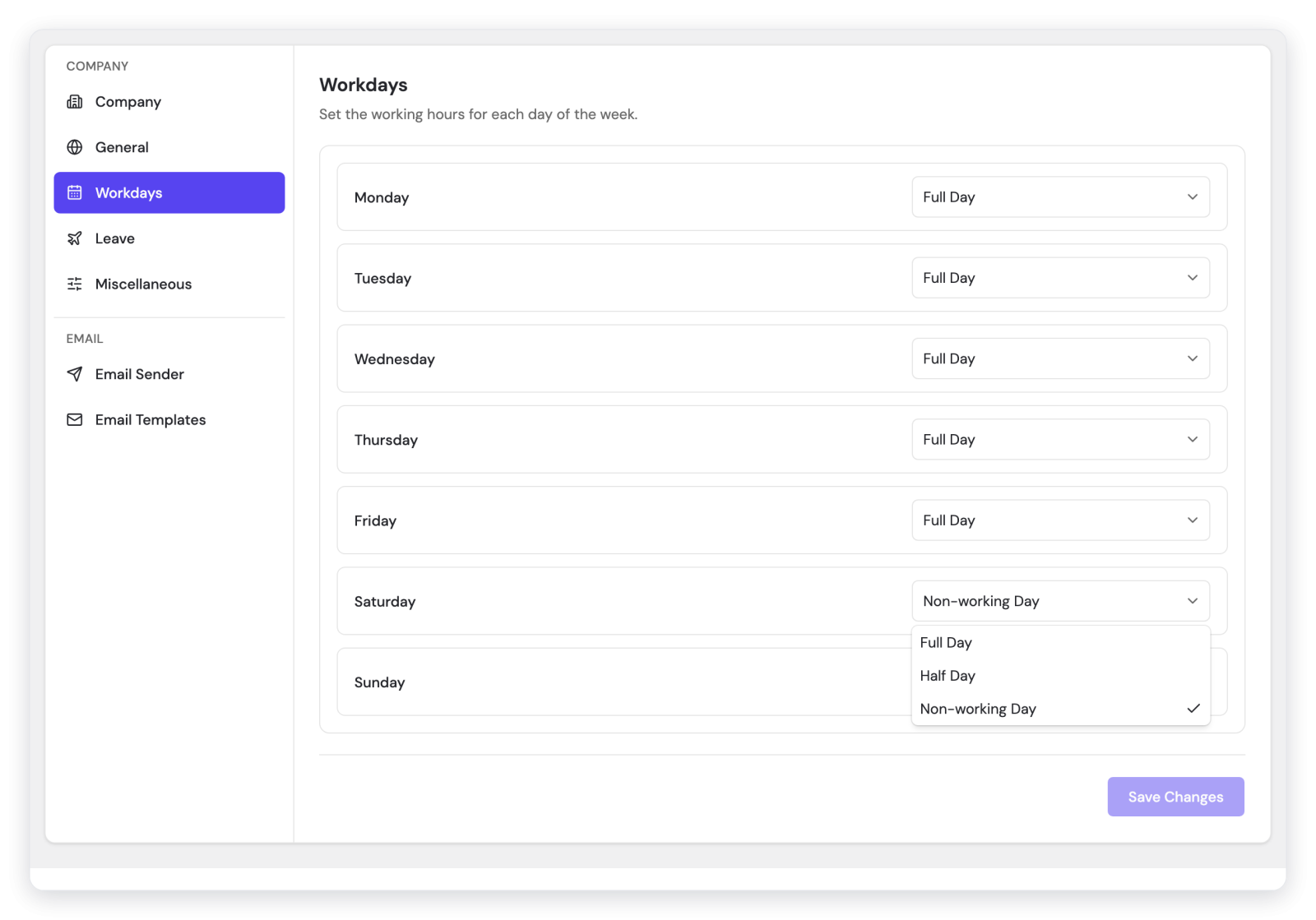
Tell FlyHR which days of the week your company works, and for how long. FlyHR uses the work days to count the days of each leave request. A non-working day in a leave request does not use leave.
Before you start
- You must be a WordPress administrator or an HR manager.
- The setup wizard sets the work days the first time. Use these steps to change them later.
Step 1: Open the Workdays section
- Go to FlyHR → Settings.
- In the list on the left, click Workdays.
Step 2: Set each day
- For each day of the week, open the list and select one option:
- Full Day
- Half Day
- Non-working Day
- Click Save Changes.
Result
New leave requests use the new work days. For example, with Saturday and Sunday as non-working days, a leave request from Friday to Monday uses two days.
Leave requests that you saved before the change keep their days.
The options
| Option | What it means |
|---|---|
| Full Day | A normal work day. One day of leave on this day uses one day of leave. |
| Half Day | A short work day, for example a Saturday morning. |
| Non-working Day | The office is closed, for example a weekend day. Leave on this day uses no leave. |
To close the office on one date, for example a public holiday, add a holiday. See Holidays.
The office start and end times are set in the setup wizard. See Set Up FlyHR with the Setup Wizard.
Was this page helpful?