PEOPLE
LEAVE
REPORTS
PEOPLE
Office Locations
A location is an office of your company, for example Austin HQ or Denver Office. Give each employee a location when your company has more than one office.
FlyHR uses locations in the employee list filter and in leave policies. For example, a leave policy can apply only to the employees of one office.
Before you start
- You must be a WordPress administrator or an HR manager.
Add a location
You add a location from the employee form.
- Go to People → Add New Employee, or open the edit form of an employee.
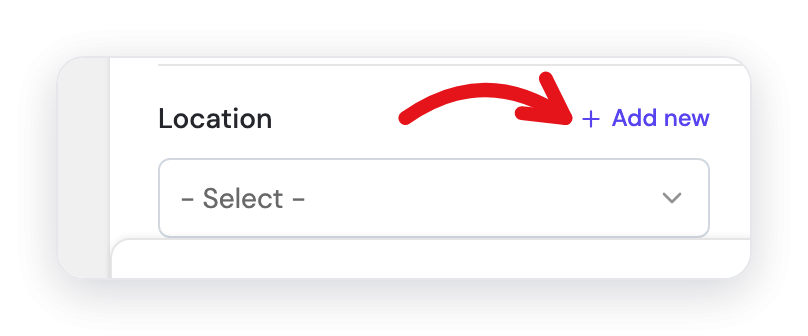
- In the Work section, click + Add new above the Location field.
- Type the Location Name.
- Click Create Location.
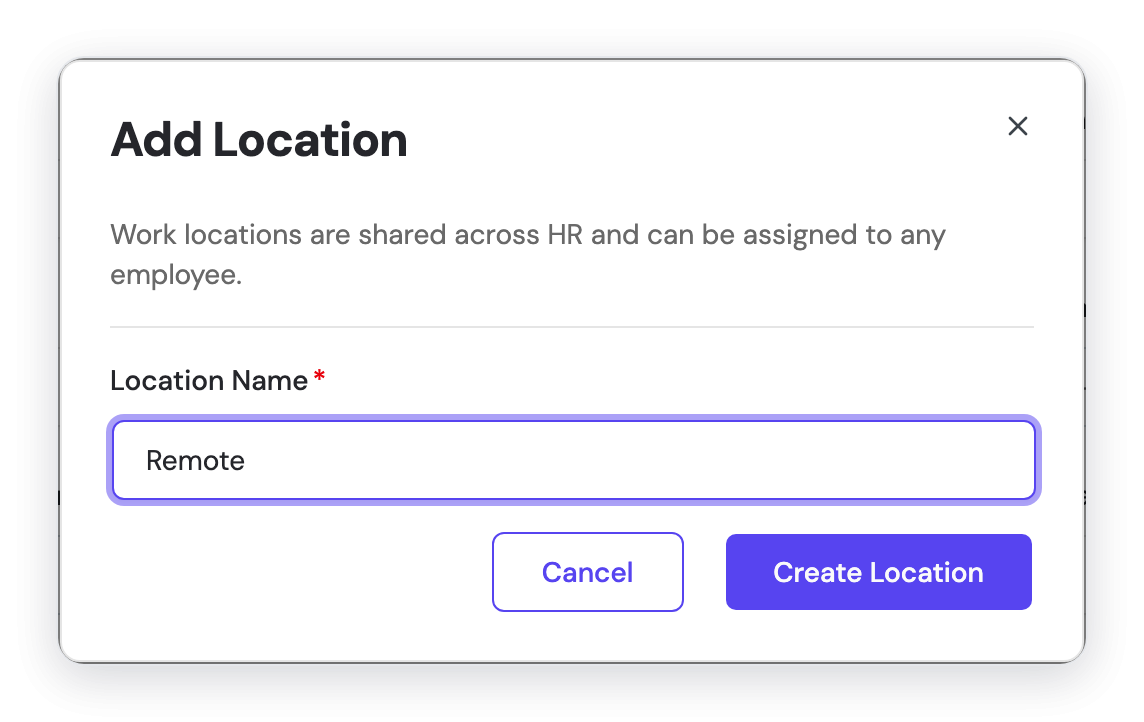
FlyHR adds the location and selects it in the field. All employee forms and filters can now use it.
Give an employee a location
- For a new employee, select the Location on the Add New Employee form. See Add an Employee.
- For an existing employee, open the Job tab of the profile and click Update Job Information. See Update the Job Information of an Employee.
Find the employees of a location
- Go to People → All Employees.
- Click the filter icon.
- Select the location in the Location filter.
Note: FlyHR 1.0 has no page to rename or delete a location.
Was this page helpful?