PEOPLE
LEAVE
REPORTS
LEAVE
Holidays
Add the public holidays and company days off. Holidays show on the leave calendars, and FlyHR does not count them as leave days. For example, a leave request from Wednesday to Friday uses two days when Thursday is a holiday.
Before you start
- You must be a WordPress administrator or an HR manager.
Step 1: Open Holidays
- In the top menu, open Leave.
- Click Holidays.
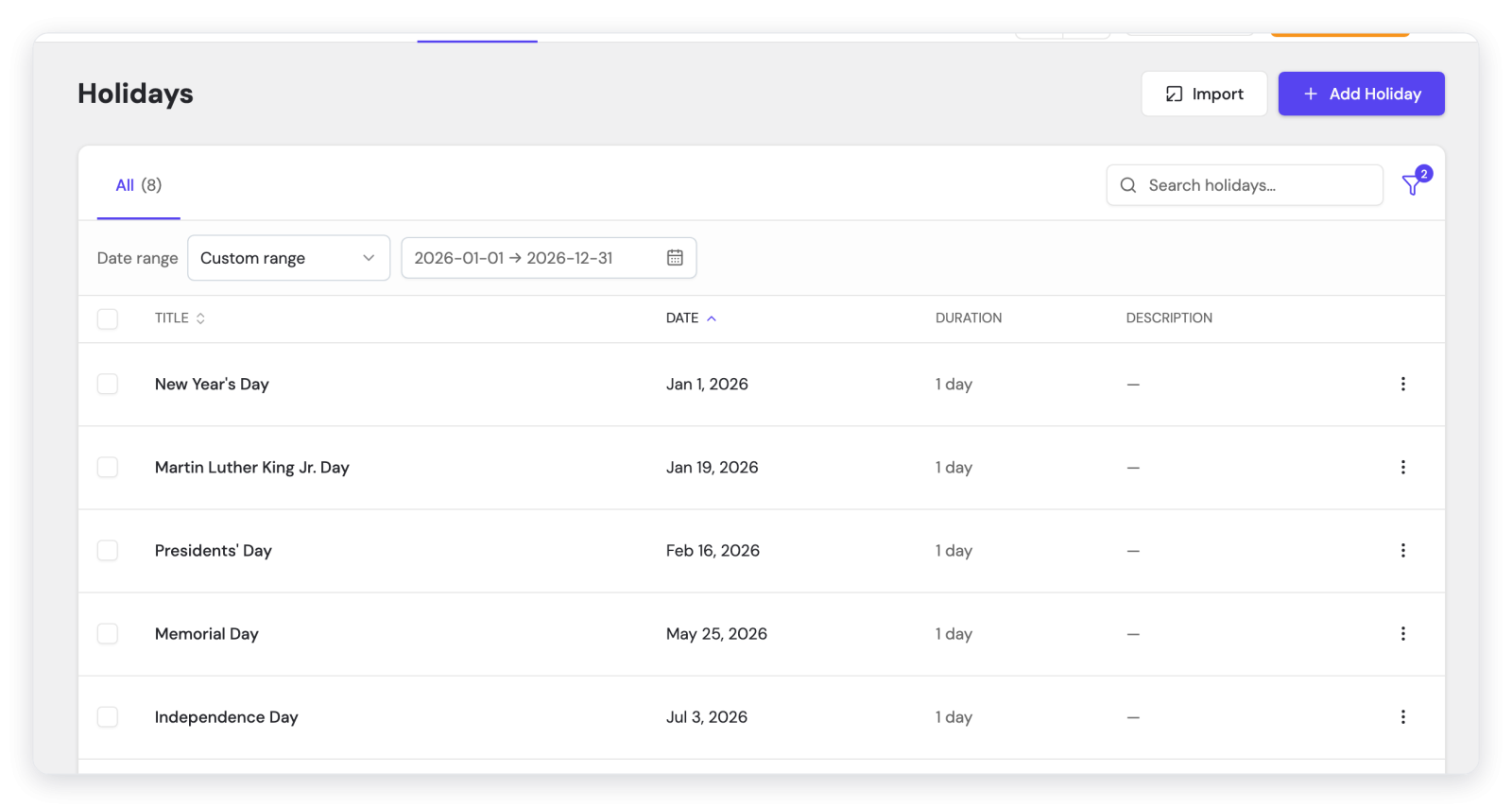
The list shows the holidays of the selected Date range. By default, it shows the current year.
Step 2: Add a holiday
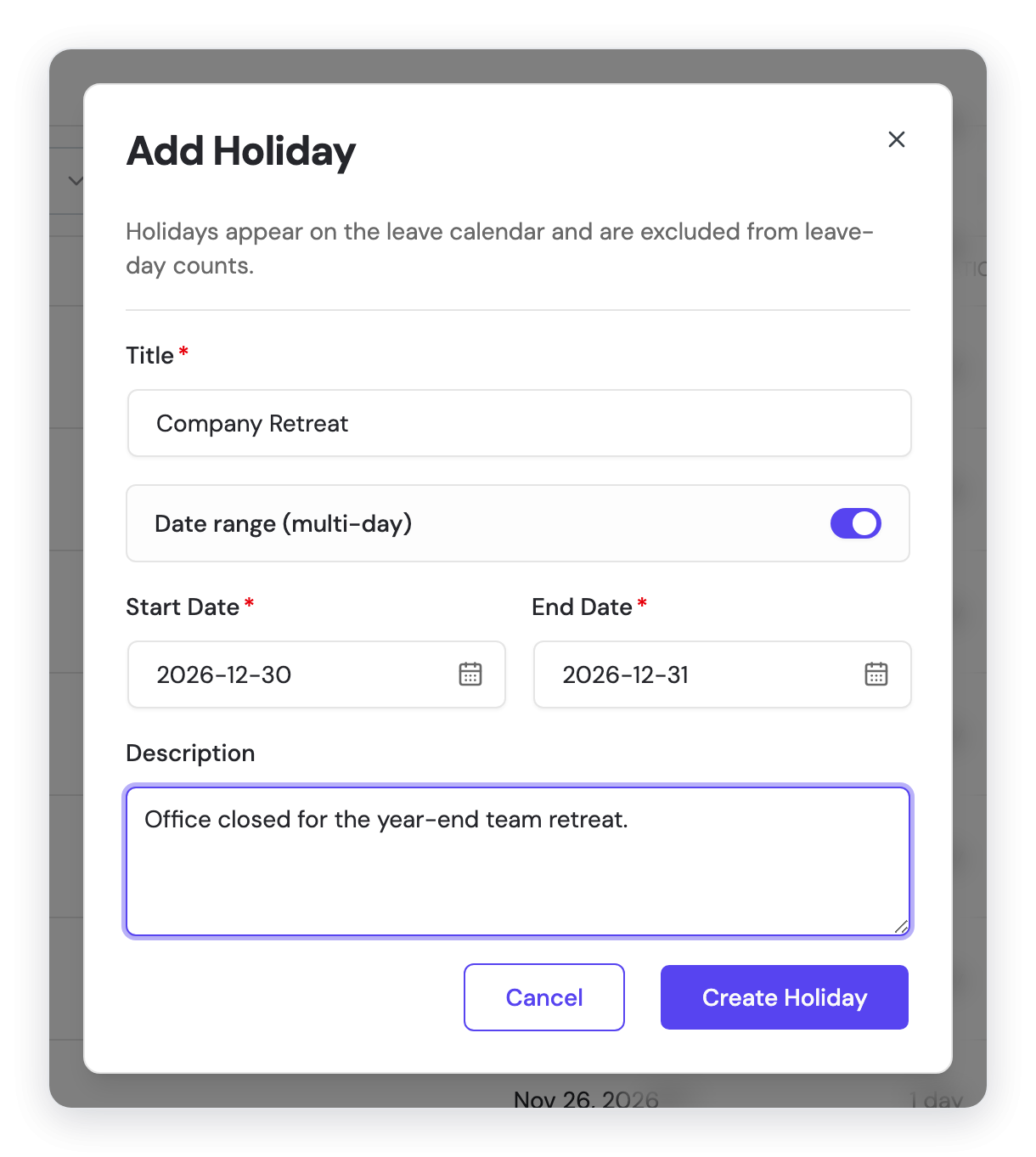
- Click Add Holiday at the top right.

- Type the Title, for example Company Retreat.
- For a holiday of one day, select the Date.
- For a holiday of more than one day, turn on Date range (multi-day). Then select the Start Date and the End Date.
- Optional: type a Description.
- Click Create Holiday.
Import holidays from a file
You can import holidays from a calendar file (.ics), for example a public holiday calendar, or from a CSV file.
- Click Import at the top right.
- Click Choose a .ics or .csv file and select your file.
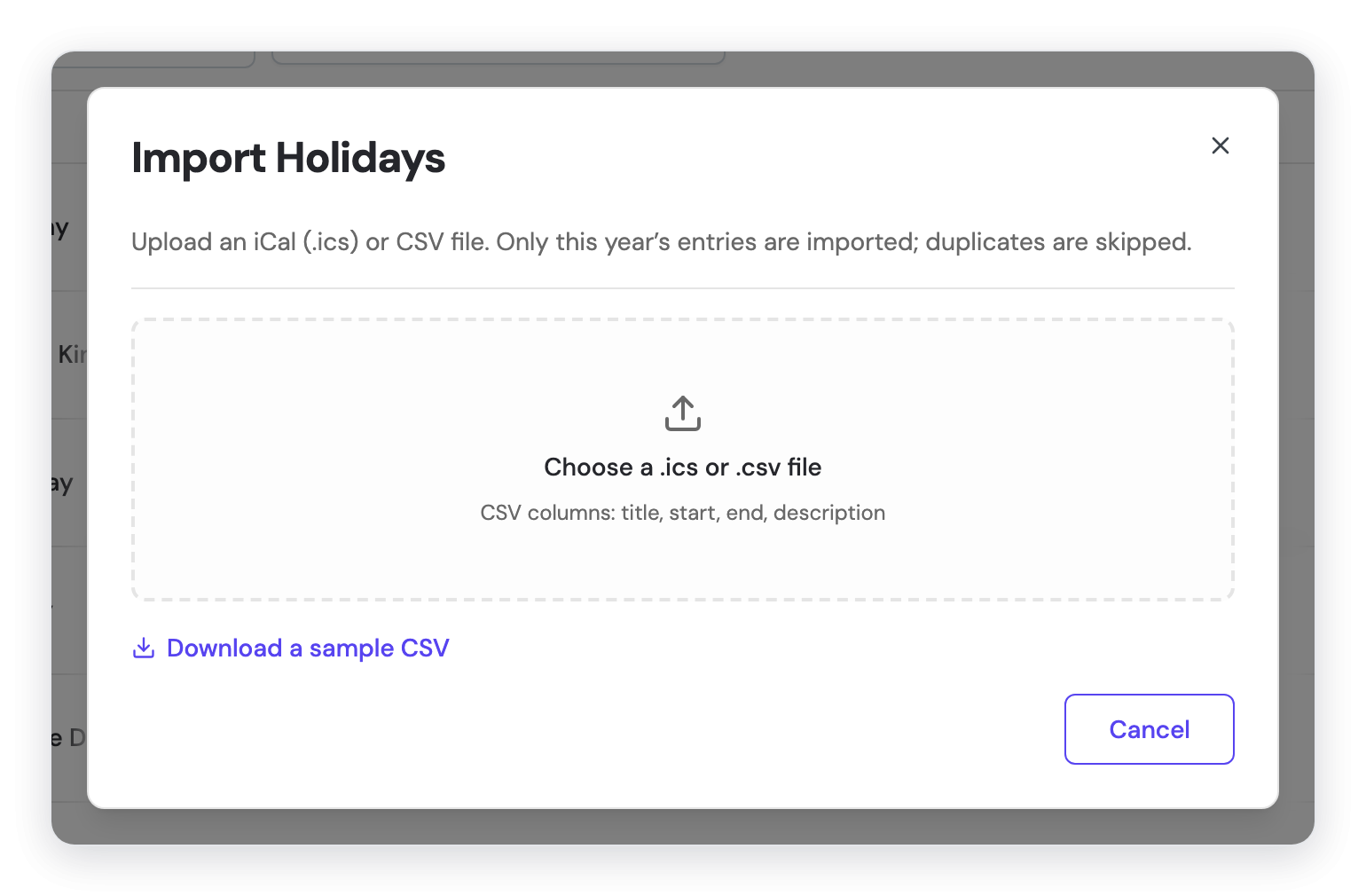
FlyHR imports only the holidays of the current year. It skips the holidays that are already in the list.
To make a CSV file, click Download a sample CSV. The file has the columns title, start, end, and description.
Edit or delete a holiday
Click the ⋮ menu at the end of the row, then click Edit or Delete.
The fields
| Field | Necessary | What it means |
|---|---|---|
| Title | Yes | The name of the holiday. It shows on the calendars. |
| Date range (multi-day) | No | Turn it on for a holiday of more than one day. |
| Date, or Start Date and End Date | Yes | The day or the days of the holiday. |
| Description | No | A short note. |
Was this page helpful?