PEOPLE
LEAVE
REPORTS
REPORTS
HR Reports
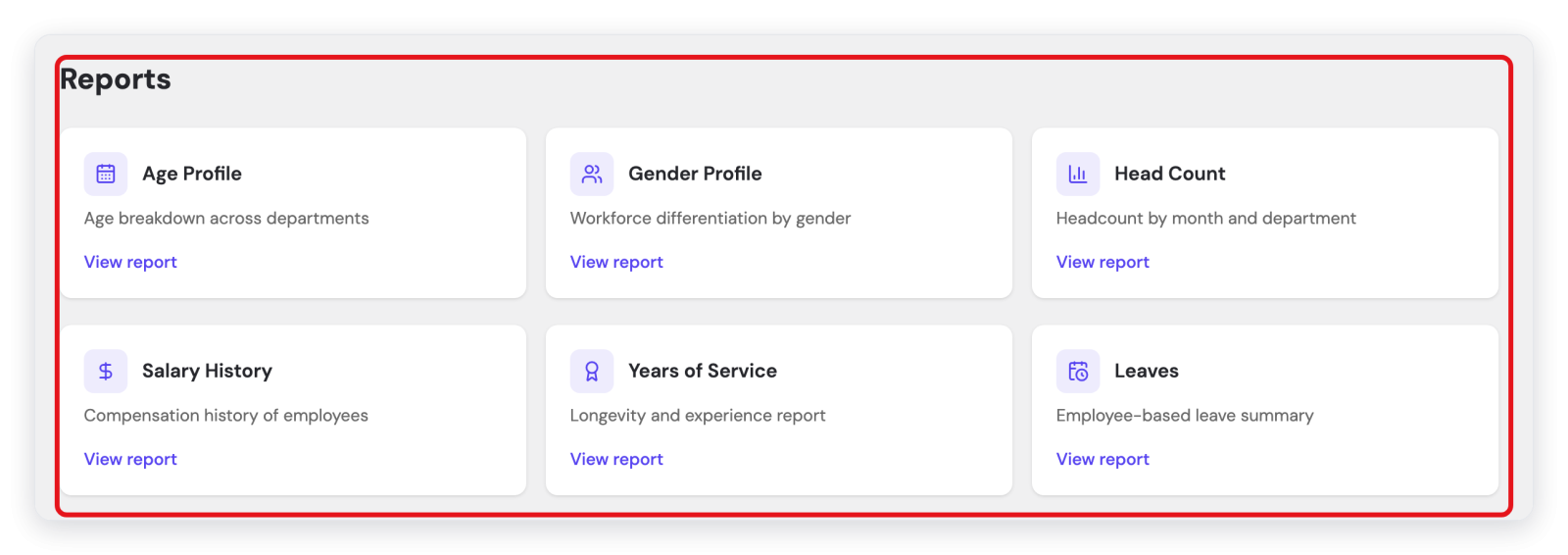
FlyHR has six HR reports: Age Profile, Gender Profile, Head Count, Salary History, Years of Service, and Leaves. Each report shows a chart or a list, and a table under it. The reports use the date format and the currency of your company.
Before you start
- You must be a WordPress administrator or an HR manager. Employees and department leads do not see the reports.
- The reports read the data of your employees. Fill in the date of birth, the gender, the department, and the pay of each employee to get full reports. See The Employee Profile.
Open a report
- In the top menu, open Reports.
- Click the name of the report.
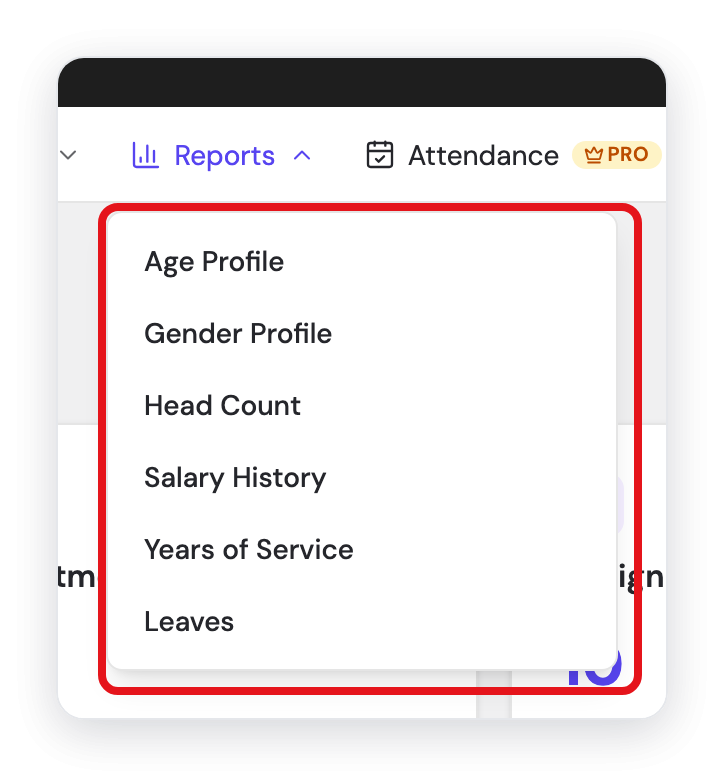
You can also click Reports to open the reports page. Each report has a card. Click View report on the card. Use the tabs at the top of a report to go to another report.
FlyHR Pro adds more reports to this menu, for example the attendance and asset reports.
Age Profile
The Age Profile shows how many employees are in each age group: Under 18, 18–25, 26–35, 36–45, 46–55, 56–65, and 65+.
- The Age Breakdown chart shows the count in each age group.
- The table shows the same groups for each department, with a Total row.
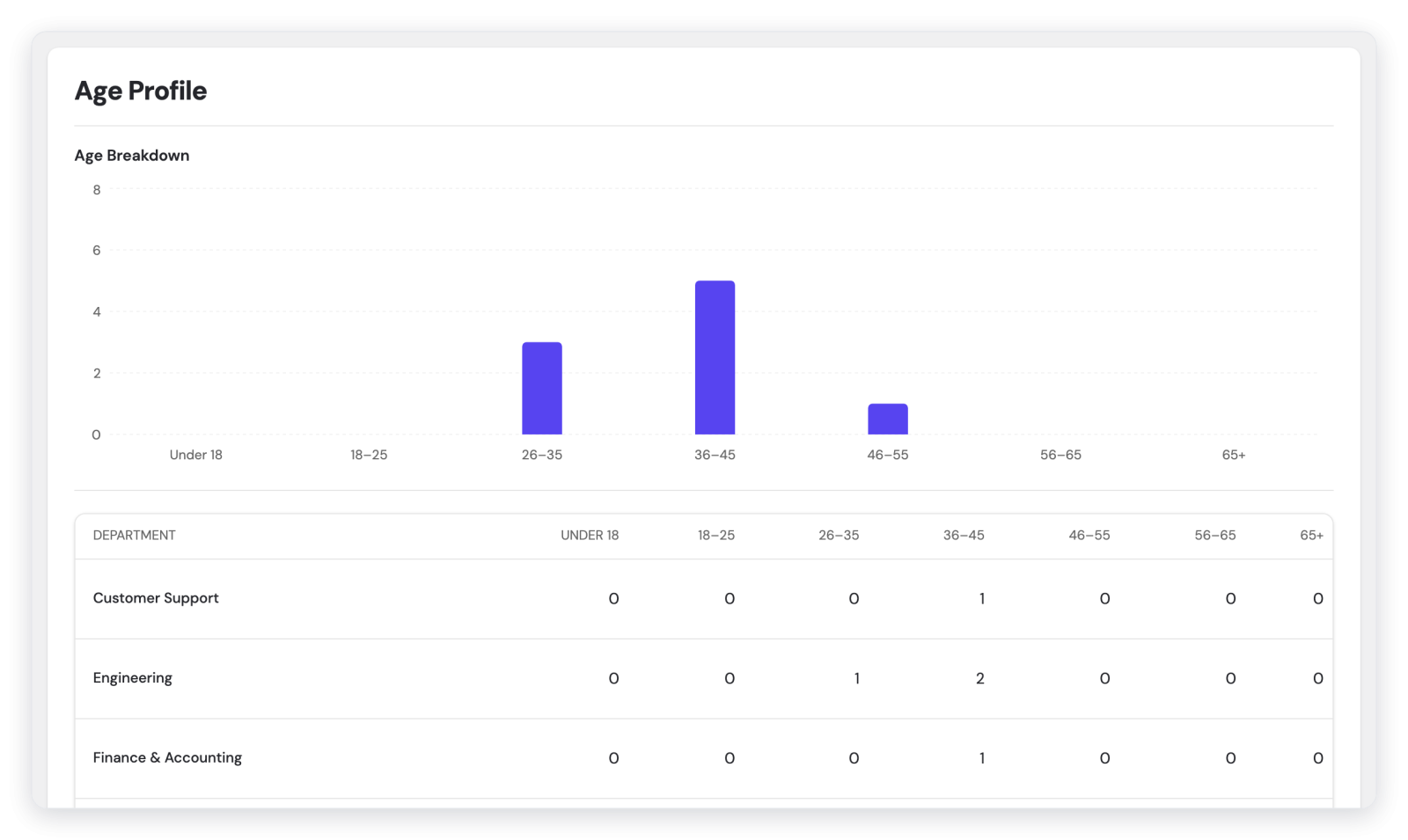
FlyHR calculates the age from the Date of Birth. An employee without a date of birth or without a department is not in this report.
Gender Profile
The Gender Profile shows the ratio of male and female employees.
- The Gender Ratio chart and table show the count and the percentage of Male, Female, and Unspecified employees.
- Employee Gender Ratio By Department shows the same counts for each department.
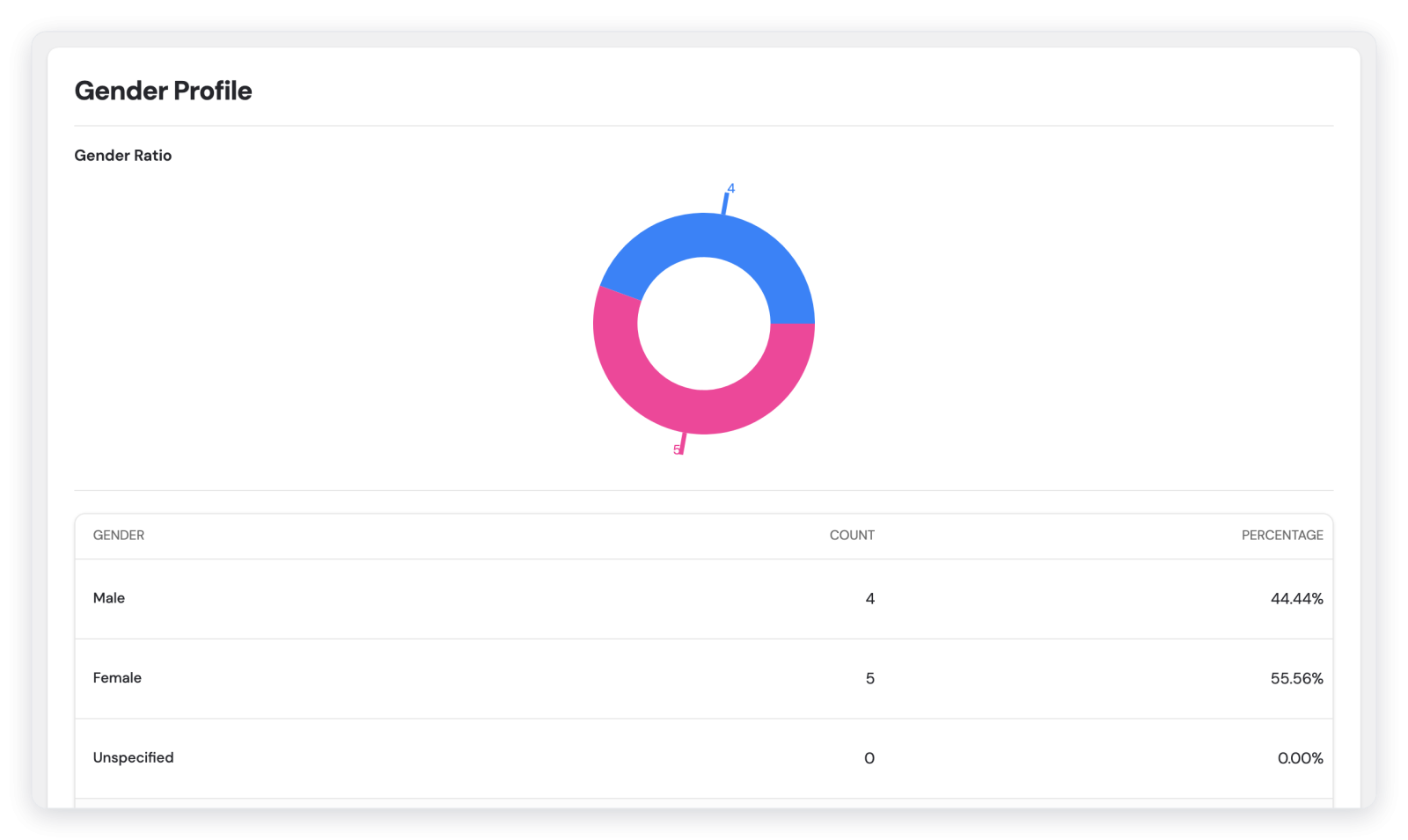
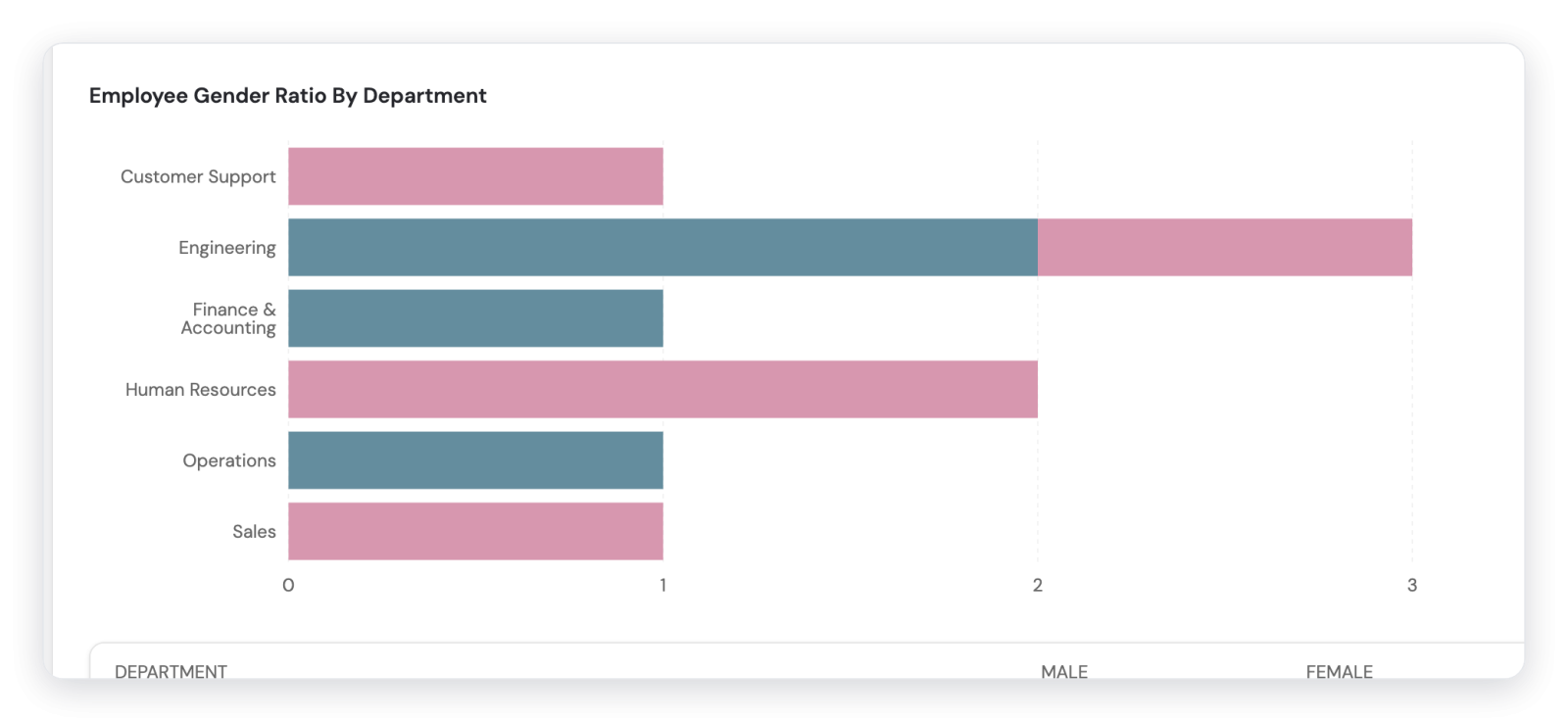
The report counts active employees only. Unspecified counts the employees with no gender on their profile.
Head Count
The Head Count report shows how many people you employed in each month of a year.
- Total Employees shows the number of active employees today.
- Headcount by Month shows the number of employees in each month.
- The table lists the employees with the Hire Date, the Job Title (designation), the Department, the Location, and the Status. Click Load more to see more rows.
To change the year, select it in Year. To show one department, click the filter icon and select the Department.
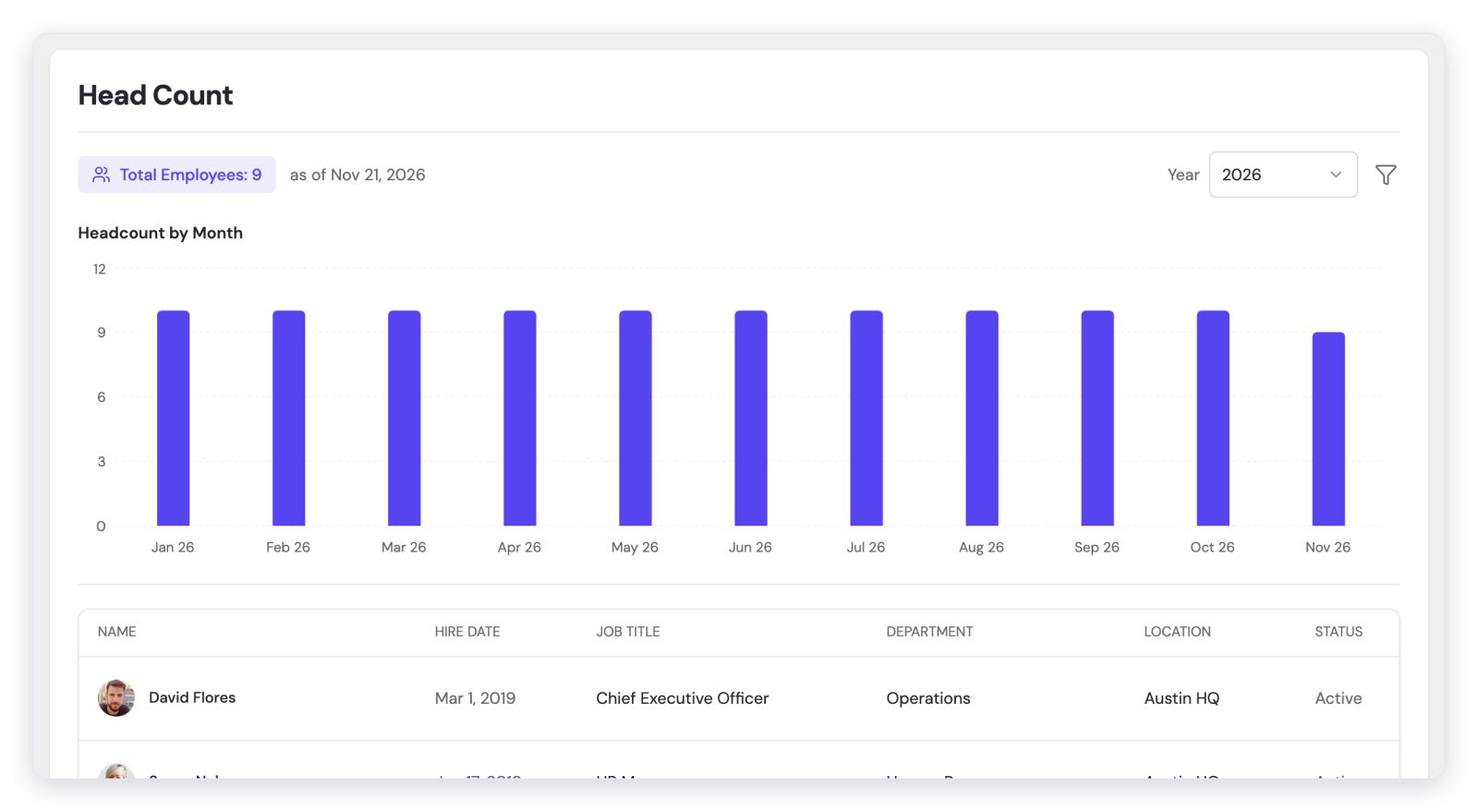
A month counts each employee who was hired in or before that month and who was active, or not yet terminated, in that month.
Salary History
The Salary History lists each pay change of each active employee. Each row shows the Date, the Pay Rate, the Pay Type, and the Employee ID. The newest change of each employee is at the top of their rows.
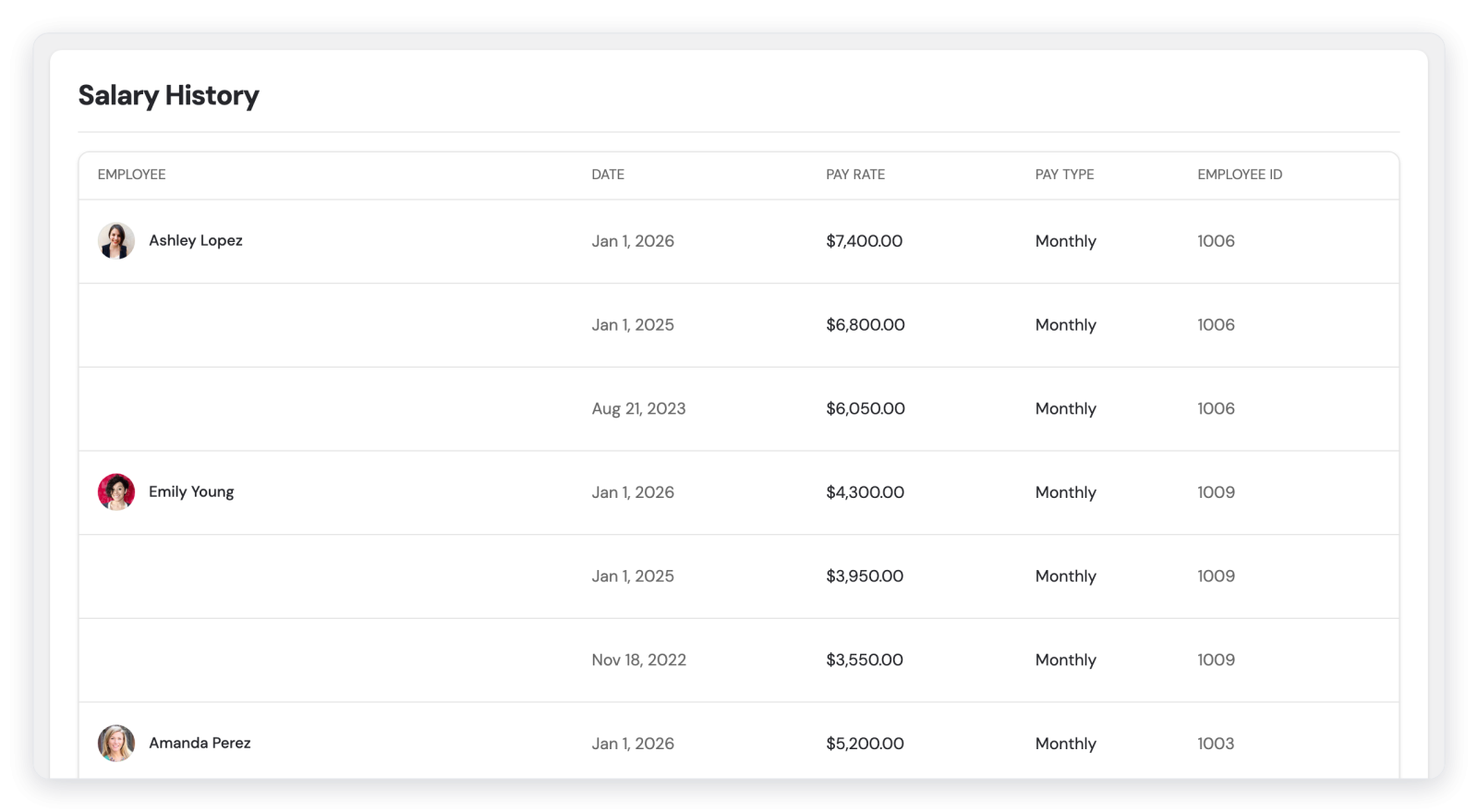
The report reads the pay changes on the Job tab of each employee profile. To add a pay change, see Update Job Information. If no employee has a pay change, the report shows "No employee found."
Years of Service
Years of Service lists the work anniversaries of your employees, month by month. Each row shows the day of the month that the employee started, and how many years they have worked for your company.
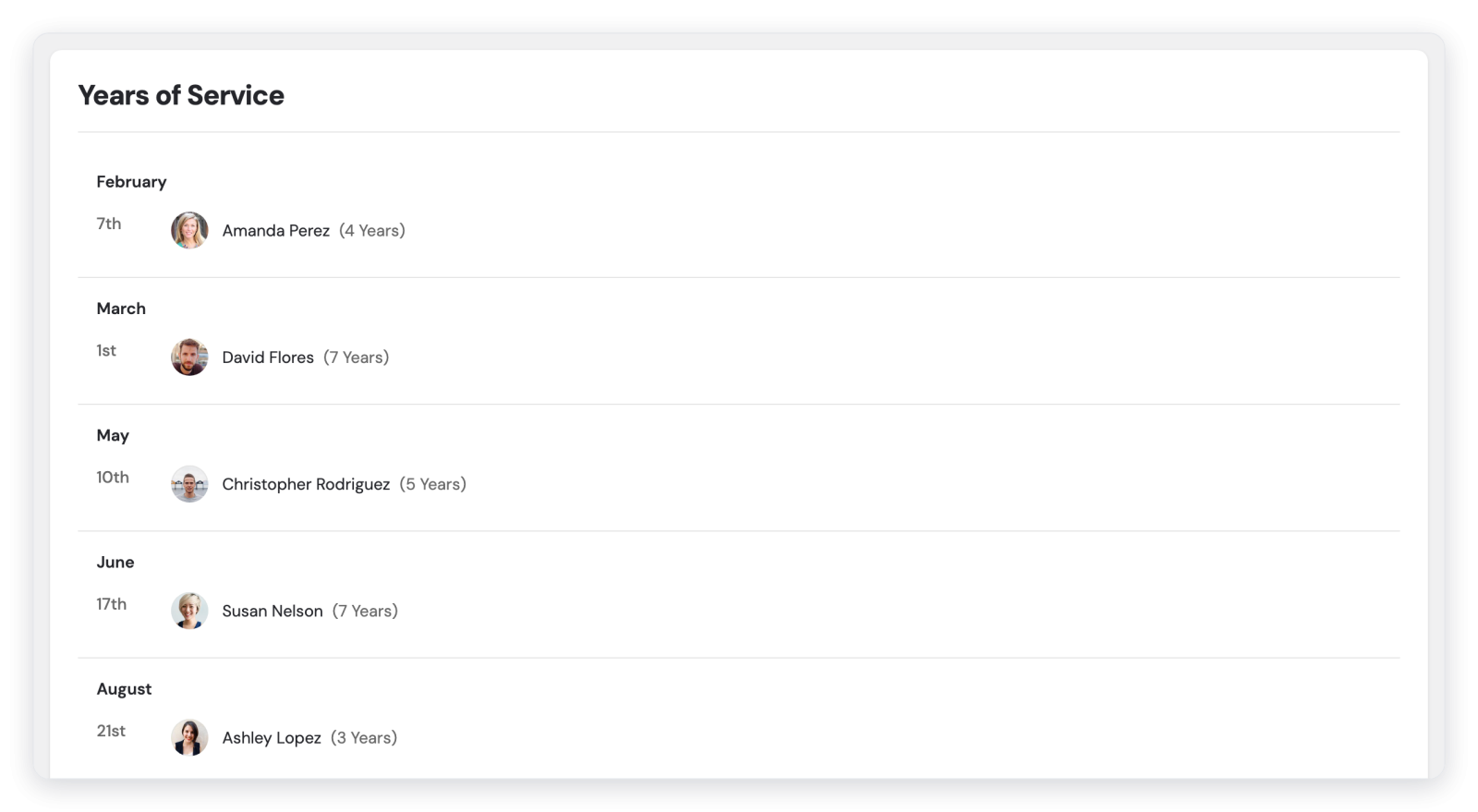
FlyHR calculates the years from the Date of Hire. Use this report to plan anniversary greetings. FlyHR can also send a work anniversary email. See Emails.
Leaves
The Leave Report shows the leave of each employee for each leave type. Each cell shows the days taken and the days of the leave entitlement, for example 3 / 20. A dash (—) means that the employee has no entitlement for that leave type.
To filter the report:
- In Financial Year, select the leave year (financial year). To use your own dates, select Custom and select a Date range.
- Click the filter icon.
- Select a Designation, a Department, or an Employment Type.
- To remove the filters, click Clear.
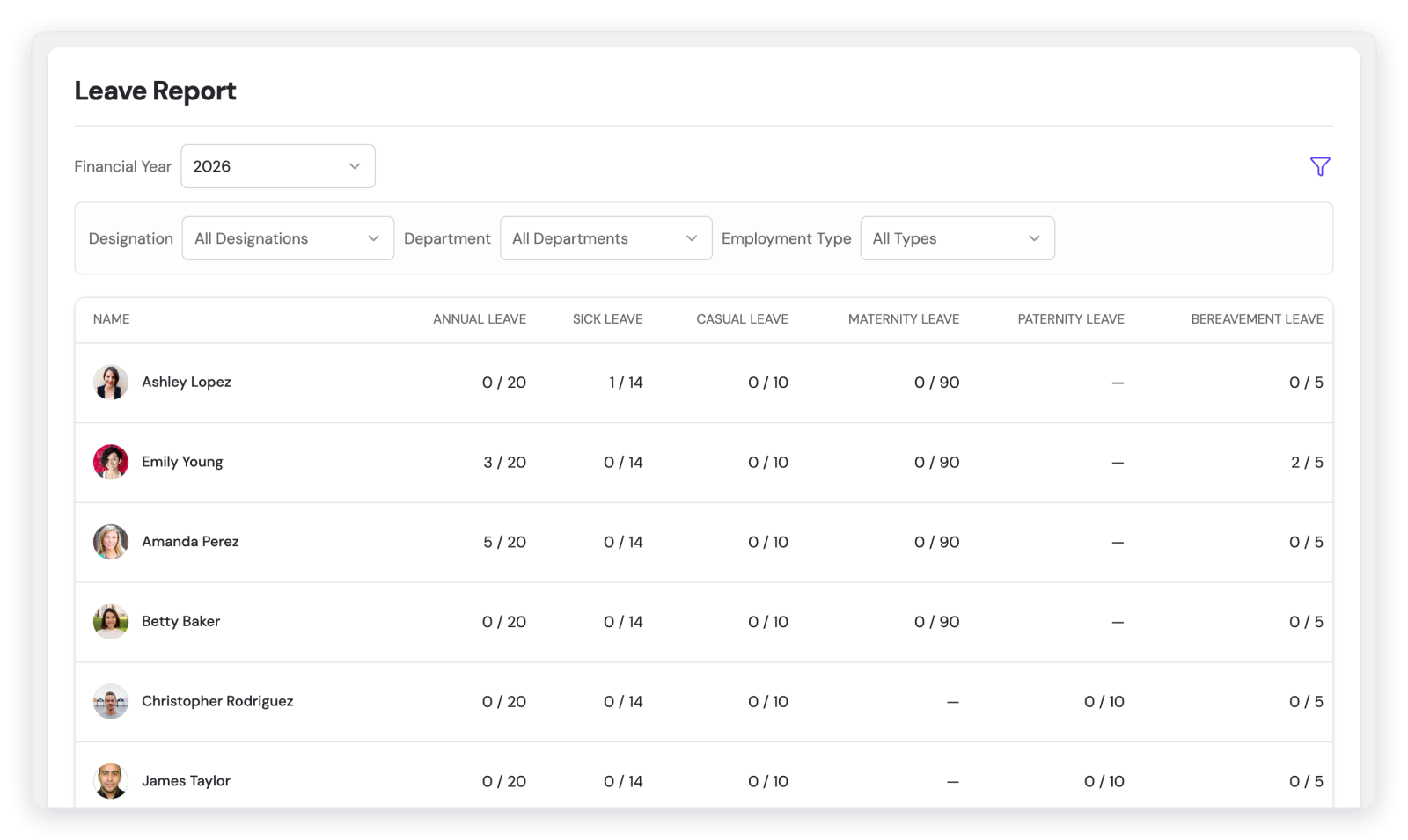
The report fills in after you give leave entitlements to your employees. See Leave Entitlements.
Who is in each report
| Report | Employees in the report |
|---|---|
| Age Profile | Employees who work for you today and have a date of birth and a department |
| Gender Profile | Active employees |
| Head Count | Employees who were active in each month |
| Salary History | Active employees with at least one pay change |
| Years of Service | Employees who work for you today |
| Leaves | Active employees, and employees who left after the start of the period |