PEOPLE
LEAVE
REPORTS
LEAVE
How Leave Works in FlyHR
FlyHR counts leave in five parts. Each part needs the part before it. When you know the order, you can set up leave quickly and find the cause of a problem.
The five parts
- Leave year. The dates that FlyHR counts leave in, for example January 1 to December 31. In the menu, it is Leave → Financial Years.
- Leave type. A kind of leave, for example Annual Leave or Sick Leave.
- Leave policy. The number of days of one leave type for one leave year. A policy can apply to all employees or to a group only, for example to female employees or to one department.
- Leave entitlement. The days of a policy that an employee gets. An employee can request leave only from an entitlement.
- Leave request. The days off that an employee asks for. An HR manager or the department lead approves or rejects the request.
The leave balance is the days that an employee has left. FlyHR calculates it from the entitlement and the approved requests.
Set up leave in this order
- Add your leave years. See Leave Years.
- Add your leave types. See Leave Types.
- Make a leave policy for each type. See Leave Policies.
- Give the policies to your employees. See Leave Entitlements.
- Add your company holidays. See Holidays.
The setup wizard does steps 1 to 3 for you. See Set Up FlyHR with the Setup Wizard.
Caution: Employees cannot request leave until they have a leave entitlement. After the setup wizard, do step 4.
How FlyHR counts leave days
- FlyHR counts only working days. Your work days are set in Settings. A non-working day, for example Saturday, is not counted.
- FlyHR does not count holidays.
- A request must be inside one leave year.
- A request cannot be longer than the leave balance. To let employees take more days than their balance, turn on Extra Unpaid Leave in Settings → General → Leave.
Where to manage leave
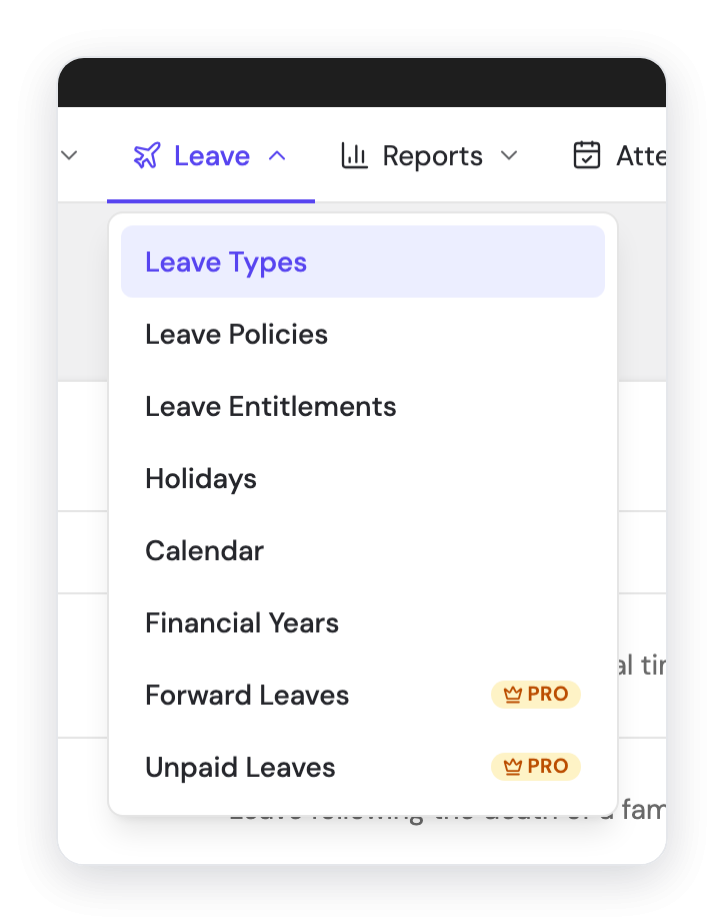
| Task | Where |
|---|---|
| Add leave years | Leave → Financial Years |
| Add leave types | Leave → Leave Types |
| Set the days of each type | Leave → Leave Policies |
| Give leave to employees | Leave → Leave Entitlements |
| Add holidays | Leave → Holidays |
| See who is out | Leave → Calendar |
| Approve or reject requests | People → Requests |
Forward Leaves and Unpaid Leaves in the Leave menu are part of FlyHR Pro.
Was this page helpful?