PEOPLE
LEAVE
REPORTS
LEAVE
Request Leave
Employees request their own leave from the FlyHR dashboard or from their profile. HR managers can also request leave for an employee, for example when the employee phones in sick.
FlyHR sends each new request to the HR managers by email. The request then waits for approval.
Before you start
- The employee must have a leave entitlement for the leave year. See Leave Entitlements.
- The leave year must include the dates of the leave.
Request your own leave (employees)
- Go to FlyHR → Dashboard.
- In the My Calendar card, click Take a Leave.
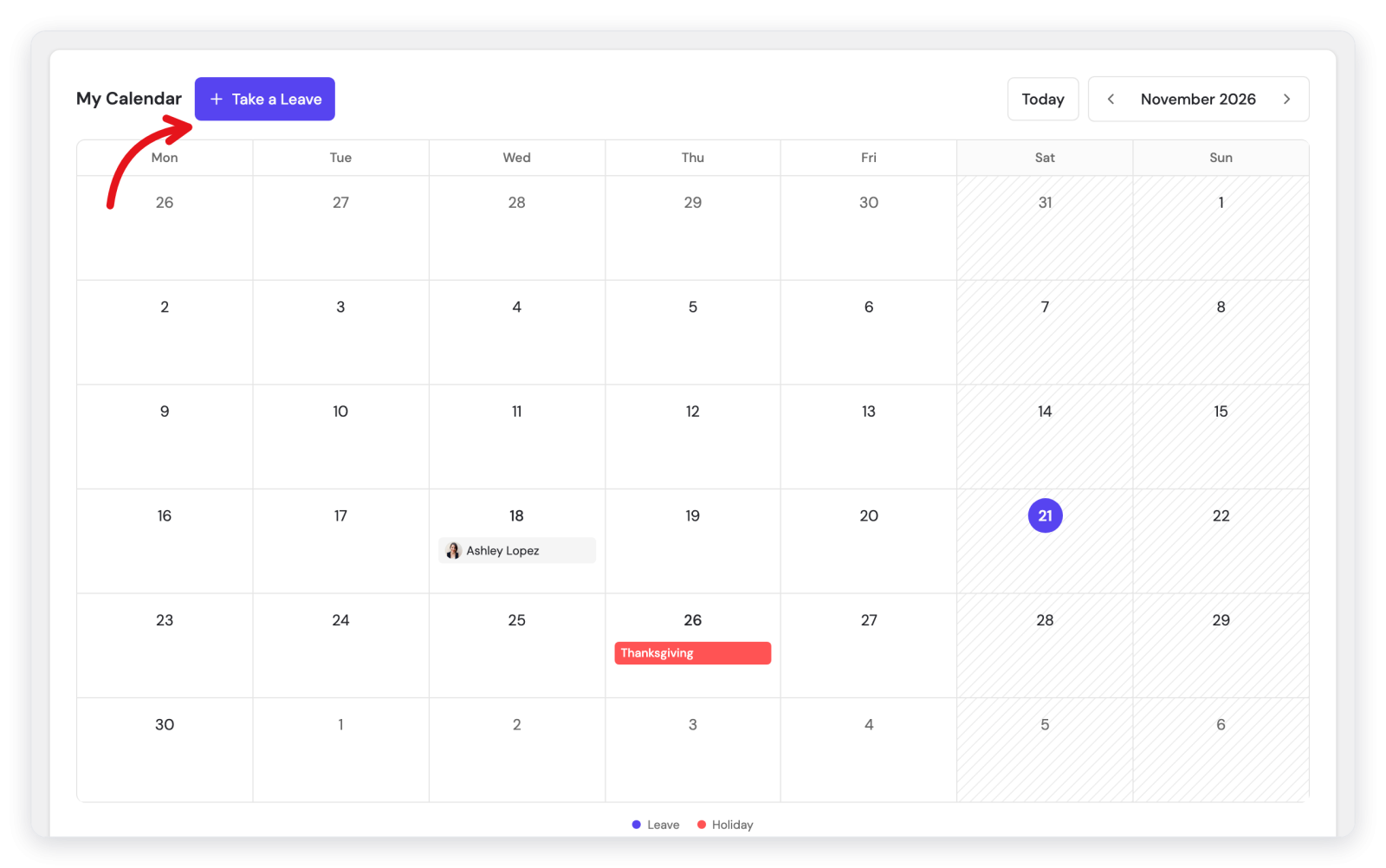
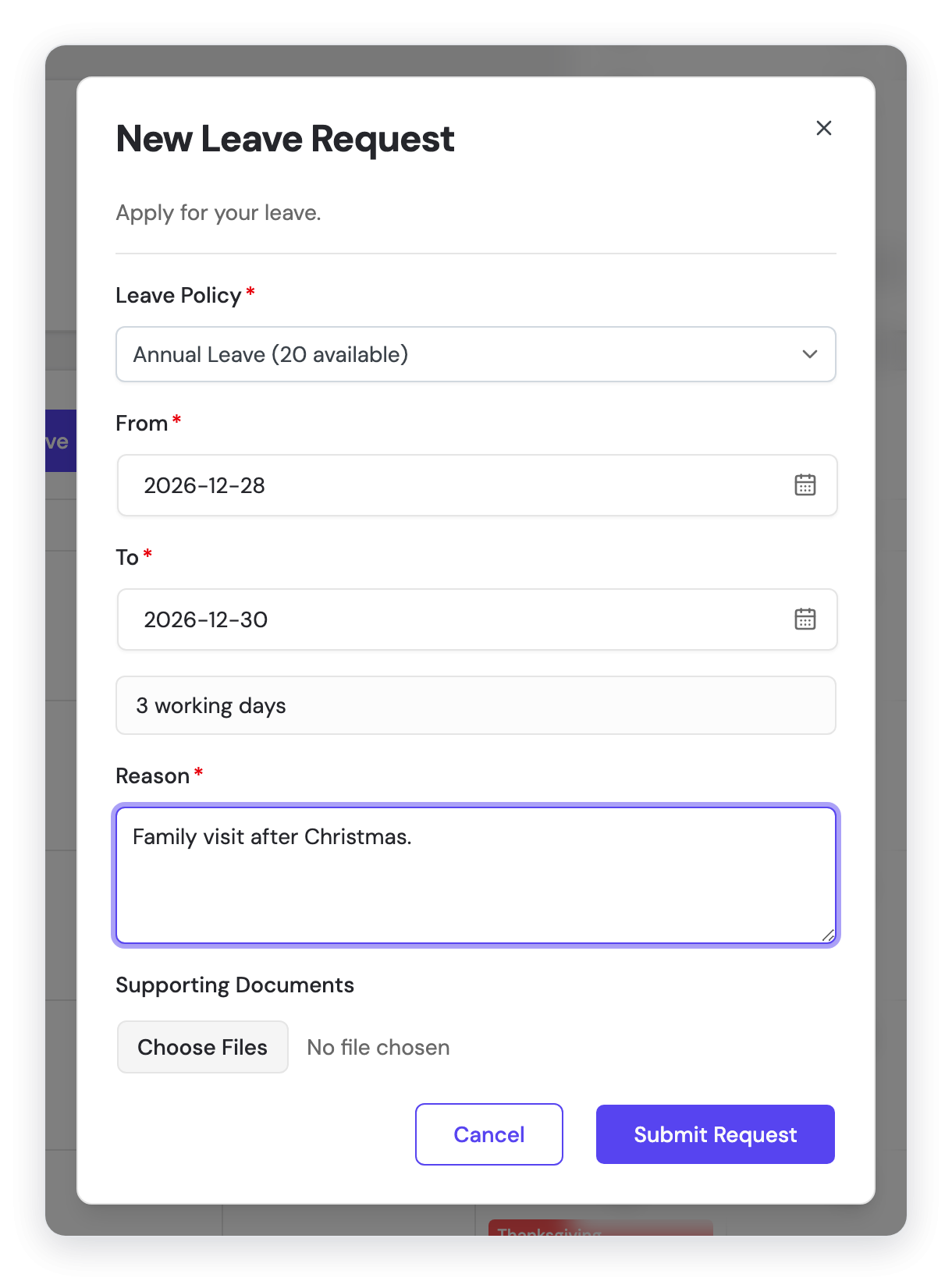
- Select the Leave Policy. The list shows the days that you have left for each policy.
- Select the From date and the To date. FlyHR shows the number of working days.
- Type the Reason.
- Optional: in Supporting Documents, click Choose Files and add a file, for example a doctor's note.
- Click Submit Request.
FlyHR shows "Leave request submitted."
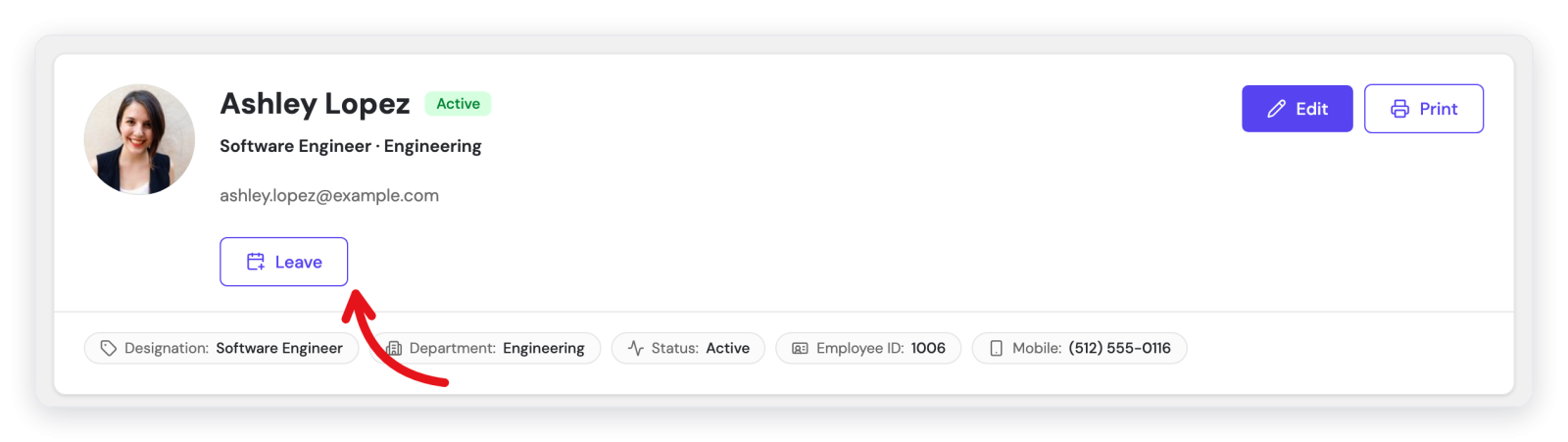
You can also click Leave at the top of your profile (My Profile).
Request leave for an employee (HR managers)
- In the top menu, open Leave, then click Leave Requests.
- Click New Request at the top right.

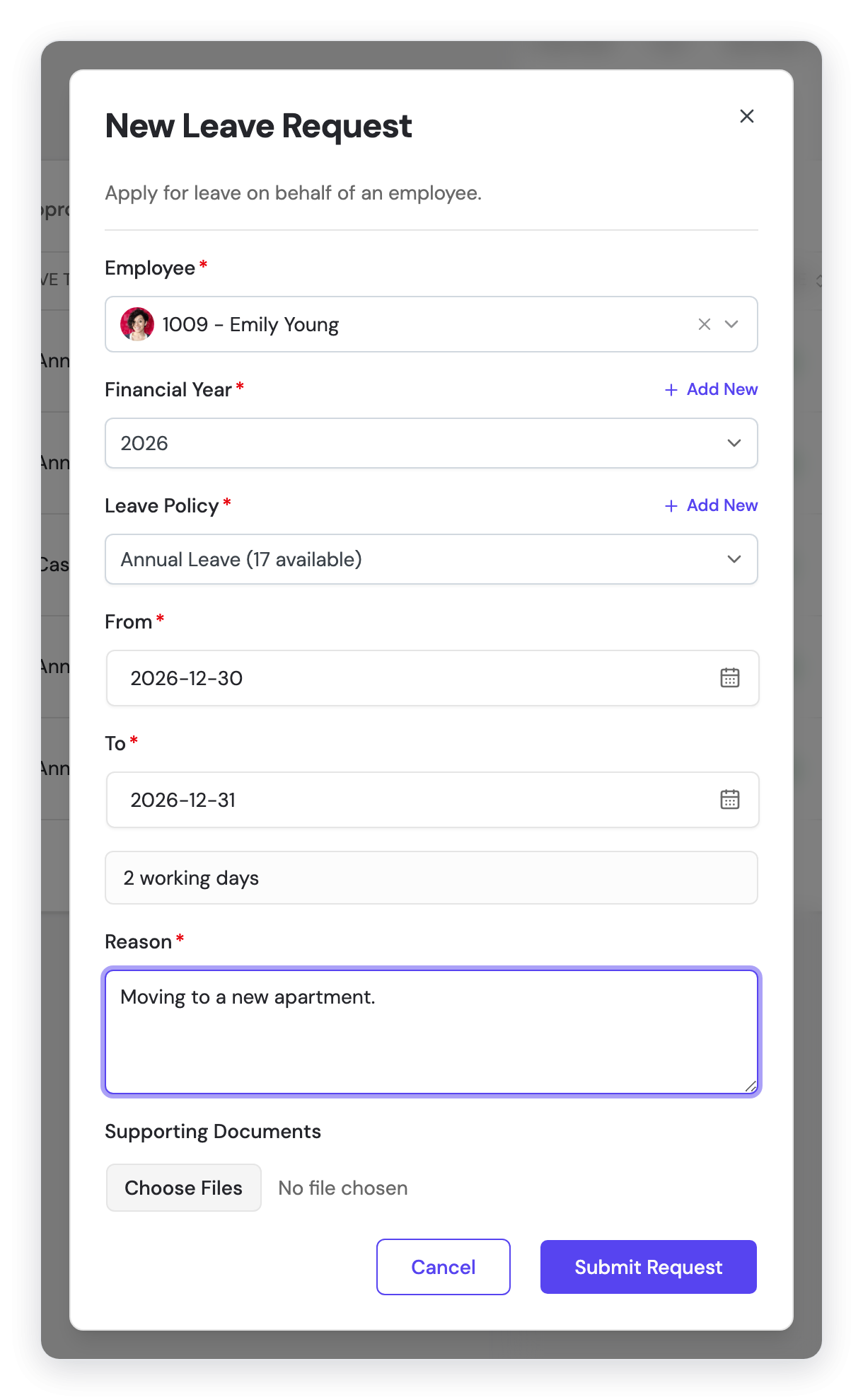
- Select the Employee.
- Check the Financial Year.
- Select the Leave Policy.
- Select the From date and the To date.
- Type the Reason.
- Click Submit Request.
You can also open the profile of the employee and click Leave at the top.
The request that you submit for an employee waits for approval too. See Manage Leave Requests.
Why FlyHR refuses a request
FlyHR checks the dates while you select them. It shows a message in the form when:
- The employee has no leave entitlement for the selected year.
- The To date is before the From date.
- The dates have no working day, for example a weekend or a holiday only.
- The dates are not in the leave year, or the leave year is closed.
- The request uses more days than the leave balance. To allow this, an administrator turns on Extra Unpaid Leave in Settings → General → Leave.
- A pending request or approved leave already covers some of the dates.
The fields
| Field | Necessary | What it means |
|---|---|---|
| Employee | Yes (HR only) | The employee who takes the leave. |
| Financial Year | Yes (HR only) | The leave year of the request. |
| Leave Policy | Yes | The leave type and its balance, for example Annual Leave (20 available). |
| From, To | Yes | The first and the last day of the leave. FlyHR counts only working days. |
| Reason | Yes | Why the employee takes the leave. The approver sees it. |
| Supporting Documents | No | Files for the approver, for example a medical certificate. |
Was this page helpful?