PEOPLE
LEAVE
REPORTS
PEOPLE
Org Chart
The org chart shows each team of your company, with its lead at the top and the people who report to the lead below. FlyHR draws the chart from your departments, their heads, and the Reporting To field of each employee. You do not draw it by hand.
All FlyHR users can see the org chart. Only HR managers and administrators can see the email addresses on it.
Before you start
For a complete chart:
- Give each department a head. See Departments.
- Fill in Reporting To for each employee. See Update the Job Information of an Employee.
Open the org chart
Go to People → Org Chart.
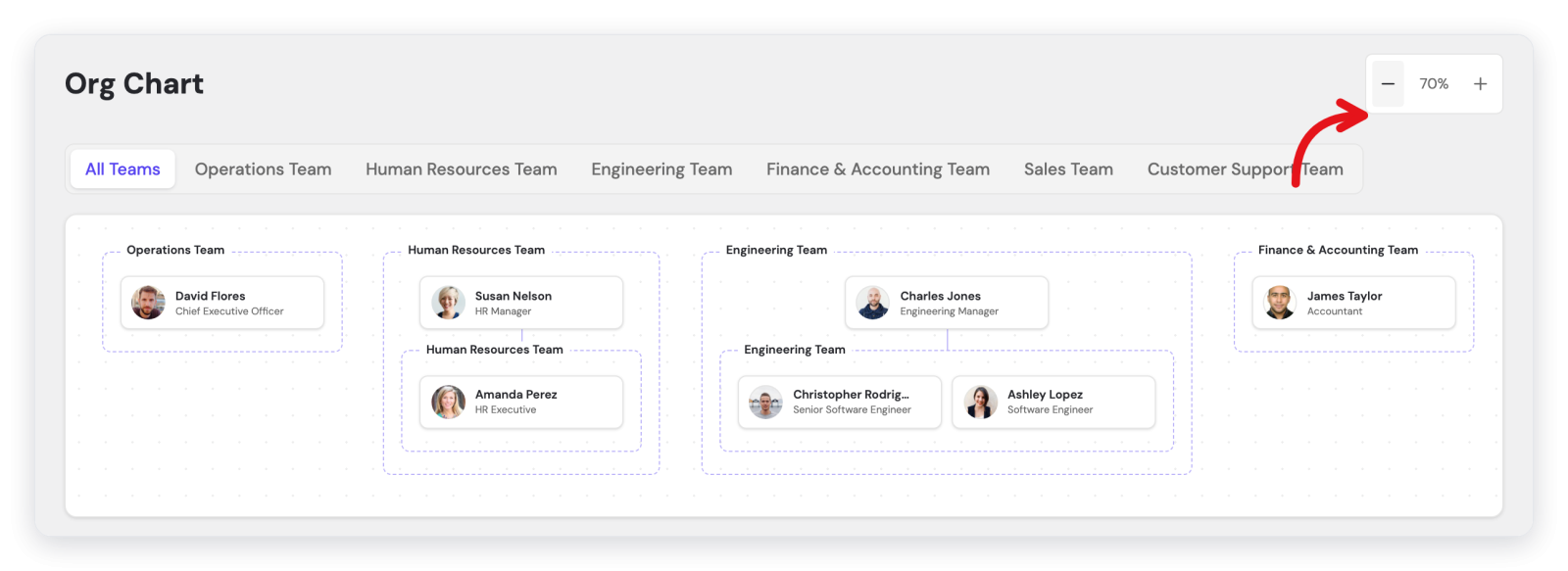
FlyHR shows All Teams. Each team is a box with the name of the department. Use the - and + buttons at the top right to zoom out or in.
Show one team
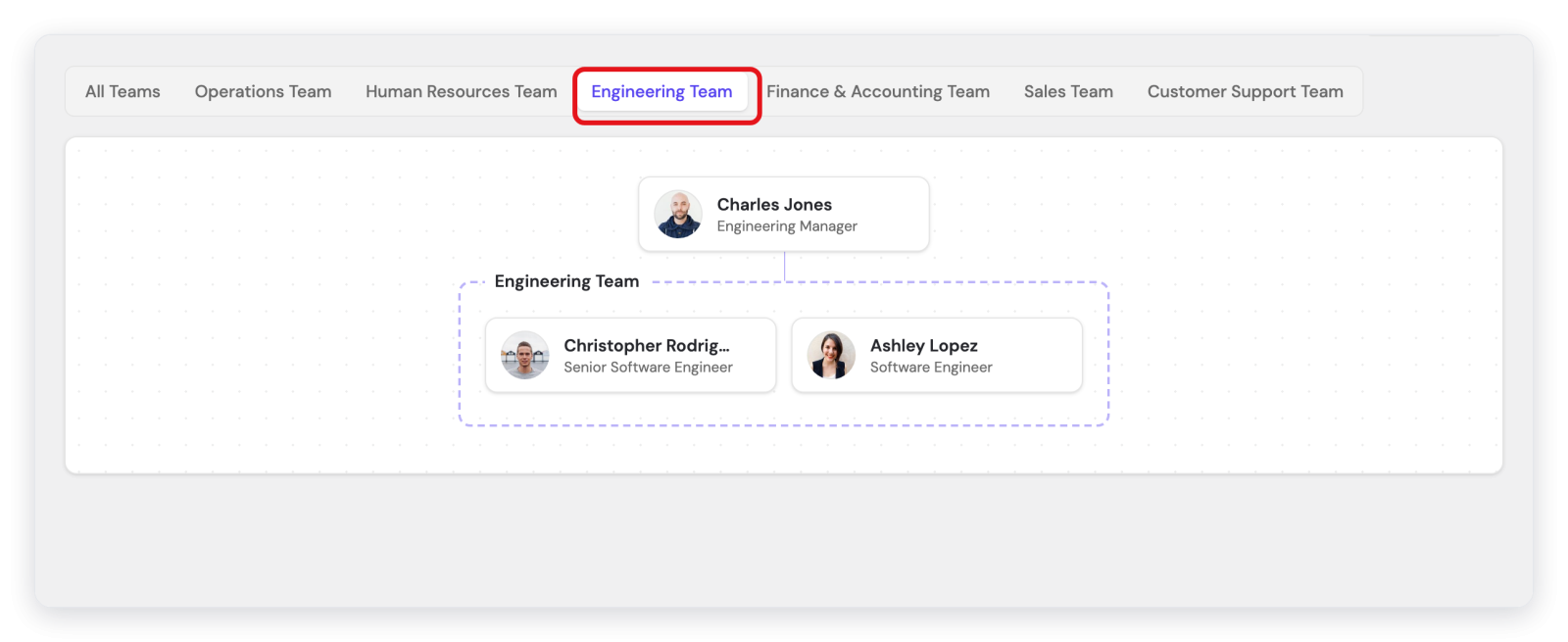
Click the name of a team in the row above the chart, for example Engineering Team. FlyHR shows only that team. Click All Teams to see all teams again.
Send an email from the chart
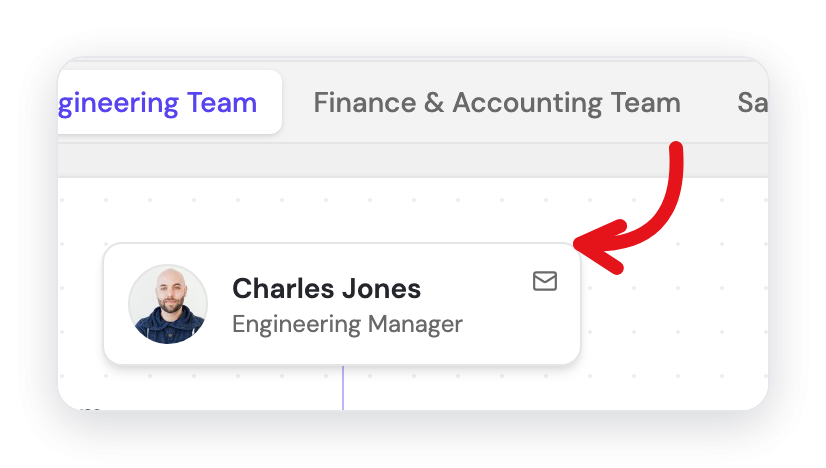
Point to the card of a person. Click the envelope icon at the top right of the card. Your email app opens a new message to that person.
Why a person is not in the chart
- The person is not active. For example, terminated employees do not show.
- The department of the person has no head and no employees who report to someone. FlyHR shows "No reporting structure for this team." Give the department a head.
- The person has no department. FlyHR puts them in No Team.