PEOPLE
LEAVE
REPORTS
LEAVE
Manage Leave Requests
Approve or reject the leave requests of your employees. FlyHR collects them on the Requests page, with a count of the requests that wait for a decision.
HR managers see the requests of all employees. A department lead sees and approves the requests of their own department only.
Before you start
- You must be a WordPress administrator, an HR manager, or the lead of a department.
Step 1: Open the requests
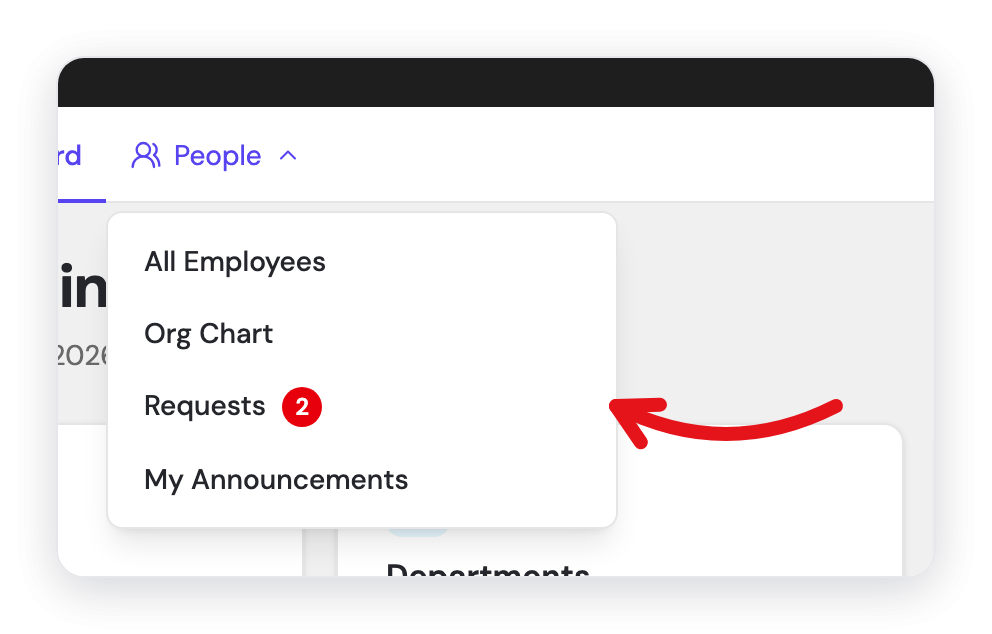
- In the top menu, open People.
- Click Requests. The red number is the count of requests that wait for a decision.
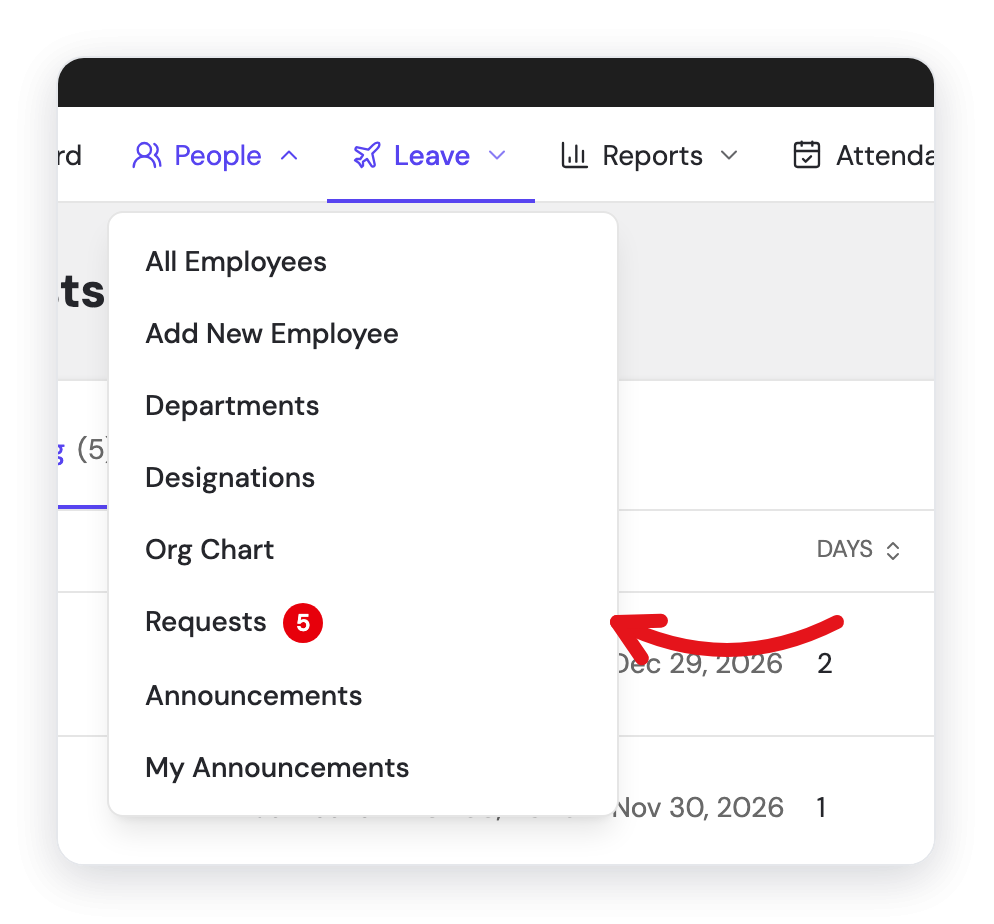
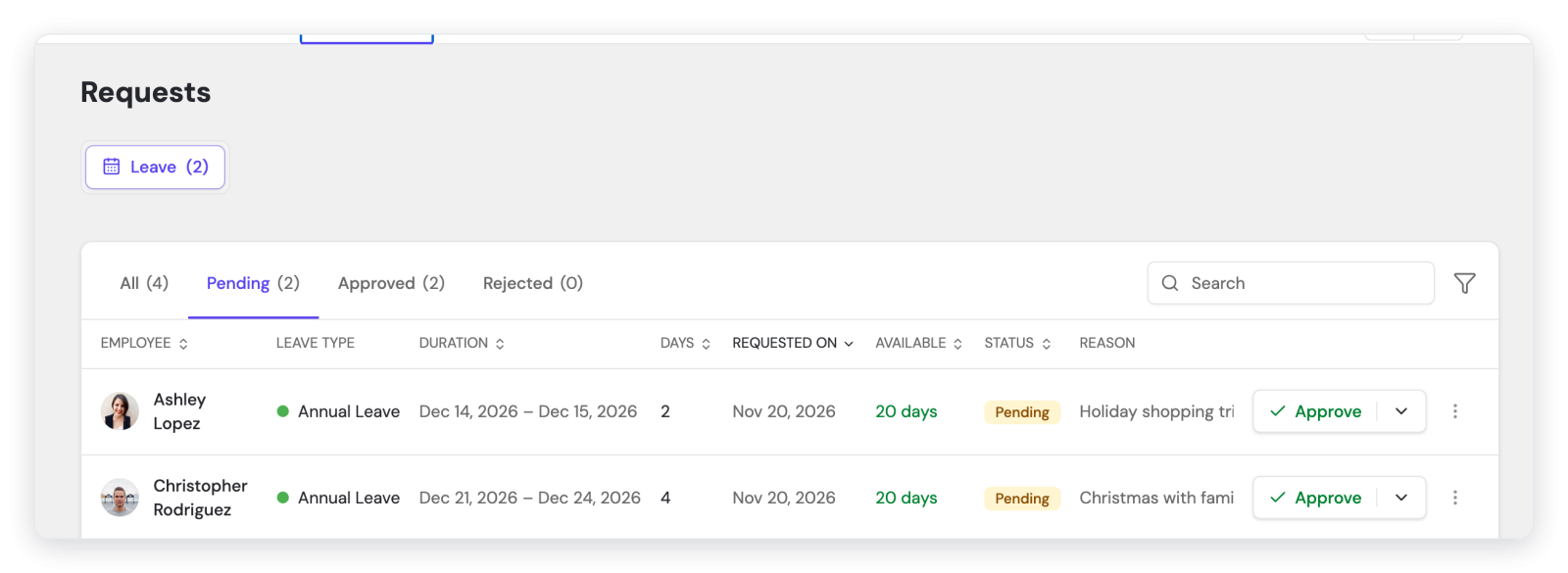
The Requests page shows a Leave tab with its count. FlyHR Pro adds tabs for other request types.
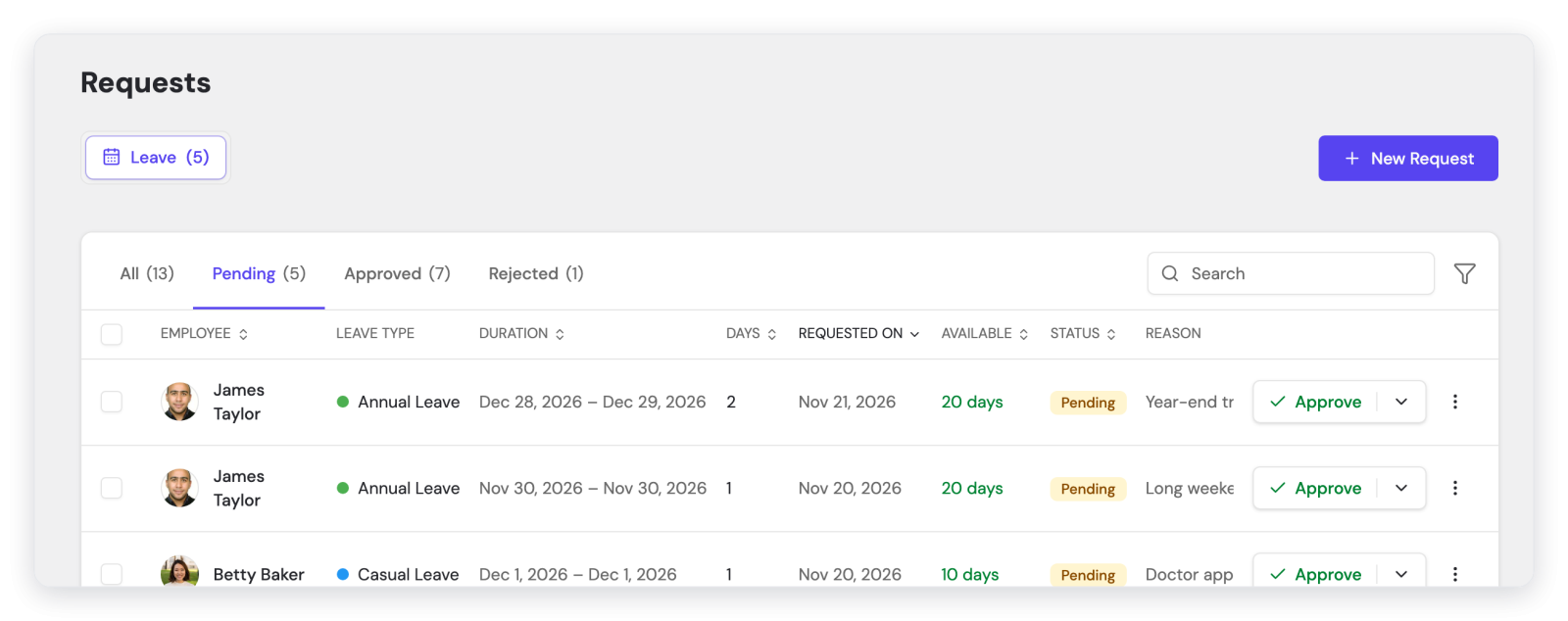
HR managers can also go to Leave → Leave Requests. That page shows the same list.
Step 2: Find the request
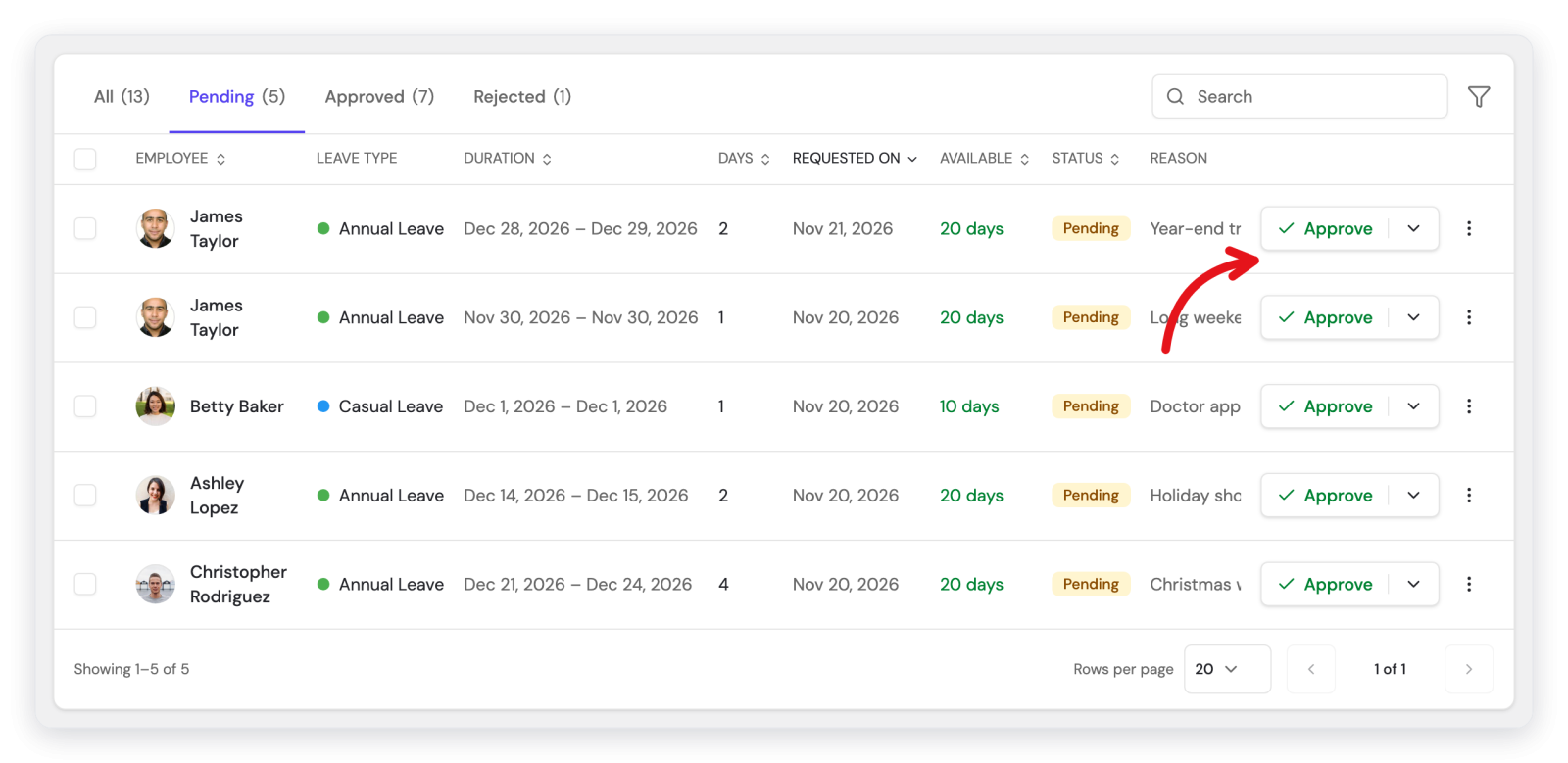
Use the tabs to show requests by status: All, Pending, Approved, or Rejected. Use the search box and the filter icon to find a request by year, leave type, department, designation, or employee type.
Each row shows the dates, the number of days, the date of the request, the days that the employee has left (Available), the reason, and the documents.
Step 3: Approve a request
- In the row of the request, click Approve.
- Optional: type a Note for the employee.
- Click Approve.
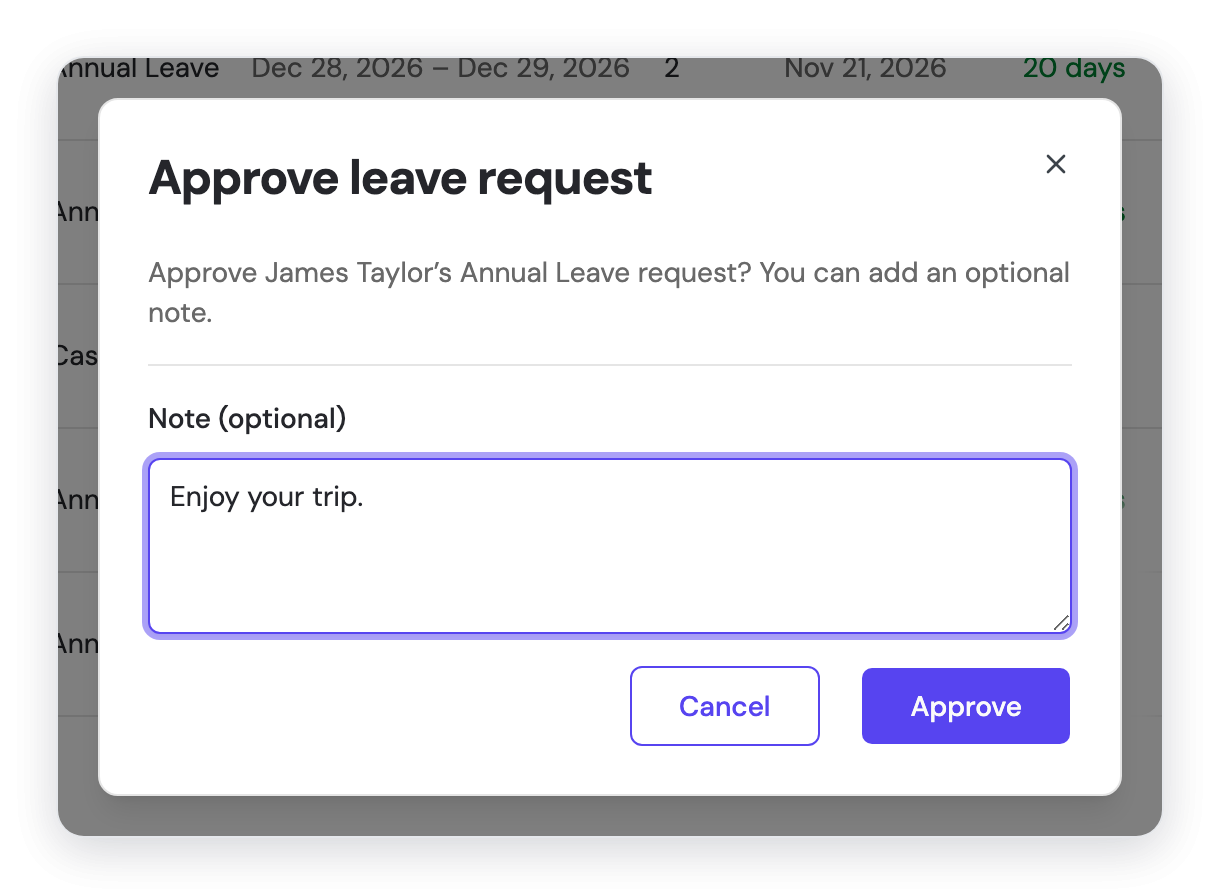
FlyHR shows "Leave request approved." It sends an email to the employee and takes the days from the leave balance.
Reject a request
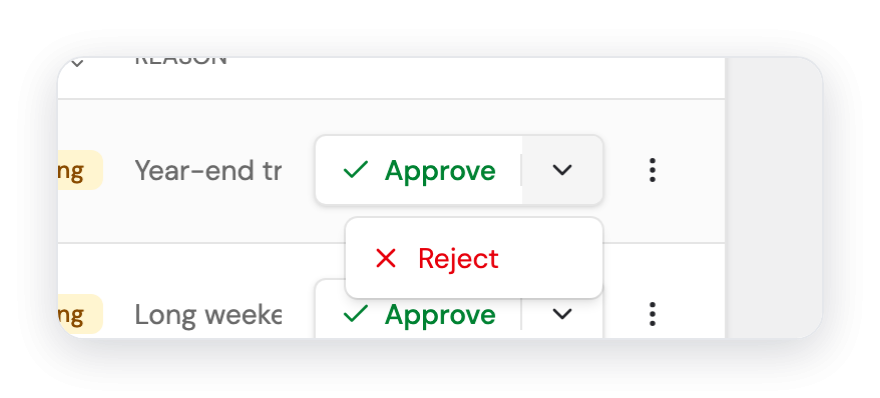
- In the row of the request, click the arrow next to Approve.
- Click Reject.
- Type the Reason. A reason is necessary.
- Click Reject.
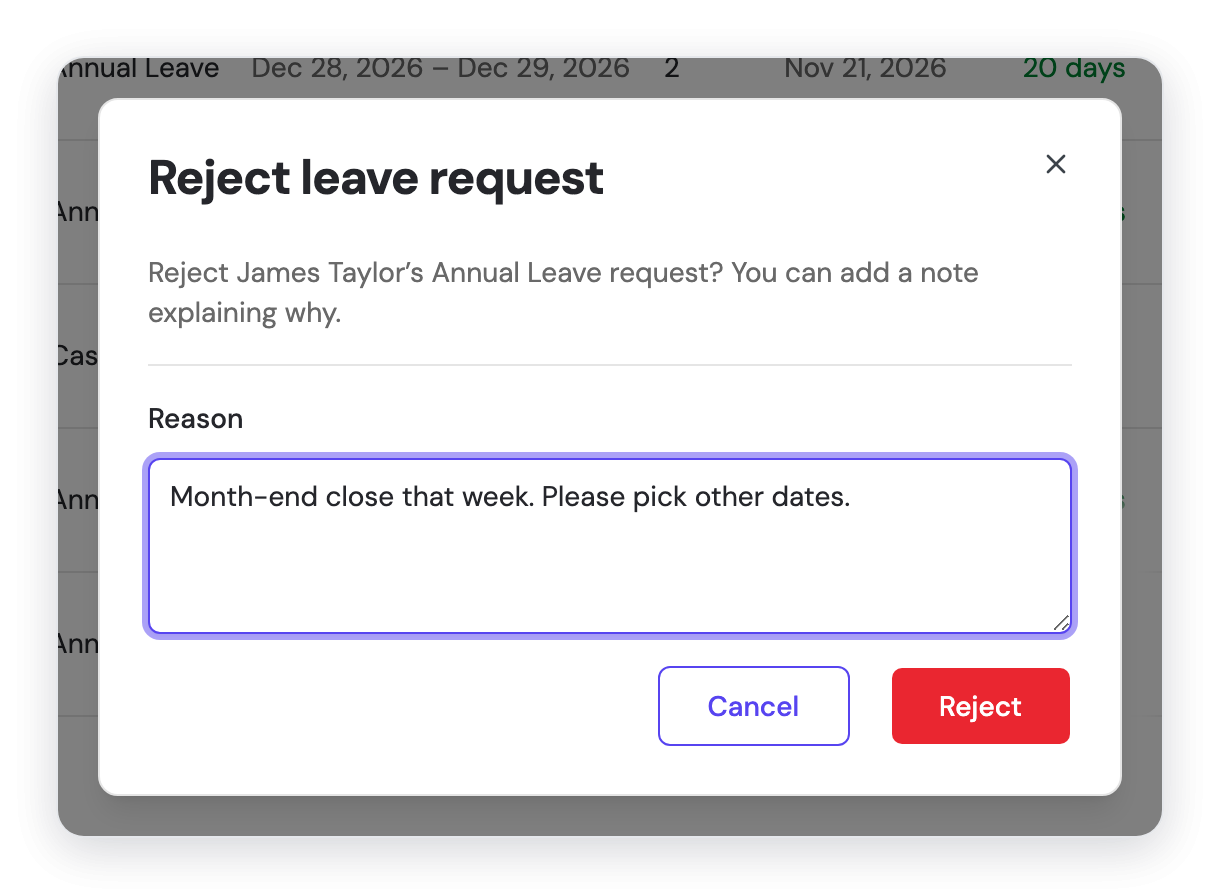
FlyHR sends an email with the reason to the employee.
Work on many requests at the same time
- Select the requests in the list.
- Click Approve, Reject, or Delete at the top of the list.
Caution: When you delete an approved request, the employee gets the days back. You cannot undo a delete.
Department leads
The lead of a department approves the leave of their team. A lead does not need the HR Manager role.
- In the top menu, open People.
- Click Requests.
The lead sees only the requests of the employees in their departments.
To make an employee the lead of a department, see Departments.
Emails about leave requests
| Sent to | When | |
|---|---|---|
| New Leave Request | HR managers | An employee requests leave. |
| Approved Leave Request | The employee | A request is approved. |
| Rejected Leave Request | The employee | A request is rejected. |
To change the text of these emails, see Emails.
FlyHR Pro adds multilevel approval, where a request goes to more than one approver. It shows as a Forwarded tab.