PEOPLE
LEAVE
REPORTS
PEOPLE
The Employee Profile
The profile of an employee keeps all their HR data in one place: job details, contact and personal details, leave, notes, performance, and access. HR managers can see and edit all profiles. Each employee can see and edit their own profile.
Before you start
- To see all profiles, you must be a WordPress administrator or an HR manager.
Open a profile
- Go to People → All Employees.
- Click the name of the employee.
The profile header
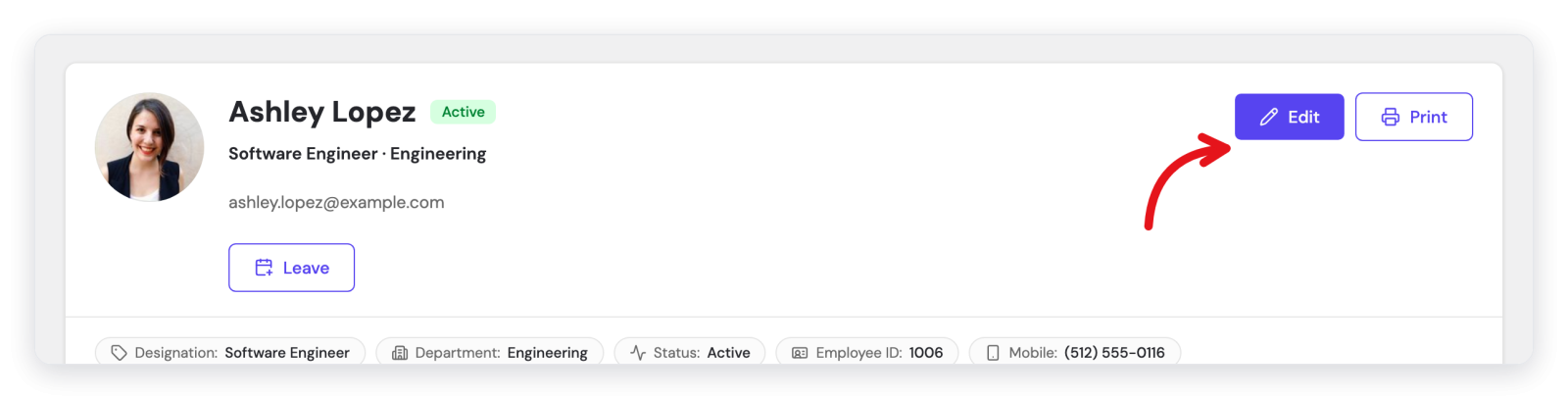
The header shows the photo, the name, the status, the designation, and the department of the employee. Below it, a row shows the designation, the department, the status, the employee ID, and the phone number.
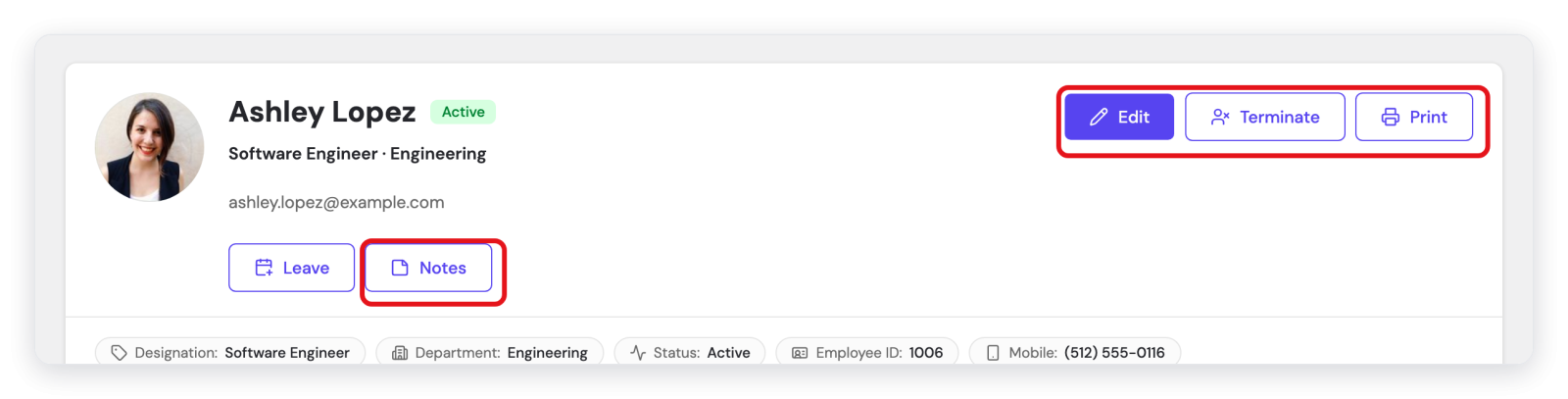
| Button | What it does |
|---|---|
| Leave | Opens the Leave tab, with the leave balance and the Request Leave button. |
| Notes | Opens the Notes tab. |
| Edit | Opens the employee form with all the details. |
| Terminate | Ends the employment. See Change the Status of an Employee. For a terminated employee, this button is Reactivate. |
| Prints the profile. |
To copy the employee ID, click it in the row below the header.
Change the photo
- Point to the photo in the header.
- Click the camera icon, then select an image.
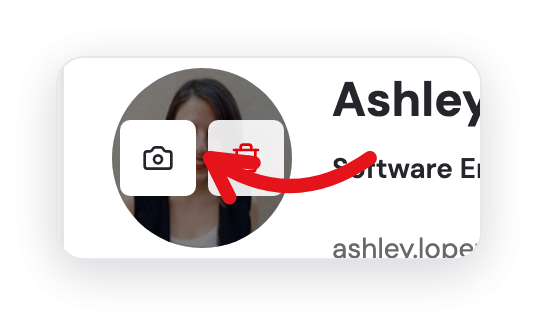
To remove the photo, click the trash icon, then confirm. The photo shows everywhere in FlyHR: in lists, leave requests, the leave calendar, the dashboard, and search.
The tabs
| Tab | What it shows |
|---|---|
| Overview | The tenure, the age, the leave available, and the leave taken. Below are the Employment, Contact, and Personal cards. |
| Job | The history of the status, the employment type, the pay, and the job information. See Update the Job Information of an Employee. |
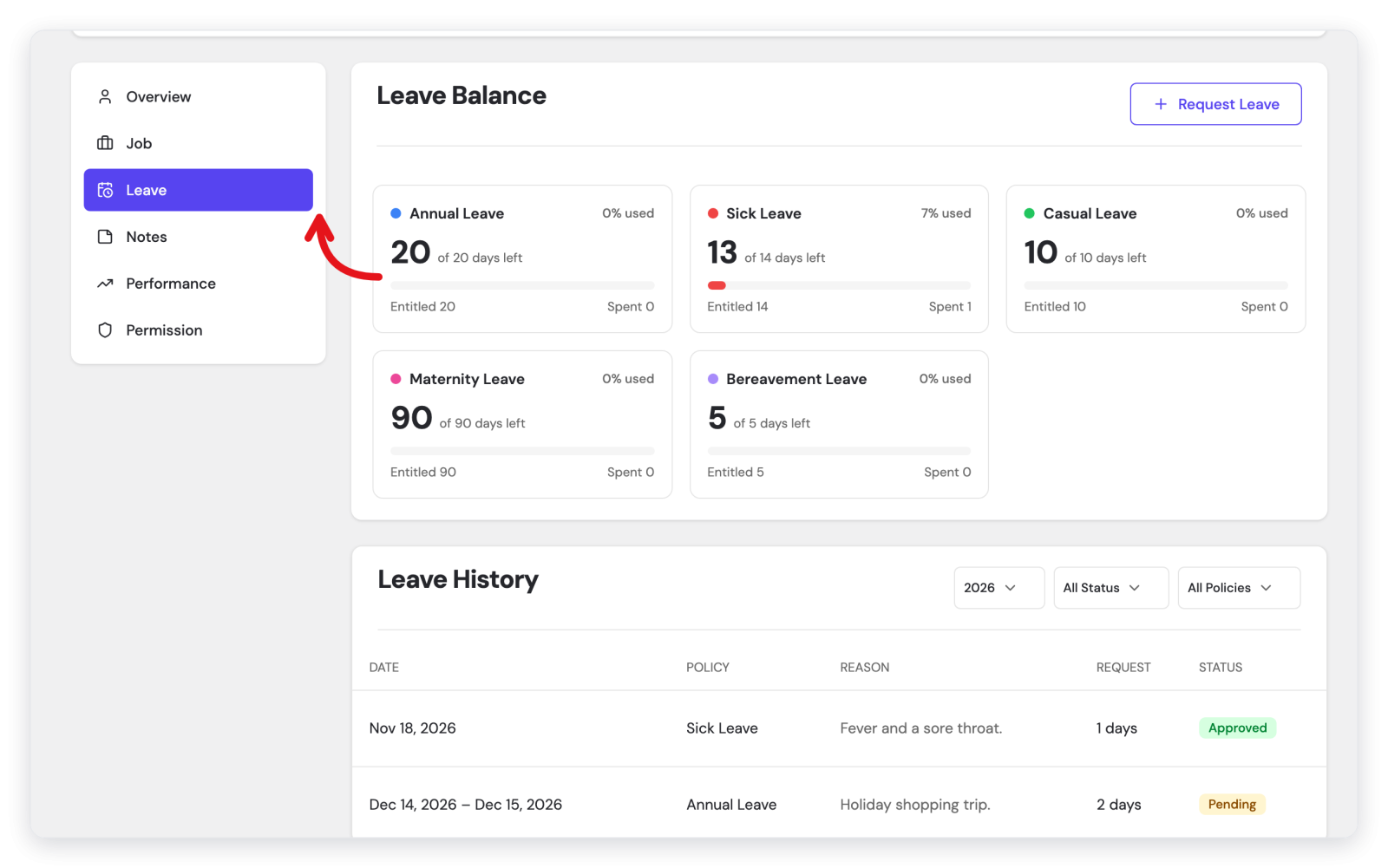
| Leave | The leave balance of each leave type and the leave history. |
| Notes | Notes that HR wrote about the employee. |
| Performance | Reviews, comments, and goals. See Performance Reviews and Goals. |
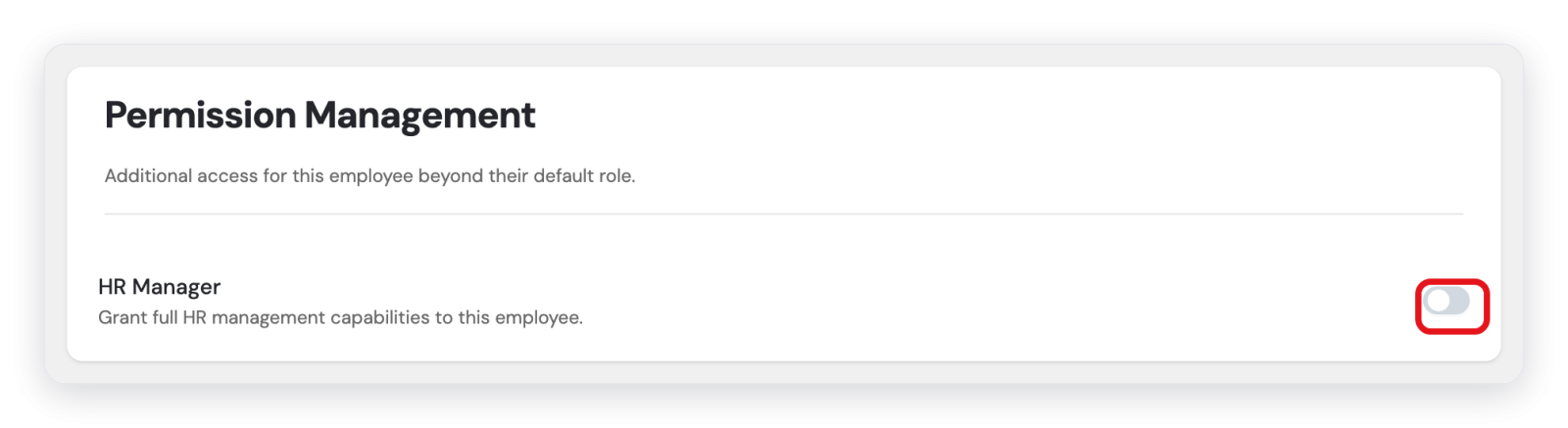
| Permission | Extra access for the employee, for example the HR Manager role. |
With FlyHR Pro, the profile also has an Attendance tab. See Attendance on the employee profile.
Overview
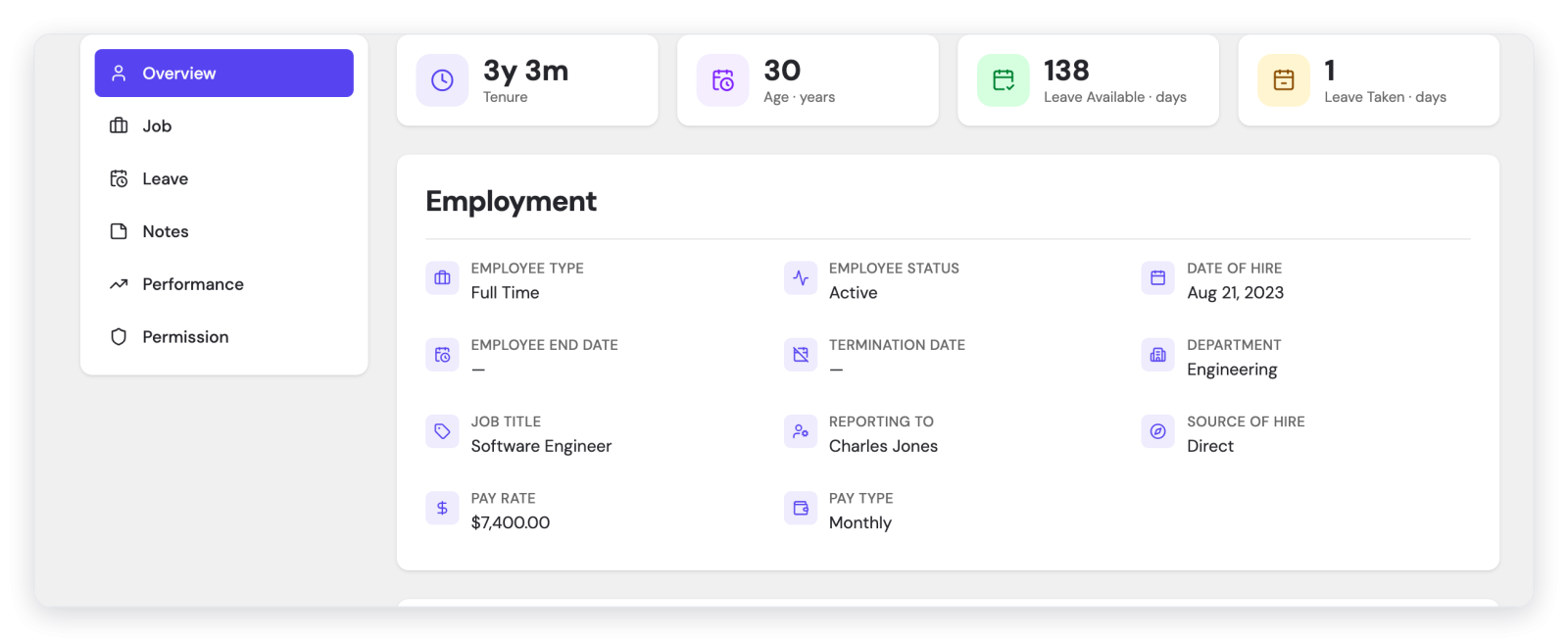
If Hide Pay Rate is on in Settings, the pay rate is blurred. Click the eye icon to show it.
Leave
The Leave Balance part shows a card for each leave type: the days left, the days given, and the days spent. The Leave History part lists the requests of the employee. Use the year, status, and policy filters above the list. Click Request Leave to add a leave request for the employee.
Notes
Use notes for feedback, reminders, and other remarks about the employee. Employees do not see this tab.
- Click the Notes tab.
- Type the note in the box.
- Click Add Note.
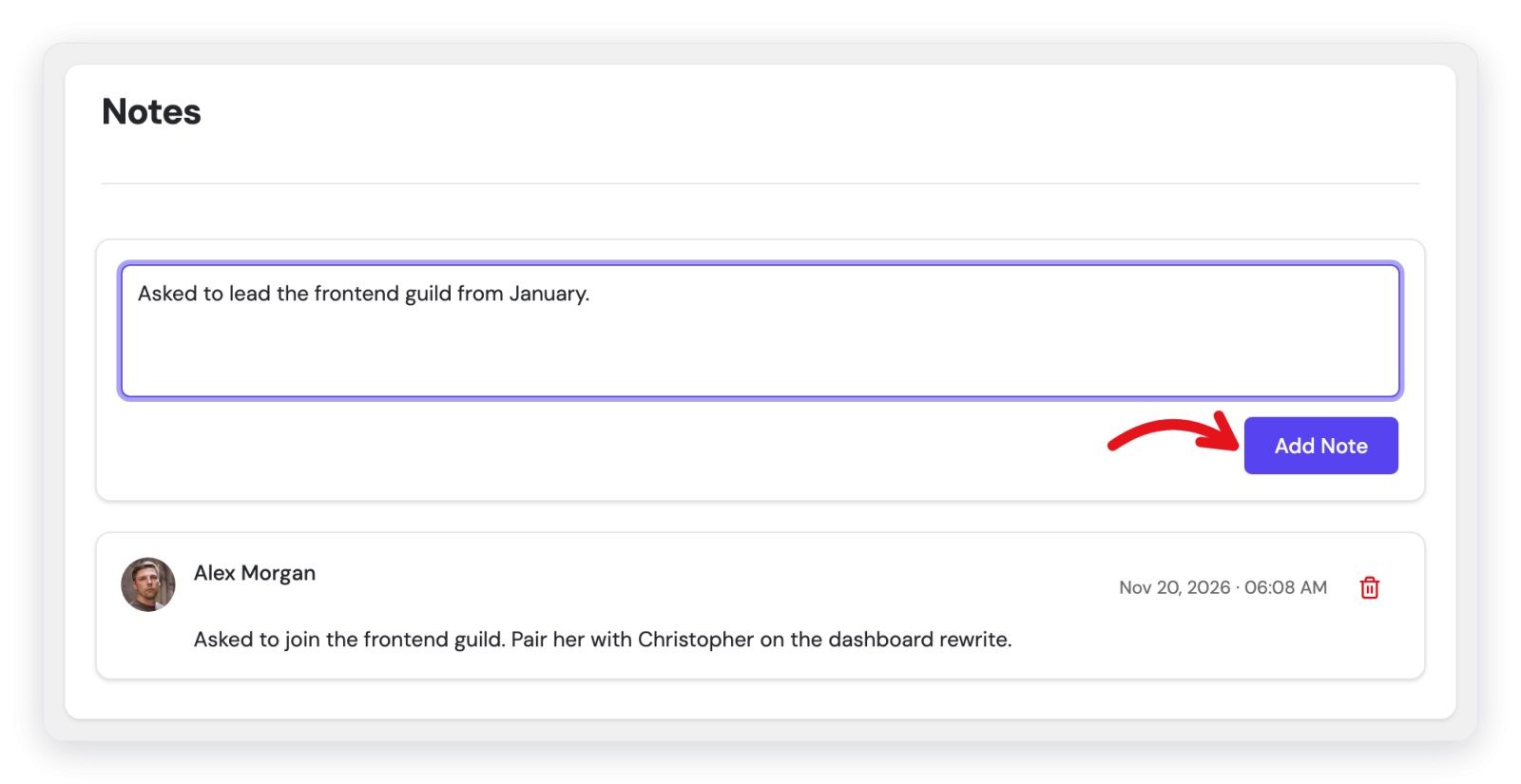
Each note shows the author and the date. To delete a note, click the trash icon on it, then confirm.
Permission
Turn on HR Manager to give the employee full HR management access. Turn it off to remove the access.
What employees see
An employee opens their own profile from the photo at the top right: click it, then click My profile.
On their own profile, an employee can:
- See the Overview and Job tabs.
- Click Leave to see their leave balance and request leave. See Request Leave.
- Click Edit to change their own personal details.
- Change their photo.
Employees do not see the Notes, Performance, and Permission tabs, and they cannot terminate themselves.