PEOPLE
LEAVE
REPORTS
LEAVE
Leave Entitlements
A leave entitlement gives the days of a leave policy to one employee. An employee can request leave only from an entitlement. The list of entitlements also shows the leave balance of each employee.
Before you start
- You must be a WordPress administrator or an HR manager.
- Make the leave policy first. See Leave Policies.
- FlyHR gives entitlements only to active employees who match the policy. For example, an employee with no gender on their profile cannot get a policy for one gender.
Step 1: Open Leave Entitlements
- In the top menu, open Leave.
- Click Leave Entitlements.
Step 2: Assign a policy
- Click Assign Policy at the top right.

- Select the Leave Policy.
- In Assign to, select one option:
- A single employee: then select the Employee.
- All employees matching the policy scope: FlyHR gives the policy to each matching employee.
- Optional: type a Comment.
- Click Assign.
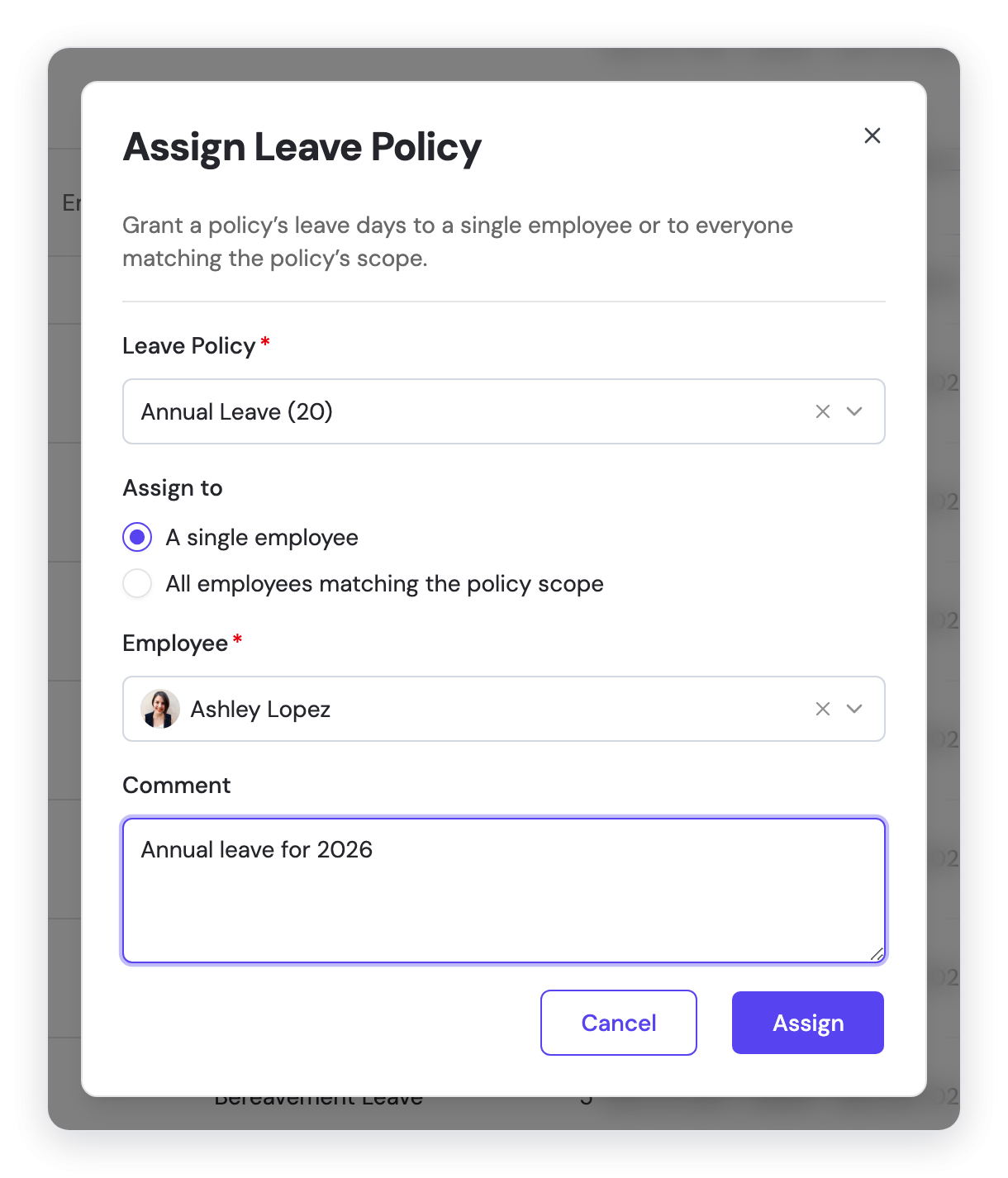
FlyHR shows how many entitlements it assigned. If an employee already has the entitlement, FlyHR does not add it again.
Step 3: Check the leave balances
Each row shows one entitlement. Use Year, Employee Type, and Policy at the top to filter the list. Use the search box to find an employee.
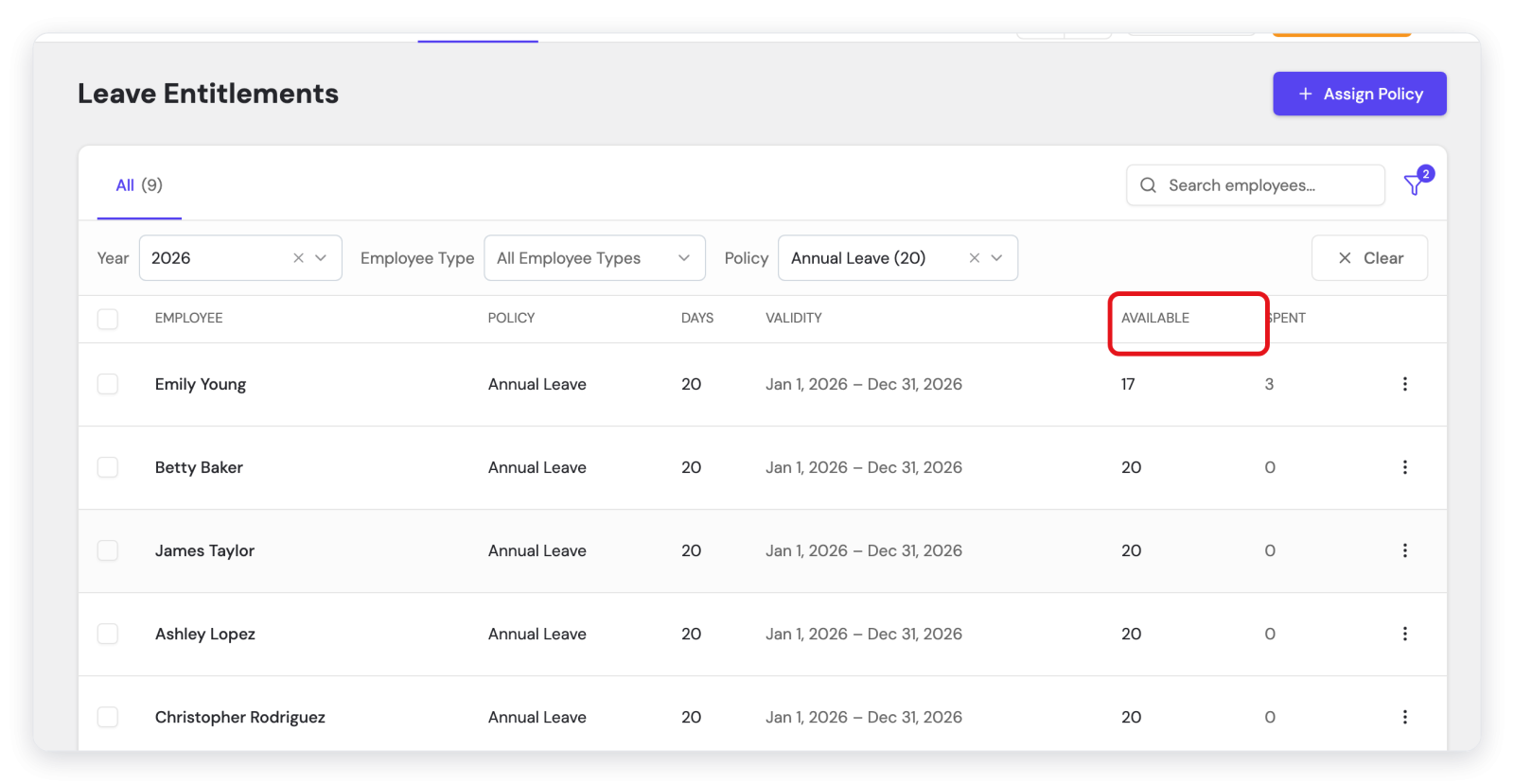
| Column | What it means |
|---|---|
| Employee | The employee who has the entitlement. |
| Policy | The leave policy. |
| Days | The days that the policy gives. |
| Validity | The dates of the leave year. |
| Available | The days that the employee has left. This is the leave balance. |
| Spent | The days of approved leave. |
If Extra Unpaid Leave is on, an employee can take more days than the entitlement. The extra days show next to Days as "+N extra".
Delete an entitlement
- Click the ⋮ menu at the end of the row.
- Click Delete.
Caution: When you delete an entitlement, FlyHR also deletes the leave requests of that entitlement. You cannot undo this.
To delete more than one entitlement, select the rows, then click Delete.