PEOPLE
LEAVE
REPORTS
PEOPLE
Update the Job Information of an Employee
When an employee changes team, gets a promotion, or gets a raise, record the change on the Job tab of their profile. FlyHR keeps each change as a dated history entry. The newest entry is the current value on the profile and in the employee list.
The Job tab has four parts:
- Employment Status: Active, Inactive, Terminated, Deceased, or Resigned.
- Employment Type: Full Time, Part Time, On Contract, Temporary, or Trainee.
- Compensation: the pay rate and the pay type.
- Job Information: the department, the Job Title (designation), the location, and the manager.
Before you start
- You must be a WordPress administrator or an HR manager.
- The date of a change cannot be in the future. Record a change on the day that it starts, or after.
Step 1: Open the Job tab
- Go to People → All Employees.
- Click the name of the employee.
- Click the Job tab.
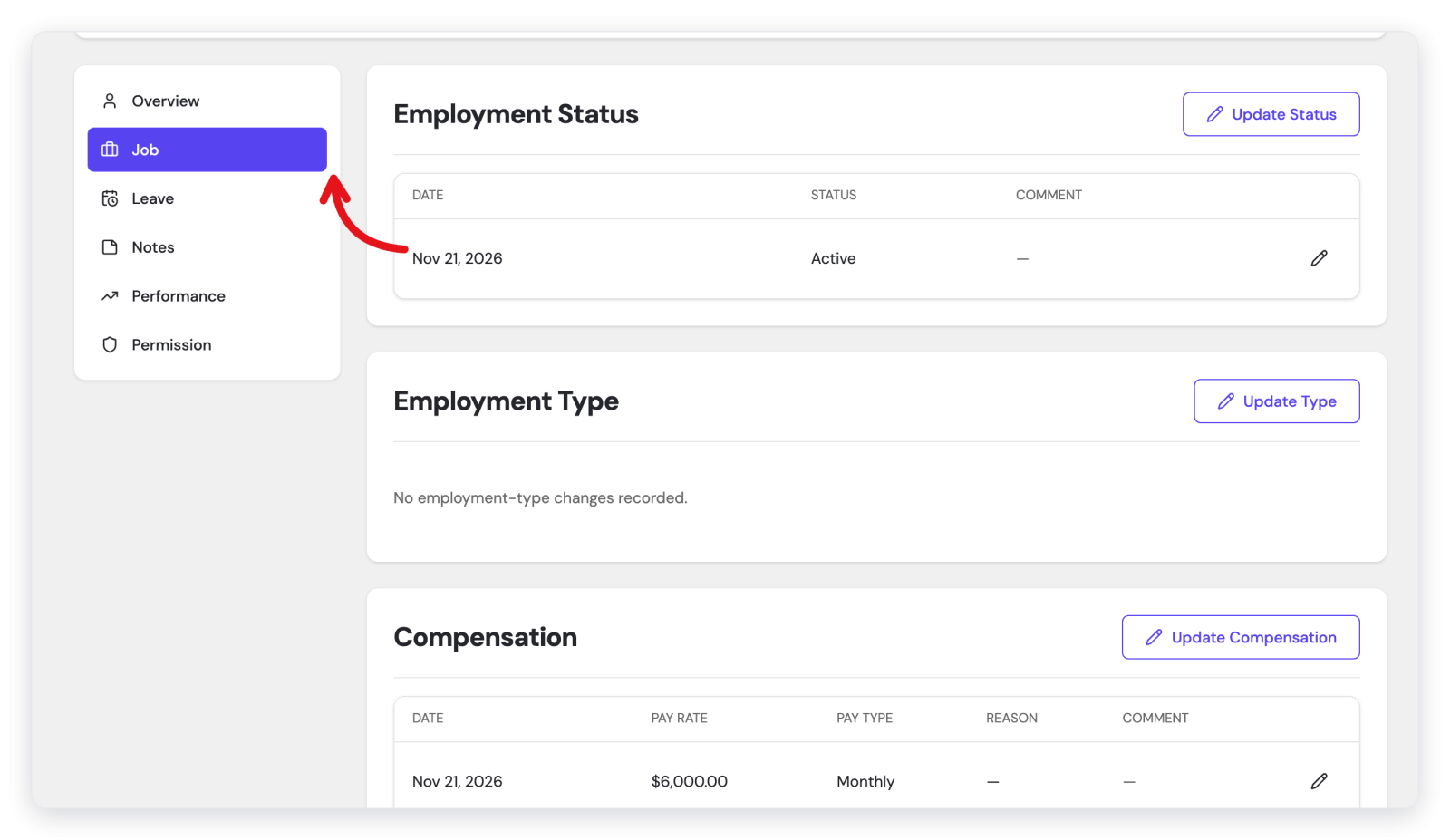
Step 2: Change the department, designation, or manager
- In the Job Information part, click Update Job Information.
- Check the Date. FlyHR fills in today. You can select an earlier date.
- Select the new Department, Job Title, Location, or Reporting To.
- Click Save.
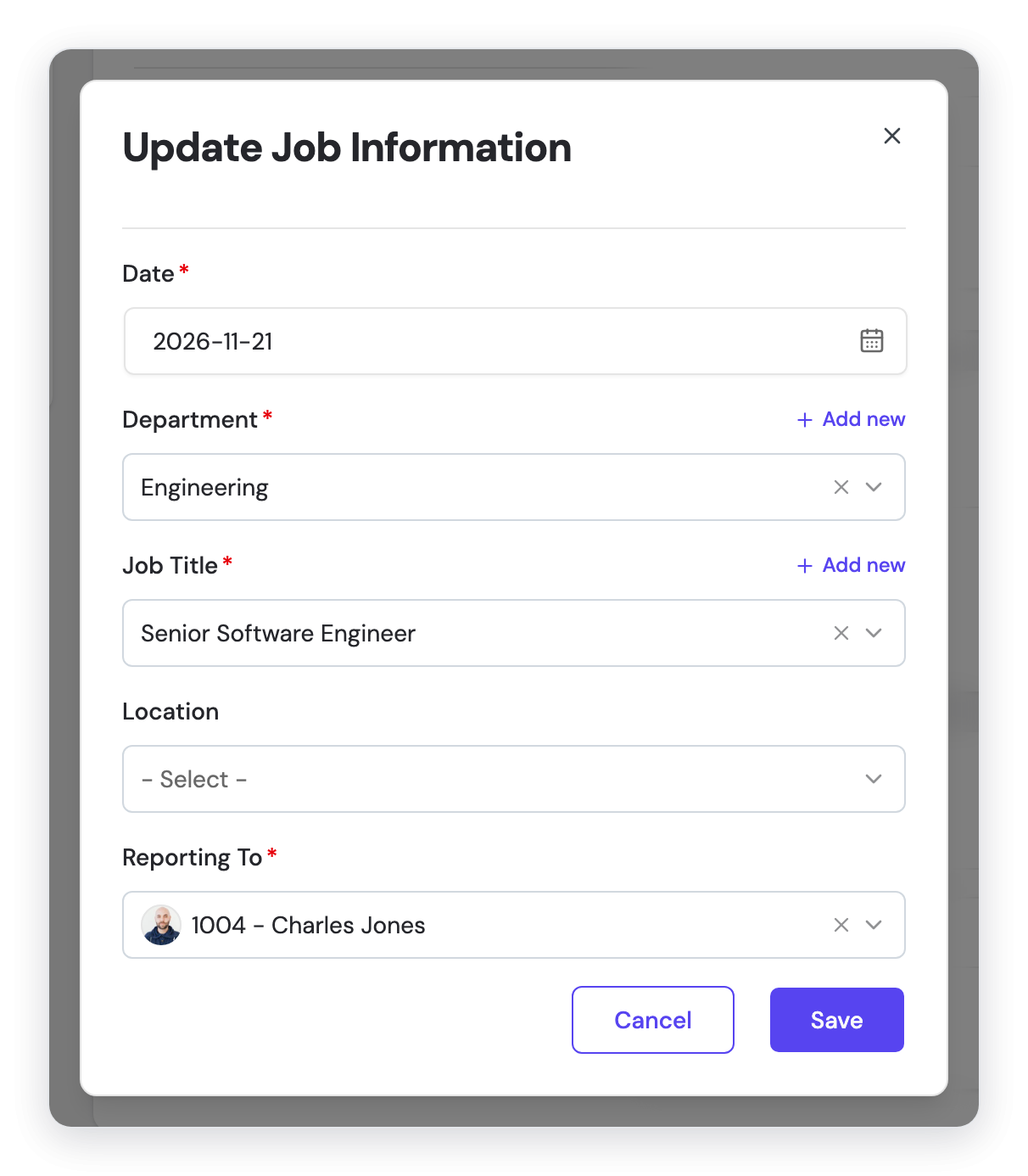
If the department or the job title is not in the list, click + Add new above the field.
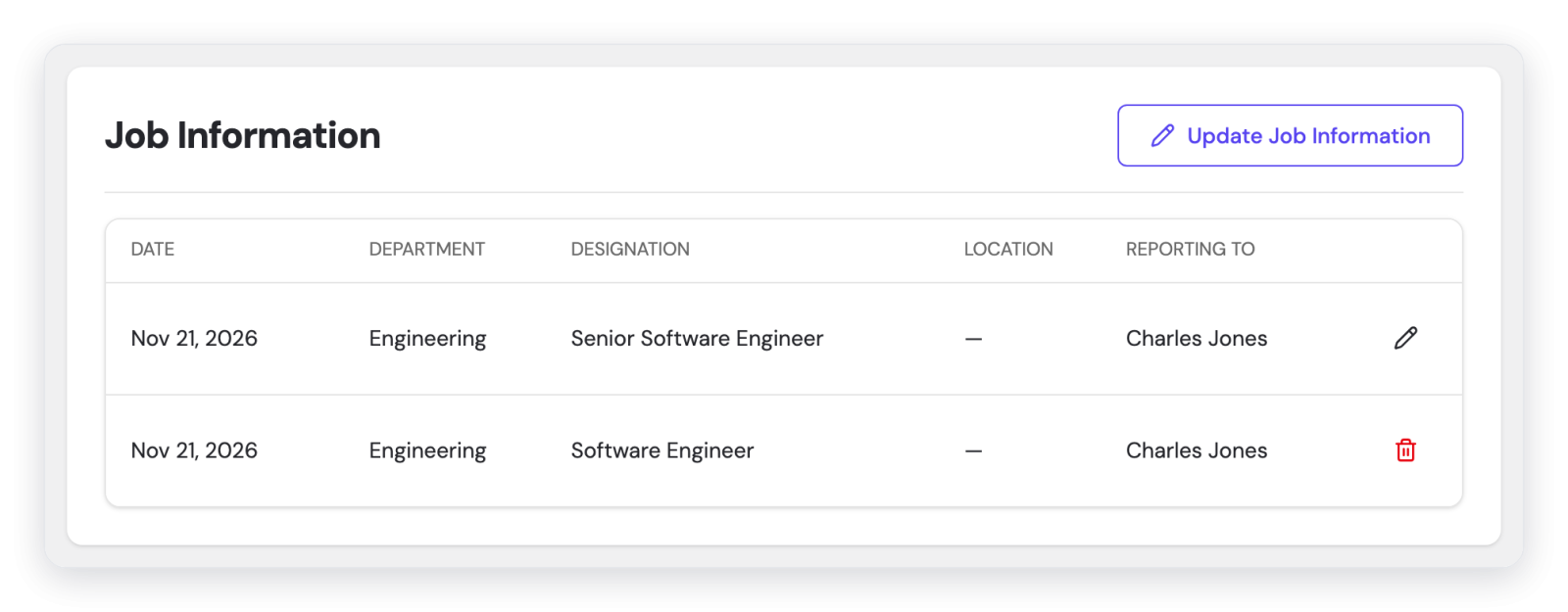
FlyHR adds a row to the Job Information history. The profile header and the employee list show the new values.
Step 3: Change the pay
- In the Compensation part, click Update Compensation.
- Check the Date.
- Type the new Pay Rate and select the Pay Type.
- Optional: select a Change Reason and type a Comment.
- Click Save.
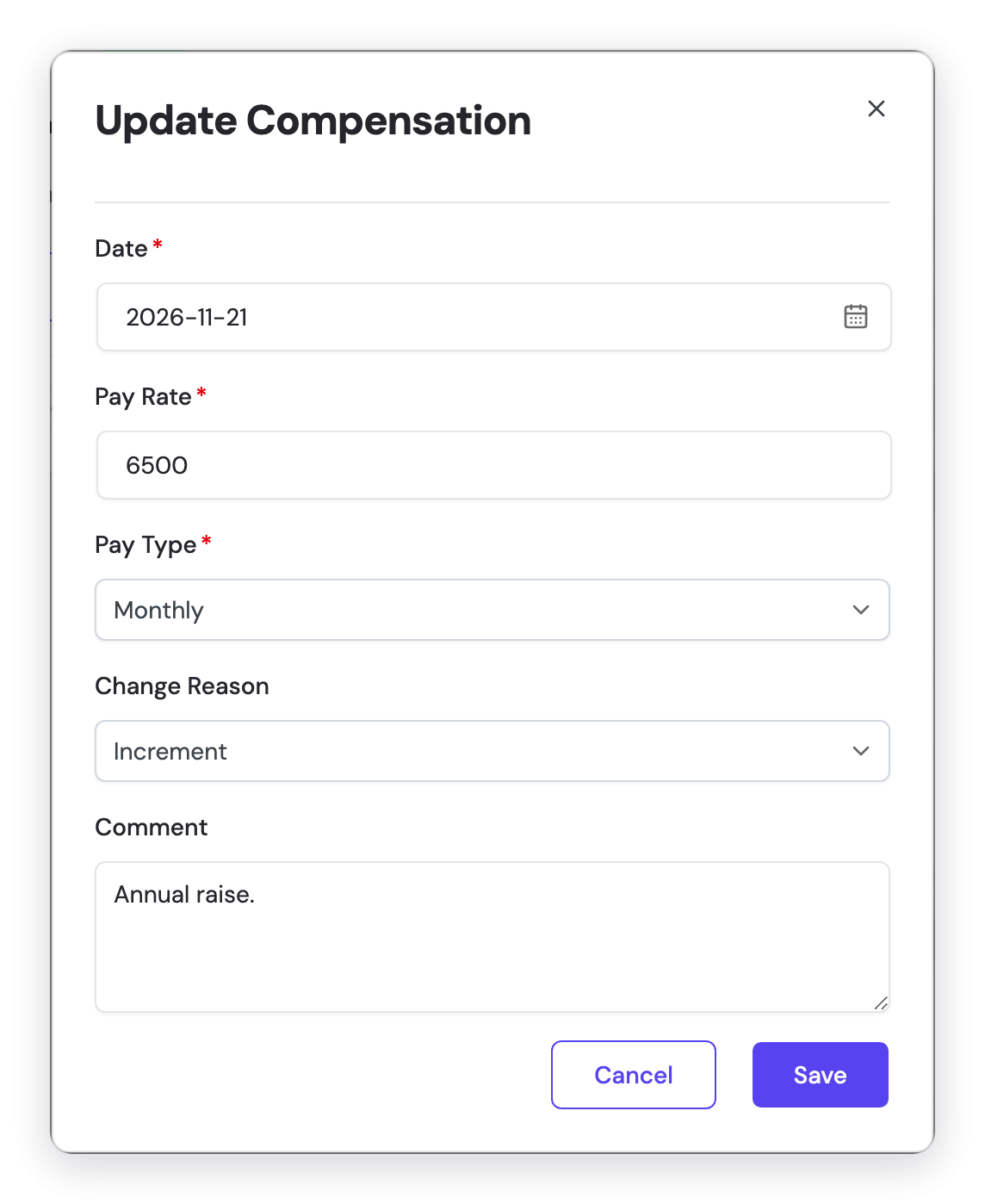
The Salary History report uses these entries. See HR Reports.
Step 4: Change the employment type
- In the Employment Type part, click Update Type.
- Check the Date and select the new Employment Type.
- Optional: type a Comment.
- Click Save.
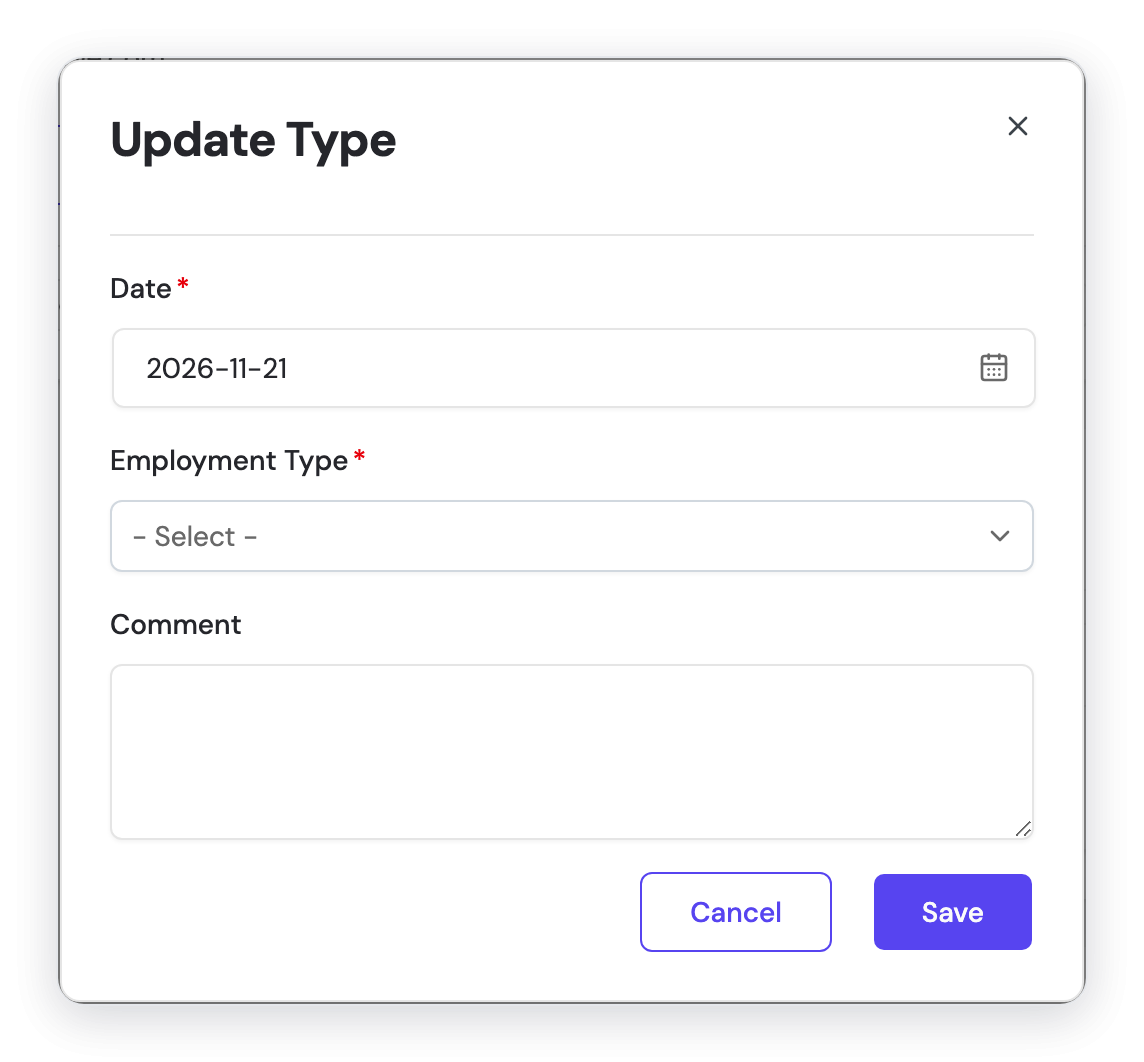
When the employment type changes, FlyHR moves the leave of the employee to the leave policies of the new type.
To change the employment status, for example to terminate an employee, click Update Status. See Change the Status of an Employee.
Edit or delete a history entry
- To correct an entry, click the pencil icon on its row. Change the values, then click Save.
- To remove an older entry, click the trash icon on its row, then confirm. You cannot delete the newest entry.
You cannot move an entry to a date before an older entry of the same part. FlyHR shows "This date cannot be used for the current history. An older entry already exists after this date."
The fields
| Field | Part | What it means |
|---|---|---|
| Date | All | The day that the change starts. It cannot be in the future. |
| Department, Job Title | Job Information | The new team and designation. Both are necessary. |
| Location | Job Information | The office of the employee. |
| Reporting To | Job Information | The manager of the employee. It is necessary. The org chart uses it. |
| Pay Rate, Pay Type | Compensation | The new pay and the pay period. Both are necessary. |
| Change Reason | Compensation | Promotion, Performance, or Increment. |
| Employment Type | Employment Type | Full Time, Part Time, On Contract, Temporary, or Trainee. |
| Comment | Compensation, Employment Type, Employment Status | A note about the change. |