PEOPLE
LEAVE
REPORTS
PEOPLE
Send an Announcement
Use announcements to share news with your employees, for example an office closure or a new policy. Send an announcement to everyone, to one or more departments or designations, or to chosen people. FlyHR emails a published announcement to each recipient.
Employees read their announcements on My Announcements and on the Latest Announcements card of their dashboard.
Before you start
- You must be a WordPress administrator or an HR manager.
Step 1: Open the Announcements page
- Go to People → Announcements.
- Click New Announcement.
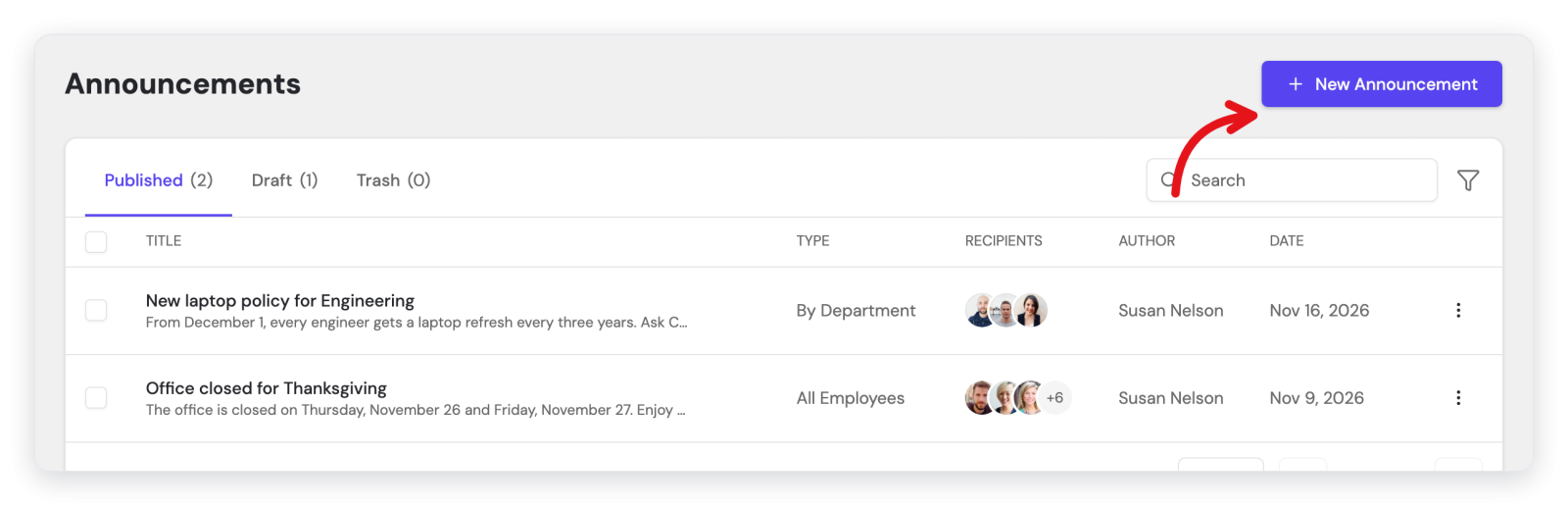
The list has three tabs: Published, Draft, and Trash. For each announcement, it shows the type, the recipients, the author, and the date.
Step 2: Write the announcement
- Type the Title.
- Type the text in Content. Use the toolbar to format the text, add links, or add images.
- In Status, select Publish to send it now, or Draft to finish it later.
- In Send To, select the recipients:
- All Employees
- By Department: then select one or more Departments.
- By Designation: then select one or more Designations.
- Selected Employees: then select the Employees.
- Click Publish. If the Status is Draft, the same button saves the draft.
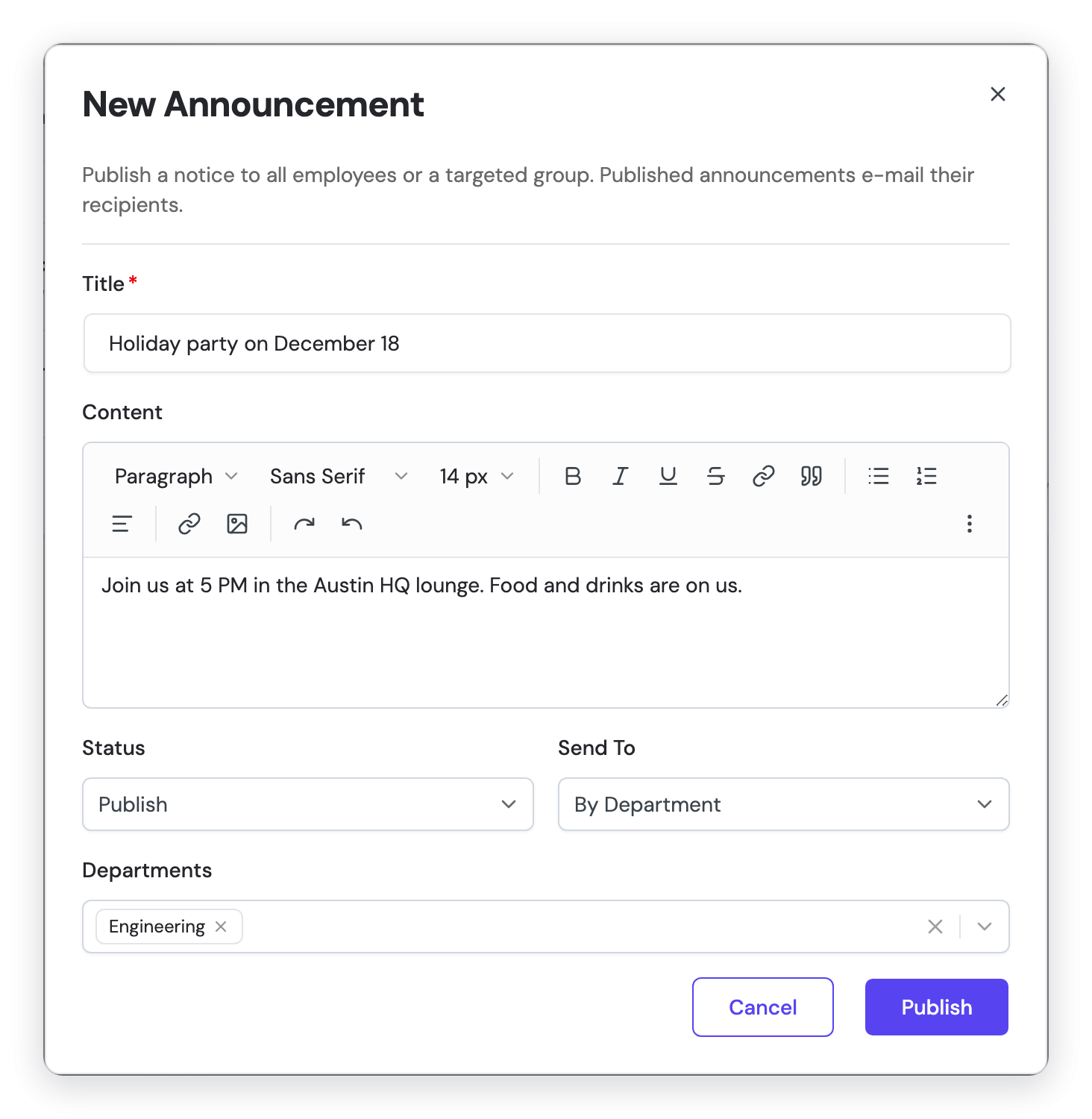
When you publish, FlyHR emails the announcement to each recipient. A draft sends no email. To change the text of the email, see Emails.
See, edit, or delete an announcement
On the row of an announcement, click the three-dot menu:
- View shows the announcement, its recipients, and its status.
- Edit opens the form again.
- Trash moves it to the Trash tab. From there, you can Restore it or Delete permanently.
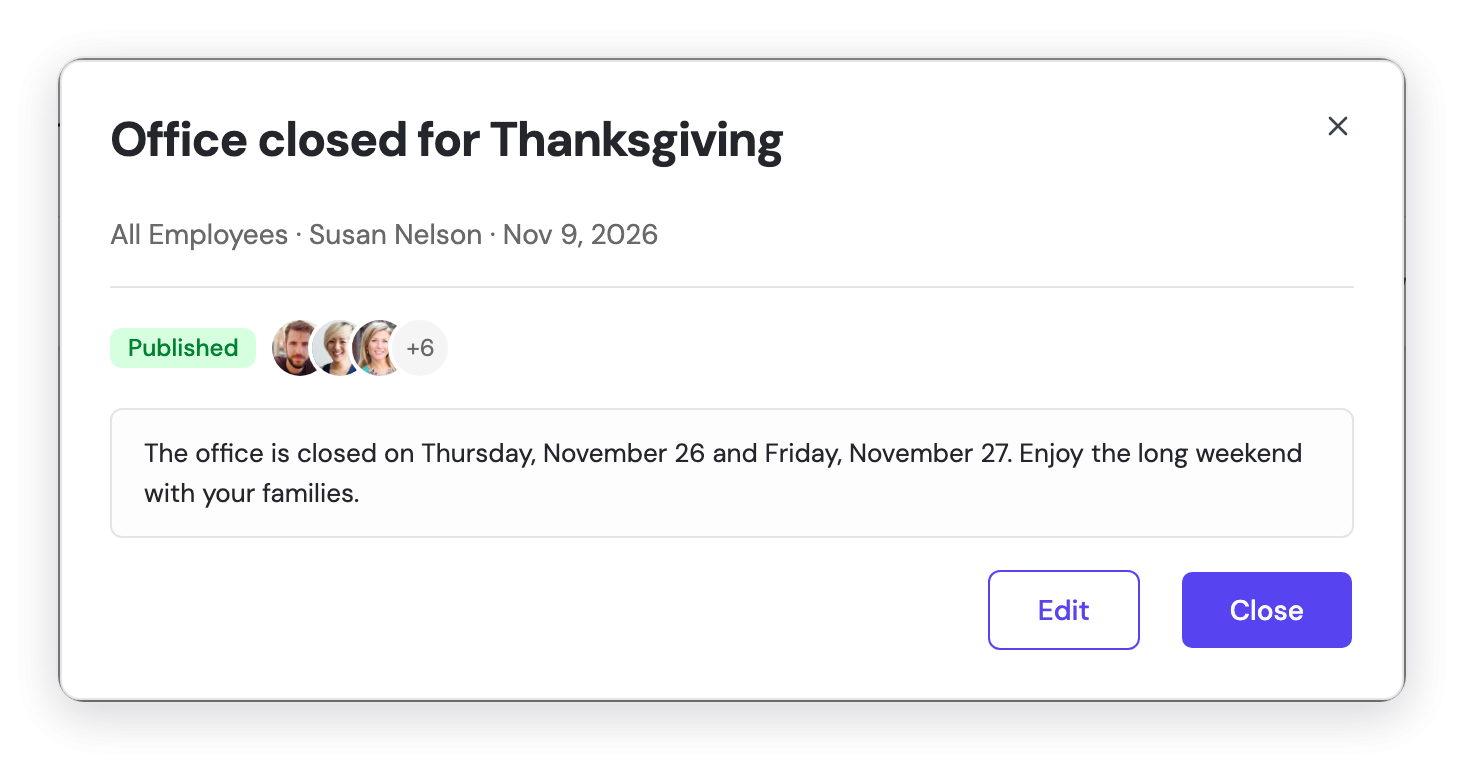
To find an announcement, type in the Search box. Click the filter icon to filter by date range.
What employees see
Employees open My Announcements from the People menu. A dot shows next to each announcement that they did not read yet. Click an announcement to read it.
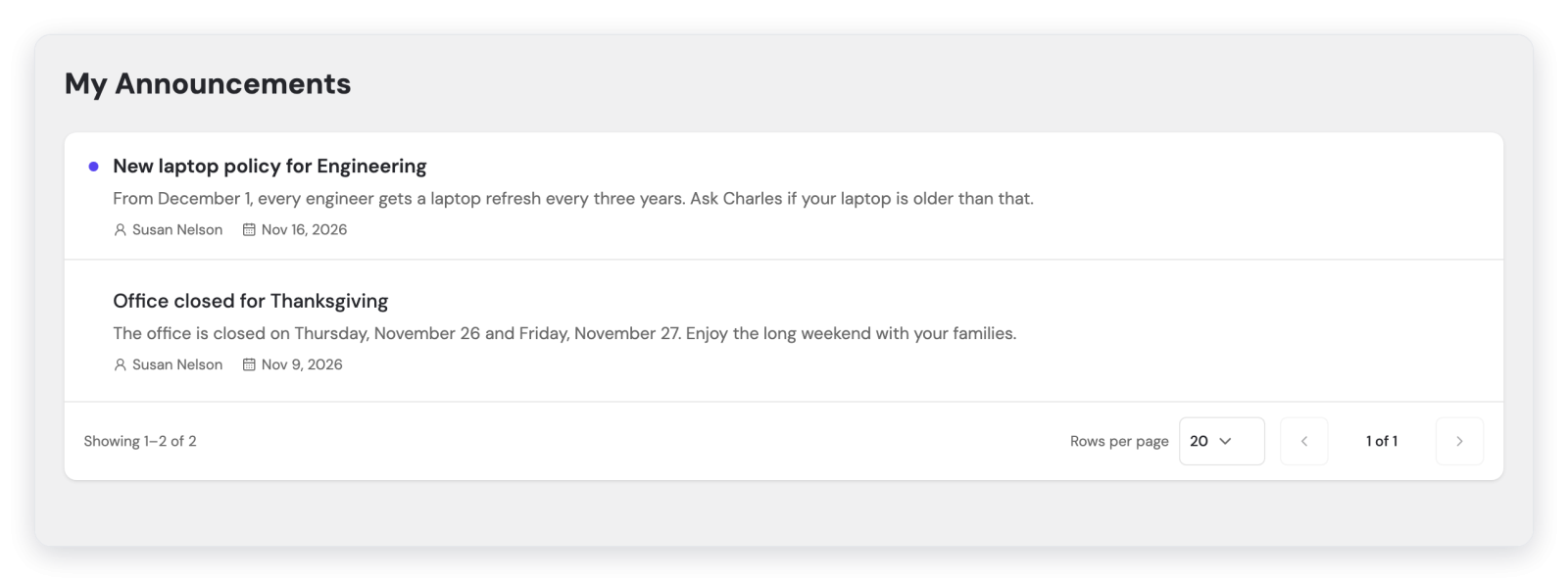
The dashboard of each employee also shows the newest announcements on the Latest Announcements card.