PEOPLE
LEAVE
REPORTS
LEAVE
Leave Types
A leave type is a kind of leave that employees can take, for example Annual Leave, Sick Leave, or Casual Leave. A leave type has no days. You give it days in a leave policy.
Before you start
- You must be a WordPress administrator or an HR manager.
- The setup wizard can add six common leave types for you. See Set Up FlyHR with the Setup Wizard.
Step 1: Open Leave Types
- In the top menu, open Leave.
- Click Leave Types.
The list shows each leave type with its description and the date that it was made.
Step 2: Add a leave type
- Click Add Leave Type at the top right.

- Type the Name, for example Study Leave.
- Optional: type a Description.
- Click Create Leave Type.
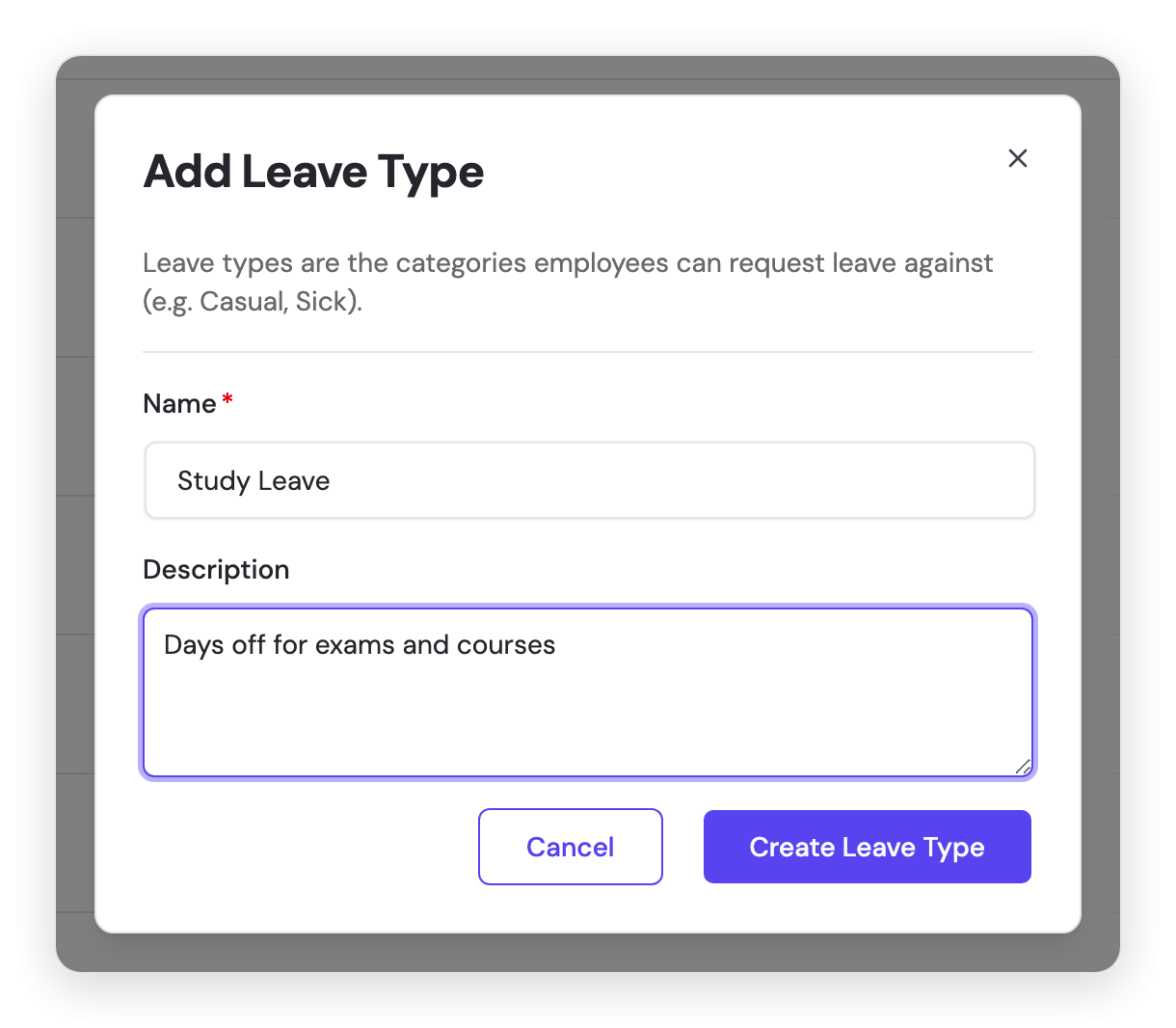
FlyHR shows "Leave type created." Next, give the leave type days in a leave policy. See Leave Policies.
Edit or delete a leave type
- Click the ⋮ menu at the end of the row.
- Click Edit or Delete.

Caution: You cannot delete a leave type that a leave policy uses. Delete the policy first. When you delete a policy, FlyHR also deletes its entitlements and its leave requests.
To delete more than one leave type, select the rows, then click Delete. FlyHR skips each leave type that a policy uses.
The fields
| Field | Necessary | What it means |
|---|---|---|
| Name | Yes | The name that employees see when they request leave. |
| Description | No | A short note about the leave type. |
Was this page helpful?